
How do I create a quotation for the customer?
The quotation is what protects you from “I never agreed to that amount”. In the workshop it is a separate step before the invoice, and it converts into one with a single click.
Steps
- From the job card page press New quotation, or open Workshop → Quotations — Figure 1.
- Confirm the customer, the job card and the warehouse — Figure 2.
- Add the lines. Each has a type: service (labour) or spare part, picked from stock by search.
- Enter the quantity, unit price and tax rate; the line total is computed for you.
- To save time, insert a ready-made package instead of typing its lines one by one.
- Set the quotation date and valid until, write the notes, then save.
- Upload photos of the failed parts from the photos tab; they lift the acceptance rate considerably.
- Once the customer agrees, press Approve.
Notes
- A quotation linked to a job card carries the vehicle details automatically when printed, so always start from the card.
- Keep valid until sensibly short; parts prices move, and an old quotation coming back at you is a loss.
- Separate labour from parts into their own lines; customers accept the amount far more easily when they can see what it is made of.
- Do not start work before the quotation is approved or signed; that is the root of most disputes.
Screenshots
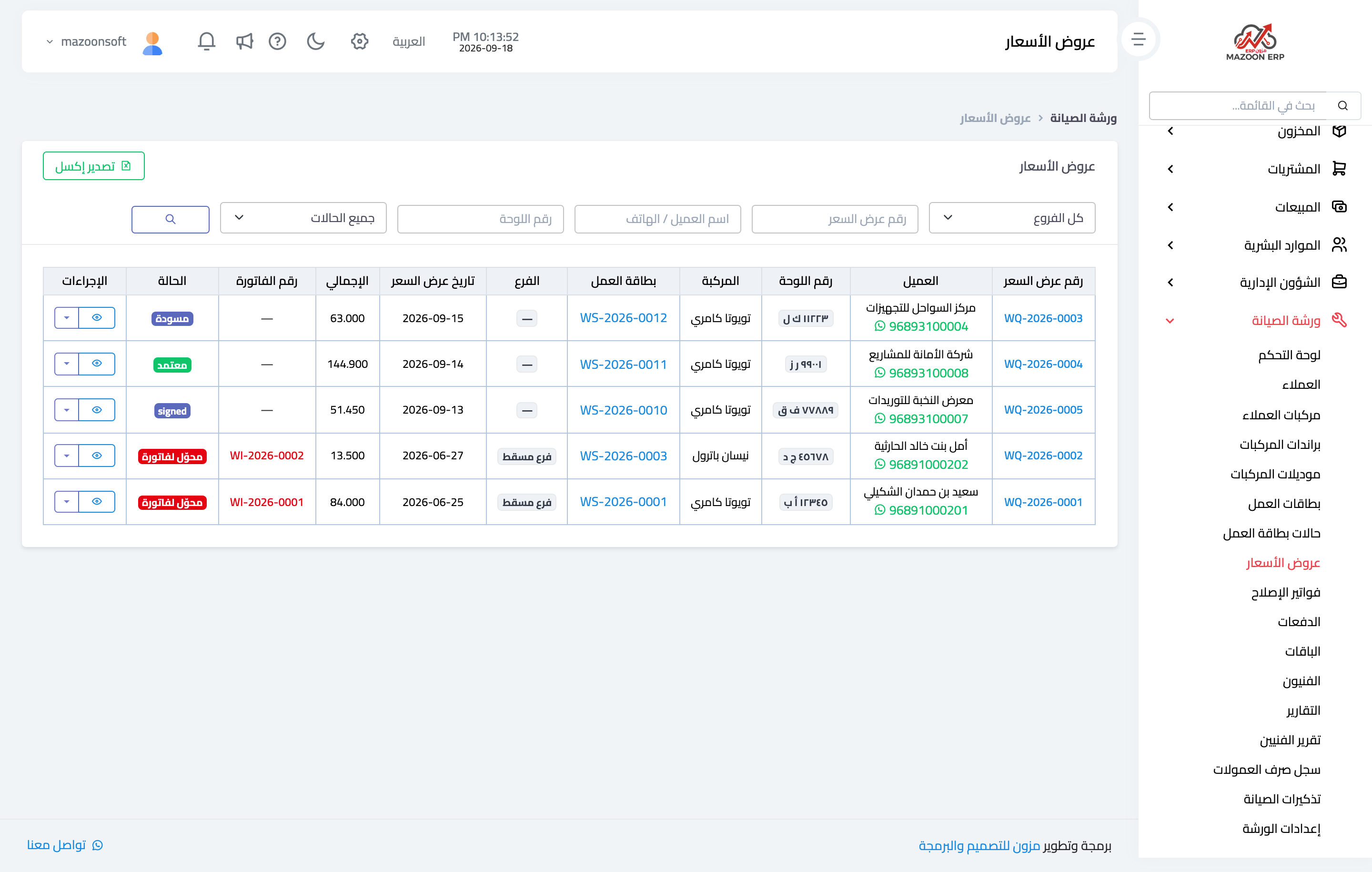
Figure 1
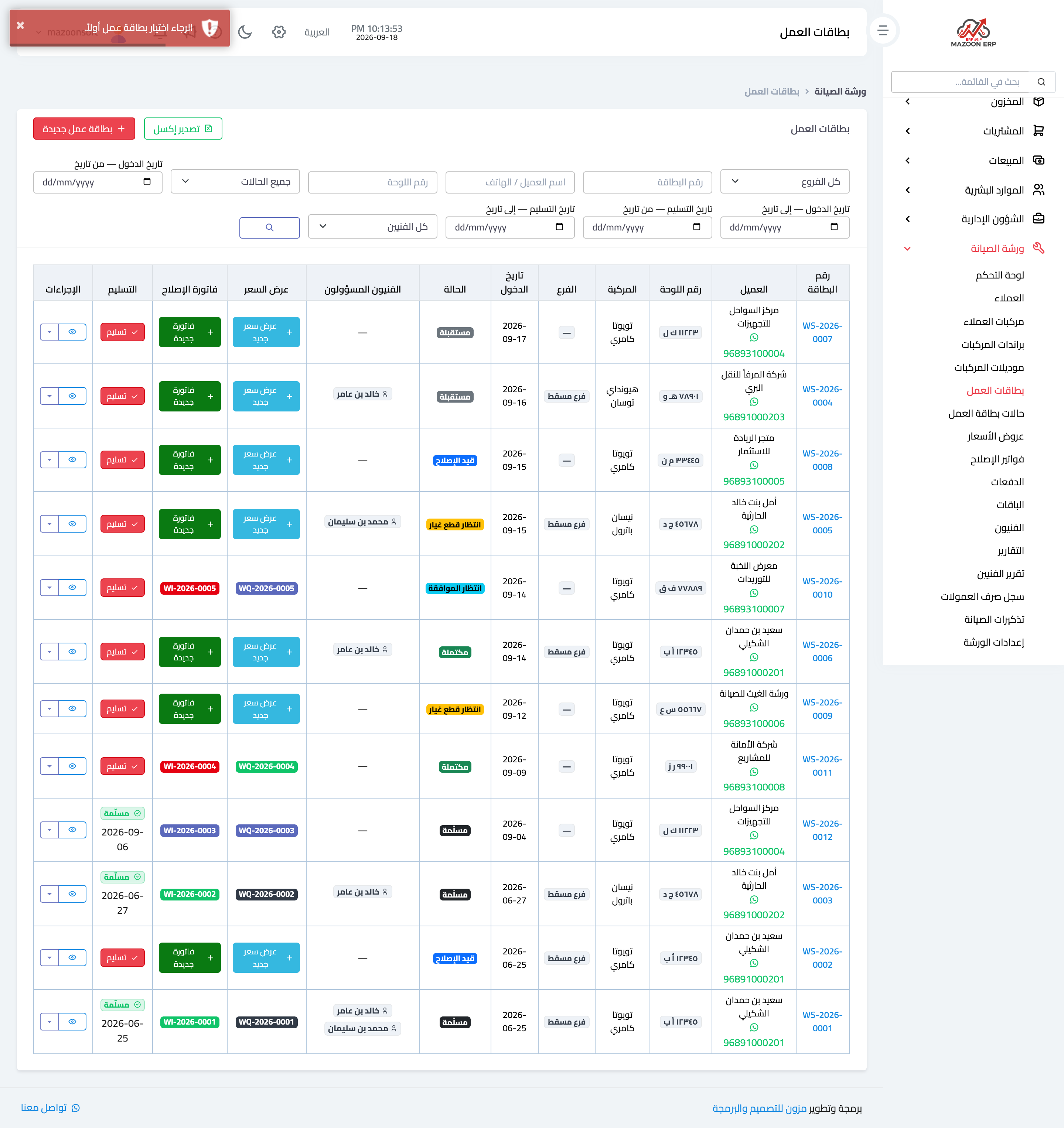
Figure 2
Try what you just read on your own data
Open a free 7-day trial — no credit card, with your own company link in minutes.