
How do I convert a quotation into an invoice?
Once the customer has agreed and the work is done, do not retype the lines — convert the quotation into an invoice with one click.
Steps
- Open the approved quotation — Figure 1.
- Press Convert to invoice.
- A new invoice is created with all the quotation’s lines and prices, linked to the same job card — Figure 2.
- Adjust whatever actually changed during the work — an extra part, or a line dropped.
- Then approve the invoice so it posts to accounting and the parts leave stock.
- The quotation moves to converted to invoice so it cannot be converted twice.
Notes
- Edit the invoice before approving it; afterwards it has already reached accounting and stock.
- If the work grew noticeably beyond the quotation, a second quotation the customer signs is safer than a silent increase on the invoice.
- The converted invoice keeps its link to both the quotation and the job card, which is what keeps the vehicle’s history joined up.
Screenshots
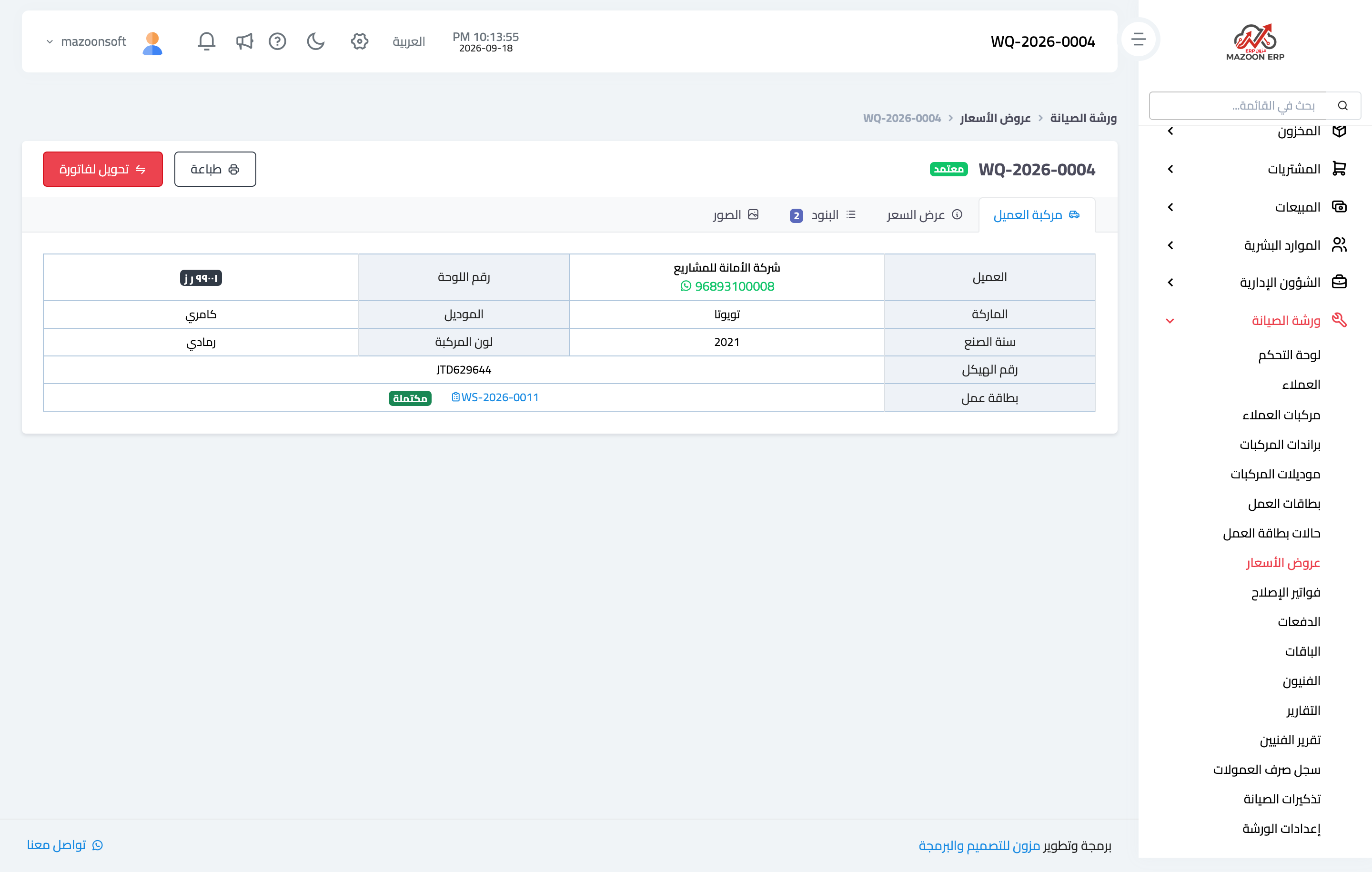
Figure 1
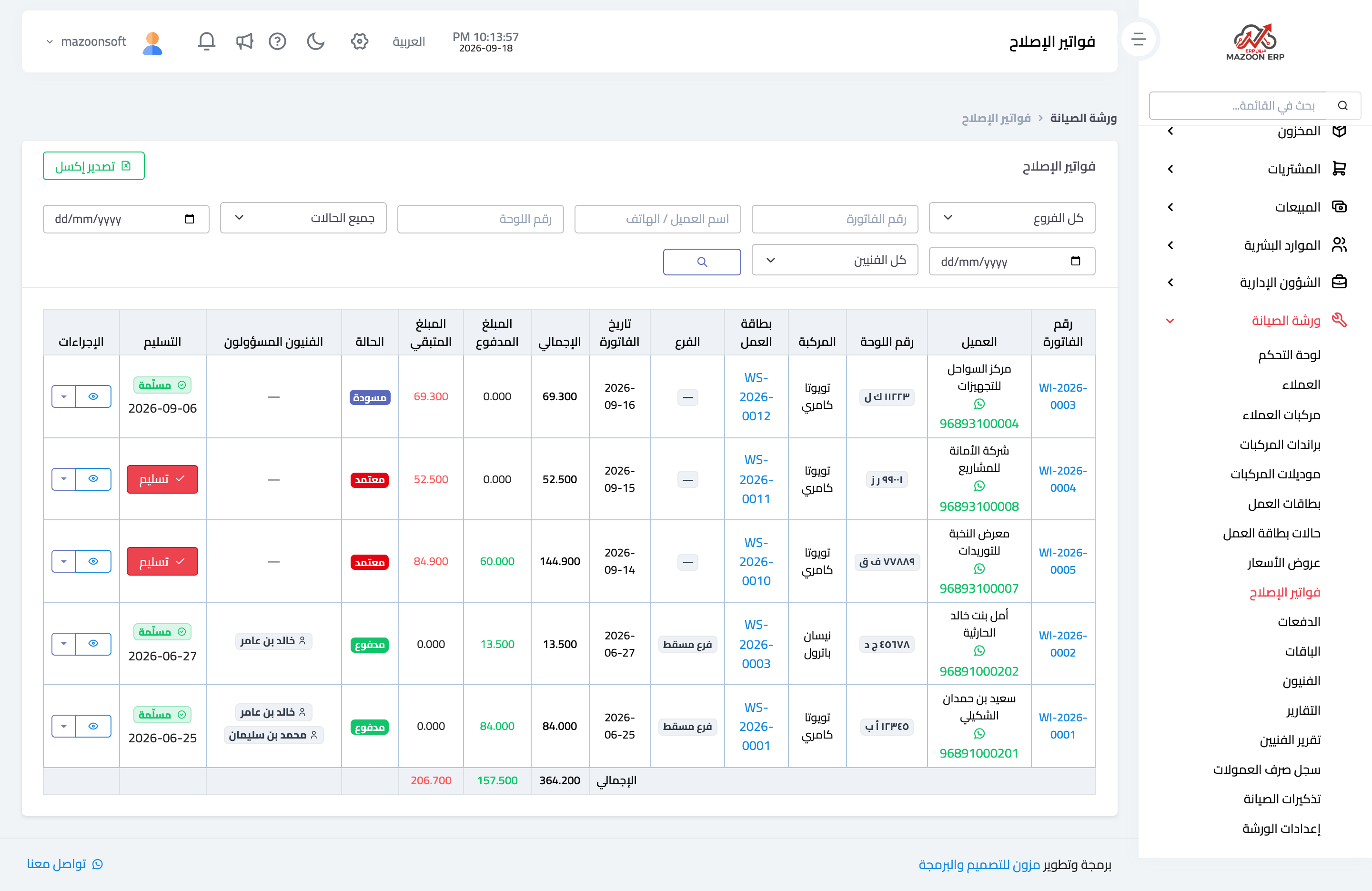
Figure 2
Try what you just read on your own data
Open a free 7-day trial — no credit card, with your own company link in minutes.