
Reorder policies and inventory reports
Running out of a fast-selling item costs you twice: a lost sale and a customer who went elsewhere. Reorder policies turn that surprise into an early warning.
Reorder policies
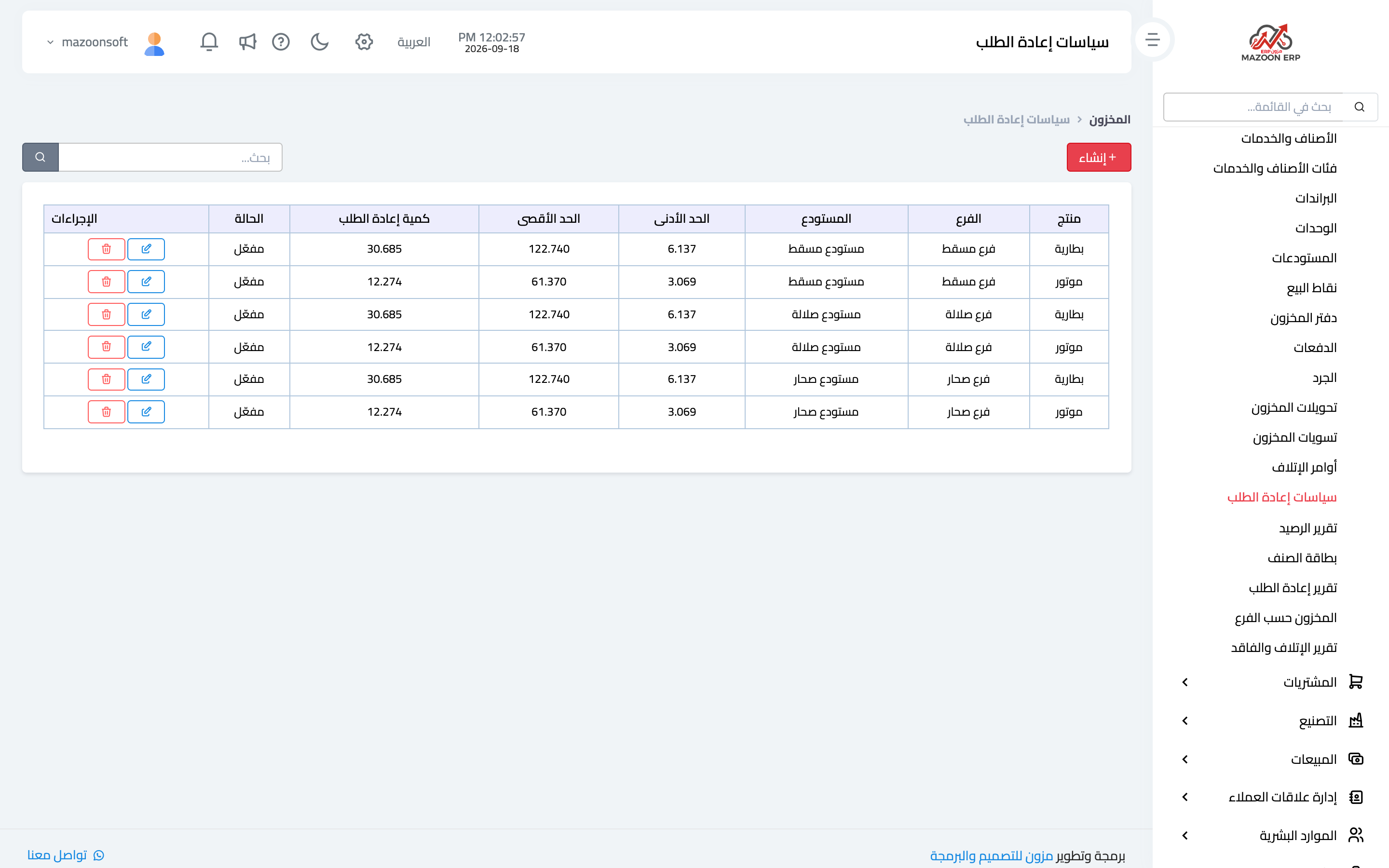
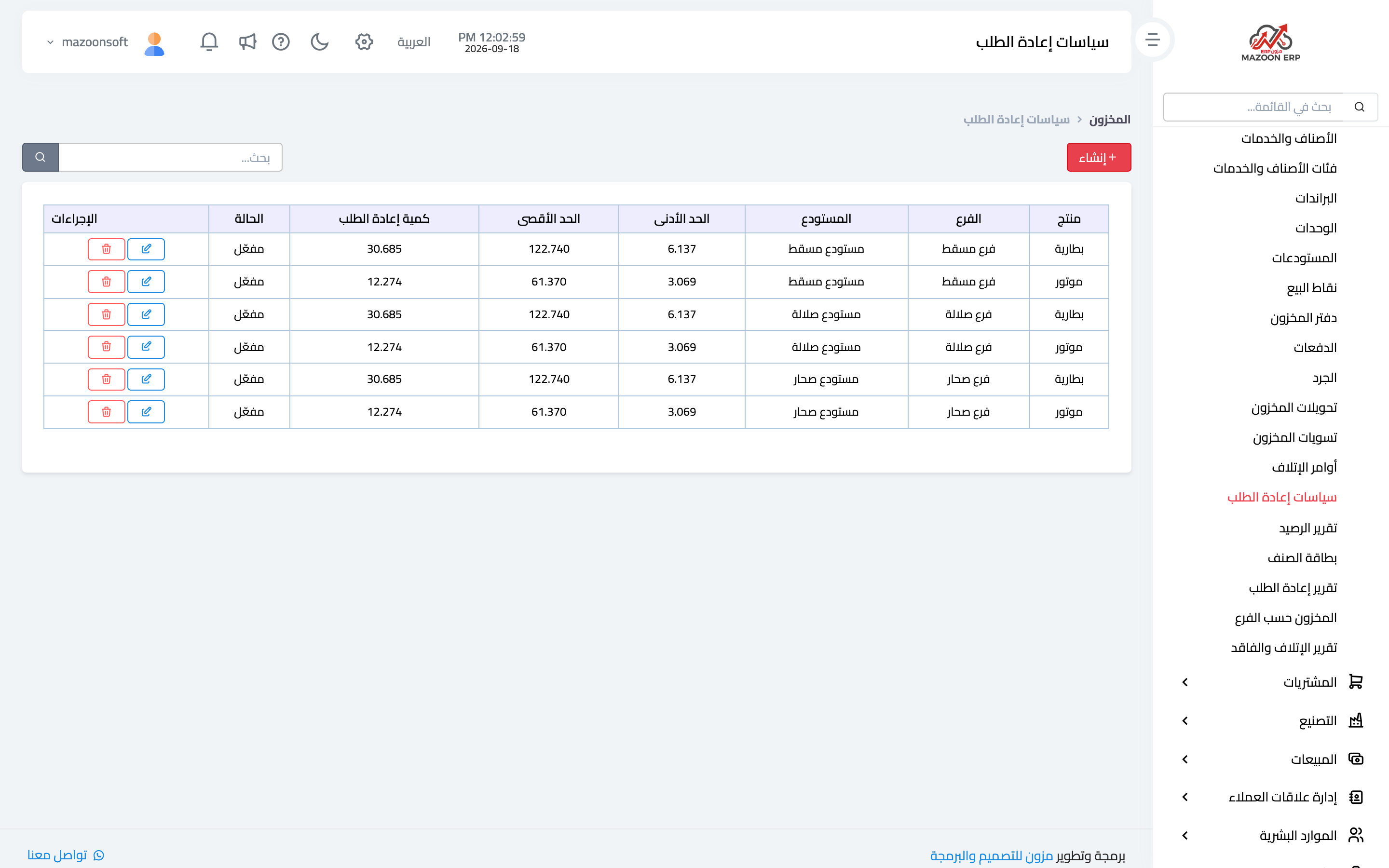
From the inventory dashboard open the Reorder Policies card — image 1 — then Add policy as in image 2. A policy ties an item to a warehouse or branch and sets:
- Minimum level — the quantity at which you must order.
- Reorder quantity — how much to buy when that level is reached.
After that the system watches the balance for you: the item appears in the "below minimum" indicator on the dashboard and in the reorder report.
How to choose the minimum
The practical rule: average daily consumption × lead time in days, plus a safety margin. An item selling 5 a day that takes 10 days to arrive needs a minimum around 50 units plus margin. A minimum of zero means you learn about a stock-out from the customer, not from the system.
Inventory reports
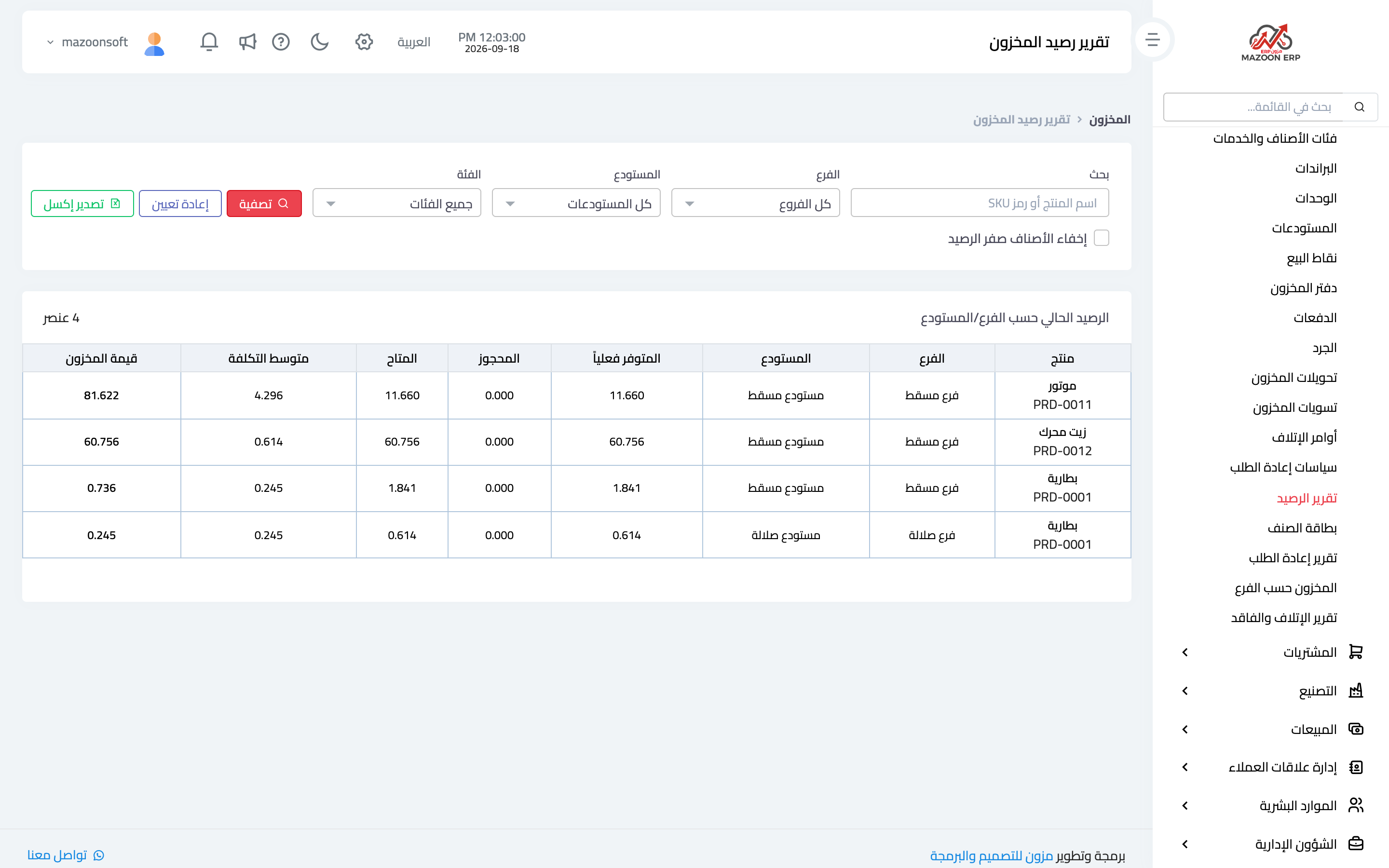
Balance report — image 3
Item balances and their value at a given date, filtered by warehouse, branch or category. This is the report you reconcile inventory value on the balance sheet against.
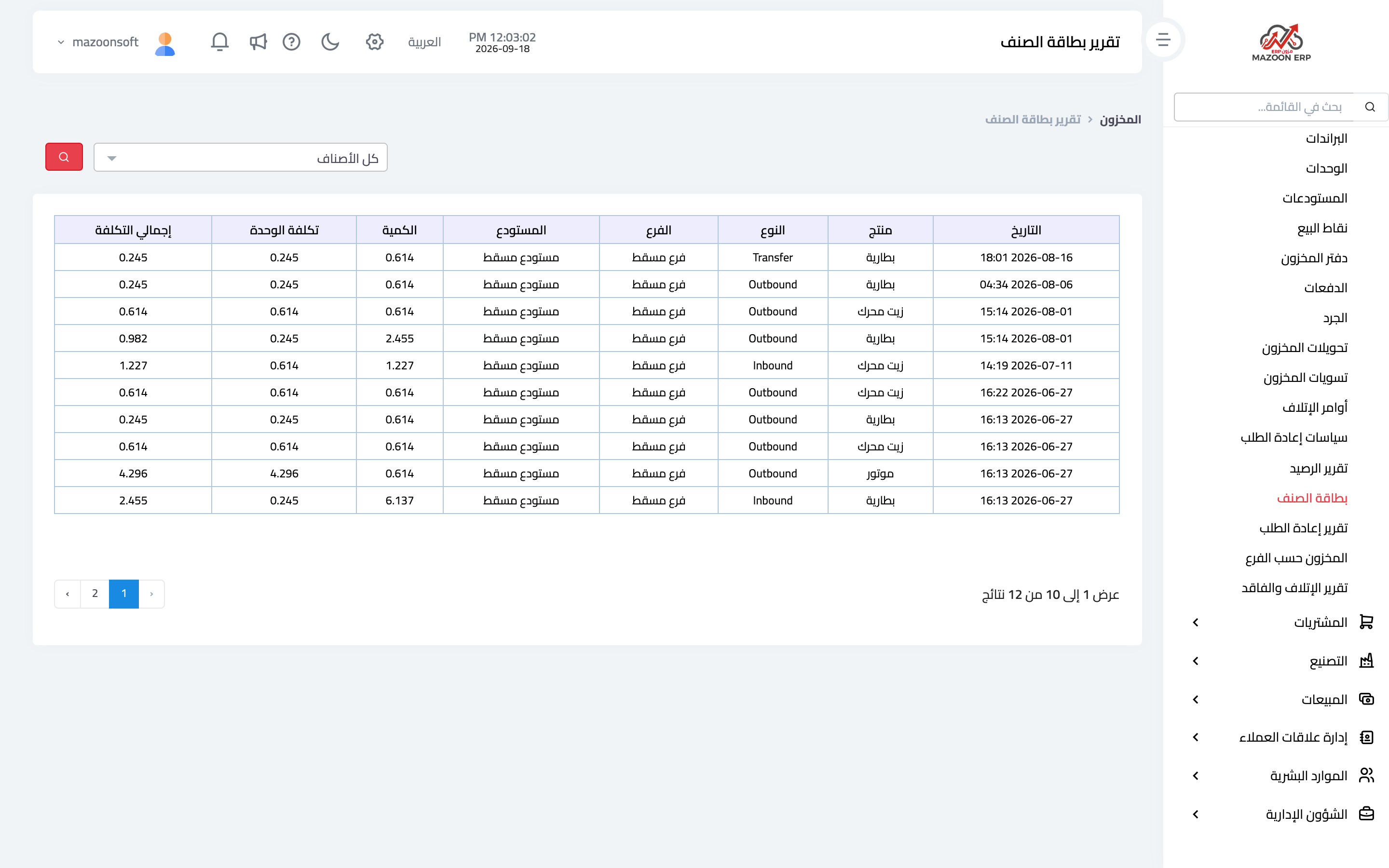
Item card — image 4
The history of a single item: every receipt, issue, transfer and adjustment in order, with the running balance. It is the reference when one item's balance is disputed.
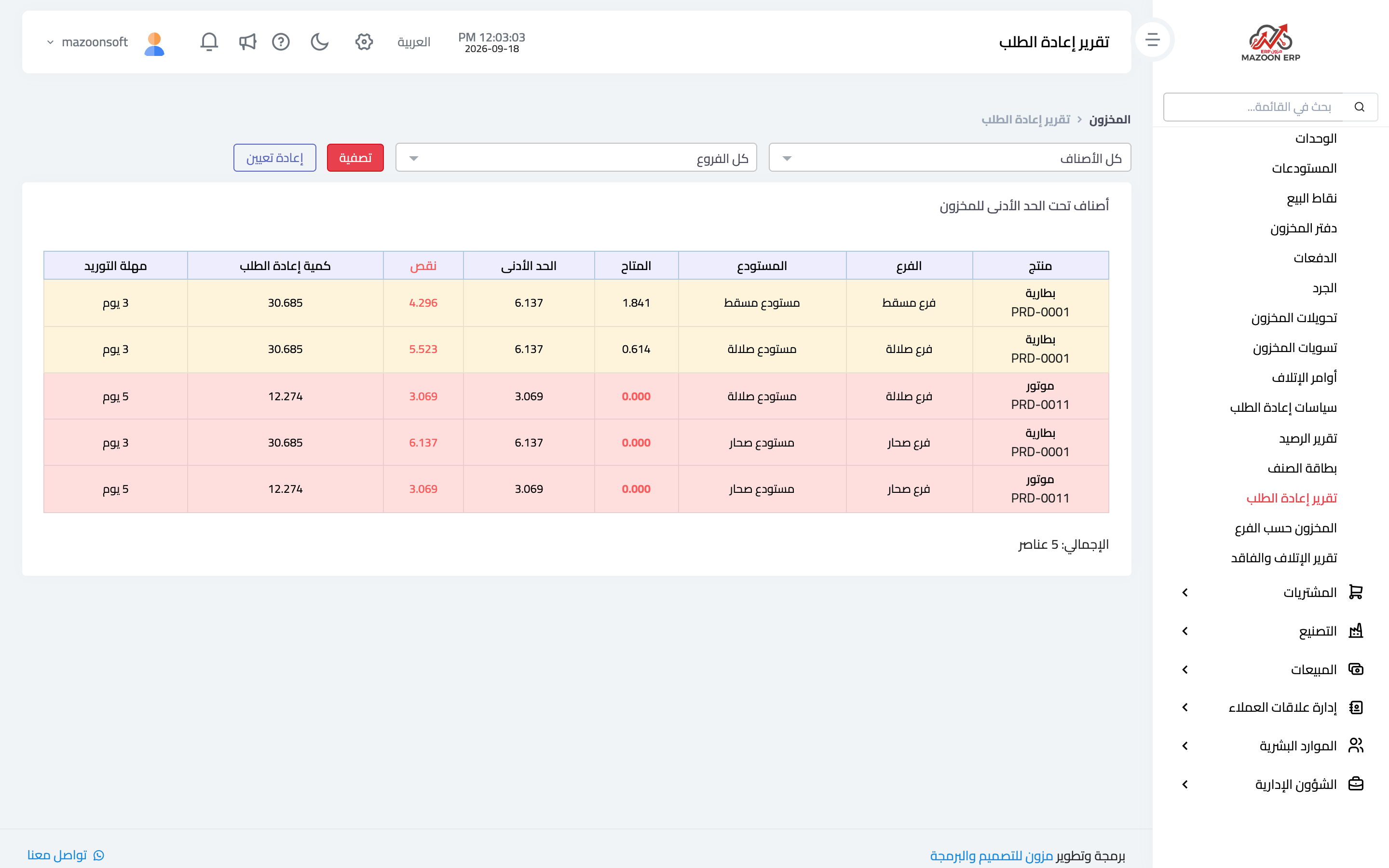
Reorder report — image 5
Items at or below their minimum, with available quantity, the minimum and the suggested quantity. Read it before preparing weekly purchase orders.
Stock by branch
How quantities and value are spread across branches, which exposes imbalance: one branch overstocked with a slow item while another runs out of the same thing — the fix is a transfer, not a purchase.
Scrap and loss report
What left stock as damage or expiry over a period, with its value. Watch it per item rather than only as a total.
A suggested weekly routine
- Open the reorder report and prepare the buying list.
- Check the expiring within 30 days indicator and act on near-expiry batches.
- Look at stock by branch and move surplus instead of buying more.
- Review the scrap report monthly for a recurring pattern.
Screenshots
Try what you just read on your own data
Open a free 7-day trial — no credit card, with your own company link in minutes.