
How do I add an item, and what is the difference between a product, a service and a raw material?
Everything you sell, buy or consume starts on one screen: Inventory → Items & Services. The type you pick here decides how the item behaves everywhere else, so choose it carefully the first time.
Steps
- Open Inventory → Items & Services and press Create Product/Service — image 1.
- Pick the Type: product, service, or raw material.
- The SKU is generated automatically as PRD-0001 and can be changed; the button beside it gives you the next free number.
- Enter the name, and the barcode if the pack carries one.
- Choose the base unit — piece, kilogram, litre and so on.
- Choose a category and a brand if you use them.
- Enter the cost price, the sale price and the tax rate.
- Upload an image if you want (up to 2 MB).
- Set the Track Stock switch, then press Save.
The three types
- Product — something physical with a quantity: a spare part, a can of oil, a ream of paper. It moves in and out of stock and has a balance in every warehouse.
- Service — work you sell by the hour or by the job: an oil change, a consultation, an installation. It has no balance and no warehouse, never appears in balance reports, and cannot take opening stock.
- Raw material — something you buy to consume in production rather than resell as-is. It behaves like a product in stock, but appears in bills of material.
Notes
- The table shows each item's type, image, SKU, barcode, name, category, brand, quantity, unit, cost and sale price, and whether stock is tracked — image 2.
- The filters above the table narrow by type, category, brand or status, and the search box accepts a name, an SKU or a barcode.
- An item used in real transactions is not deleted; bulk delete skips it automatically. Deactivate it instead.
- Creating an item does not give it a balance — that comes from opening stock or from a purchase goods receipt.
- Change the type before any movement, never after; turning a product with stock into a service leaves a balance that means nothing.
Screenshots
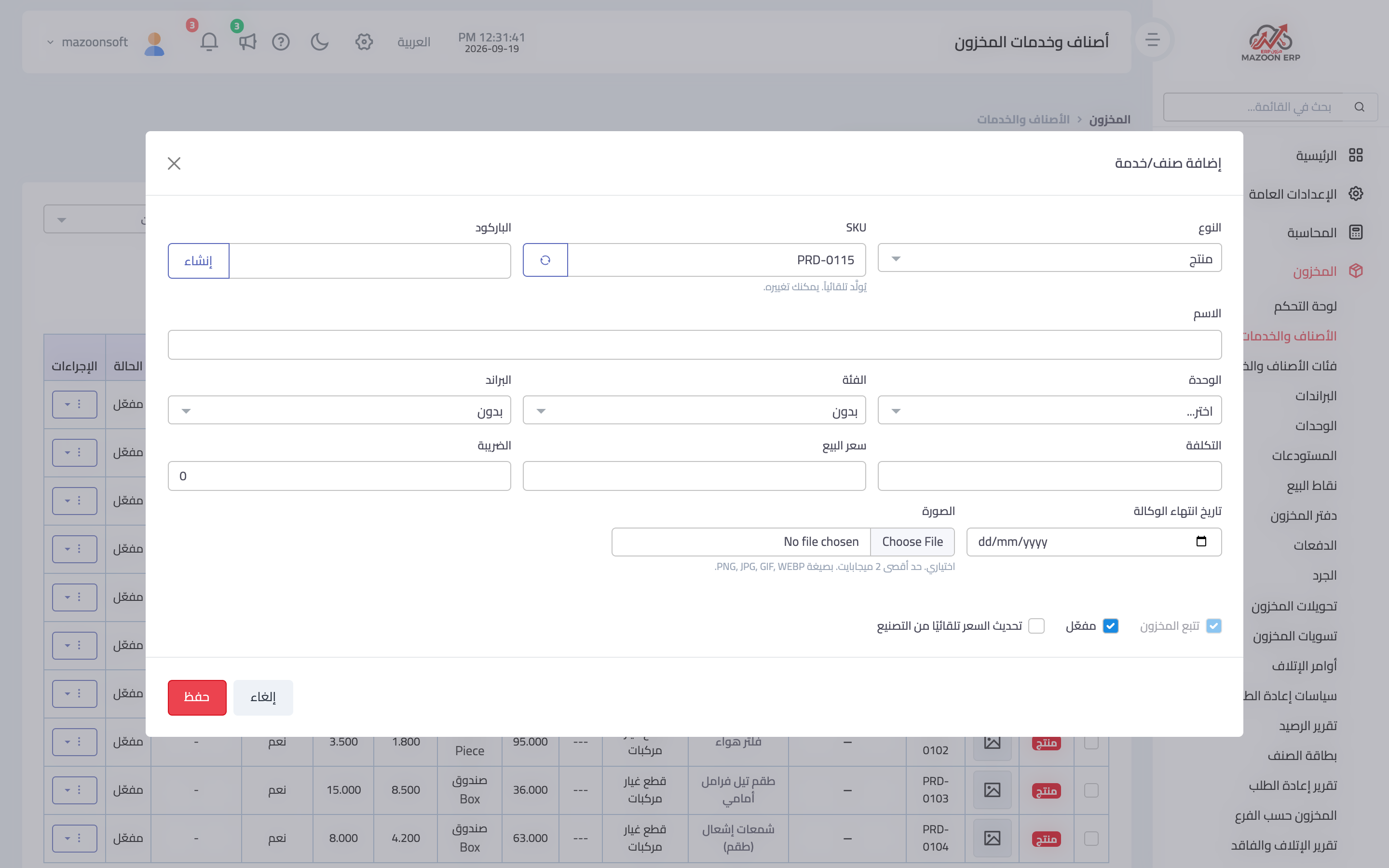
Figure 1
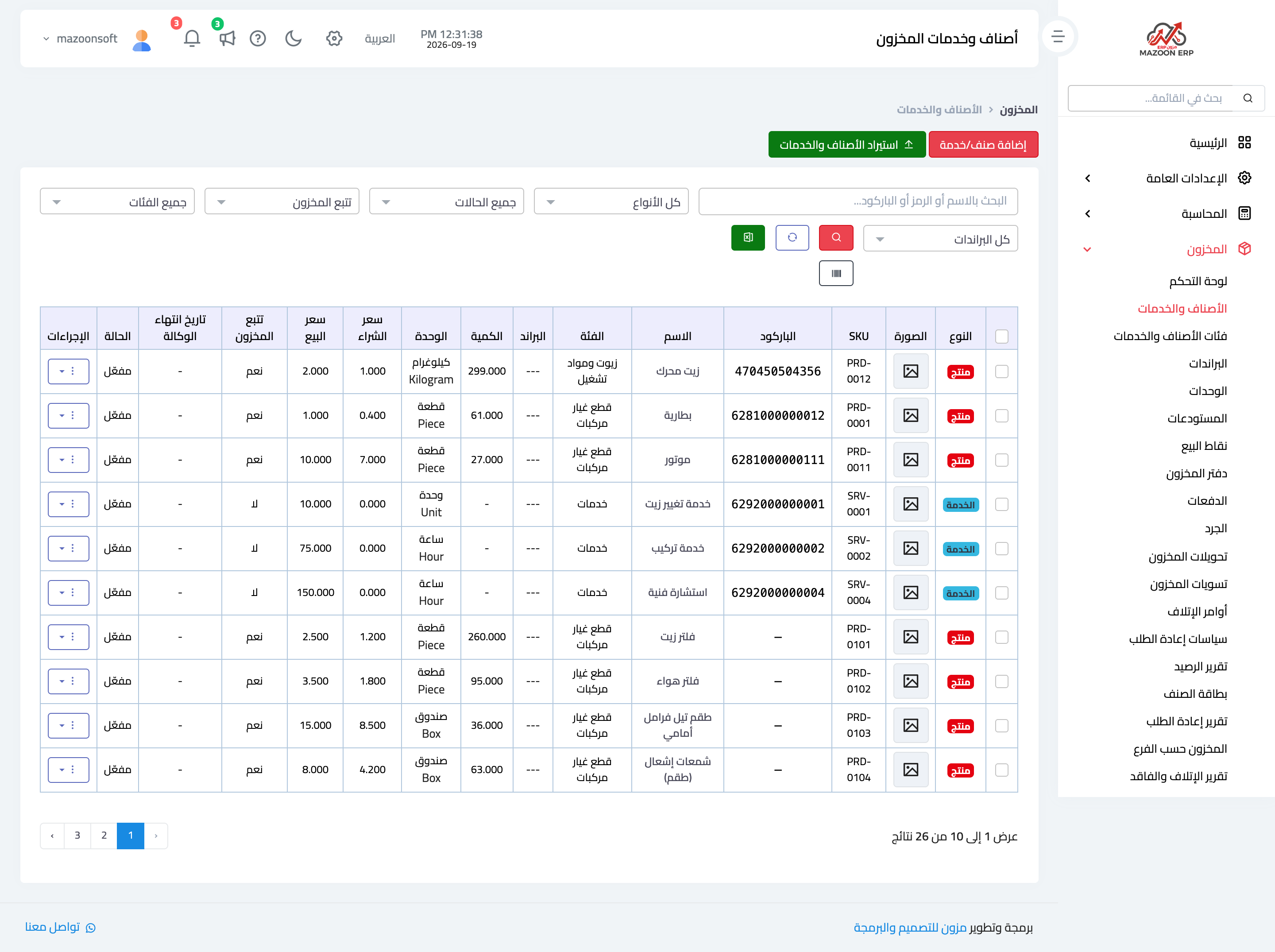
Figure 2
Try what you just read on your own data
Open a free 7-day trial — no credit card, with your own company link in minutes.