
How do I print barcode labels for items?
A label on the pack shortens every sale: the cashier scans it and the item appears instantly instead of being searched by name. Mazoon prints labels in three ready-made sizes.
Steps
- Open Inventory → Items & Services.
- For one item: open its row actions menu and choose Print Barcode.
- For everything: press Print All Barcodes above the table.
- On the labels screen — image 1 — choose the label size:
- Small — 38 × 19 mm, for small spare parts.
- Medium — 63 × 30 mm, the default, right for most packs.
- Large — 99 × 57 mm, for cartons and shelf edges.
- Set the number of copies: either one figure at the top followed by Apply, or a separate figure in the Copies box beside each item.
- Press Print.
Notes
- An item with no barcode is printed with its SKU instead, so nothing is left without a label.
- Set the copy count to the number of physical units you will actually label, not the number of items — a big difference in label stock.
- Choose the label size before buying rolls, and make sure the printer's size matches the one selected.
- Check the browser's print preview before printing for real; printer margins can clip the edge of a label.
- The barcode itself is entered on the item form. Use the one printed on the original pack where there is one, and do not invent numbers that clash with a supplier's barcode.
Screenshots
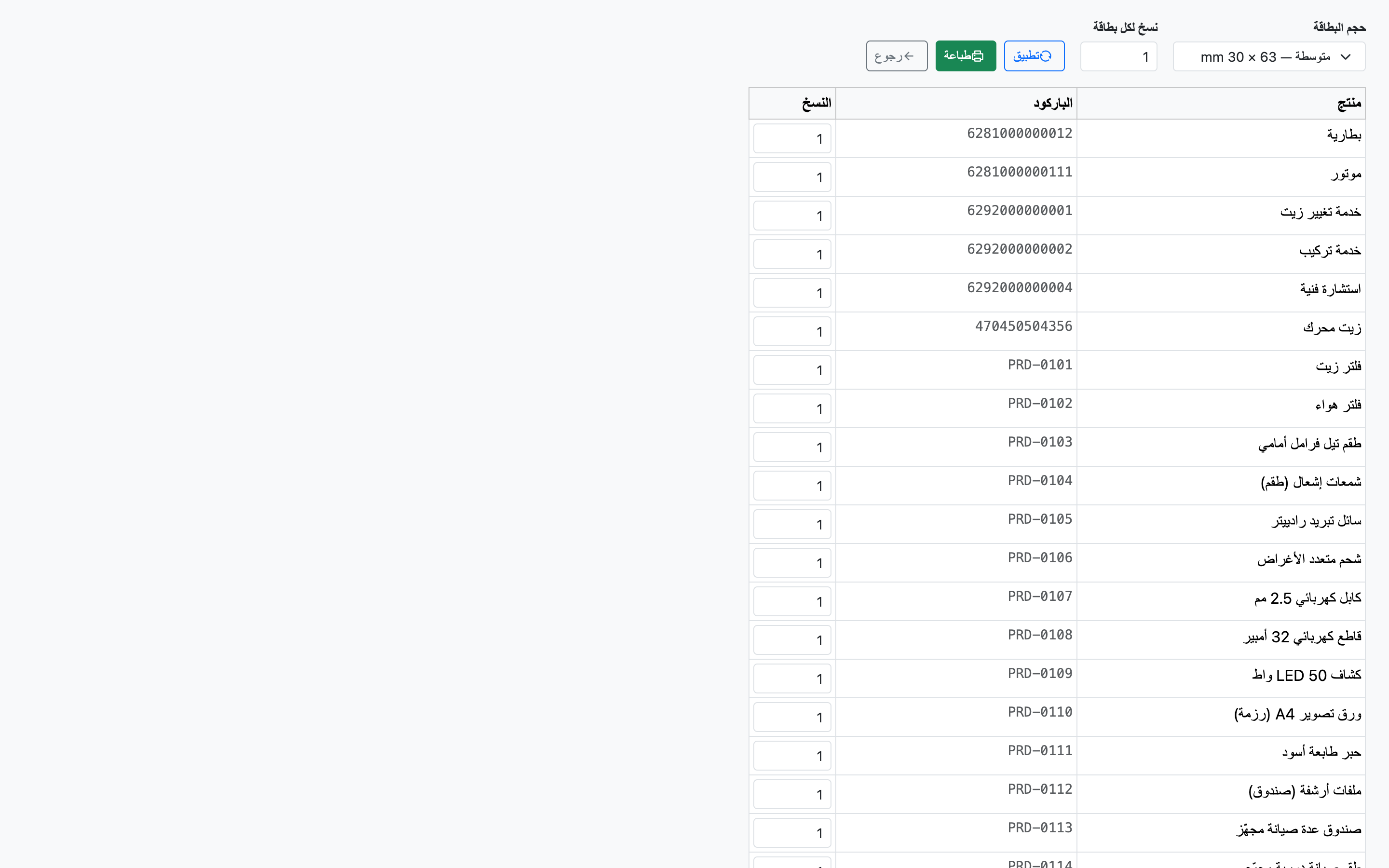
Figure 1
Try what you just read on your own data
Open a free 7-day trial — no credit card, with your own company link in minutes.