
How do I record and approve a scrap order?
Goods broken in handling, past their expiry date, or defective from the factory. Do not remove them from stock with a silent adjustment — record a scrap order that keeps the reason, the value and who approved it.
Steps
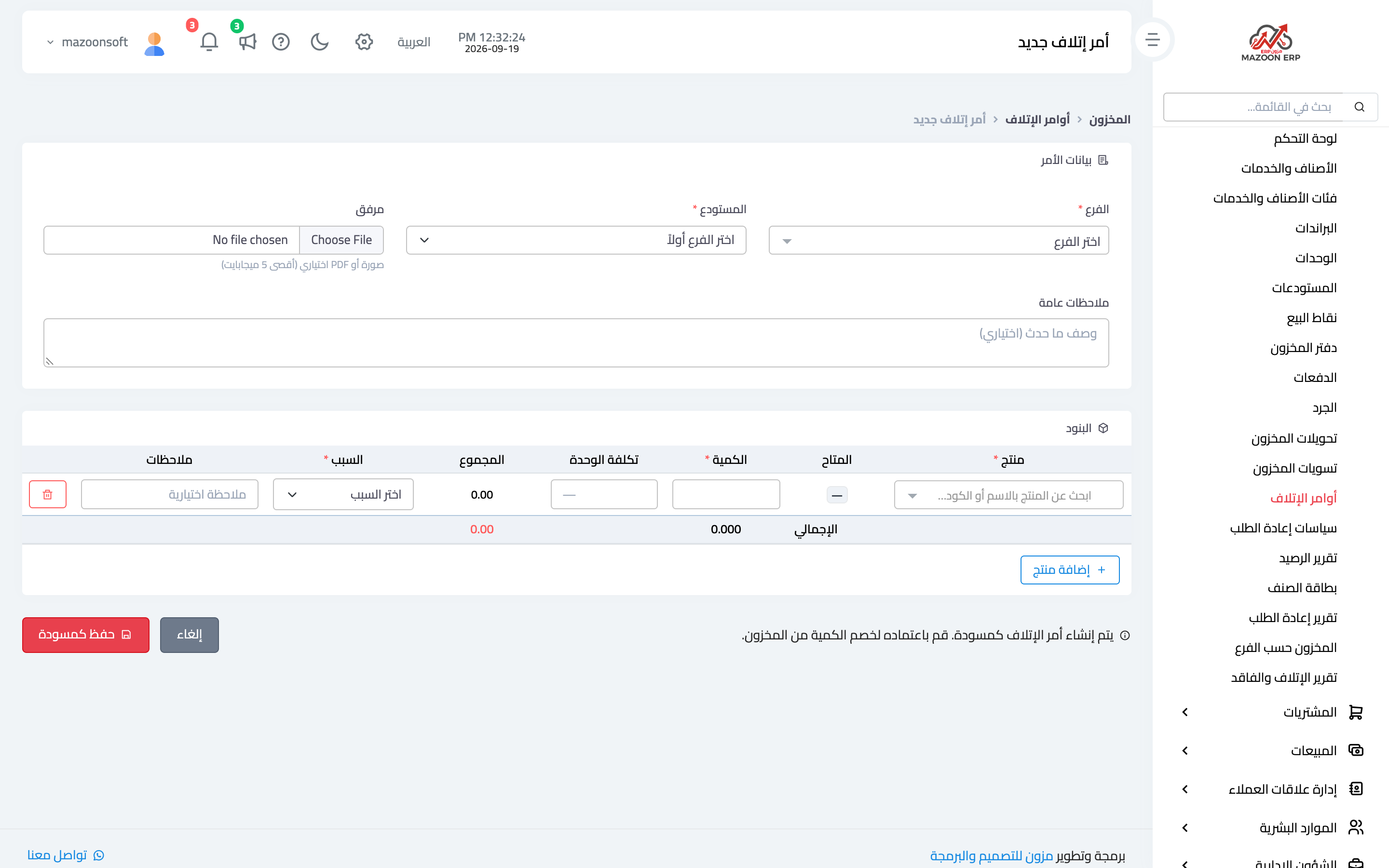
- Open Inventory → Scrap Orders and press New Scrap Order — image 1.
- Pick the branch, then the warehouse.
- Write general notes describing what happened.
- Attach a photo or PDF if you have evidence — up to 5 MB.
- On the lines: choose the product and enter the quantity; the system shows the available figure and the unit cost and calculates the line total.
- Choose the reason: damaged, expired, broken, defective, other.
- Press Save as Draft.
Approval
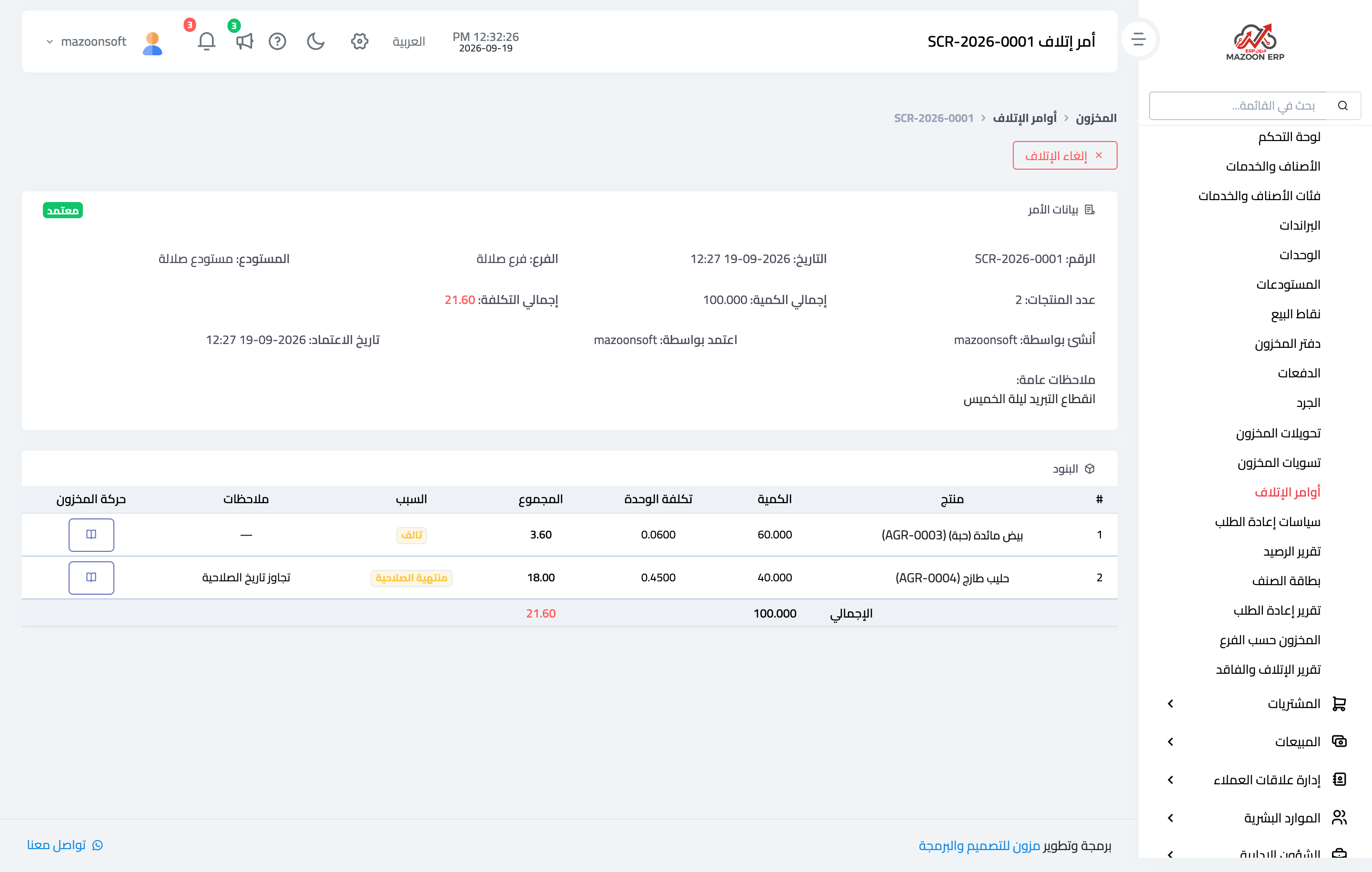
The order is saved as a draft and deducts nothing — the screen says so: "Scrap is created as draft. Approve it to deduct from inventory." Open it and press Approve, and a scrap movement is recorded for each line and the balance drops — image 2.
The accounting effect
Approval creates an entry: debit Inventory scrap loss, credit Inventory, valued at quantity times unit cost. The loss shows up in the income statement instead of quietly vanishing from assets.
Notes
- A draft can be edited and deleted; an approved order cannot be deleted but can be cancelled, which returns the quantity to stock.
- Keep the approval permission separate from the creation one; scrapping is a door that gets abused when both sit with one person.
- The unit cost is filled from the item's average cost in that warehouse and can be edited on the line.
- The attachment is not a luxury: a photo of the damaged goods is what convinces an auditor later.
- Review the scrap report monthly; one reason recurring points to a storage or handling problem.
- Do not scrap goods merely because they are slow-moving — scrapping is for damaged stock, not dead stock.
Screenshots
Try what you just read on your own data
Open a free 7-day trial — no credit card, with your own company link in minutes.