
How do I enter opening stock for my items?
You created your items and every one of them shows zero, while the goods are right there on the shelf. Opening stock is the bridge between reality and the system, entered once when you go live.
Steps
- Open Inventory → Items & Services.
- Open the row's actions menu and choose Opening Stock — image 1.
- On the line, pick the branch and then the warehouse.
- Pick the unit — the base one, or an alternate unit if you defined one.
- Enter the quantity and the unit cost.
- Set the date — usually your go-live date, not today.
- Add an optional note, and press Add Row if the item sits in more than one warehouse.
- Press Save.
Unit cost: why it matters
The figure you enter here becomes the basis of the item's average cost, and on it rest the stock value in your reports and the cost of goods sold. Enter the real purchase cost, not the selling price; if you do not know it, the last purchase invoice is the closest estimate.
Notes
- Services and items with Track Stock off cannot take opening stock; a plain message says so.
- If you pick an alternate unit, the system converts both quantity and cost to the base unit — "5 boxes at 33" becomes "60 litres at 2.750".
- The warehouse must belong to the chosen branch, or the save is refused.
- If your account is restricted to a branch, that branch is fixed for you and cannot be changed.
- Opening stock is an ordinary inbound movement and appears in the stock ledger; there is no undo button. Correct a mistake with a stock adjustment.
- Do this once, at go-live. After that quantities come from goods receipts in Purchasing, not from this screen.
Screenshots
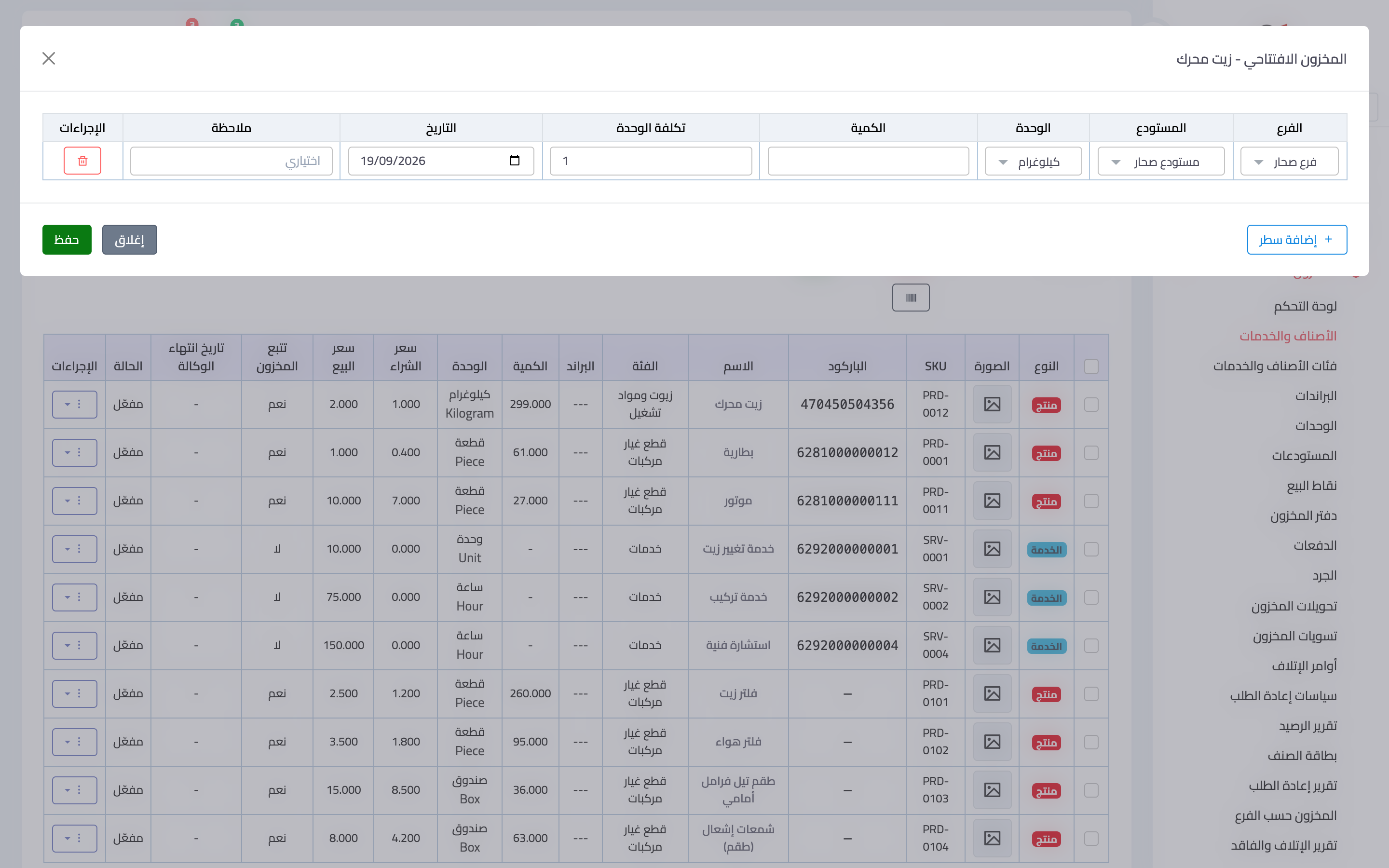
Figure 1
Try what you just read on your own data
Open a free 7-day trial — no credit card, with your own company link in minutes.