
Items, services, categories and brands
Everything you sell or consume is defined once on the Items & Services screen, and then used by Sales, Purchasing and Manufacturing with no re-entry.
The item list
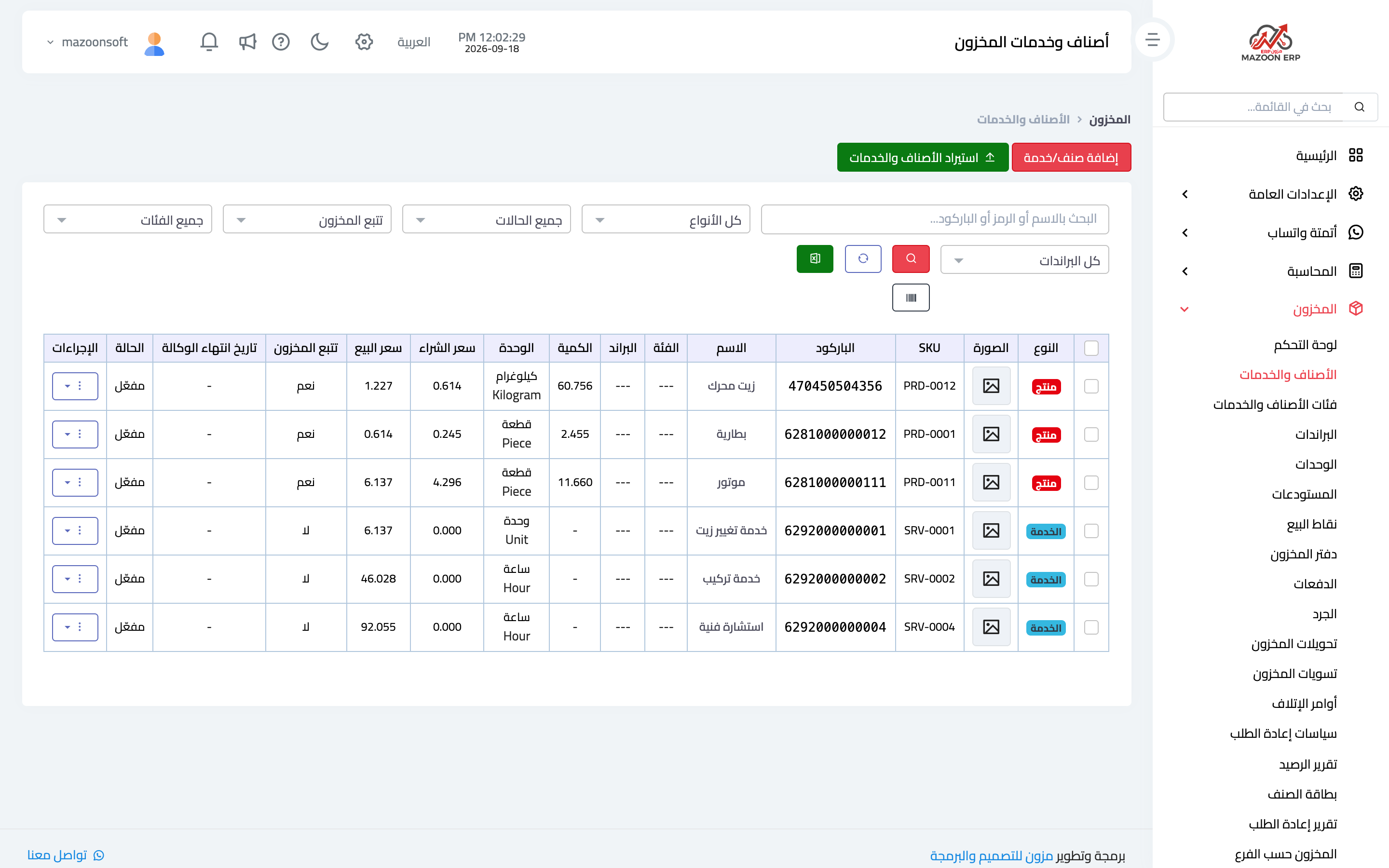
From the inventory dashboard open the Items & Services card. The list appears as in image 1: type (product or service), image, SKU, barcode, name, category, brand, available quantity, unit, purchase and sale price, whether stock is tracked, agency expiry date, and status.
Above the list are filters: search by name, code or barcode, plus type, status, stock tracking, category and brand. Alongside them: export to Excel, import items and services for loading a whole list at once, and a barcode labels button to print labels for the selected items.
Adding an item or service
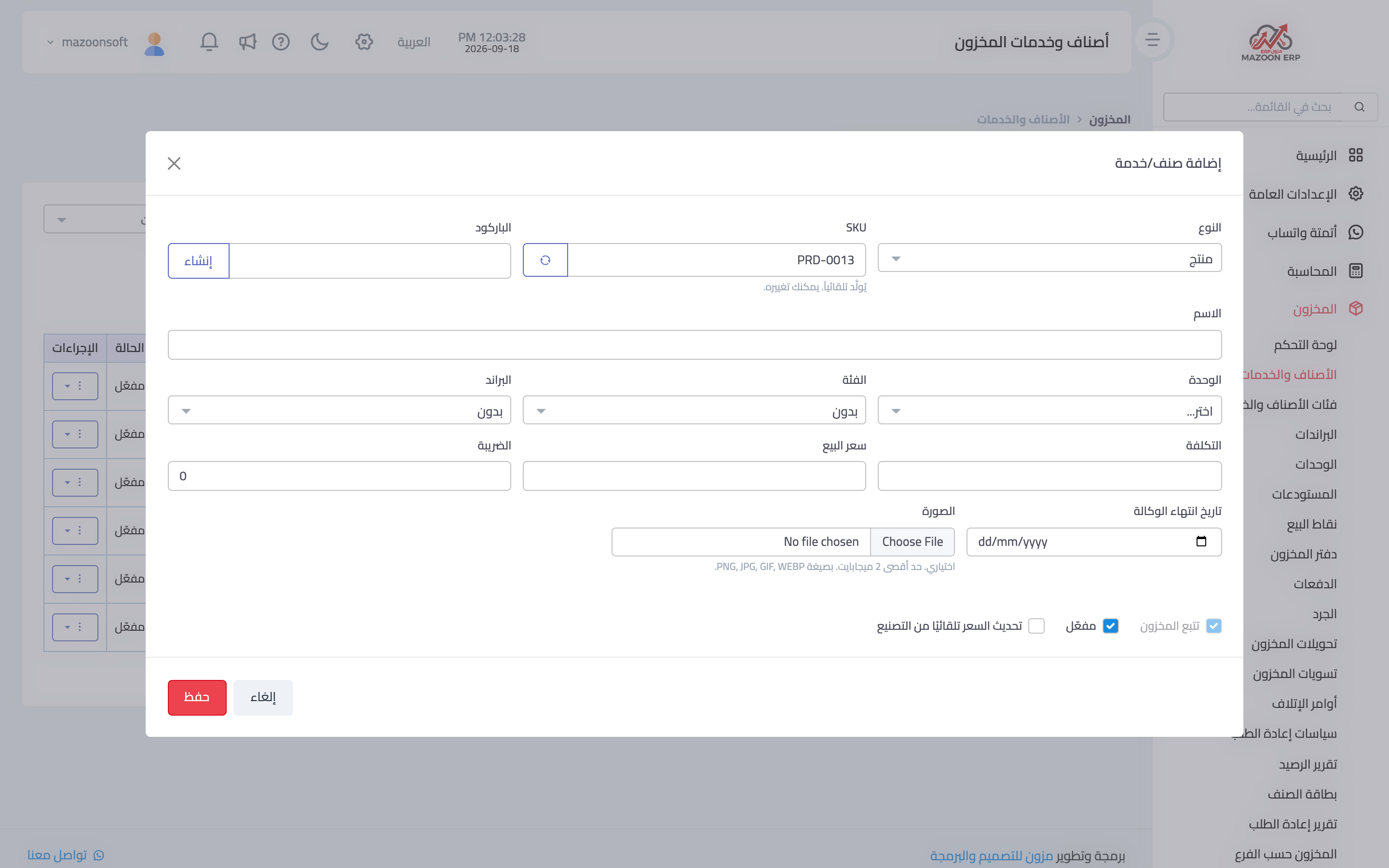
Press Add Item/Service to open the dialog in image 2:
- Type — product (a physical thing with a balance), service (no balance), or raw material consumed in manufacturing.
- Name — as it appears on invoices and sales screens.
- SKU — generated automatically and editable; a generate button creates a new one.
- Barcode — generated automatically, or enter the manufacturer's barcode.
- Category and brand — optional, but they are what keeps reports readable once the list grows.
- Unit — the item's base unit of measure.
- Cost, sale price and tax.
- Track stock — on for products with a balance, off for services.
- Expiry date — for items that expire.
- Image — up to 2 MB; it shows on the point-of-sale screen and speeds up selection.
- Auto-update pricing from manufacturing — for manufactured items, so their cost follows their materials.
Product versus service
The difference is not cosmetic: a product reduces a balance when sold and appears in stock reports and valuation; a service is invoiced without touching any balance. Defining a service as a product drives its balance negative after the first invoice — the most common beginner mistake.
Categories and brands
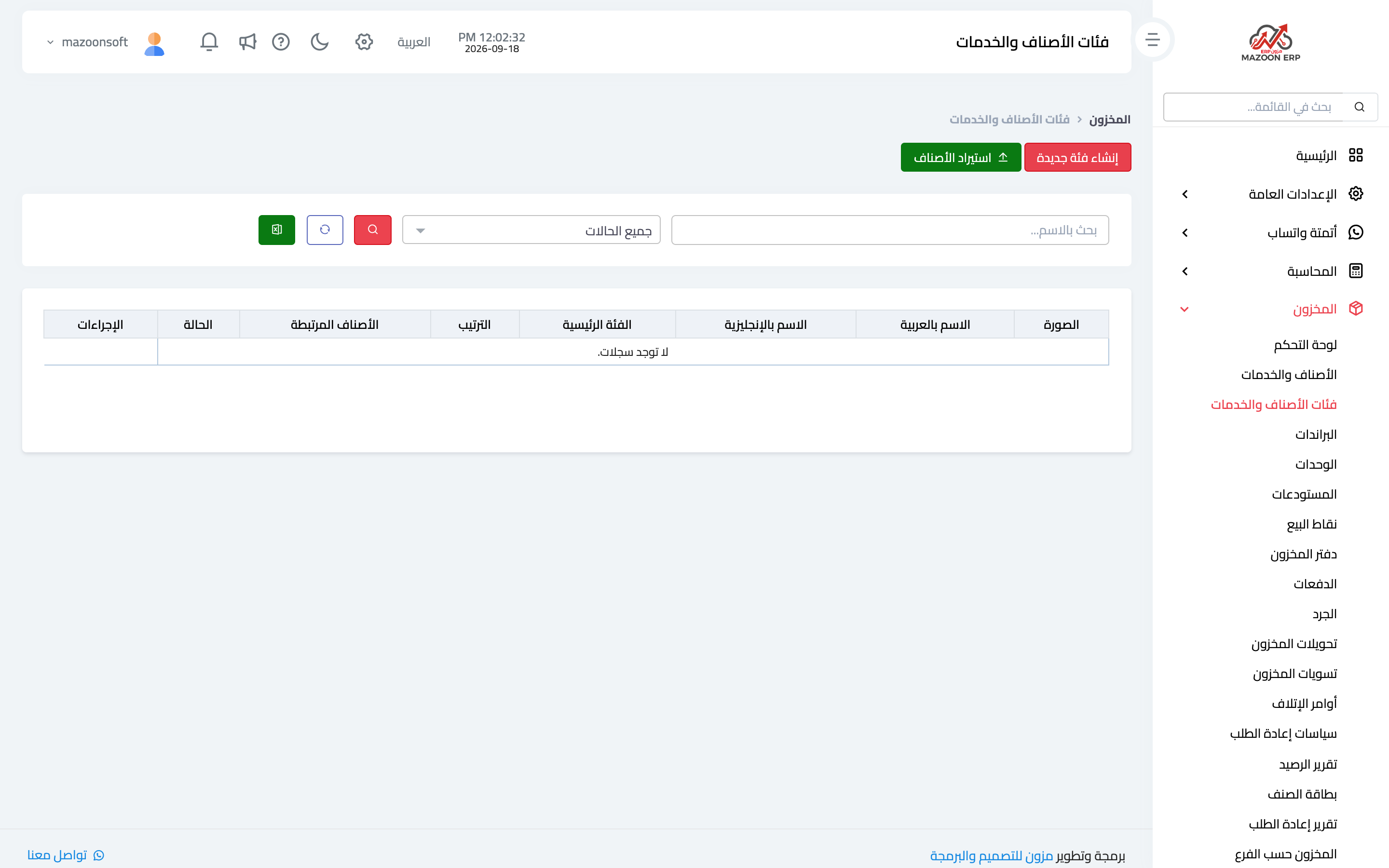
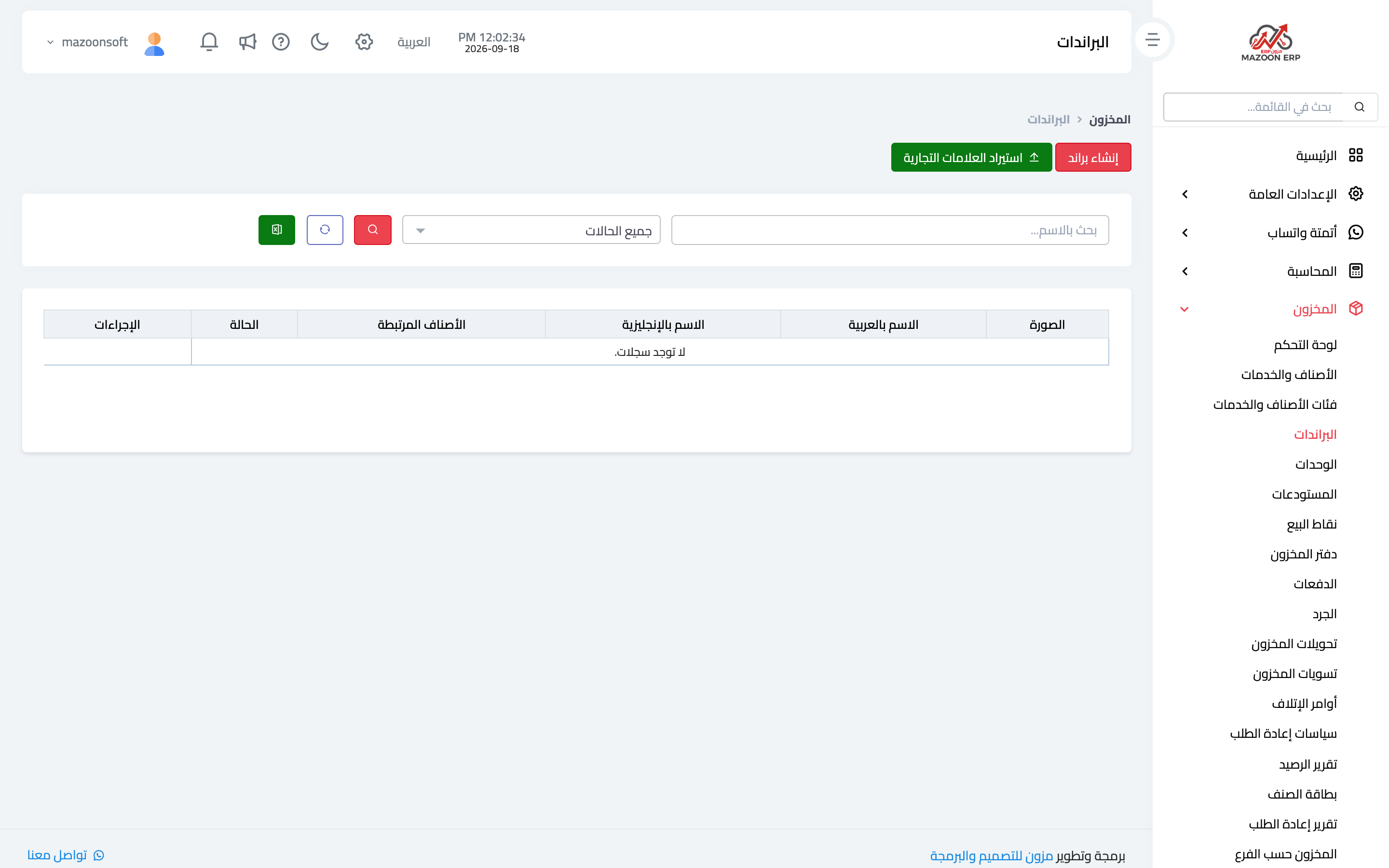
The Item Categories card — image 3 — groups your items, and the Brands card — image 4 — records manufacturers. Both support import and export like items do.
Start with a few broad categories; a category holding one item helps no report, and you can always refine later once your needs are clear.
Opening stock per item
After creating an item, record its opening stock from the actions menu on its row (the opening stock option). Do this before the first sale or purchase, or you will see negative balances and reports that do not reflect reality.
Screenshots
Try what you just read on your own data
Open a free 7-day trial — no credit card, with your own company link in minutes.