
Service invoices: issuing and instalments
A service invoice is the document that bills your customer for a service you delivered. The moment it is approved the system creates its entry: a receivable on the customer, revenue for you, and tax payable if the service is taxable.
The invoice list
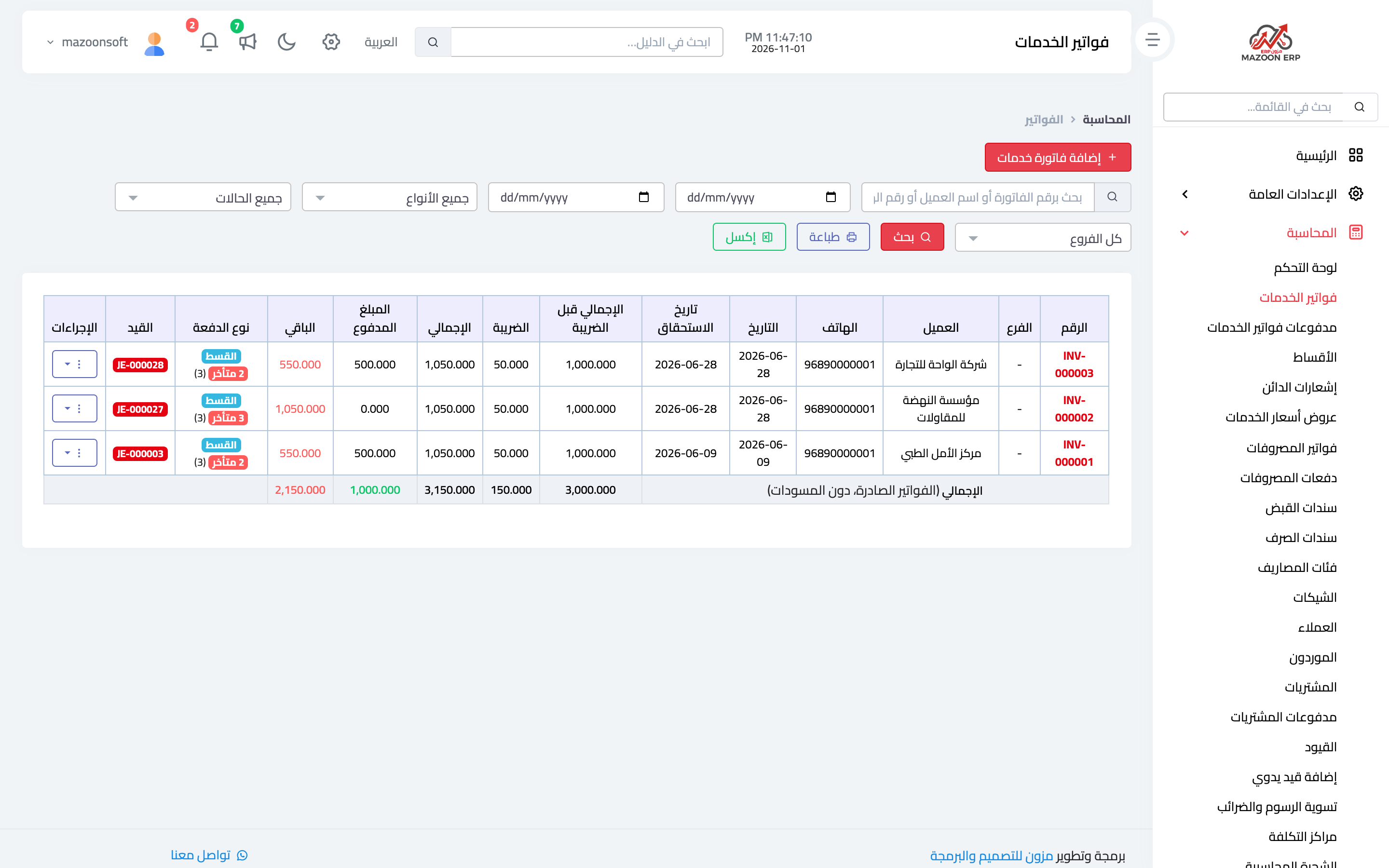
From the Accounting panel open the Service Invoices card. The list appears as in image 1: invoice number, branch, customer and phone, date and due date, total before tax, tax, total, amount paid, remaining, payment type, and the journal entry it produced.
Above the list are filters: search by invoice number, customer name or phone; a date range; branch; invoice type and status. Next to the Search button, Print and Excel print the list or export it to an Excel file exactly as the filters show it.
At the bottom of the list a Total row adds up the total before tax, tax, total, amount paid and remaining of every invoice matching the filters, not only the page on screen, and leaves drafts out because nothing is owed on them yet. The same row appears in the printout and in the Excel file.
The red overdue tag next to an instalment is a direct warning: that instalment has passed its due date unpaid.
Issuing an invoice
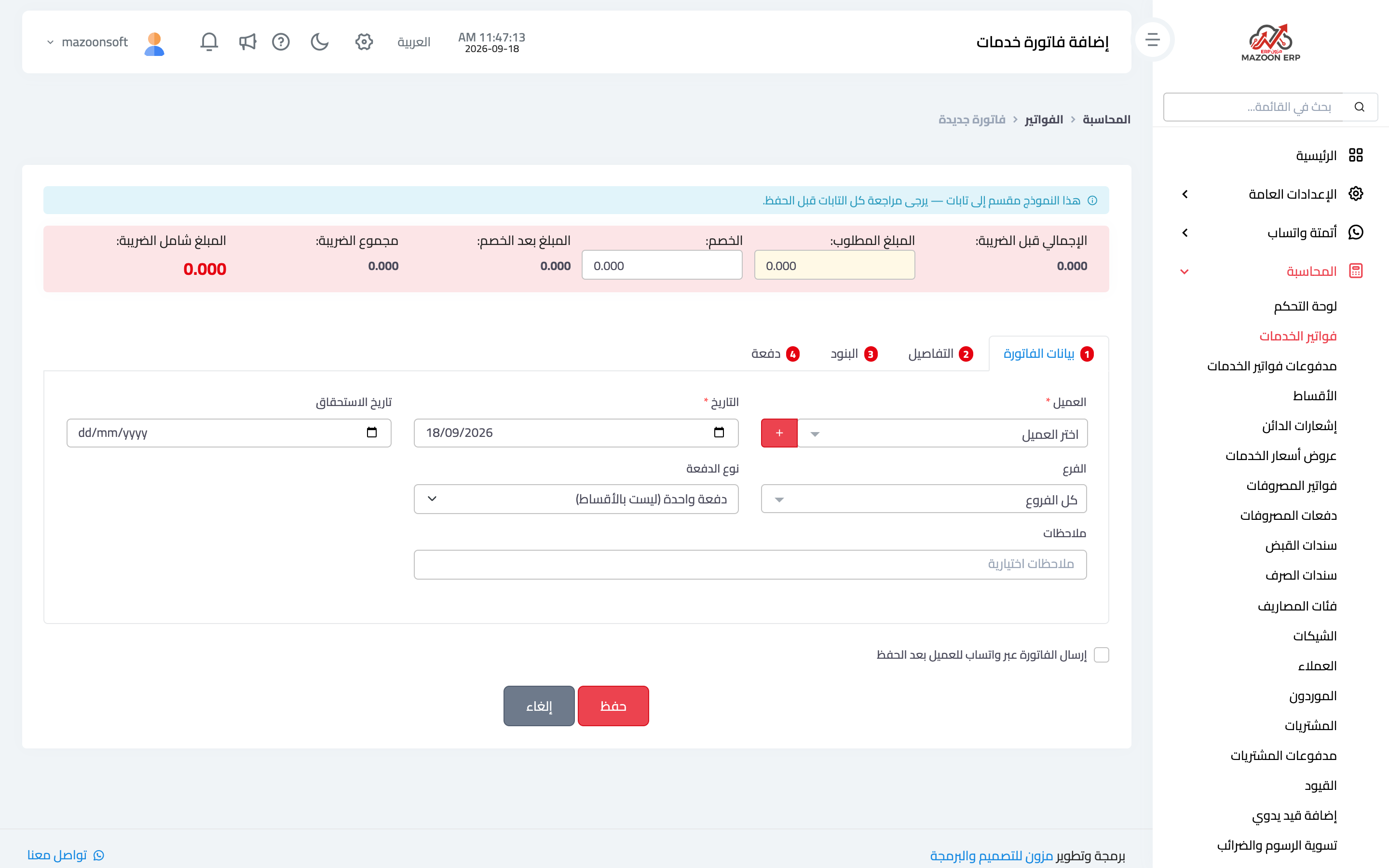
Press Add Service Invoice. The form is split into four tabs, with a red summary bar at the top that updates as you type: total before tax, amount due, discount, amount after discount, total tax, and total including tax.
1) Invoice details — image 2
- Customer — pick from the list, or add a new one with the "+" button without leaving the page. The list shows contacts holding the customer role.
- Date and due date — the invoice date and when payment is expected.
- Branch — the branch the invoice is issued from.
- Payment type — a single payment, or instalments.
- Notes — optional text shown on the invoice.
2) Details
Additional descriptive fields for the invoice.
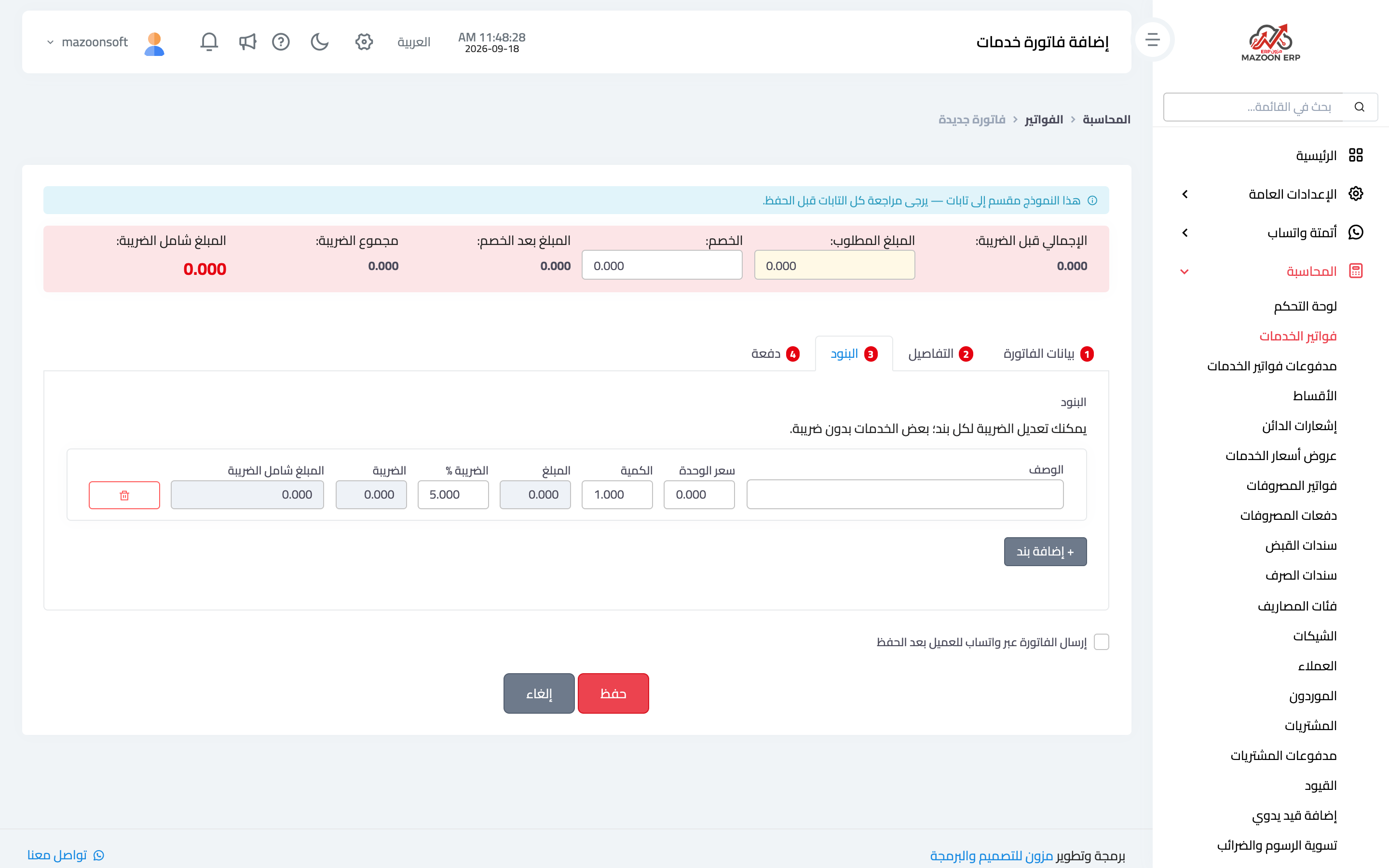
3) Lines — image 3
This is where the invoice value is built. Each line has a description, unit price and quantity, then the calculated amount, a tax rate you can change for that line alone — some services are not taxable — and the amount including tax. Use Add line for each new row and the bin icon to remove one.
4) Payment
If the customer pays part or all of it at issue, record it here: payment method, amount, date and an optional reference. If the method is a cheque, the cheque fields appear: number, date, bank and status (under collection, cleared).
Before saving there is an option to send the invoice to the customer on WhatsApp after saving — the fastest way to deliver it.
Then choose one of the two buttons at the bottom of the form: Save and approve the invoice to issue it now, or Save as draft to keep it without issuing it and approve it later — see “How do I save an invoice as a draft and approve it later?”.
Instalments
Choosing the instalments payment type opens the instalment plan: each instalment with its amount and due date, and a total that must match the invoice. Later, only unpaid instalments can be edited; paid ones are locked because receipt vouchers are attached to them.
You follow these from the Instalments card in the Accounting panel, which shows what is due and what is overdue across all invoices.
Things worth knowing
- Check the tax on each line before saving; the default rate comes from the company settings, and overriding it per line is your call.
- An invoice with a payment against it is not freely editable — handle a difference with a credit note rather than changing a collected invoice.
- An invoice that has a credit note, or that was sent to ZATCA (phase two), can no longer be edited or deleted; correct it with the Cancel the invoice or part of it (credit note) button on its page.
- Every invoice has a linked journal entry whose number appears in the list, and from there you reach the posting detail.
When cost centers are switched on, the invoice has a Cost center field, filled in with the project's center when you choose a project.
Screenshots
Try what you just read on your own data
Open a free 7-day trial — no credit card, with your own company link in minutes.