
How do I record monthly depreciation for my assets?
Depreciation spreads an asset's cost over the months of its useful life. The system works out the amount, but it does not record it on its own: you run it once a month — for one asset or for all assets at once.
For one asset
- Open Accounting → Assets and then the asset.
- Press Run depreciation. A window shows the monthly depreciation amount — Figure 1.
- Choose the period (month) and press Run depreciation.
For all assets at once
- On the Assets list press Run depreciation at the top — Figure 2.
- Choose the month and press Run depreciation. Every Active asset is depreciated for that month, and a message tells you how many were recorded and how many were skipped.
What gets recorded
For each asset an entry dated the last day of the month: debit depreciation expense (5.3) / credit accumulated depreciation (1.3.1). It appears in the depreciation history at the bottom of the asset page with its entry number — Figure 3 — and the financial summary shows accumulated depreciation going up and book value going down.
When the system refuses
- A future month — depreciation can't be recorded for a month that hasn't come yet.
- A month already recorded — one depreciation entry per asset per month, so running the bulk depreciation twice doesn't duplicate anything.
- An asset that isn't active — a disposed asset isn't depreciated. When accumulated depreciation reaches the depreciable amount the status becomes Fully depreciated and depreciation stops; the last instalment is only what is left.
- A closed fiscal period — nothing can be posted to it.
Notes
- Make it a fixed part of your month-end close; skipping depreciation makes profits look higher than they are.
- If you missed earlier months, run them one at a time in order.
- Running depreciation needs the Edit assets permission; users without it don't see the button.
Screenshots
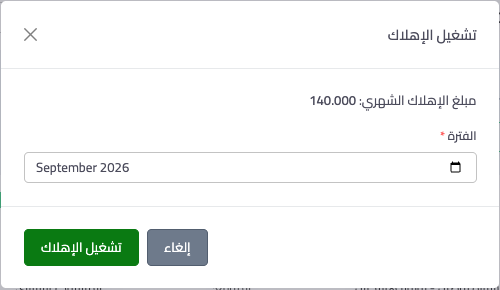
Figure 1
— Running depreciation for one asset
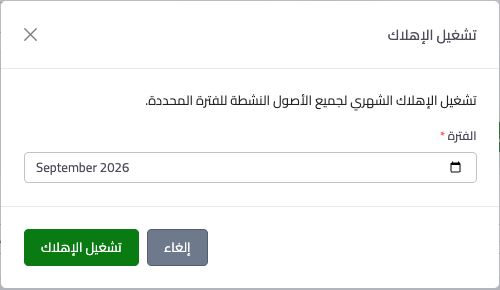
Figure 2
— Running depreciation for all active assets at once
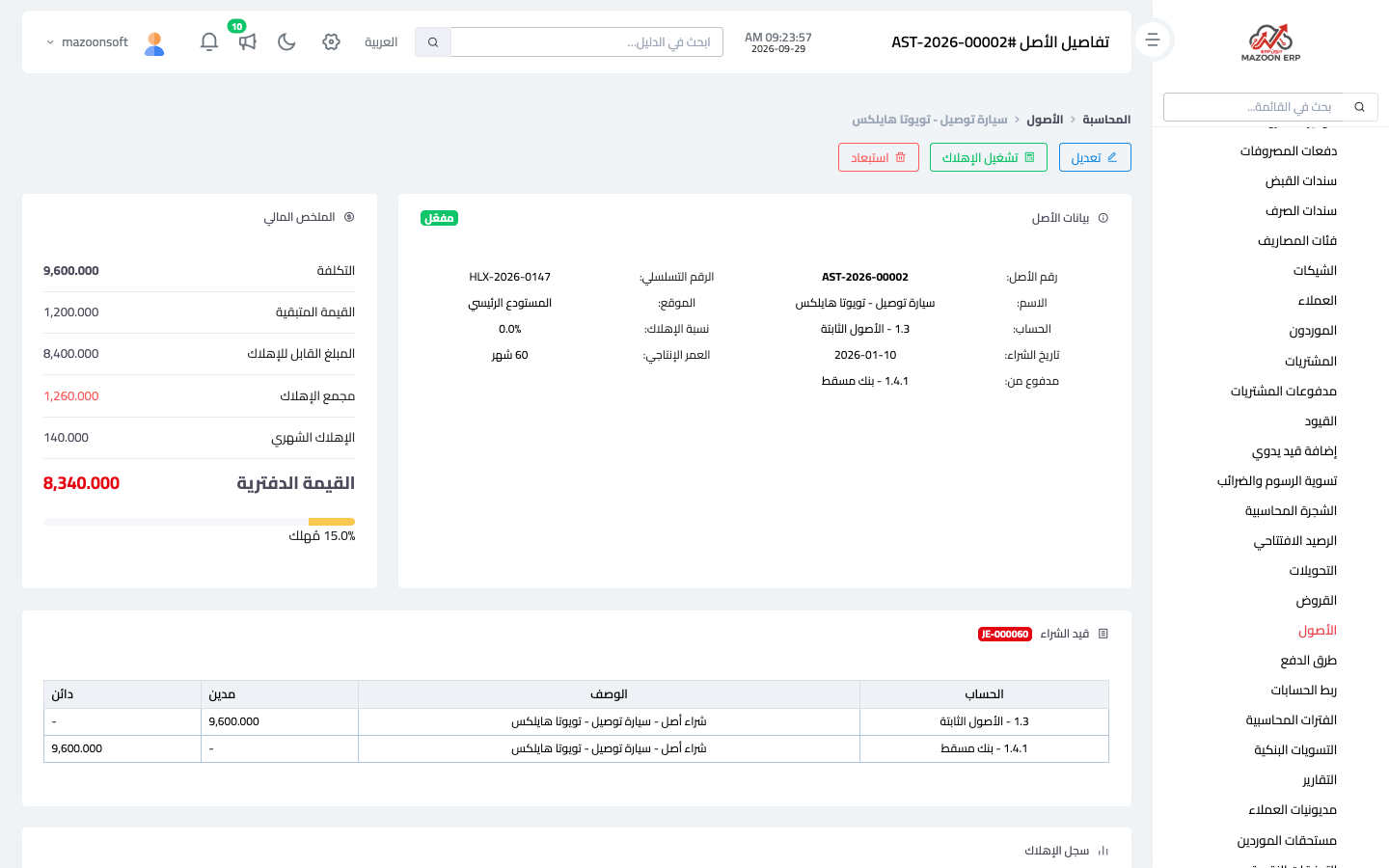
Figure 3
— The asset page: financial summary and purchase entry, with the depreciation history below
Try what you just read on your own data
Open a free 7-day trial — no credit card, with your own company link in minutes.