
How do I save an invoice as a draft and approve it later?
Sometimes you prepare an invoice before it is time to issue it: you are waiting for the customer to agree the amount, for the accountant to review it, or for a phase to be completed. A draft keeps all your work without issuing the invoice, and you approve it whenever you are ready. Drafts are available for service invoices and for engineering consultancy invoices.
Two buttons when saving
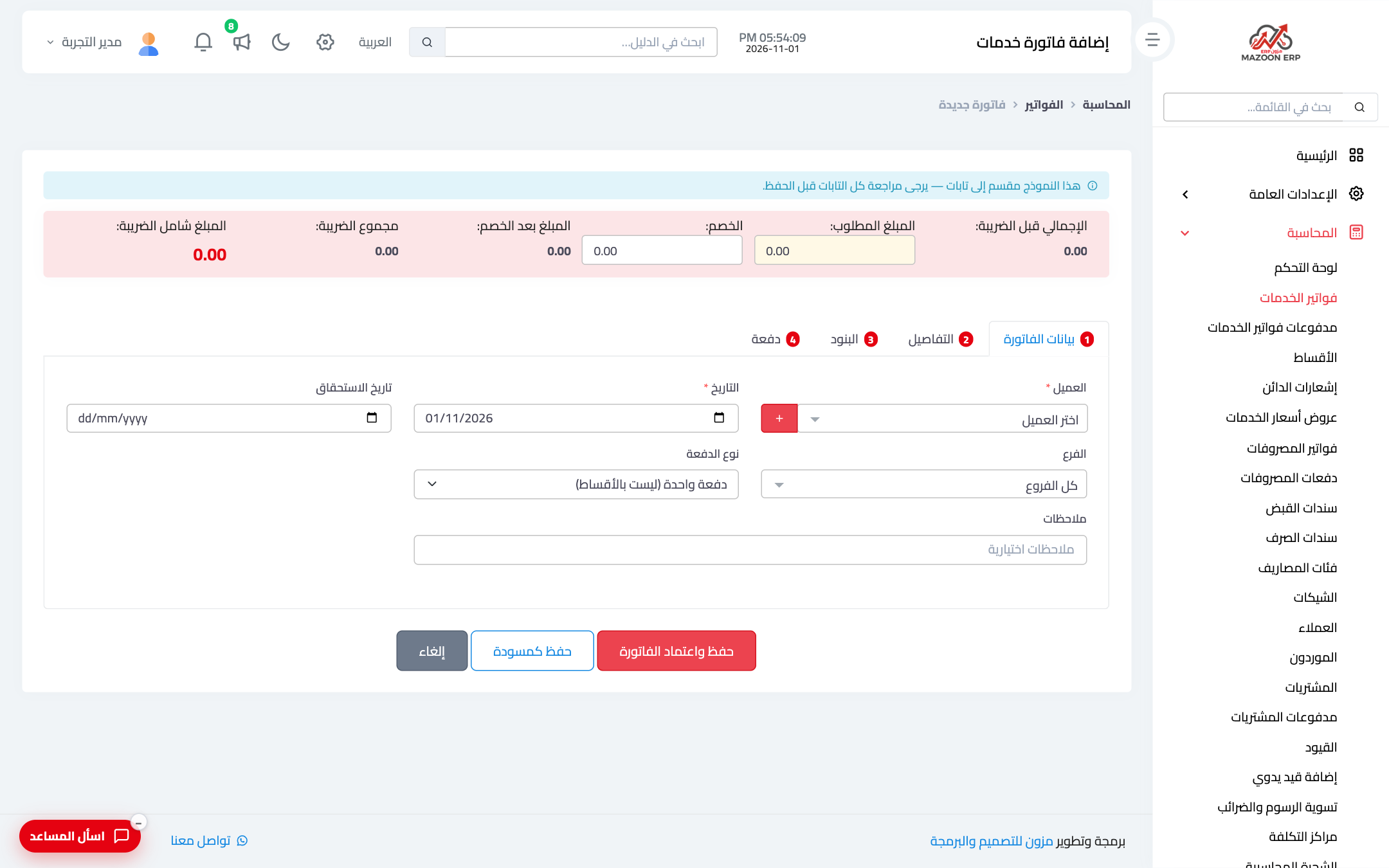
At the bottom of the service invoice form, and in the add-invoice window of engineering consultancy (from the project page or the invoices page), there are two buttons — Figure 1:
- Save and approve the invoice — the invoice is issued at once: it gets its number, its journal entry is posted, and it is sent to ZATCA if your account is linked. Pressing Enter does the same.
- Save as draft — the invoice is saved as it is, without being issued.
What does a draft mean?
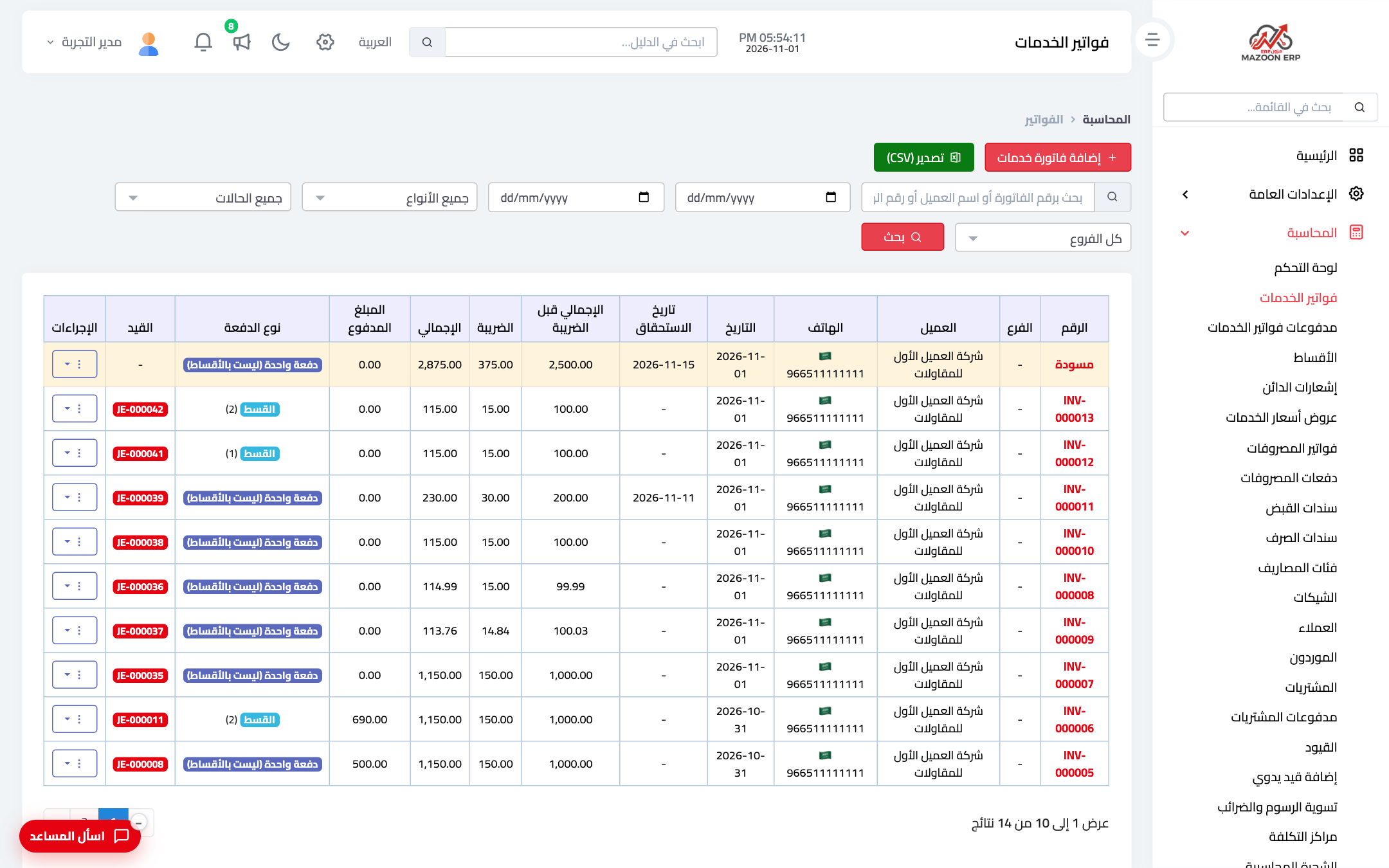
- No official number: it shows as “Draft”, on a yellow row in the invoice lists — Figure 3 — so it uses no invoice number and leaves no gap in the sequence.
- No accounting effect: no journal entry, and it is not counted in the VAT declaration, the customer statement, receivables ageing, or any report or total.
- Reaches no one: it is not sent to ZATCA, does not appear to the customer in the portal or through the invoice link, and is not sent on WhatsApp.
- No payment on it: no collection or credit note can be recorded, and its installments never show as overdue on service invoices. If you record a payment with the invoice (an amount with a payment method, or the “Pay now” option on an engineering invoice) and then click “Save as draft”, the system refuses with a message, so money received is never lost.
- Free to change: edit it as much as you like, or delete it permanently without a trace.
- Printed for review only: its printout is titled “Draft invoice — not a tax invoice”.
Approving a draft
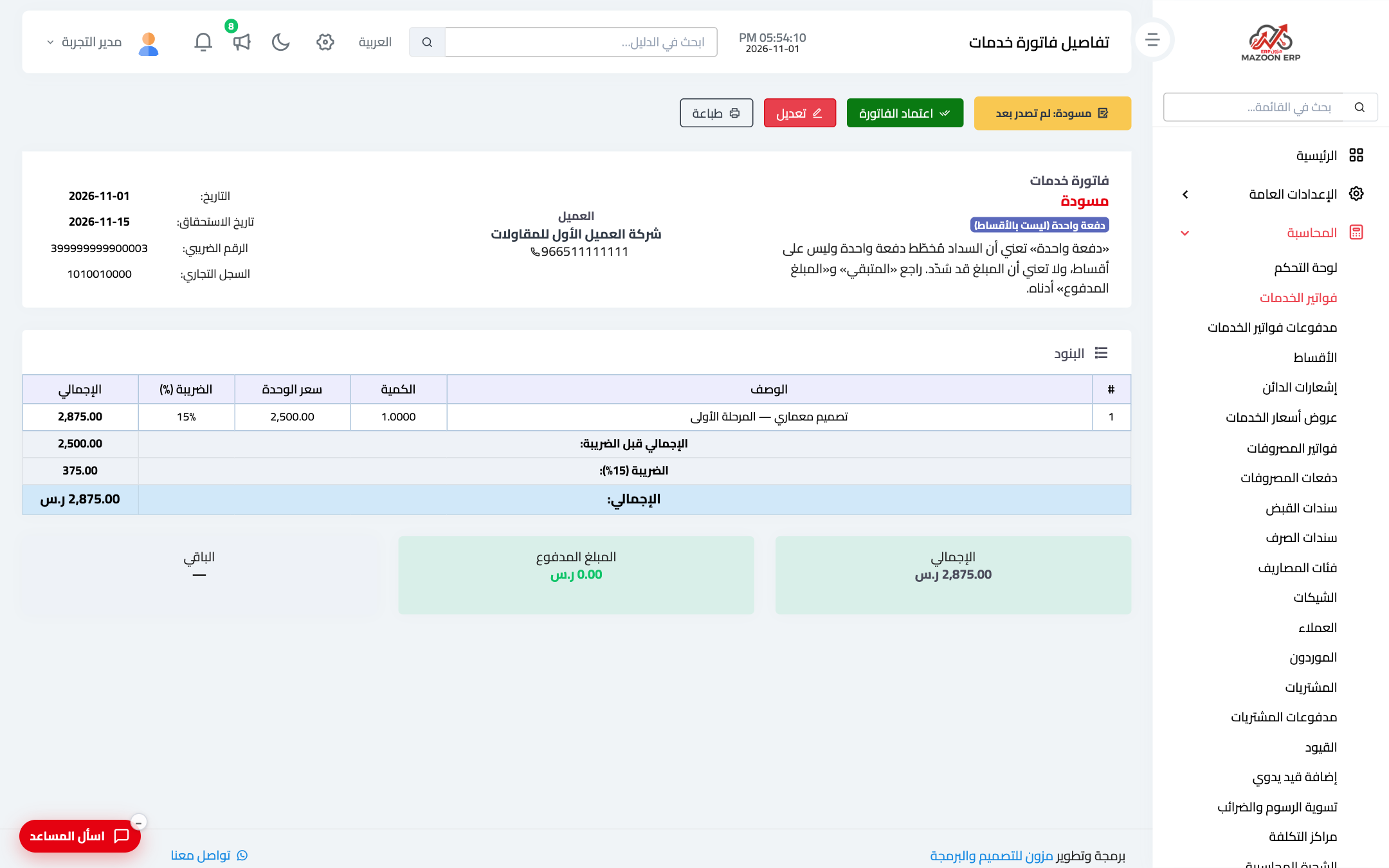
- Service invoice: open the draft and click Approve the invoice at the top of the page — Figure 2. Engineering invoice: choose Approve the invoice from its actions menu on the project page or the invoices page.
- Confirm the message, and in one step:
- the invoice takes the next number in the sequence;
- its date becomes the day of approval, and its due date — and installment dates on service invoices — move by the same number of days, so the payment term stays as agreed;
- its journal entry is posted on today’s date;
- it is sent to ZATCA if your account is linked for phase 2.
- If any part of this cannot be done — for example the current fiscal period is closed, the invoice fails the e-invoicing checks before it is sent (such as missing customer details), or on an engineering invoice the project’s advance or retention balance has changed since the draft was saved — nothing is approved: the invoice stays a draft and a message explains why.
- If the invoice is sent and ZATCA then rejects it, it stays approved with its number and entry and shows as rejected; correct it and save it to resend it.
Why does the invoice take the day of approval as its date?
Because it is only really issued on the day it is approved. This keeps invoice numbers in step with their dates, and puts its entry and VAT in the month it was actually issued, so a VAT declaration you have already filed never changes. ZATCA receives the invoice with the date it is sent anyway.
Example: a draft dated the 10th of the month, due 15 days later, is approved on the 30th. It is issued on the 30th and falls due 15 days after that.
Notes
- Approving a service invoice needs the “Edit Invoice” permission under Accounting; approving an engineering invoice needs the “Approve Invoices” permission under Engineering Consultancy (on the roles and permissions screen).
- Once approved, the invoice is treated like any issued invoice. If your account is linked to ZATCA it can no longer be edited or deleted; it is corrected with a credit note (unless ZATCA rejected it, in which case it is corrected and saved again).
- Approving does not send the invoice on WhatsApp; send a service invoice afterwards from its actions menu.
- Review pending drafts from time to time (the yellow rows in the list): approve the ones whose time has come and delete the ones you no longer need.
Screenshots
Try what you just read on your own data
Open a free 7-day trial — no credit card, with your own company link in minutes.