
Adding and managing cost centers, and the branch default
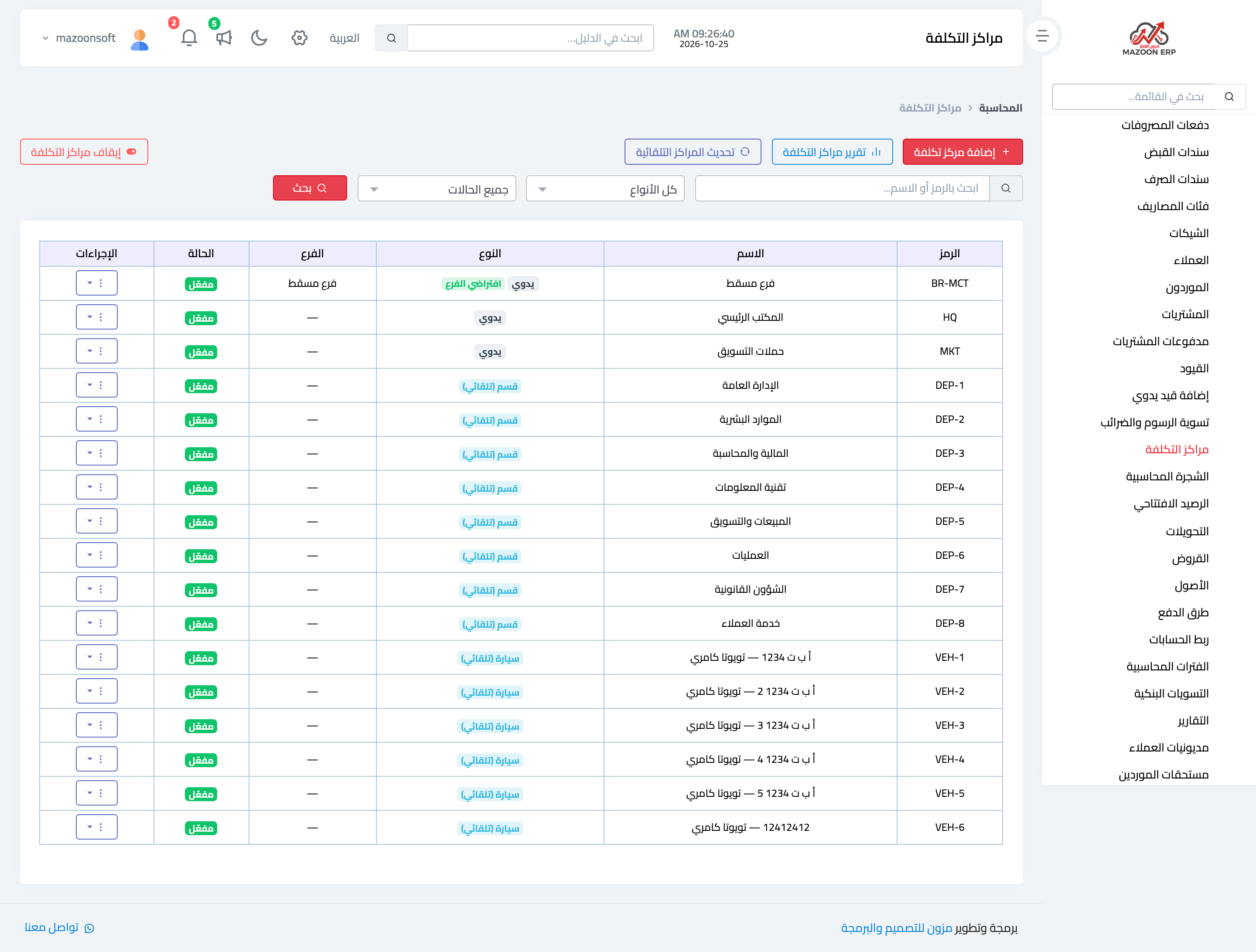
Once switched on, the Cost Centers page lists all automatic and manual centers: code, name, type (manual, or the unit type such as "Vehicle (automatic)"), branch and status. You can search by code or name and filter by type or status. A branch's default center carries a Branch default badge.
Adding a manual center
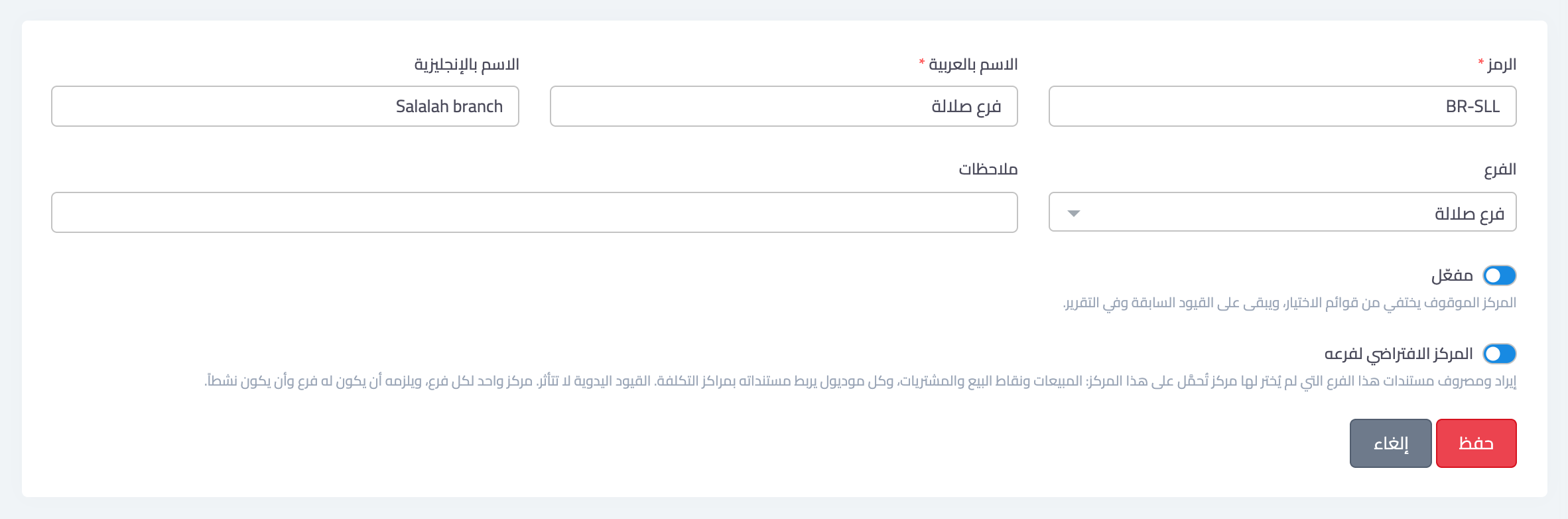
Press Add Cost Center:
- Code — short and unique, such as
HQorMKT. - Name (Arabic) (required) and Name (English) (optional).
- Branch — optional. A center with no branch is shared by all branches and visible to every user; a center with a branch is hidden from users restricted to another branch.
- Notes — optional.
- Active — an inactive center disappears from the choice lists but stays on past entries and in the report.
- Default cost center of its branch — see the next section.
The branch default
If what you want is the profit of each branch, you do not need to pick a center on every document: create one center per branch and tick Default cost center of its branch. Then:
- Every document of that branch with no center chosen lands on this center: sales invoices and POS, supplier bills, workshop, tailoring, laundry, expense bills and expense vouchers, and every activity whose documents record a branch. (Documents with no branch, such as accounting purchases, transfers, assets and loans, do not take the default.)
- As soon as you save, the branch's past documents that had no center are linked to it too.
- Each branch has one default; making another center the default replaces the previous one.
- The center needs a branch and must be active.
- Manual journal entries are not affected: they keep what the accountant chooses on each line.
Automatic centers
An automatic center follows its unit: its name changes when the car or project is renamed, it follows the unit's branch, and it is deactivated when the unit is deleted, or removed if it was never used. That is why only Active and Notes can be edited on it, and it cannot be deleted.
The Update automatic cost centers button creates any that are missing (for example units added while the feature was off) and links revenue and expenses not linked yet. It never changes a center already chosen.
Editing, deleting and deactivating
- From the Actions menu next to each center: Edit, Entries (its lines from the start of this year to today; the period can be changed) and Delete.
- A center used on entries, documents or employees cannot be deleted, so past reports stay right; deactivate it instead.
- A user restricted to a branch manages only that branch's centers and cannot edit the shared ones.
Screenshots
Try what you just read on your own data
Open a free 7-day trial — no credit card, with your own company link in minutes.