
Overview of the Accounting module
The Accounting module is the ledger where every financial movement in your business is recorded. The core idea that saves you most of the work: each operational transaction creates its own journal entry automatically — a service invoice, a receipt voucher, an expense bill, a supplier payment — so you never write entries by hand except in exceptional cases.
Opening the panel
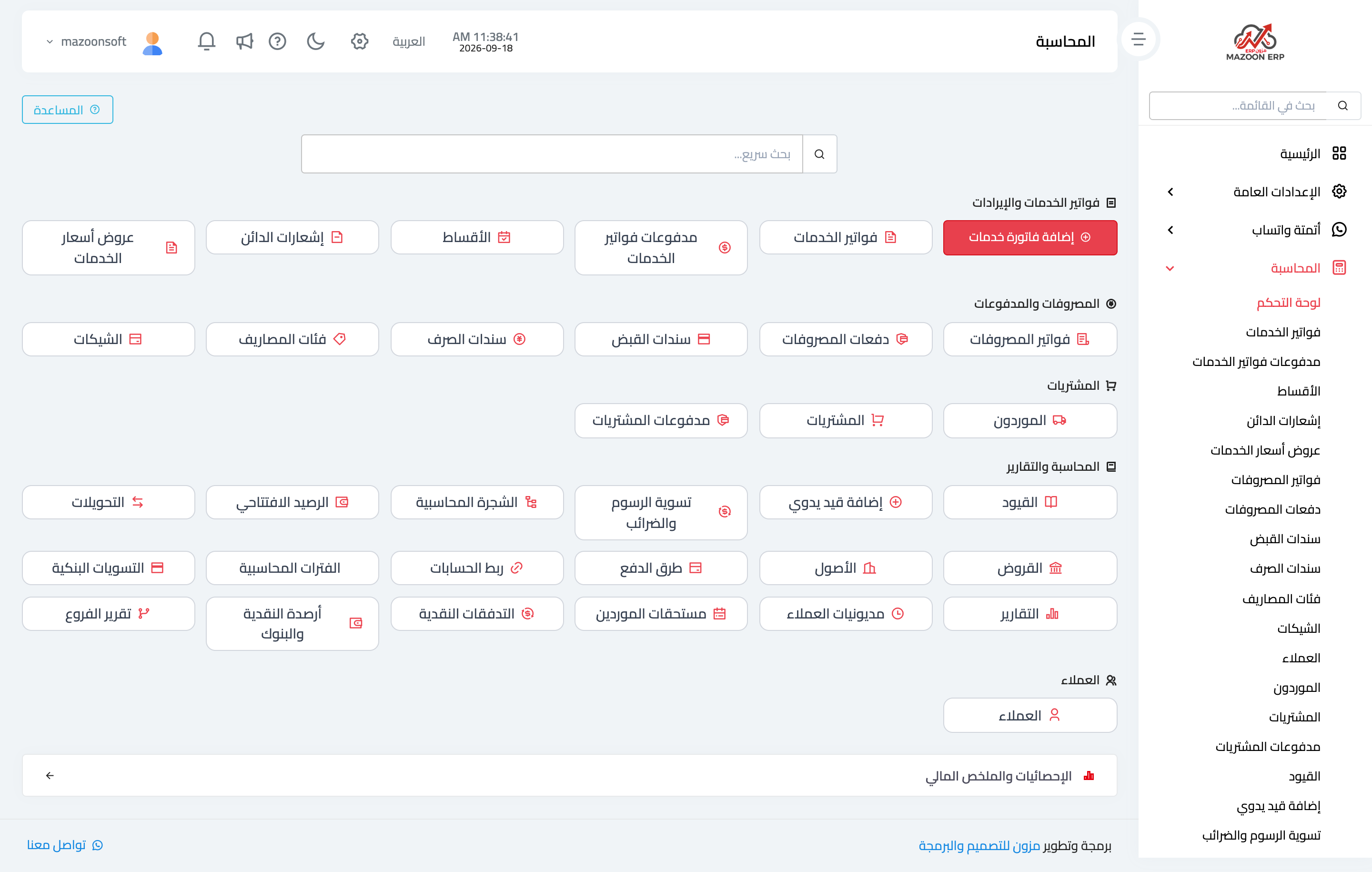
In the sidebar choose Accounting, then Dashboard. The cards appear grouped as in image 1. At the top there is a quick search box that jumps straight to the screen whose name you type — faster than walking the sidebar.
The groups
- Service invoices and revenue — issuing and collecting service invoices, with quotations, instalments and credit notes.
- Expenses and payments — expense bills and their payments, receipt and payment vouchers, expense categories and cheques.
- Purchases — suppliers, purchase bills and their payments.
- Accounting and reports — journal entries, the chart of accounts, opening balances, transfers, loans, assets, payment methods, account linking, fiscal periods and bank reconciliations.
- Customers — customer files and balances.
- Statistics and financial overview — a quick figures panel that expands at the bottom of the page.
Recommended order for getting started
Do not start issuing invoices before the foundation is set, or your entries will post to the wrong accounts and you will be correcting them one by one:
- Chart of accounts — review the ready-made accounts and add what your business needs.
- Payment methods — define your cash box and banks, and link each method to its account.
- Account linking — confirm each event (invoice, voucher, expense) posts to the right account.
- Opening balances — if you are moving an existing business from another system or from paper books.
- Fiscal periods — learn how closing a period works before you need it at month end.
After that the daily work is simple: issue invoices, record expenses and vouchers, let the system generate the entries, then read the outcome in the reports.
Where entries come from
The Journal Entries screen lists every entry the system created and its source. An entry produced by an operational transaction stays tied to its document: cancel the invoice or document and the entry follows. That is why a mistake on an invoice is never corrected with an opposite manual entry — you edit the document itself.
Add manual entry is for cases with no operational document: adjustments, depreciation, provisions and purely accounting corrections.
What you see depends on your permissions
The cards follow the user's permissions: an accountant without the loans or assets permission does not see those two cards. If a card you need is missing, ask your system administrator through the roles and permissions screen.
To see the profit of each car, unit, project or branch on its own, see Cost centers: what they are, when you need them, and how to switch them on.
Screenshots
Try what you just read on your own data
Open a free 7-day trial — no credit card, with your own company link in minutes.