
Purchase requests and purchase orders
Separating the request from the order is what prevents ad-hoc buying: the request says "we need", the order says "we bought from this supplier at this price".
Purchase requests
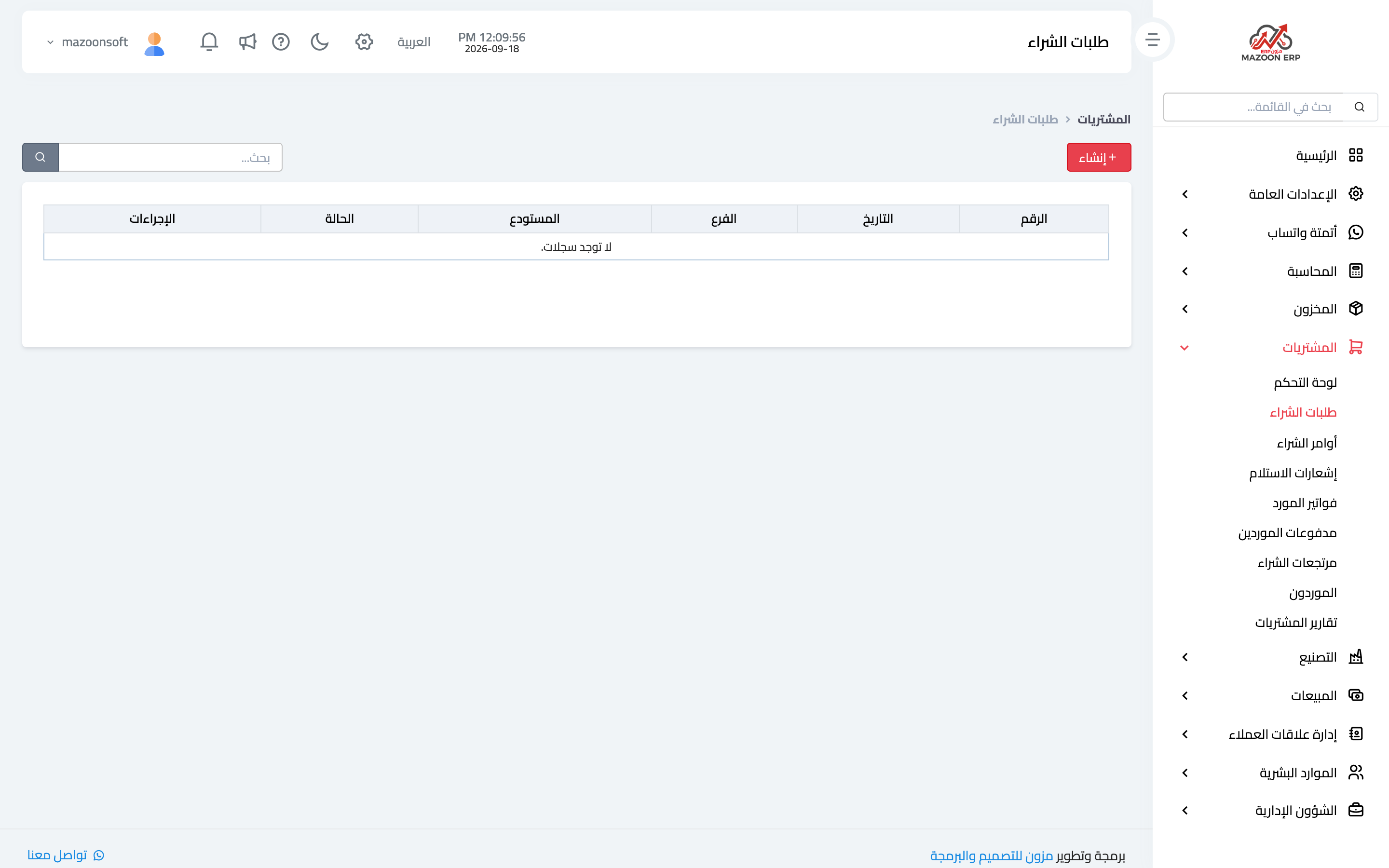
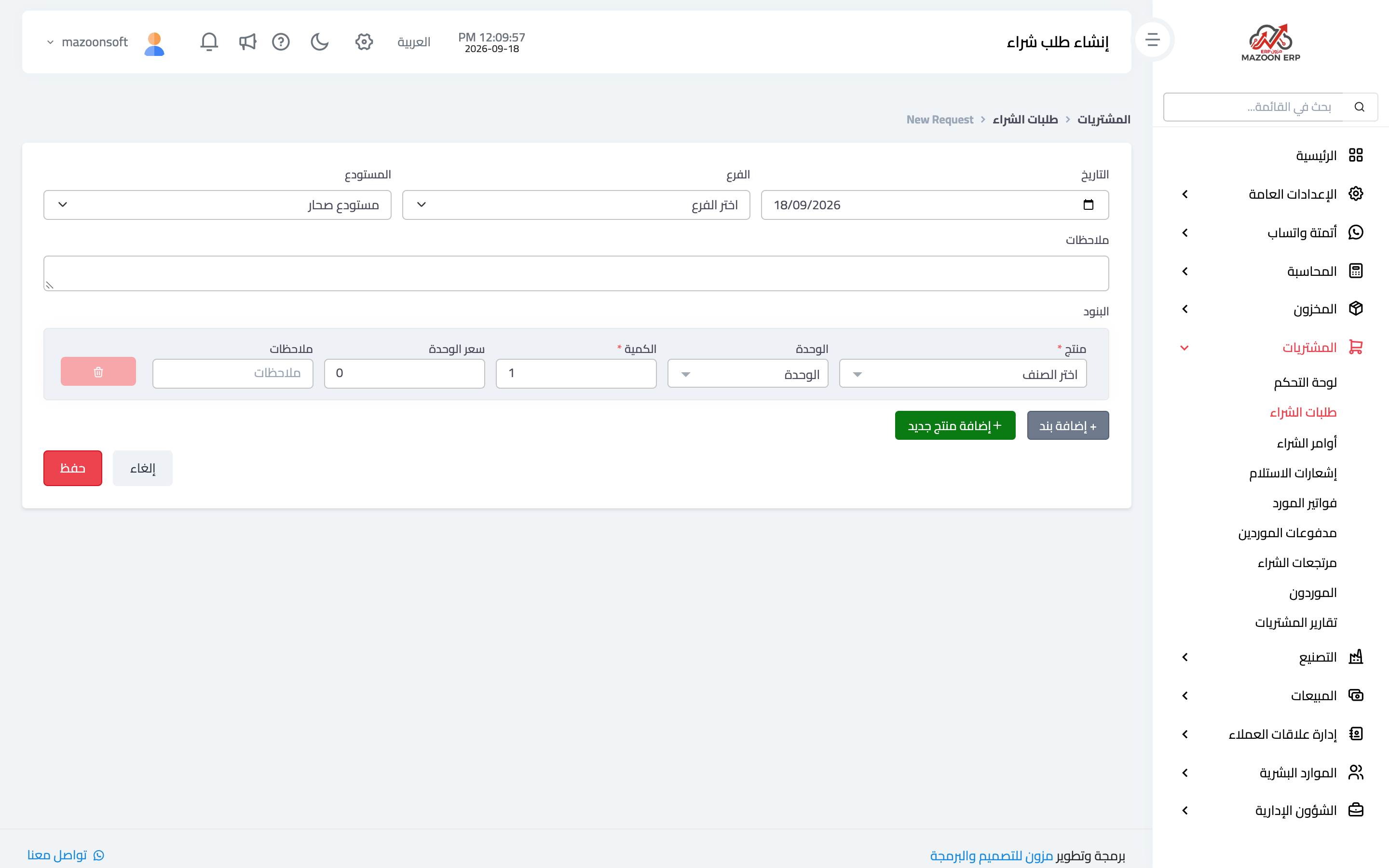
From the purchasing dashboard open the Purchase Requests card — image 1 — to see requests and their statuses. To create one press Add as in image 2: the requesting branch or department, the date, the needed-by date, then the items, quantities and notes explaining the purpose.
A request touches neither stock nor accounting — it is an organisational document awaiting approval. Its value shows later: you know who asked and when, and you keep a record of needs that were rejected or postponed.
Purchase orders
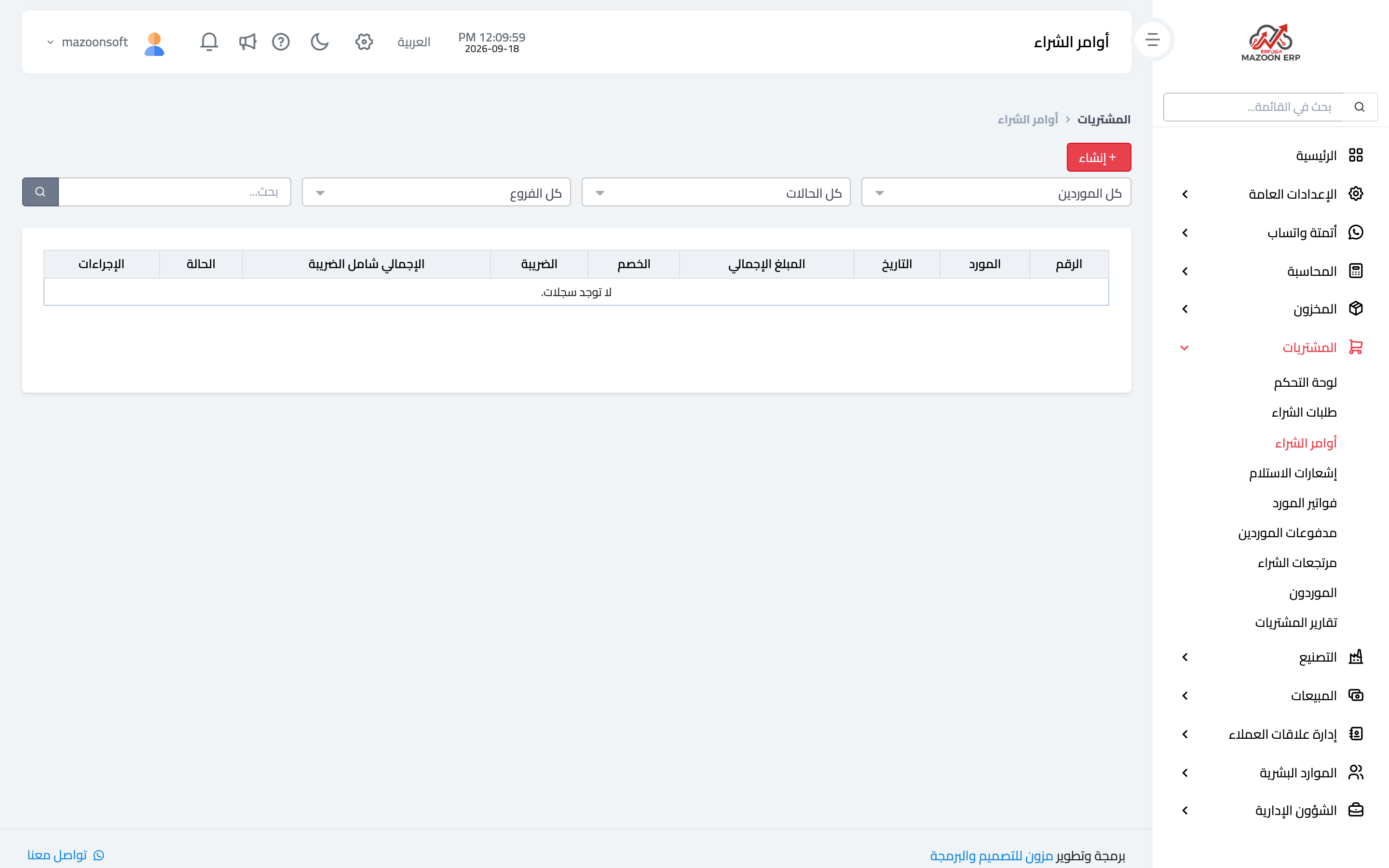
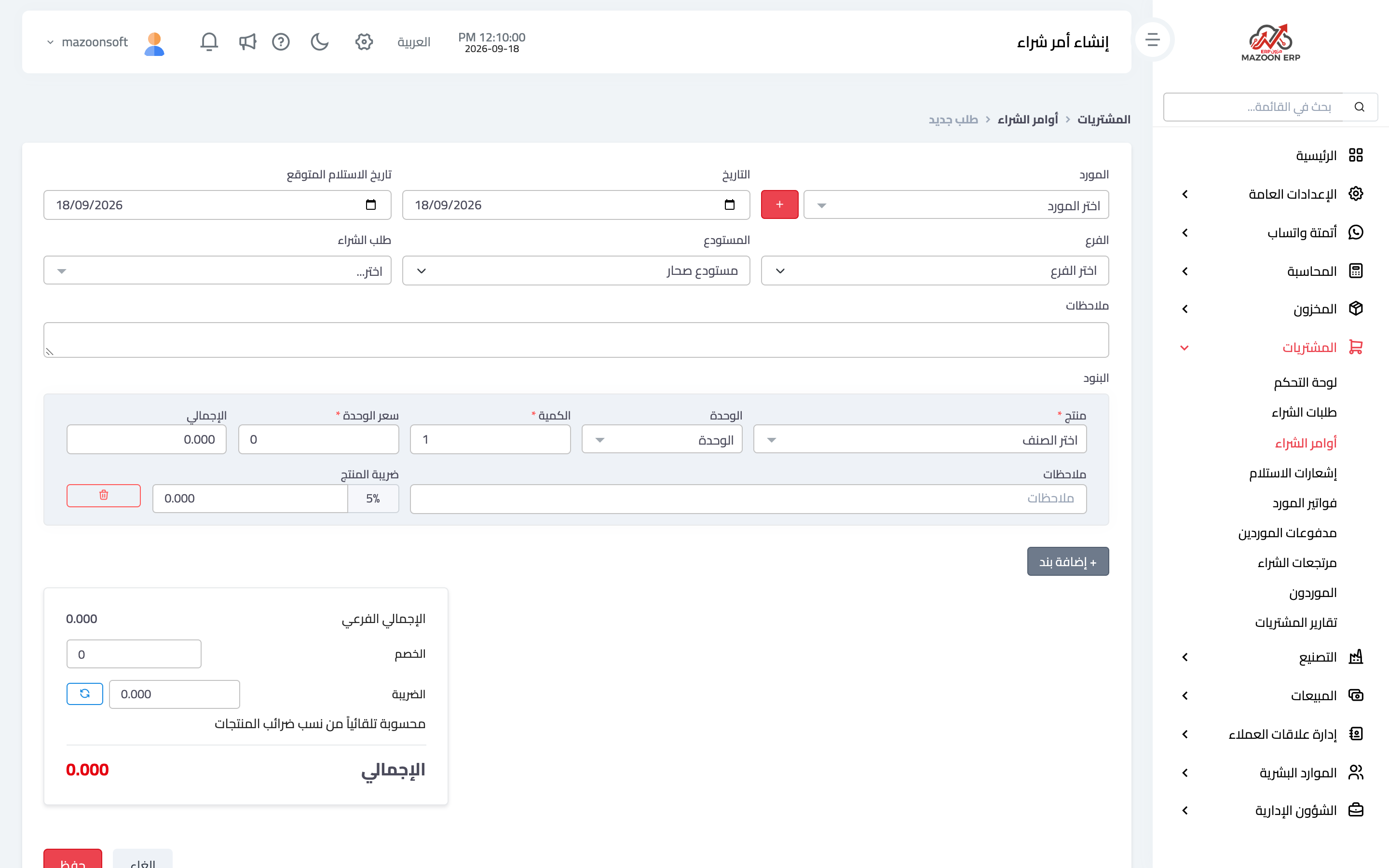
Once a request is approved and a supplier chosen, issue a purchase order. From the Purchase Orders card — image 3 — press Add as in image 4:
- Supplier — from the contacts holding the supplier role.
- Date and expected delivery date.
- Warehouse where the goods will be received.
- Lines — item, quantity, unit price and tax.
- Notes and terms — whatever the supplier should read on the order.
After saving, the order can be printed and sent to the supplier, and it becomes the reference you compare against at receiving and billing.
Why doesn't a purchase order increase stock?
A frequent question. An order is a promise to buy, not goods in hand; stock increases only at the goods receipt. That is deliberate: a large order may arrive in instalments or come up short, and if stock rose the moment the order was issued you would hold a balance that does not exist on the shelf.
Following open orders
The open orders indicator on the purchasing dashboard shows what has been issued but not fully received. Review it weekly: an order open for a month means either a late supplier who needs chasing, or an order that was delivered and never recorded as received — both worth noticing.
Screenshots
Try what you just read on your own data
Open a free 7-day trial — no credit card, with your own company link in minutes.