
Purchasing reports: net purchases and the status of every document
One page gathering everything you need about a period's purchases: how much you bought, how much you paid, what is left, and what is still sitting as an unapproved draft — image 1.
Steps
- Open Purchasing → Purchasing Reports.
- Set from and to, and pick a branch if you want one.
- Check the two switches: approved bills only and posted payments only.
- Press Apply, then Print for a copy.
The financial figures
- Approved supplier bills — the total billed to you in the period.
- Approved purchase returns — what you sent back.
- Net purchases — approved bills minus approved returns. This is the figure your accountant asks for, not the bills total alone.
- Posted supplier payments — what actually went out.
- Open approved bills and outstanding balance — what you still owe.
The documents table
A row per document type — purchase requests, purchase orders, goods receipts, supplier bills, supplier payments, purchase returns — with columns for their statuses: draft, approved/posted and cancelled, by count and amount.
It is the quickest way to spot unfinished work: a non-zero draft column means documents that were created and never approved, so they touch neither your stock nor your accounts.
Notes
- Read the report monthly at closing and confirm the draft column is zero or explained.
- Compare net purchases with payments; a persistent gap in favour of purchases means your payables are growing.
- Flip the filters and compare the difference to see how much is not yet approved.
- The filters apply to every figure on the page, and printing follows them.
- A user restricted to a branch sees only that branch's figures.
Screenshots
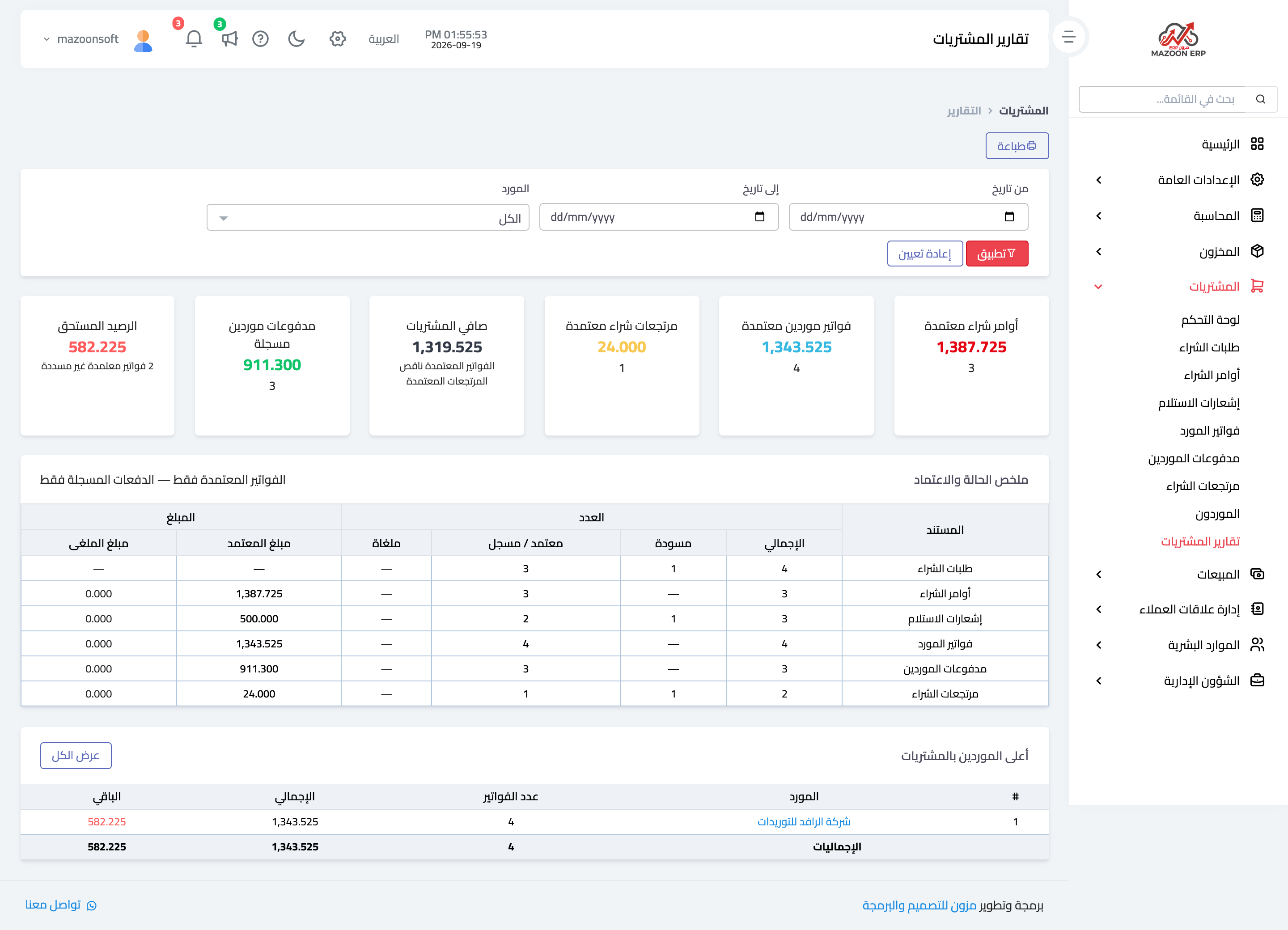
Figure 1
Try what you just read on your own data
Open a free 7-day trial — no credit card, with your own company link in minutes.