
How do I track overdue supplier bills and due dates?
Paying late costs you a supplier relationship; paying early for no reason costs you liquidity. The due date is what balances the two, and the system tracks it for you.
Where to start
- Open Purchasing → Dashboard — image 1.
- Look at the unpaid bills card, with a red badge underneath counting the overdue ones.
- Look at the accounts payable card — the total you owe, with the number of suppliers and bills beneath.
- Click through to the bills list and filter by status — image 2.
The due date comes from you
The bill generated automatically from a goods receipt arrives with no due date. If you do not fill it in, that bill will never count as overdue however long it sits.
So make entering the due date a fixed step before approving any supplier bill, and calculate it from the supplier's terms — thirty days from the bill date, for instance.
Deciding what to pay first
- Start with the overdue ones — those are what actually damages the relationship.
- Then whatever falls due this week.
- Check each supplier's advance balance before transferring; you may settle a bill from credit you already hold, with no new cash.
- Use auto-distribute for one transfer covering several bills.
Notes
- Payment status in the bills list has three values: unpaid, partial and paid.
- A draft bill is not a debt and never appears among overdue ones — approve it first.
- The supplier statement shows all their bills' dates in one place — the best thing to open before a collections call.
- Make the dashboard a weekly habit; five minutes prevents an awkward phone call.
Screenshots
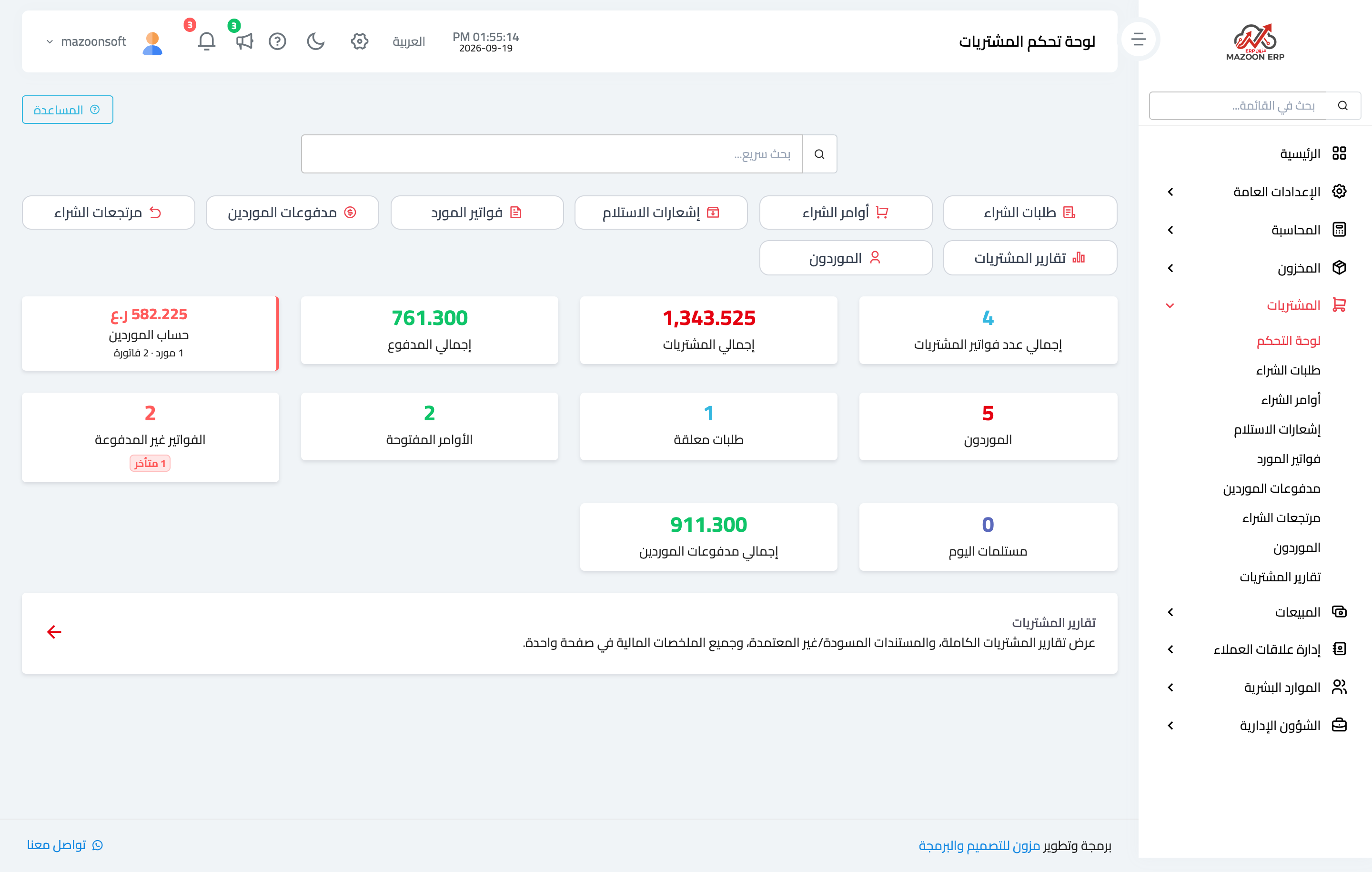
Figure 1
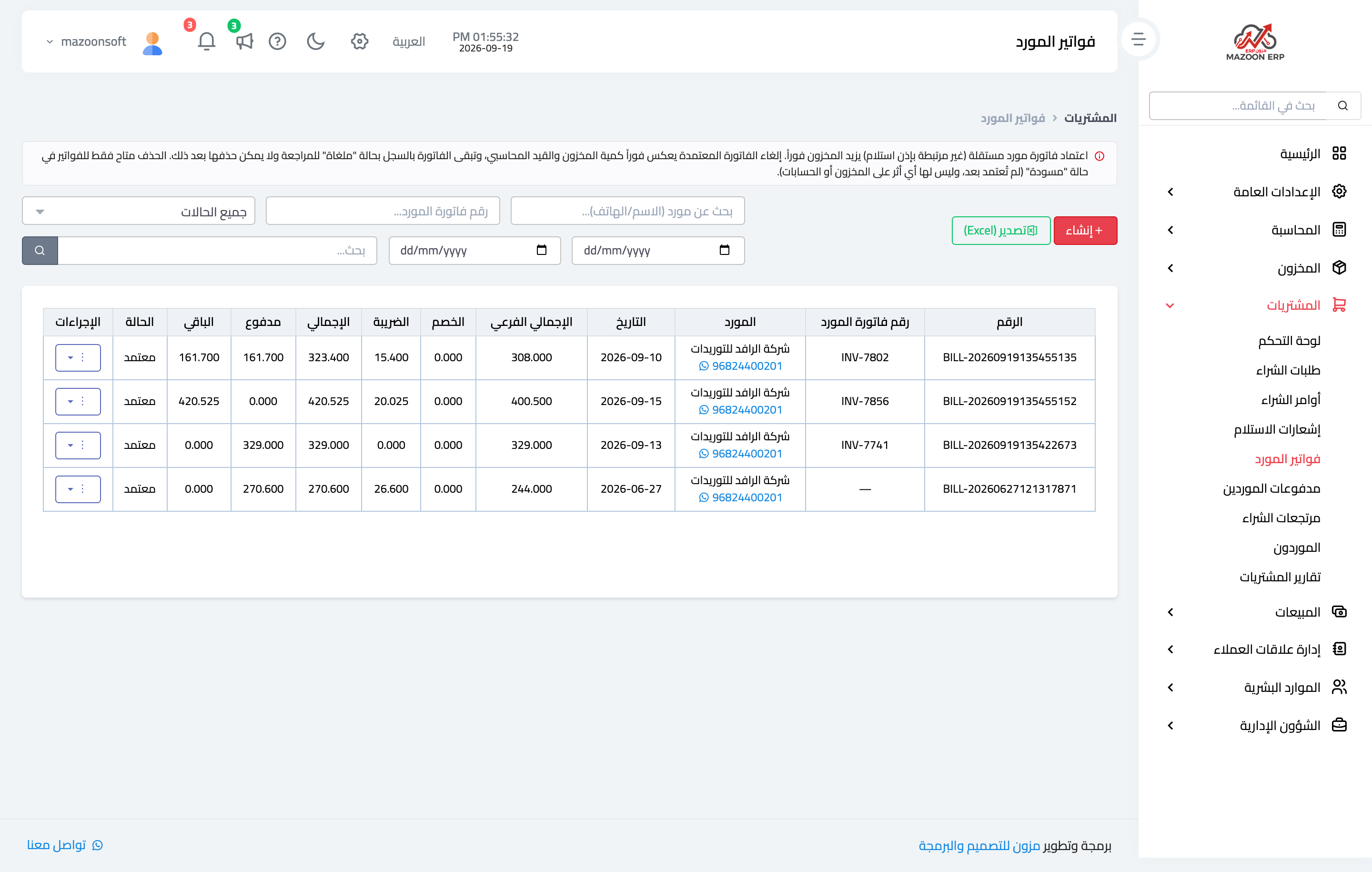
Figure 2
Try what you just read on your own data
Open a free 7-day trial — no credit card, with your own company link in minutes.