
Supplier bills: where the automatic draft comes from, and what approval does
You approved a goods receipt and found a new supplier bill in draft that you did not create. That is deliberate: the system turns what you received into a ready claim so you never re-enter the lines.
The automatic draft
Approving a goods receipt creates a draft supplier bill at the receipt's value, linked to the purchase order and the receipt, with a note reading "Auto generated from goods receipt: …".
You complete it before approving:
- Open Purchasing → Supplier Bills and pick the draft — image 1.
- Enter the supplier invoice number — the number on the paper they sent you, not our document number.
- Enter the due date.
- Check the quantities and prices, and add tax and any discount.
- Press Approve.
A standalone bill with no purchase order
A purchase order is not required. Open Supplier Bills, press + Create and enter the supplier and lines directly — the right path for ad-hoc purchases and small expenses.
What approval does
- It posts the journal entry: the supplier payable and the tax.
- It increases the billed quantity on the linked purchase order lines, converting any alternate unit to the base unit automatically.
- The bill becomes payable — a payment cannot be allocated to a draft or cancelled bill.
Notes
- The total is calculated as (subtotal − discount) + tax on the net.
- A bill can only be approved from draft.
- A bill with payments cannot be cancelled; the message is plain: "Cannot cancel a bill that has payments recorded. Reverse all payments first."
- Each goods receipt has exactly one bill; a second attempt is refused.
- Always enter the supplier invoice number — it is what stops the same invoice being booked twice, as the next article explains.
Screenshots
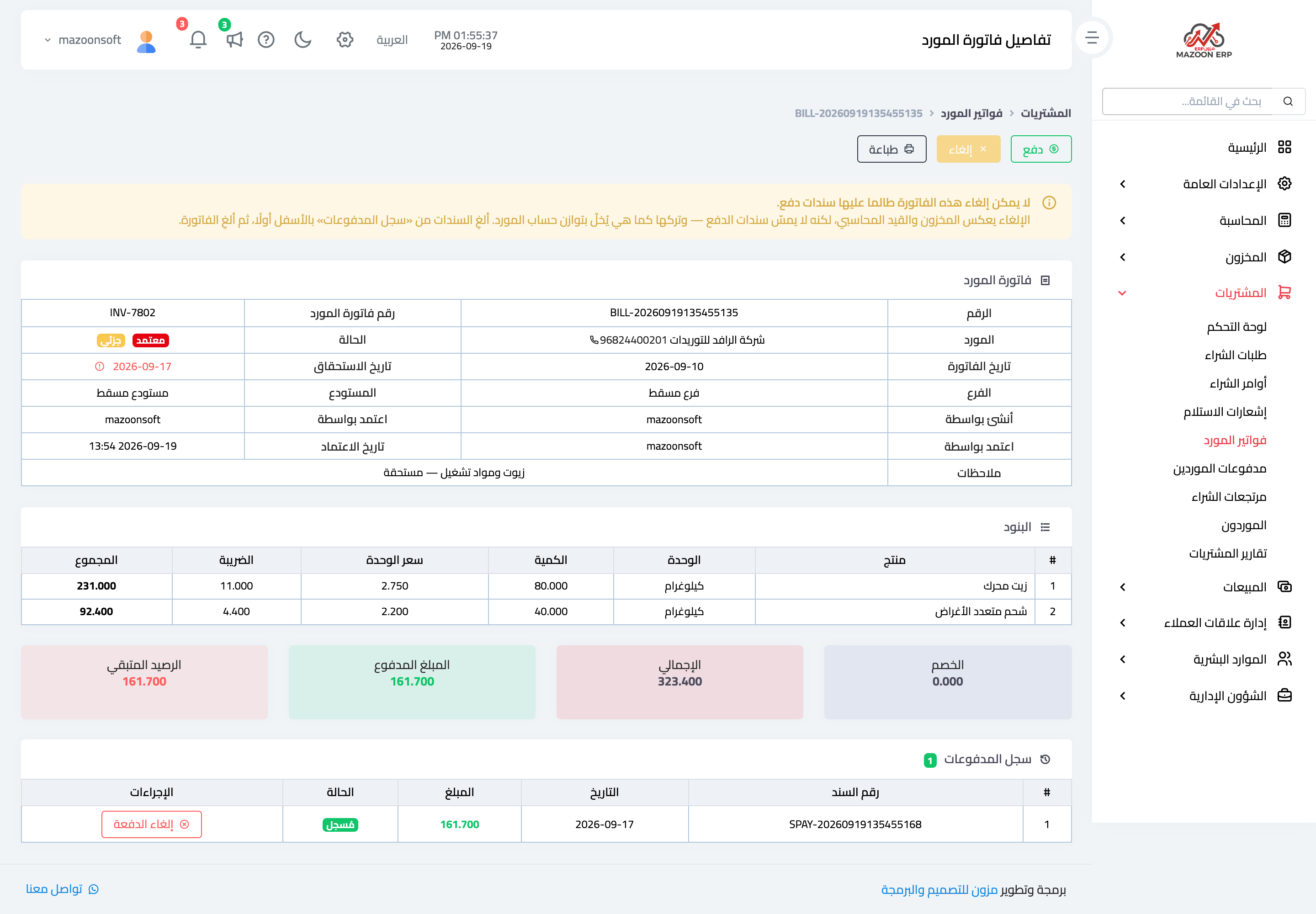
Figure 1
Try what you just read on your own data
Open a free 7-day trial — no credit card, with your own company link in minutes.