
The three filters that change every supplier figure
The figures on the suppliers screen are not one fixed number — they are an answer to a question, and three switches at the top decide the question. When your figure differs from a colleague's, one of these is usually why.
The filters
- Approved bills only — on by default. Turning it off pulls draft bills into the totals and the number jumps. A draft was never posted, so it is not yet a debt.
- Posted payments only — on by default. It limits the calculation to posted payments and excludes cancelled ones.
- Has advance balance only — narrows the list to suppliers holding your money. The quickest way to audit advances you have not consumed.
Which setting should I use?
- For supplier reconciliation and month end — leave the first two on. Those are your real figures.
- To see what is waiting for approval — turn off "approved bills only" and compare the difference: that is the size of what is not yet approved.
- To chase advances — turn on "has advance balance only".
Notes
- These filters exist on the suppliers list, the supplier statement and the purchasing reports — check their position on all three before comparing two numbers — image 1.
- Cancelled bills are always excluded from totals; they still show on the statement with their badge so the record stays complete.
- Unallocated advances never enter the totals, whatever the filters — they appear separately and are deducted only in the "net due" figure.
- Before doubting a number, look at the filters. Most of the time the problem is there, not in the data.
Screenshots
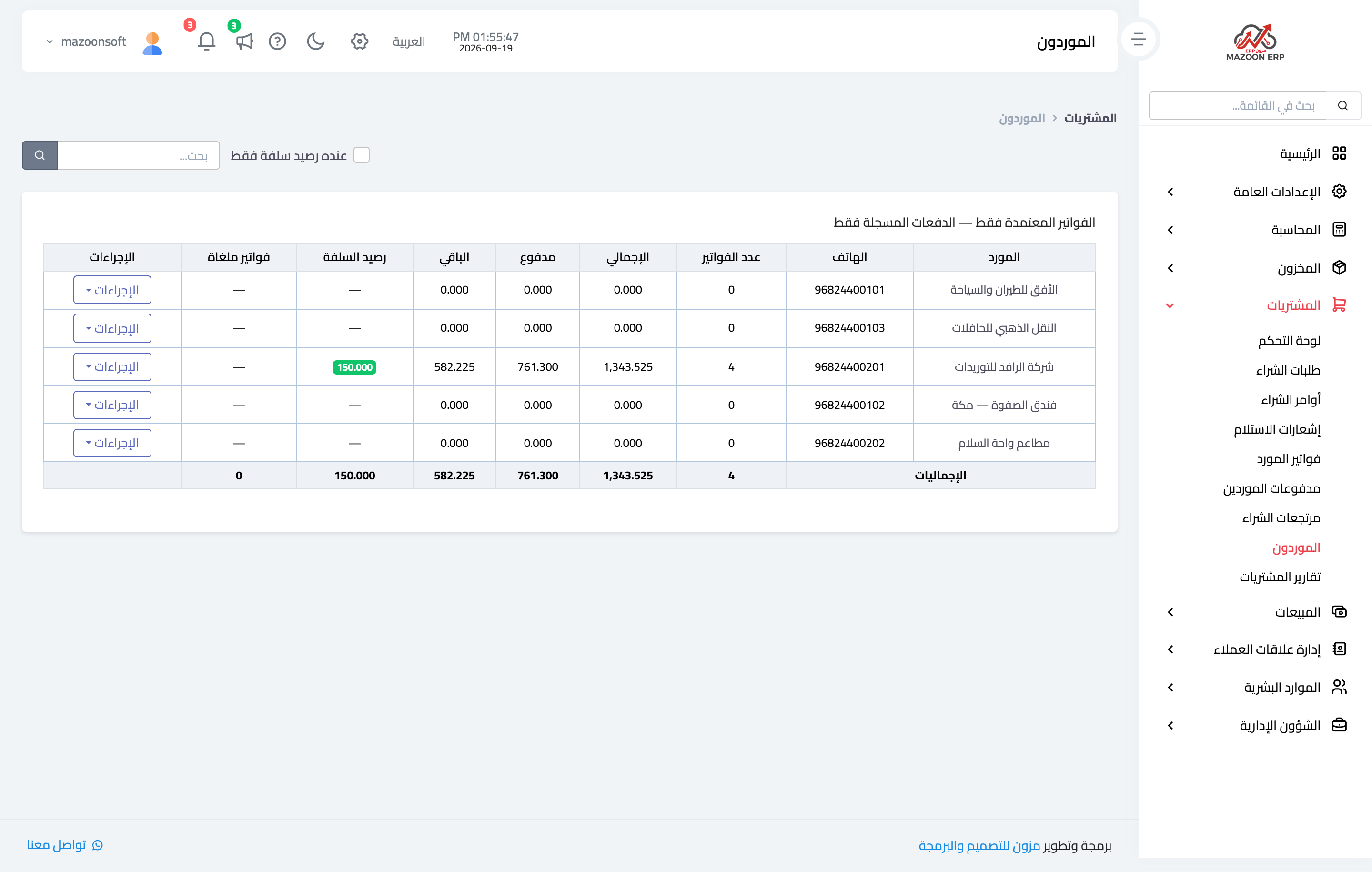
Figure 1
Try what you just read on your own data
Open a free 7-day trial — no credit card, with your own company link in minutes.