
How do I find a purchasing document quickly?
A supplier calls asking about an invoice, or an accountant wants a goods receipt. These are the fastest ways to get there.
Quick search from the dashboard
Open Purchasing → Dashboard and use the quick search box at the top — image 1. Type part of a document number or a supplier name.
Searching inside each list
- Supplier Bills — a search box accepting a supplier name or phone, a status filter, and from and to dates. Export (Excel) exports what you see — image 2.
- Suppliers — search by name, then open the statement to see all their bills and payments on one page. The best entry point when your question is about a supplier rather than one document.
- Purchase Orders, Goods Receipts and Returns — each list has its own search and filters.
Moving between linked documents
The documents are linked, so reaching one gets you to the rest:
- A purchase order shows its goods receipts and bills.
- A goods receipt carries its purchase order number and its bill.
- The supplier statement shows bill and payment numbers as links — click a number to jump to it.
Notes
- Purchasing document numbers are long and based on creation time (such as BILL-20260919135455152), so copy and paste rather than typing them.
- Search by the supplier invoice number, not our document number, when the question comes from the supplier — that is the number they know.
- If you cannot find a document, check the filters first; a forgotten date filter hides half the list.
- A cancelled document stays in the lists with its badge — do not assume it vanished.
- To search across every module, use the activity log in General Settings; it shows who created what and when.
Screenshots
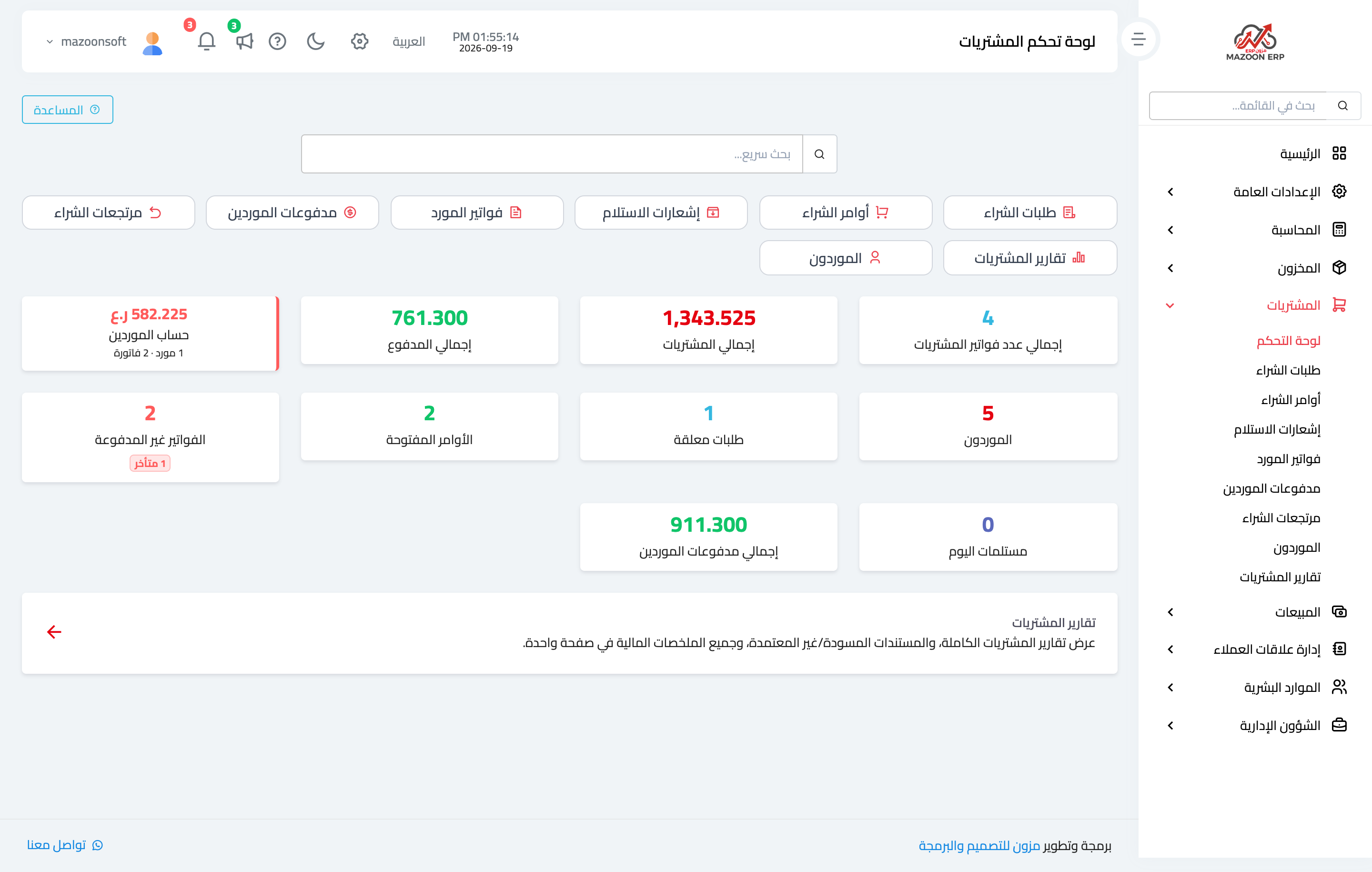
Figure 1
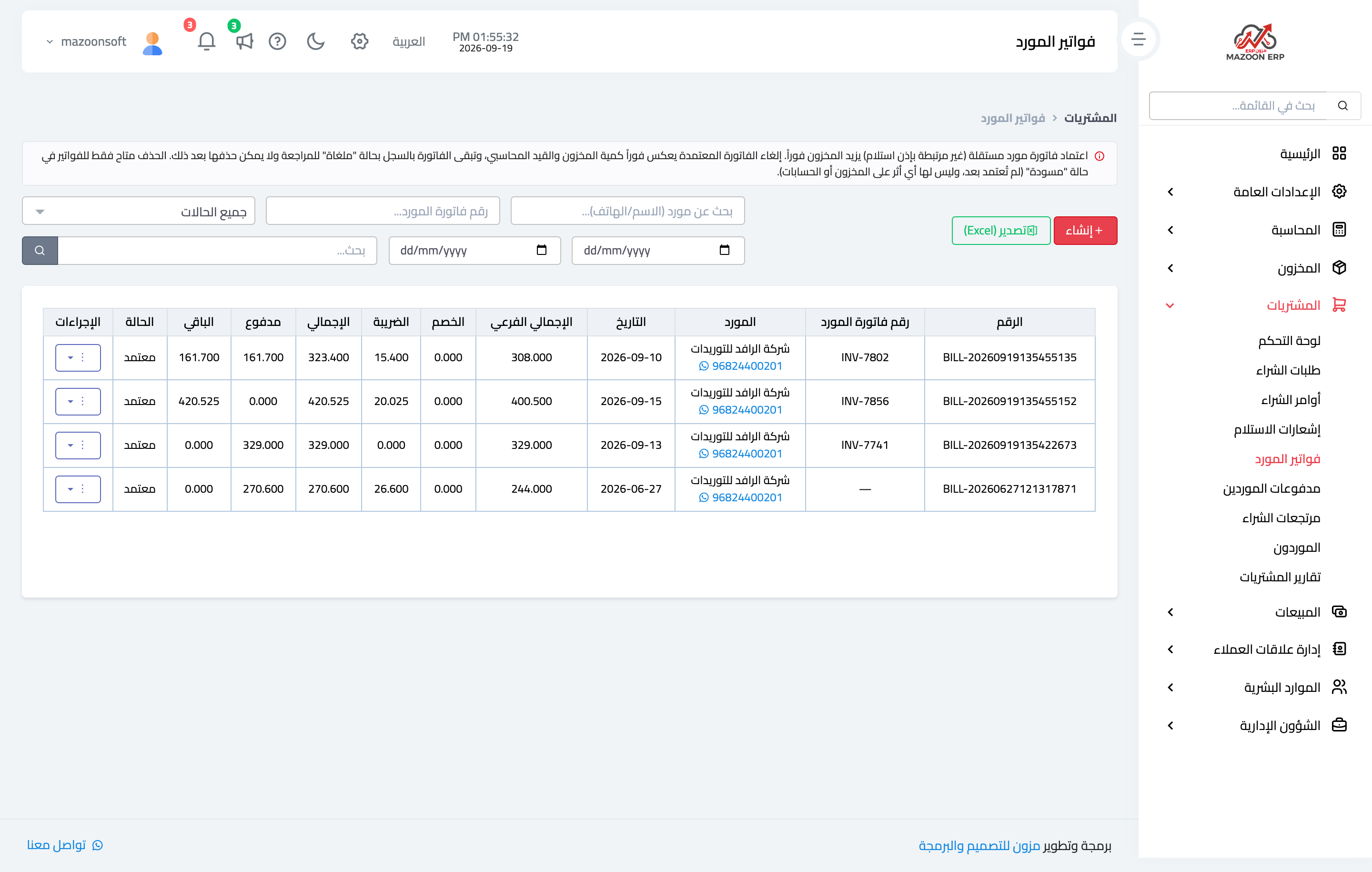
Figure 2
Try what you just read on your own data
Open a free 7-day trial — no credit card, with your own company link in minutes.