
How do I send goods back to a supplier? The purchase return
The goods arrived damaged, off-specification, or more than you ordered. A purchase return takes them out of your stock and reverses their financial effect with the supplier.
Steps
- Open Purchasing → Purchase Returns and press + Create — image 1.
- Pick the supplier, then the related purchase order and goods receipt where they exist.
- Check the branch and the warehouse the goods will leave from.
- Set the return date.
- On the lines: choose the product and enter the quantity and unit cost — use the cost it was received at.
- Write the reason, then Save.
Approval
A return is saved as a draft and moves nothing. Open it and press Approve, and then:
- The quantities leave stock — an outbound movement is recorded referencing the return number.
- A reversing journal entry reduces the supplier payable and the purchase value.
Notes
- Make sure the quantity is still in the warehouse before approving; if you have sold it, there is nothing for the system to take out.
- Use the receipt cost, not a market price; the difference distorts the item's average cost.
- A draft can be edited and deleted; an approved return can only be cancelled, which reverses the movement and puts the quantity back.
- A return does not recover cash by itself — it reduces what you owe. If you had already paid and want money back, agree a credit note or a deduction from the next invoice with the supplier.
- Check the purchasing report; its net purchases figure is approved bills minus approved returns, which is the number your accountant wants.
- Repeated returns against one supplier are a signal about their quality — review it before renewing the agreement.
Screenshots
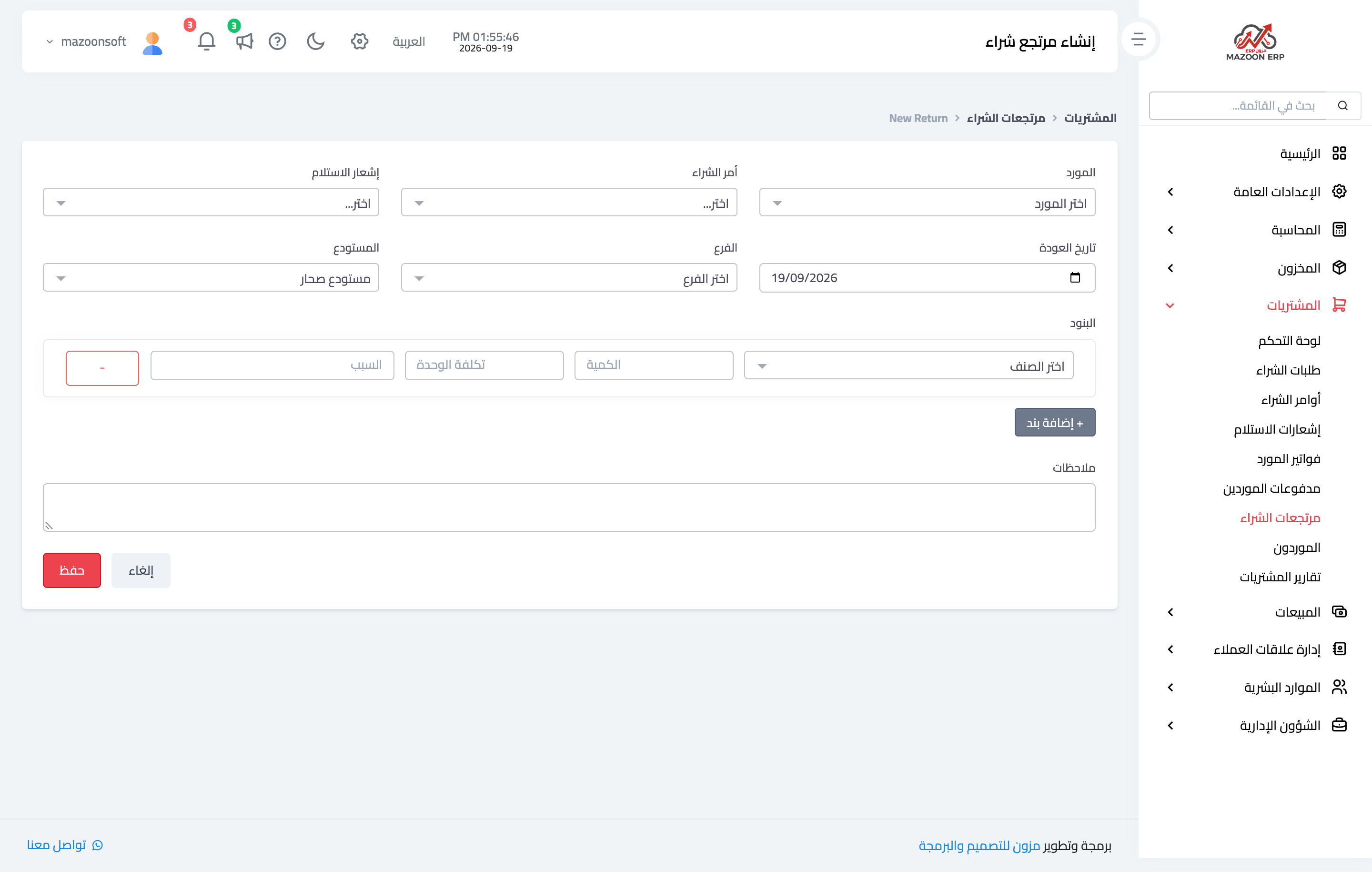
Figure 1
Try what you just read on your own data
Open a free 7-day trial — no credit card, with your own company link in minutes.