
Purchase requests: when to use one, and who approves it
A purchase request is a purely internal document: a department saying "we need these items". It names no supplier and commits no money; its value is recording who asked, when, and who agreed — before anyone commits to a supplier.
Steps
- Open Purchasing → Purchase Requests and press + Create — image 1.
- Pick the branch and the warehouse the goods will go into.
- Set the date.
- On the lines: choose the product and enter the quantity and an estimated unit price. The base unit shows beside each item.
- Press Add line for each item, then Save.
- Open the request and press Approve — image 2.
When is a purchase request worth the trouble?
- When the requester is not the buyer. The storekeeper asks and the buyer acts; the request is the paper between them.
- When approval is needed before committing. The manager approves the need first, then the buyer negotiates the price.
- When you want to compare supplier quotes for the same requirement before picking one.
If you are the one who asks, buys and receives, skip it and start from the purchase order.
Notes
- A request names no supplier — the supplier is chosen on the purchase order, and that is the essential difference between them.
- The price on a request is an estimate, not a commitment; the real price is what you agree on the order.
- A request never affects stock or accounts, whatever its status.
- A draft can be edited and deleted; an approved one can only be cancelled.
- If you have not set your items up yet you will see "No products available. Please create products in Inventory first." — start at Inventory → Items & Services.
- After approval use convert to purchase order rather than re-typing the lines.
Screenshots
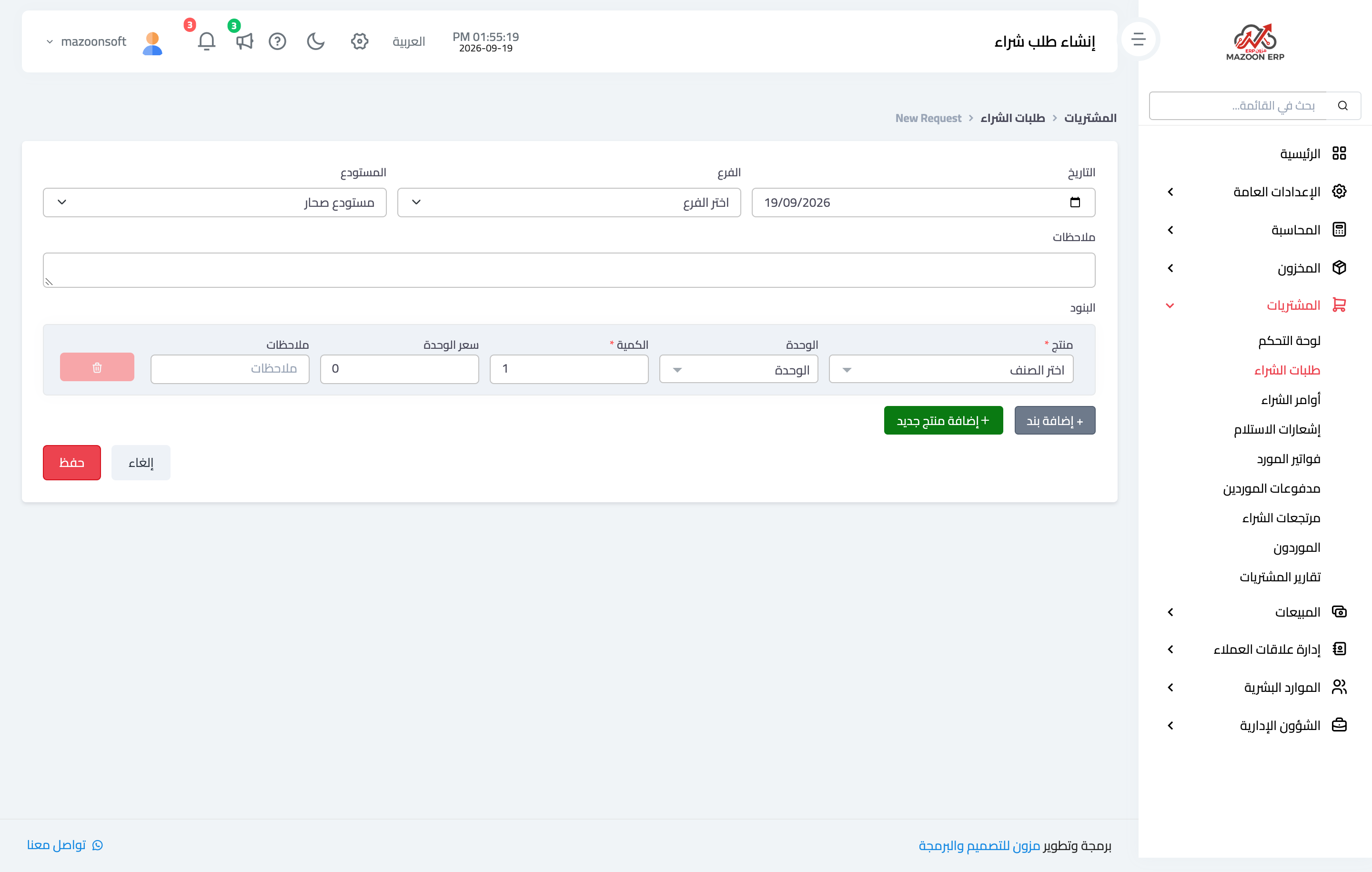
Figure 1
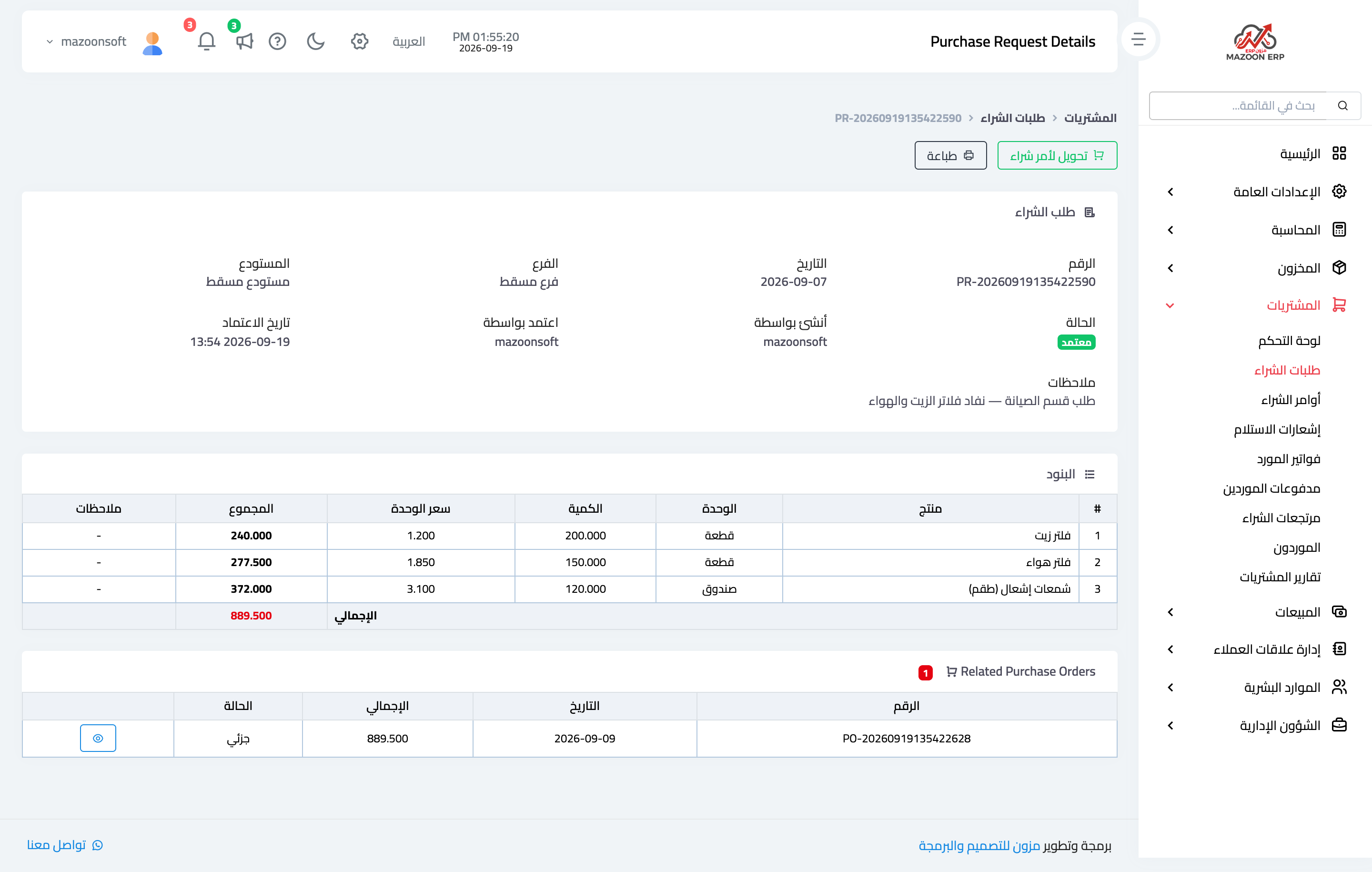
Figure 2
Try what you just read on your own data
Open a free 7-day trial — no credit card, with your own company link in minutes.