
The Purchasing dashboard: what do the numbers tell me?
The start screen for whoever buys and pays: in a minute you see what you spent, what you owe, what is overdue and what is waiting for action — image 1.
The cards
- Accounts payable — the total you owe, with the number of suppliers and bills it spans. The most important number here.
- Total paid, total purchases and total purchase bills.
- Unpaid bills — with a red badge counting the overdue ones.
- Open orders — purchase orders not yet complete.
- Pending requests — purchase requests waiting for approval.
- Suppliers — how many.
- Total supplier payments and receipts today.
The shortcuts
Two rows of quick links: purchase requests · purchase orders · goods receipts · supplier bills · supplier payments · purchase returns · purchasing reports · suppliers. A quick search box reaches a document by number or a supplier by name.
Using it daily
- Start with accounts payable and the overdue badge; those set your day's priority.
- Check pending requests — a forgotten one means a department waiting for goods nobody knows about.
- Check open orders and make sure they are live, not orders whose goods arrived and were never recorded.
- Compare total purchases with total paid; a widening gap means payables piling up.
- For detail, move to Purchasing Reports.
Notes
- The figures respect branch restriction; a restricted user sees only their branch.
- Draft bills are not counted in accounts payable — approve them for their effect to show.
- "Total purchases" is accrual, not cash; for what actually went out, read the payments card.
- Receipts today sitting at zero all week alongside many open orders points either to late suppliers or to receiving that is not being recorded.
- The Guide button at the top opens all the Purchasing articles in the in-system guide.
Screenshots
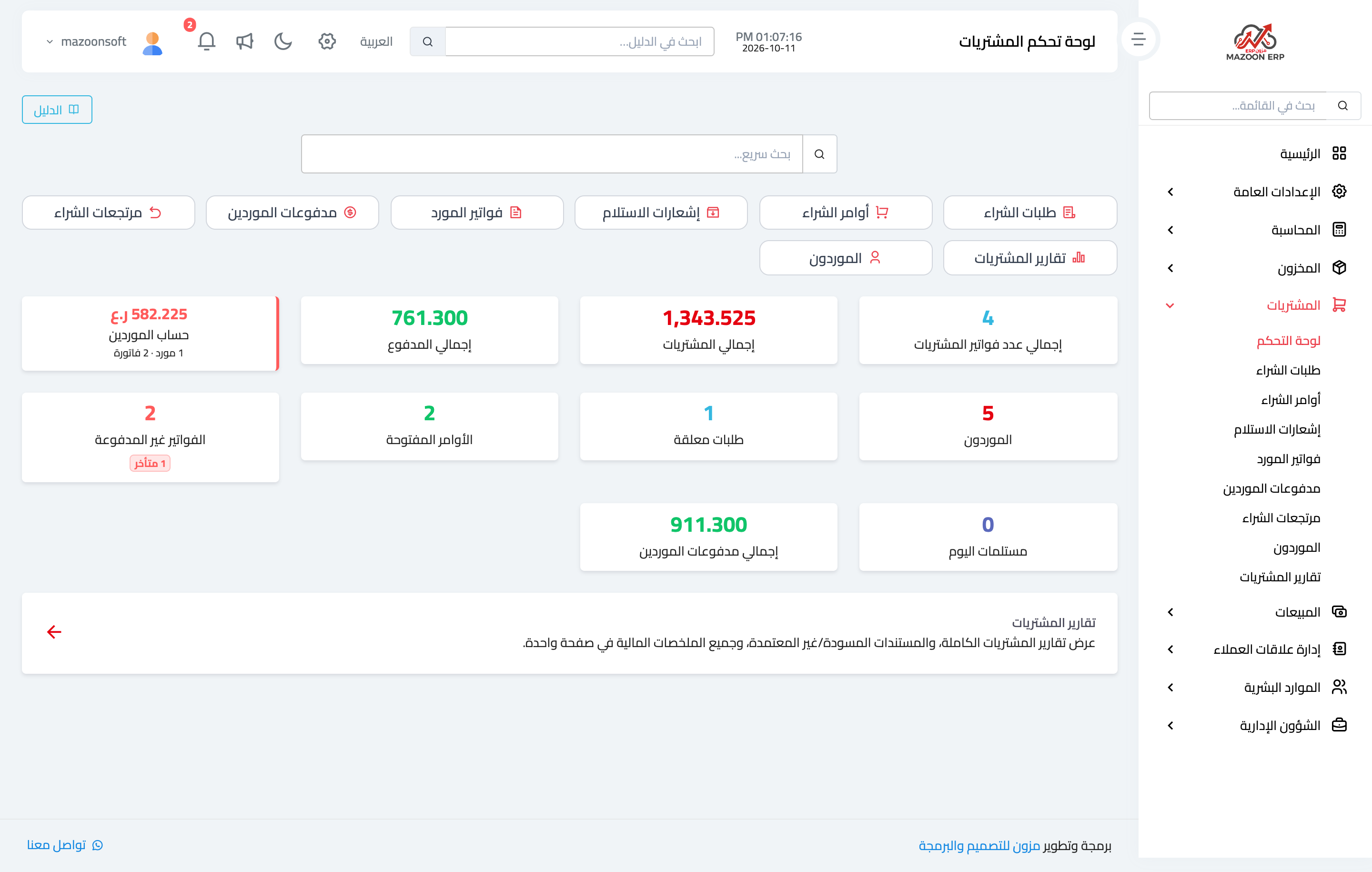
Figure 1
Try what you just read on your own data
Open a free 7-day trial — no credit card, with your own company link in minutes.