
The public holiday calendar: what it does and what it does not
A simple screen recording the year's public holidays — and it is important to know its limits before you build on it.
Adding a holiday
- Open HR → Holiday Calendar and press + Create — image 1.
- Enter the Arabic name and the English name.
- Set the date.
- Tick recurring for holidays on a fixed Gregorian date — national day, new year.
- Tick paid where the holiday carries pay.
- Add notes and save.
What this screen does not do
The holiday calendar does not currently affect leave-day calculation. When an employee takes leave from Sunday to Thursday with a public holiday in the middle, the system counts the days excluding Friday and Saturday only, and the holiday comes out of the employee's balance.
It also does not affect attendance or salary calculation. As things stand the screen is a reference record for planning.
How to handle that in practice
- Ask the employee to split the request around the holiday: one before and one after, so their balance is not charged.
- Or adjust the day count on the leave request by hand before approving, where your setup allows it.
- Review leave balances at year end and correct anything charged wrongly.
- Record the holidays anyway — they are your reference for planning shifts and deliveries, and you will benefit automatically once they are wired into the calculation.
Notes
- The weekend is fixed at Friday and Saturday with no setting to change it. If your working week differs, check leave figures carefully.
- Hijri holidays move in the Gregorian calendar each year — do not tick recurring for those; add them with their new date annually.
- Enter the whole year's holidays in early January; ten minutes saves scattered corrections later.
Screenshots
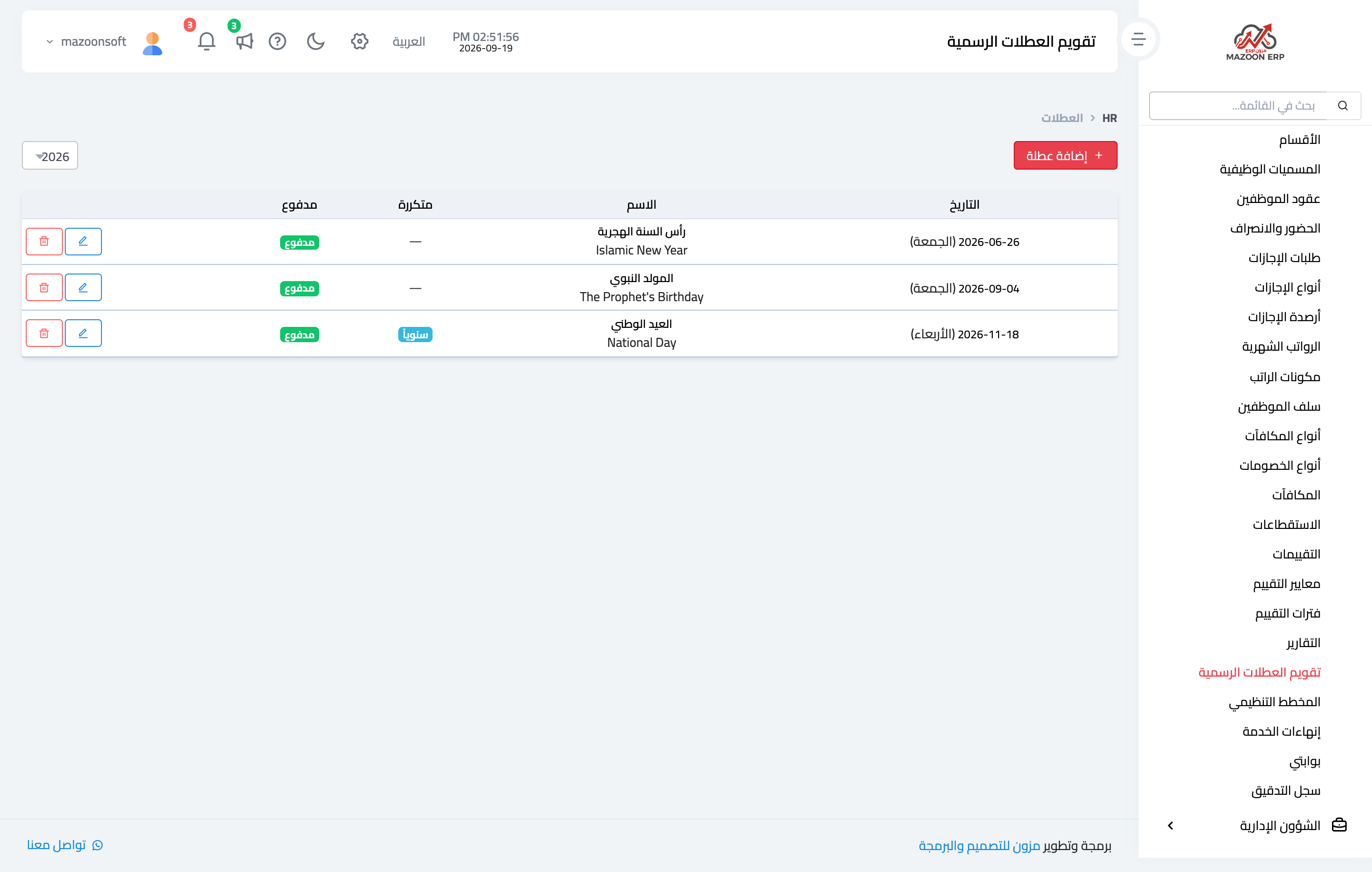
Figure 1
Try what you just read on your own data
Open a free 7-day trial — no credit card, with your own company link in minutes.