
Leave requests: creating, approving, rejecting and cancelling
The whole leave cycle sits on one screen, and the balance moves automatically at each step.
Creating a request
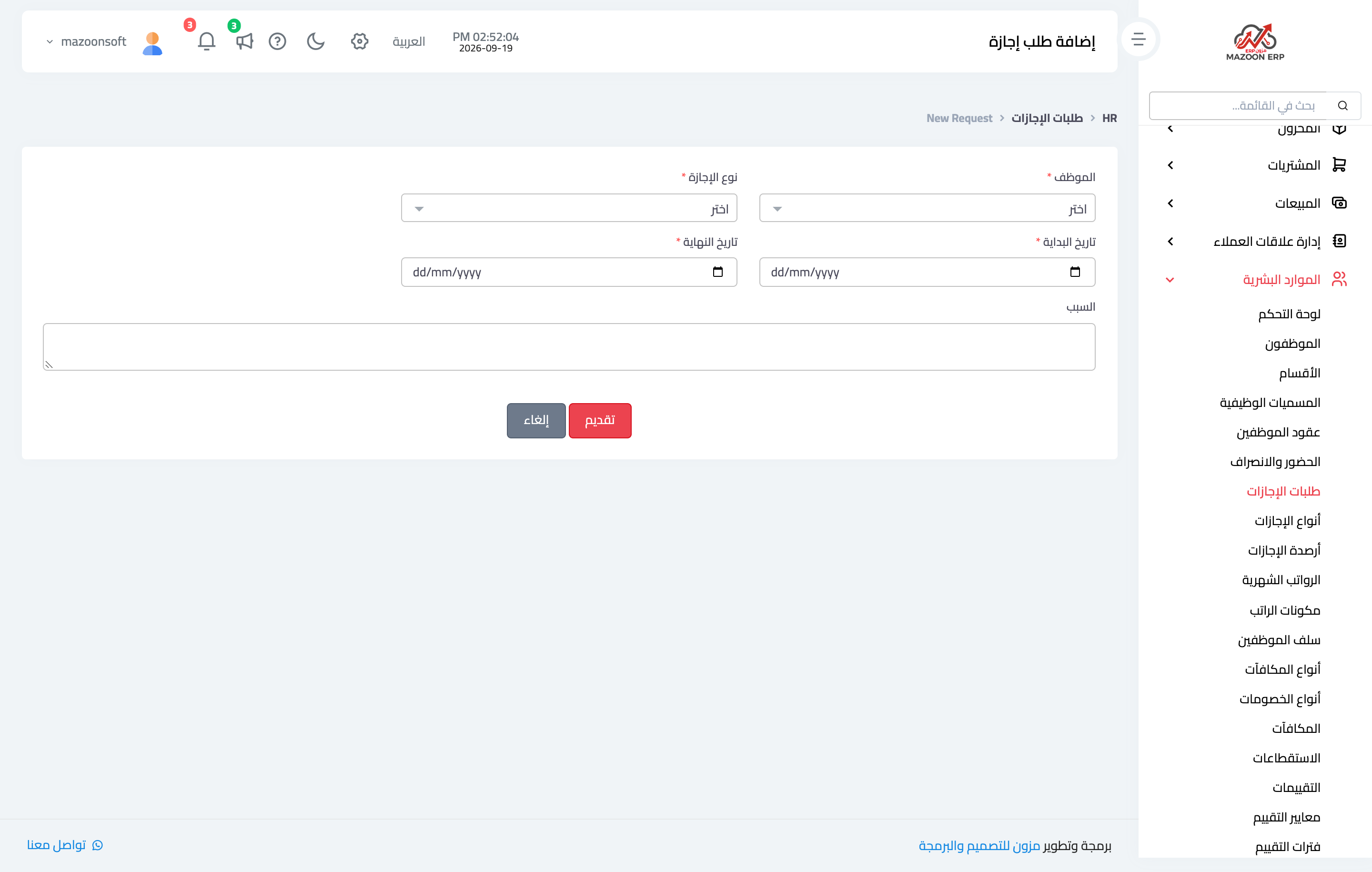
- Open HR → Leave Requests and press + Create — image 1.
- Pick the employee and the leave type.
- Set the start and end dates; the number of days is calculated automatically.
- Write the reason and save. The request is created as pending.
The day count excludes Friday and Saturday only — public holidays are not excluded, so see the holiday calendar article.
Approving
Open the request and press Approve. Only then does the balance move: used days go up and remaining days go down, against the balance for the year the leave starts in.
Only a pending request can be approved, and the operation is protected against concurrency, so two quick clicks never charge the balance twice.
Rejecting
Press Reject and write a rejection reason. Rejecting never touches the balance, because the request was never charged. The reason is visible to the employee in their portal.
Cancelling approved leave
An employee's leave was approved and then they changed their mind, or were called back. Open the request, press cancel approved and write the reason.
The system returns the days: used goes down and remaining is recalculated correctly, and the request becomes cancelled with the reason tagged.
Notes
- A request cannot be approved without enough balance; the system checks the remainder first.
- An employee with no balance record for that type and year will fail — run Initialize Balances.
- Cancelling applies to approved requests only; a pending one is rejected, and a cancelled one cannot be reinstated.
- Approve or reject promptly; the dashboard shows pending leave with a counter, and it is the first thing a manager looks at.
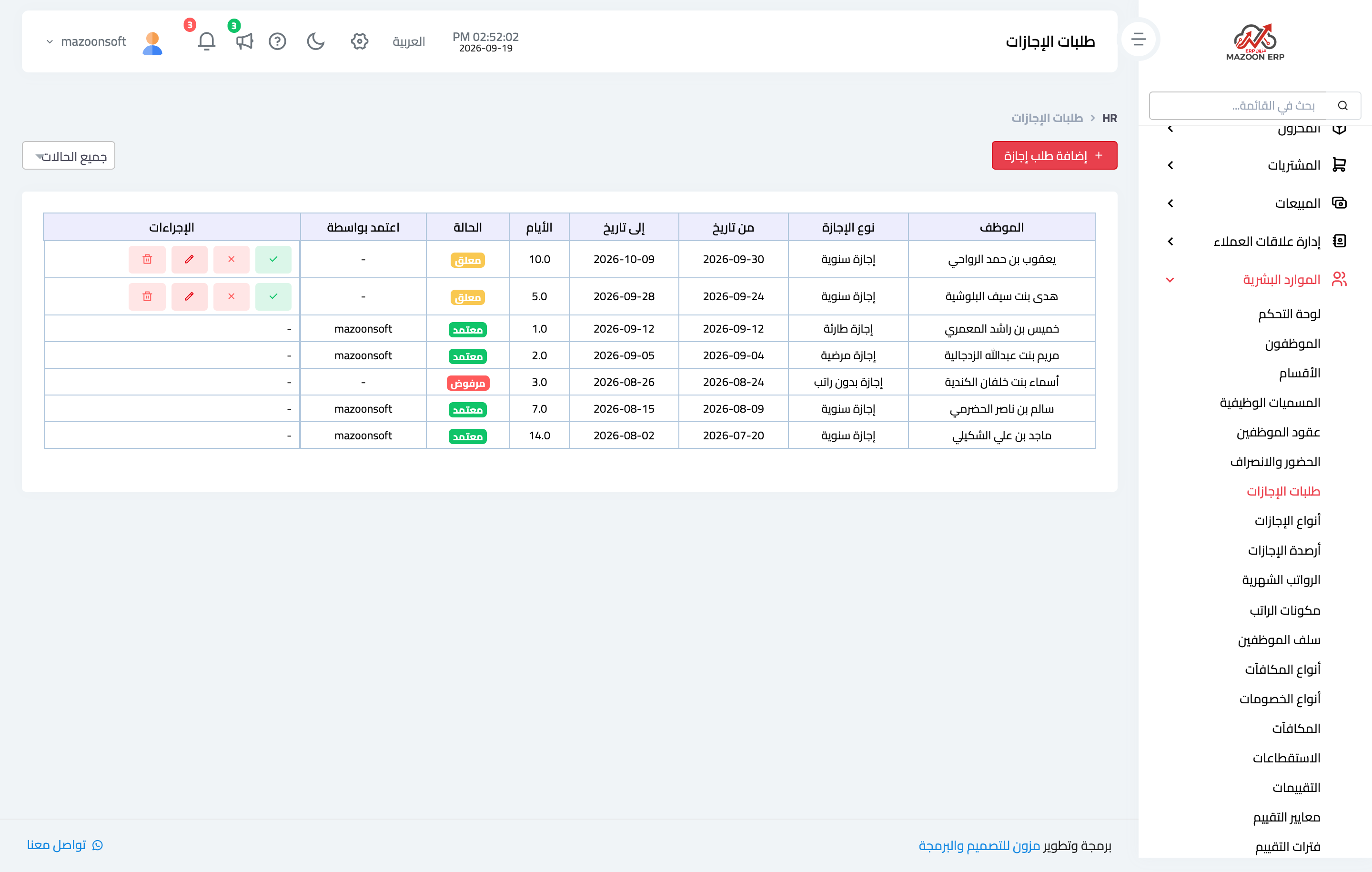
- The Leave Requests list — image 2 — shows the status and days of every request, and employees see their own in My Portal.
Screenshots
Try what you just read on your own data
Open a free 7-day trial — no credit card, with your own company link in minutes.