
HR reports: which report answers which question
Open HR → Reports — image 1. A quick summary sits at the top, with the detailed reports below it.
The summary
Cards give you the state of HR at a glance: total employees, active and terminated, new hires, approved leave days, overtime hours, payroll approved and paid totals, and the advances figures: disbursed, repaid and remaining.
Which report do I want?
- "Who do I have, and how many?" → Employee Report and Demographics (by department, nationality and gender).
- "Who was absent or late, and who worked overtime?" → Attendance Report, filtered by period.
- "How much leave was taken, and by whom?" → Leave Report.
- "How much balance does each employee have left?" → Leave Balance Summary — this is the one you need before approving long leave or at year end.
- "What is the detail of one month's payroll?" → Payroll Register, showing basic, earnings, deductions and net per employee, ready to print.
- "How has payroll moved across months?" → Payroll Report.
- "Which contracts expire soon?" → Contract Expiry Forecast, over a day range you choose, showing days remaining per contract.
- "What would an employee's gratuity cost if they left today?" → EOS Calculator, which is an estimate and creates no record.
Useful to know
- The payroll register flags rows with a negative raw net before rounding — check those; usually deductions exceeded earnings.
- The EOS calculator separates the first three years (½ month/year) from the years after (1 month/year) — the default Gulf formula, adjustable to your labour law.
- Most reports print directly with the Print button.
- Reports read what has actually been recorded; attendance you never entered means an incomplete attendance report, not a system error.
Screenshots
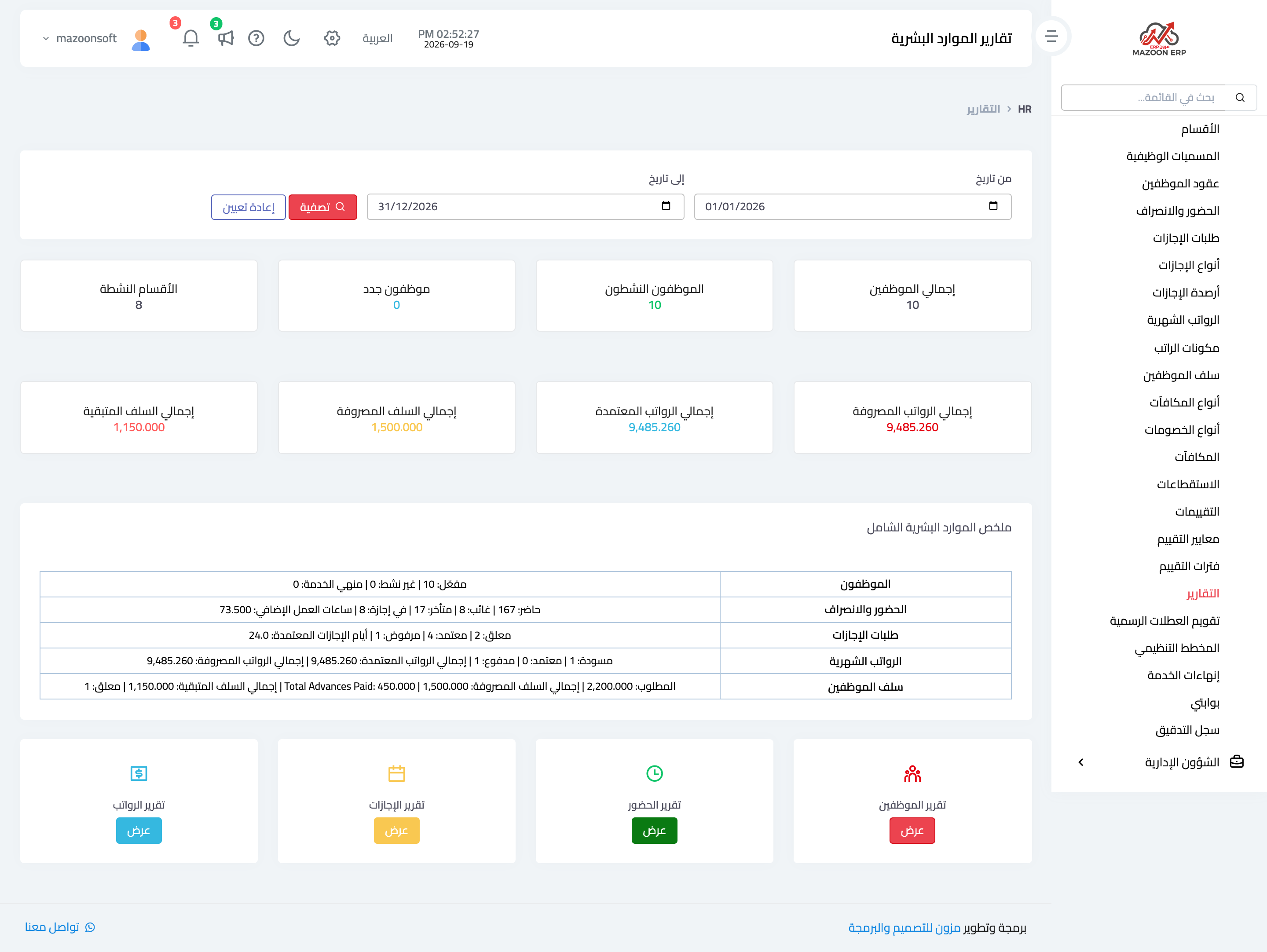
Figure 1
Try what you just read on your own data
Open a free 7-day trial — no credit card, with your own company link in minutes.