
How do I add an employee, attach their documents, and track expiry?
The employee card is the centre of everything in HR: the contract, attendance, leave and payroll all hang off it. Fill it carefully once.
Adding an employee
- Open HR → Employees and press + Create — image 1.
- Personal details: first and last name in Arabic and English, date of birth, gender, marital status, nationality.
- Official documents: national ID number and expiry, passport number and expiry.
- Contact: email, phone, mobile, address and city.
- Employment: branch, department, job title, hire date and status.
- Upload a photo and press Save.
Then open the employee's card to see everything about them in one place — image 2.
Employee documents
- Open HR → Employee Documents and press + Create — image 3.
- Choose the employee and enter a document title: passport, work permit, health certificate, driving licence.
- Upload the file and enter an expiry date where the document has one.
- Save.
Tracking expiry
The HR dashboard carries two cards that work on their own: IDs expired or expiring and passports expired or expiring, both within thirty days. The documents list distinguishes expired from expiring.
Notes
- The hire date is the most important field on the card — years of service and the end-of-service benefit are calculated from it. Check it twice.
- ID and passport numbers go on the employee card; attached files go on the documents screen — two different things, and the card is what feeds the two alert cards.
- An employee status of active is what puts them into payroll; an inactive employee is skipped.
- Never delete an employee who left — use offboarding so their record stays and their settlement is calculated.
- Make uploading documents part of onboarding; hunting for an employee's passport two years later is painful work.
Screenshots
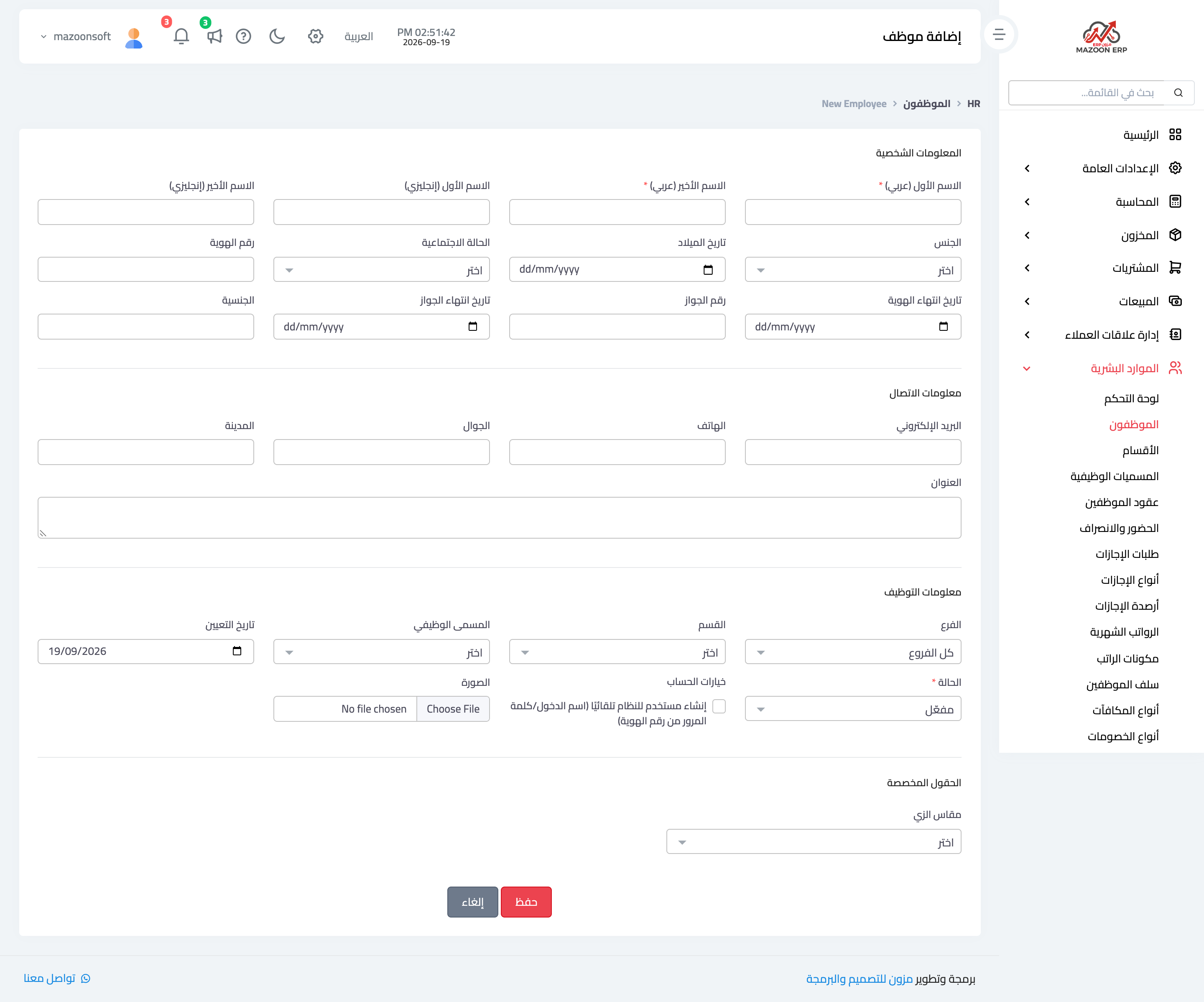
Figure 1
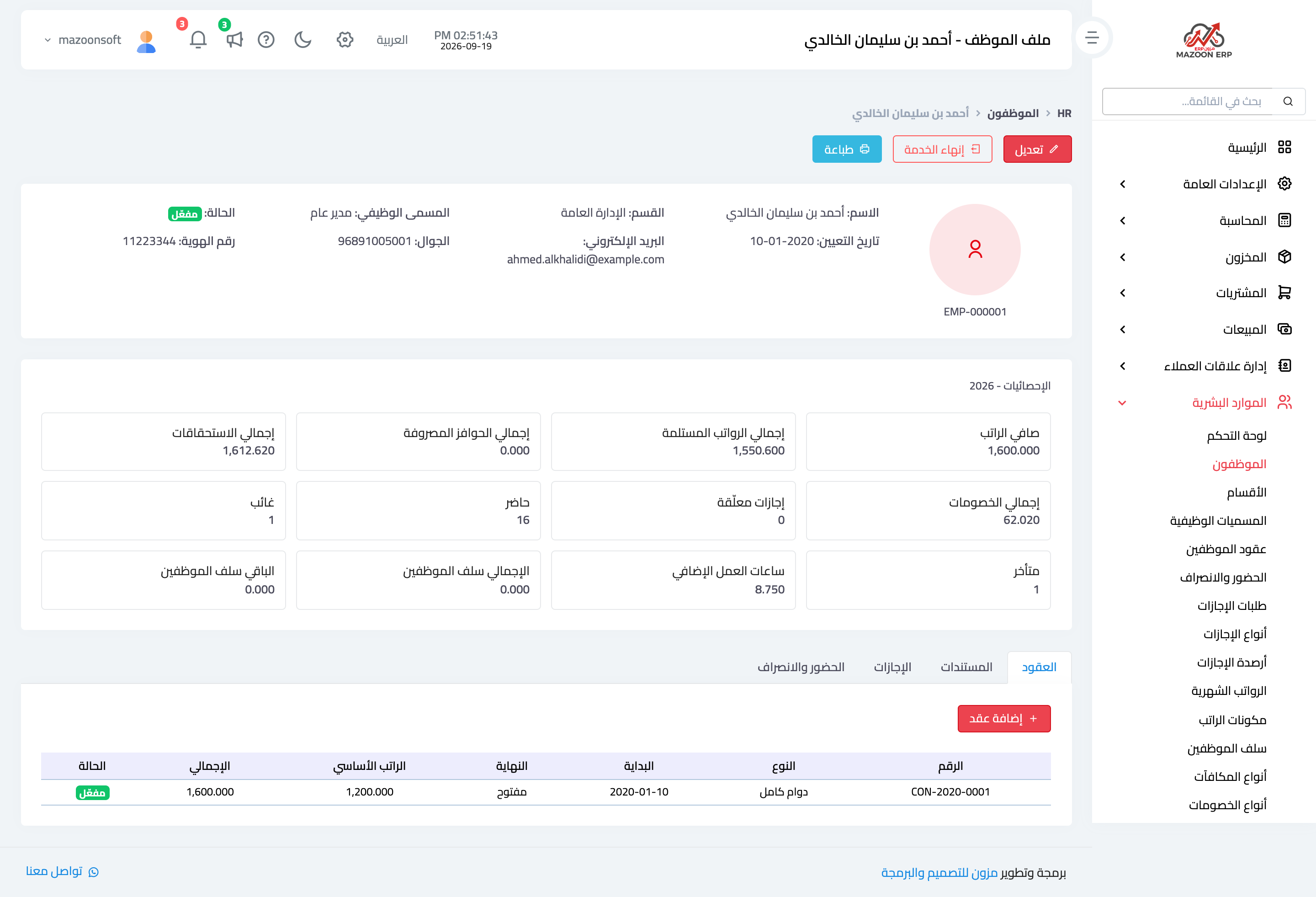
Figure 2
Figure 3
Try what you just read on your own data
Open a free 7-day trial — no credit card, with your own company link in minutes.