
How do I add an owner, a tenant or a broker?
Owners, tenants and brokers are all the same contacts in the system; what separates them is the role assigned to them.
Steps
- From the sidebar open Property Rental → Property owners — Figure 1 — or Tenants — Figure 2 — or Brokers.
- Each of these is the contacts list filtered by the matching role.
- Press New contact — Figure 3 — and enter the name, the type (individual or company), the phone and the address.
- Set the roles: property owner, tenant, broker — and one person can hold more than one role.
- Enter the ID number, the tax number and the bank details for owners; that is how their money is remitted.
- Save, and the contact appears immediately in the contract and agreement lists.
Notes
- Do not register the same person twice because they are both an owner and a tenant; give the one contact both roles.
- An owner’s bank details save you a phone call at every monthly transfer.
- The ID number is required on most attested lease contracts, so ask for it at registration rather than at attestation.
- A broker is a contact too, and the commission payout vouchers are linked to them.
Screenshots
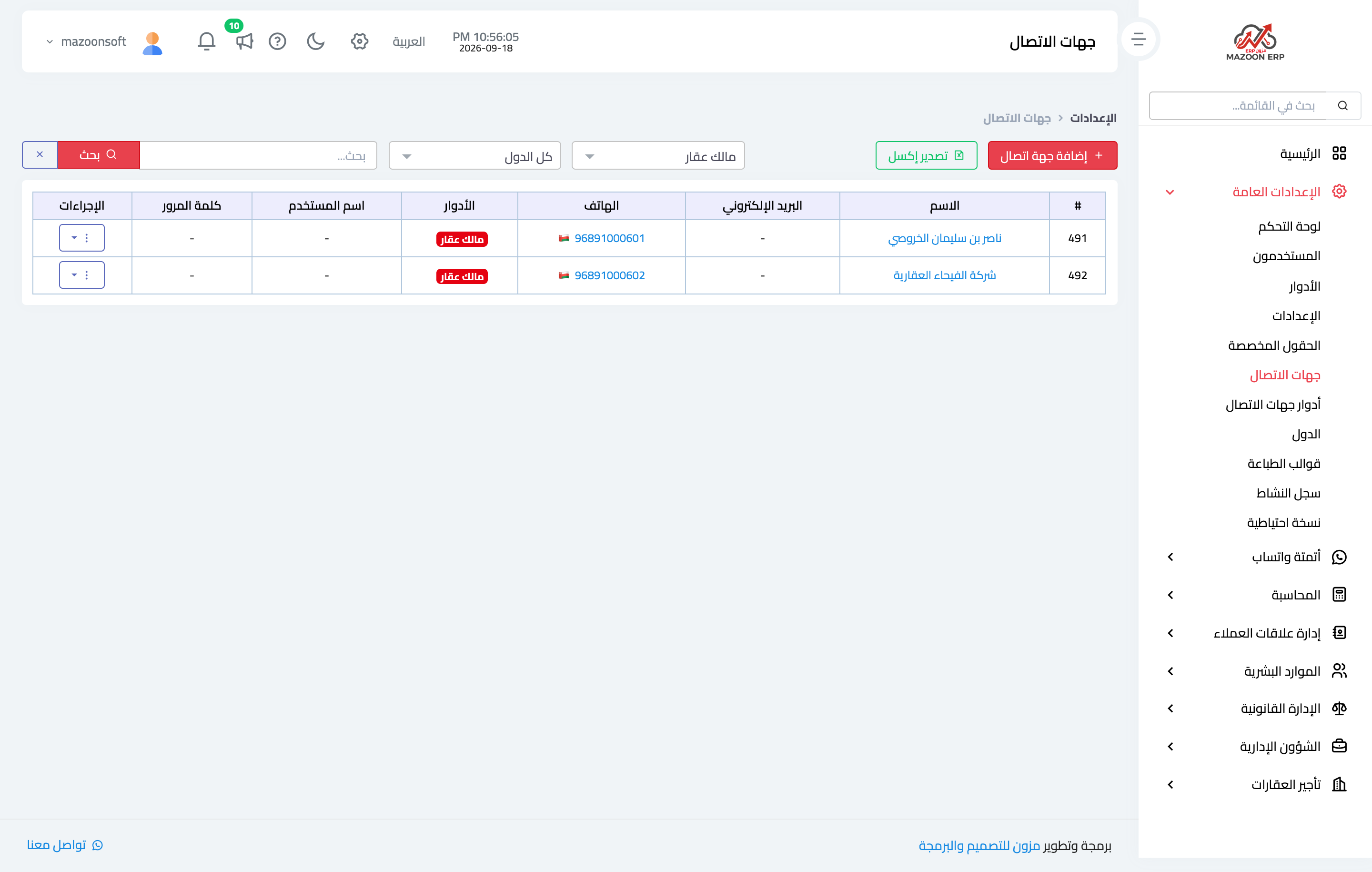
Figure 1
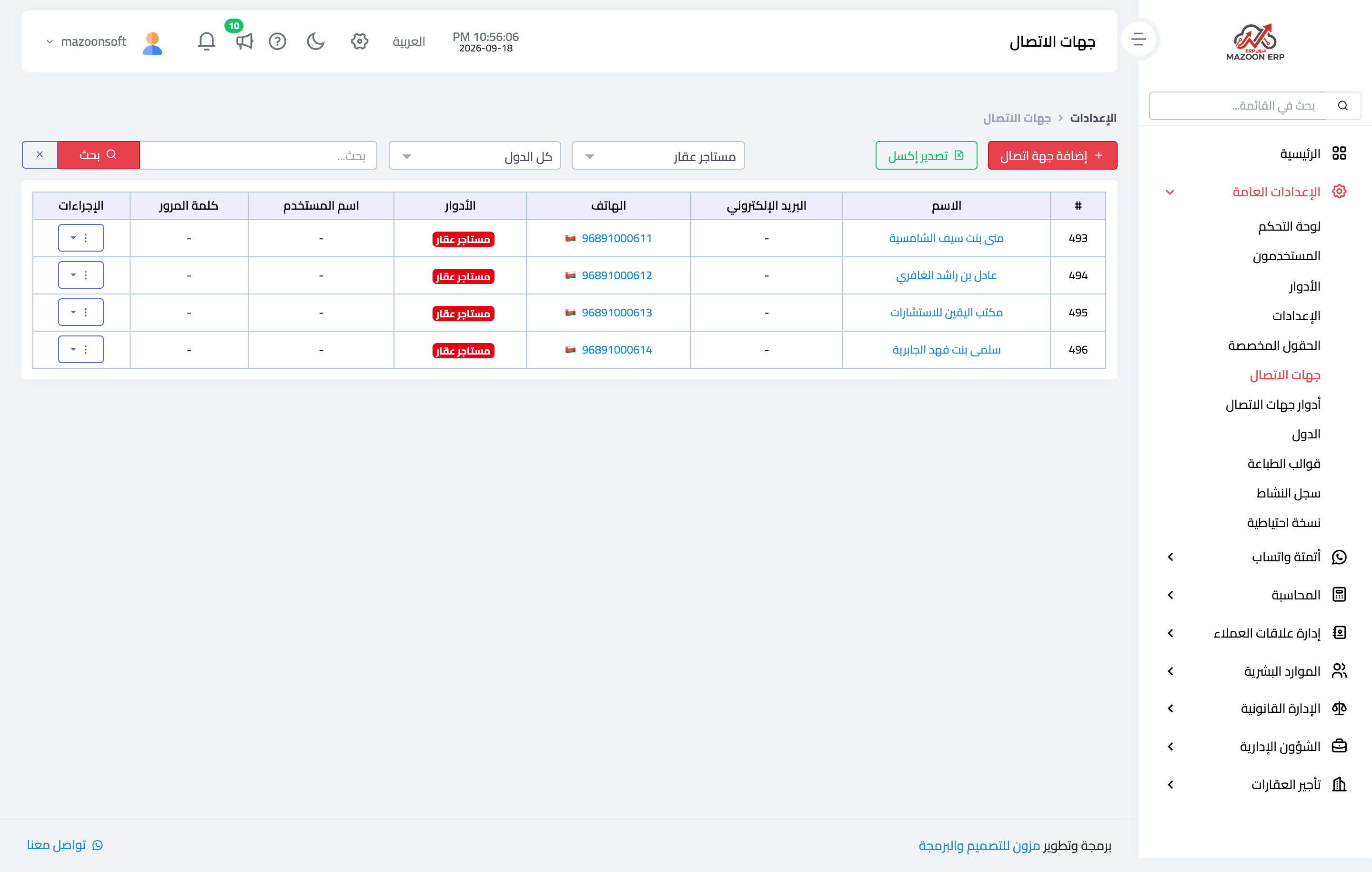
Figure 2
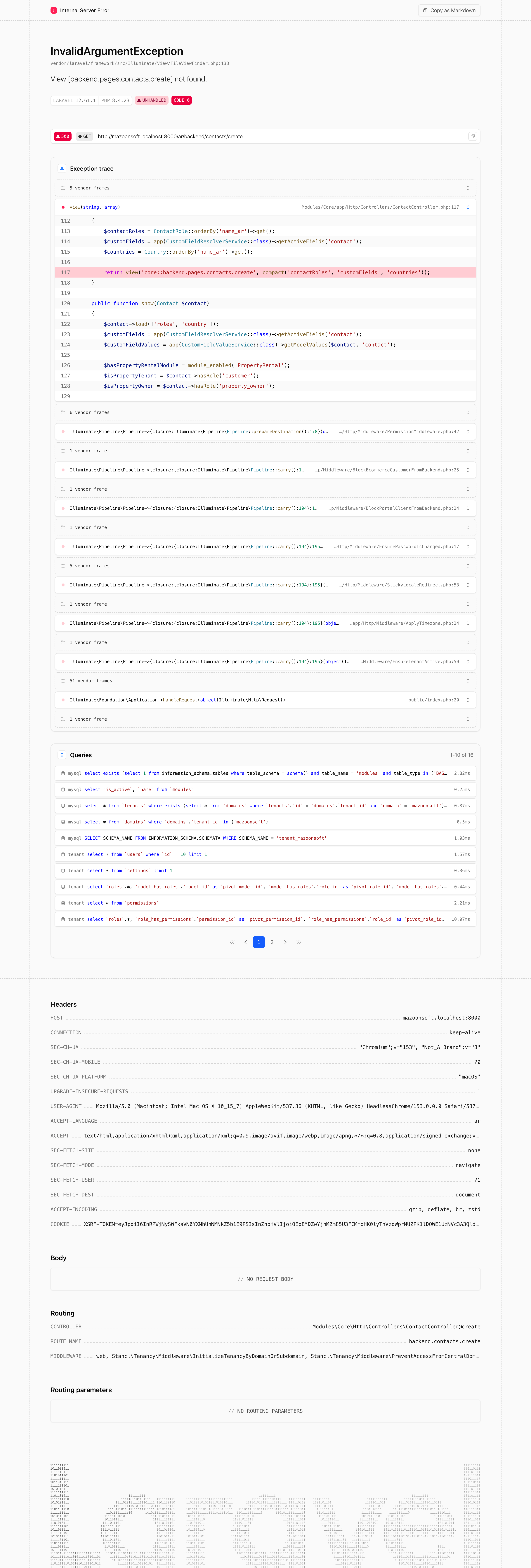
Figure 3
Try what you just read on your own data
Open a free 7-day trial — no credit card, with your own company link in minutes.