
Working inside a case: sessions, pleadings, and rulings
After registration, the real life of the case begins: session after session, a pleading filed, a ruling issued, an appeal window running. All of it is managed from the case page.
The case page
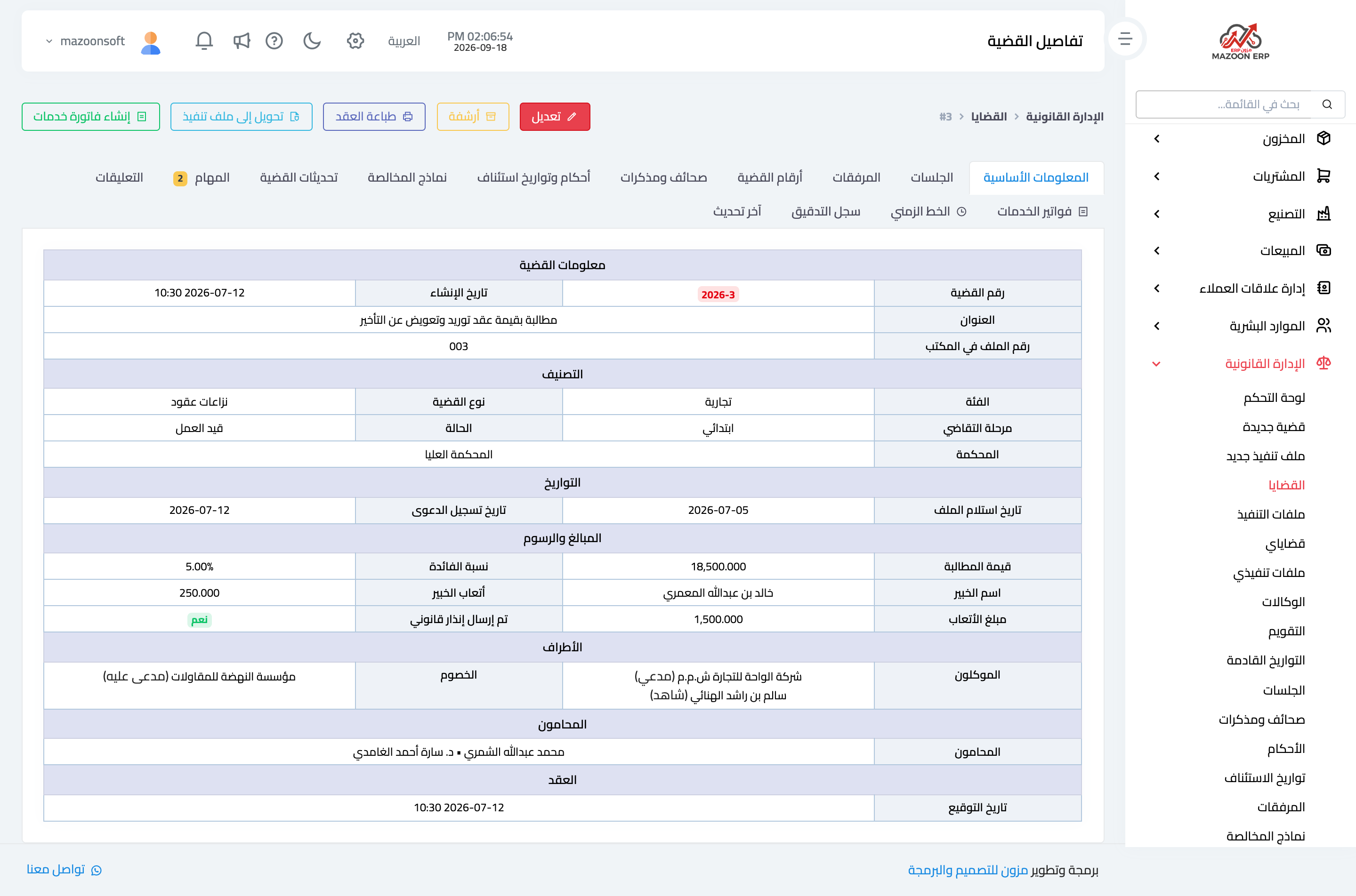
Click the case number in the table to open its page, as in Figure 1. Action buttons sit at the top: Edit, Archive, Print contract, Convert to an execution file, and Create a service invoice.
Below them, a tab bar maps the whole case: basic information, sessions, attachments, case numbers, pleadings, rulings and appeal dates, clearance forms, case updates, tasks, comments, service invoices, timeline, audit log, and last update. Each tab carries a counter, so one glance tells you where the work stands.
The basic information tab shows the case summary in a single table: details, classification, dates, amounts and fees, parties with their attributes, lawyers, and the signed contract.
Sessions
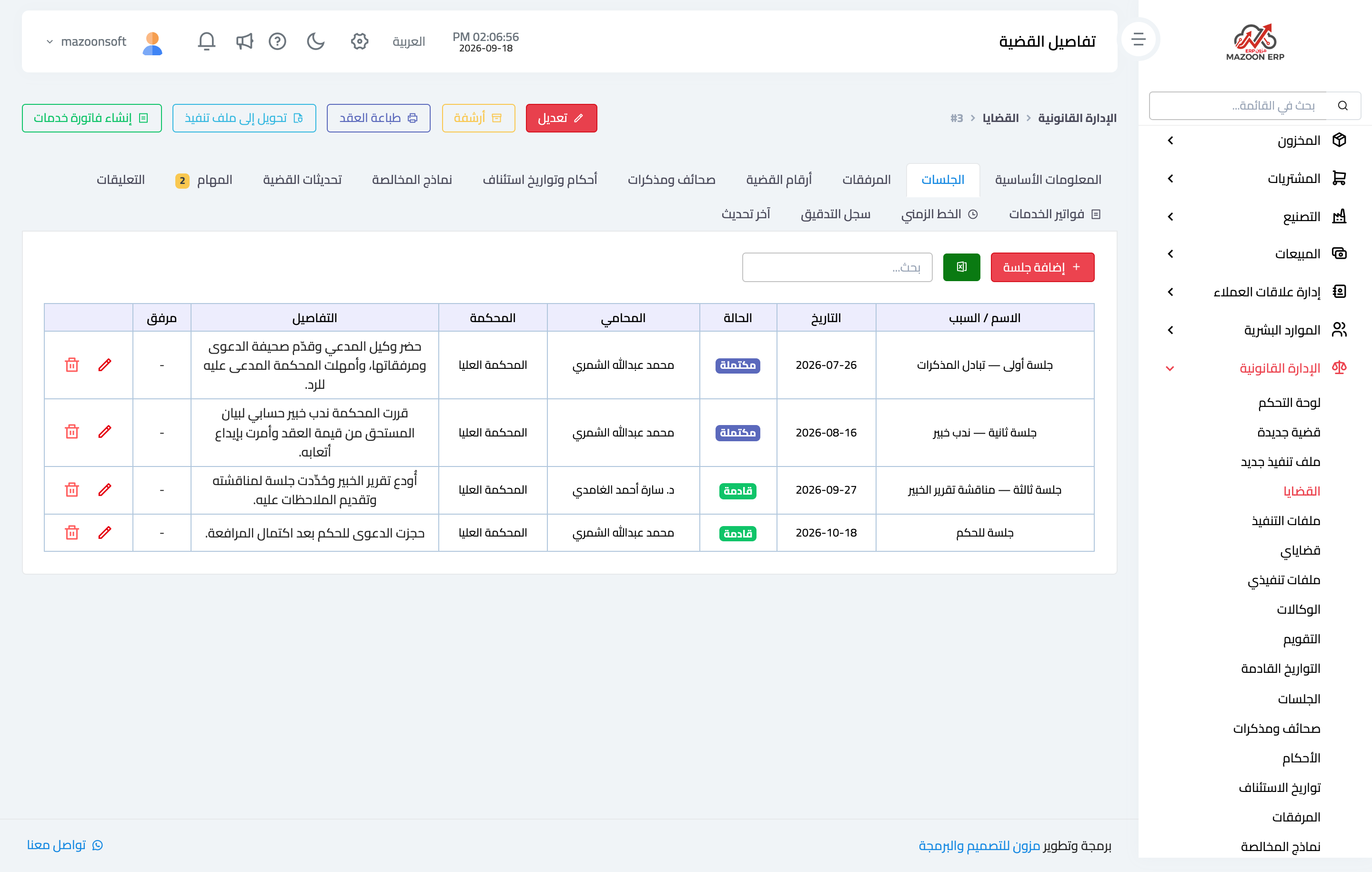
The Sessions tab — Figure 2 — is the most used. Each session records its name or purpose, date and time, court, the lawyer attending, what happened, and an optional attachment.
The status follows from the date: upcoming for what has not arrived, completed for what has passed. Upcoming sessions are what feed the dashboard calendar, the “upcoming sessions” card, and the reminders.
If a session is postponed, the postponement is recorded with its reason and the original session leaves a trace, so the sequence of events is not lost.
Case numbers
One case carries several numbers over its life: the first-instance number, then the appeal number, then the expert registration number. Each is recorded on the case numbers tab with its name and date, keeping them distinct instead of crammed into one field.
Pleadings
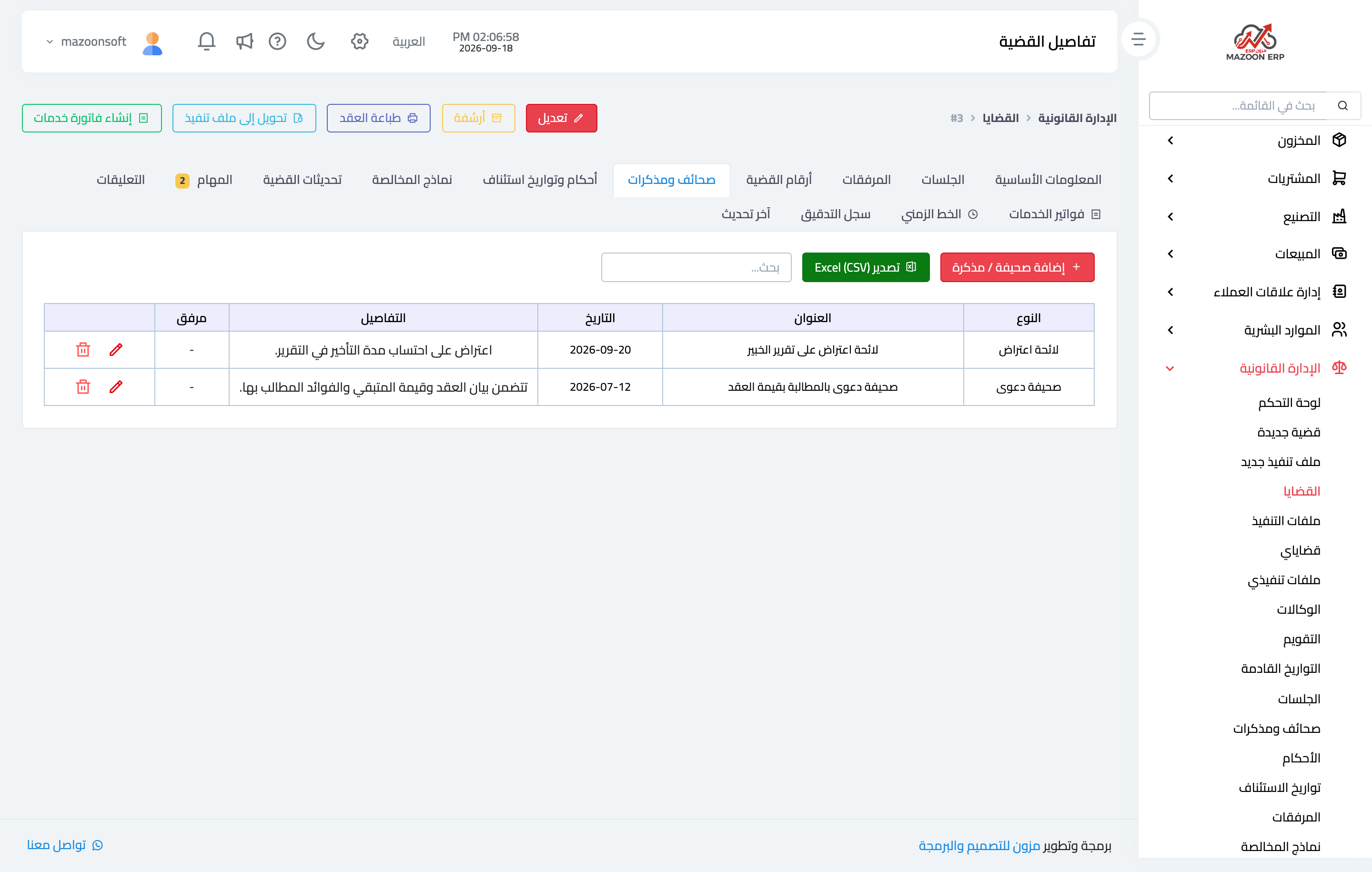
The Pleadings tab documents everything filed in the case, as in Figure 3: the type from the reference list, the title, the date, the details, an attachment, and a status (draft, submitted, or approved). A “draft” status says the pleading is ready on your side but not yet filed.
Rulings and appeal dates
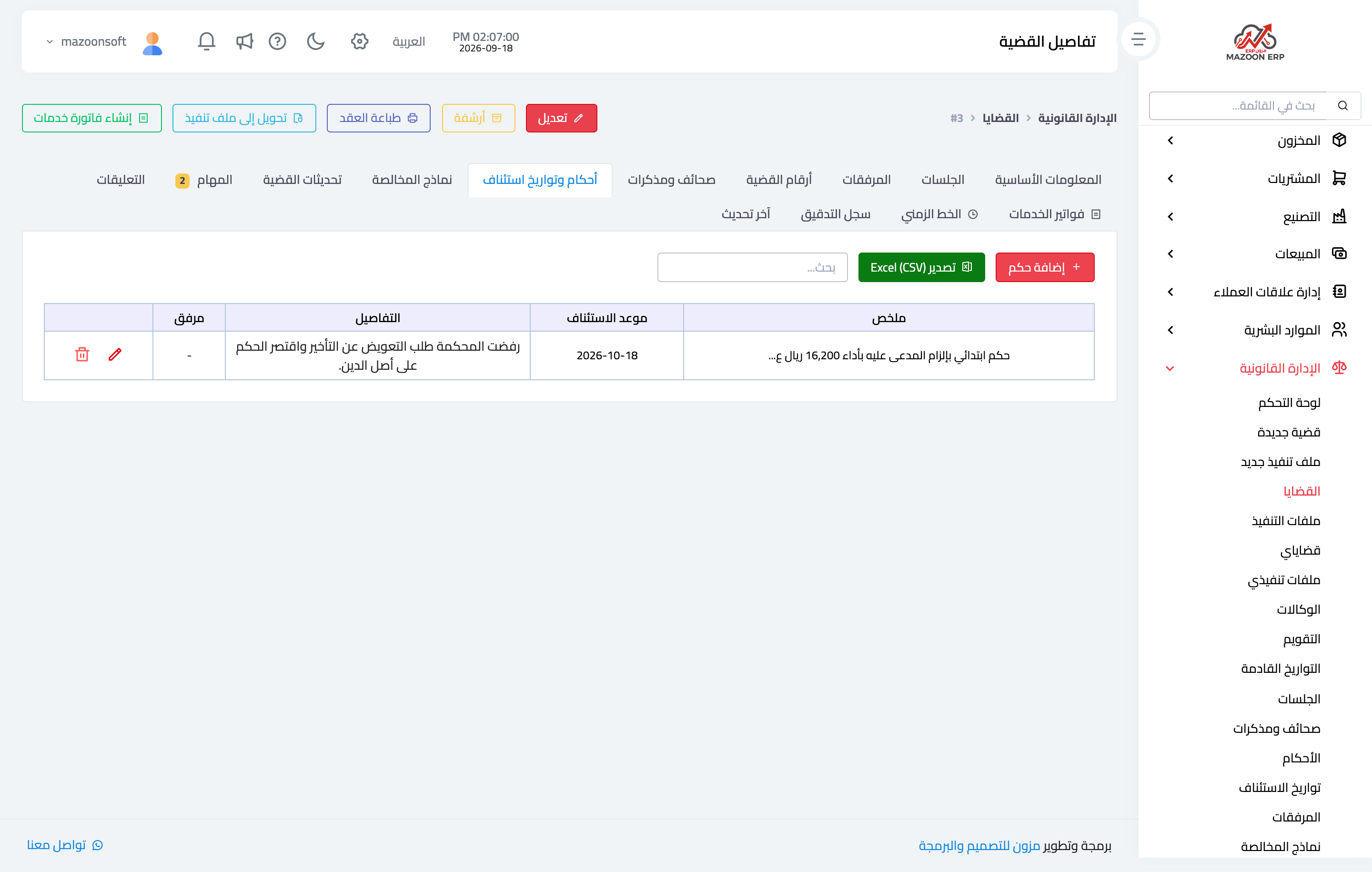
On the Rulings and appeal dates tab — Figure 4 — a ruling is recorded with its summary, details, and outcome (won, lost, partial, settled, or dismissed), and then the important part: the appeal deadline and its status.
That field is exactly why the dashboard has a “pending appeals” card and a “nearby appeal dates” panel: an appeal window is not extended, and missing it ends the right to challenge however unjust the ruling was.
Case updates and tasks
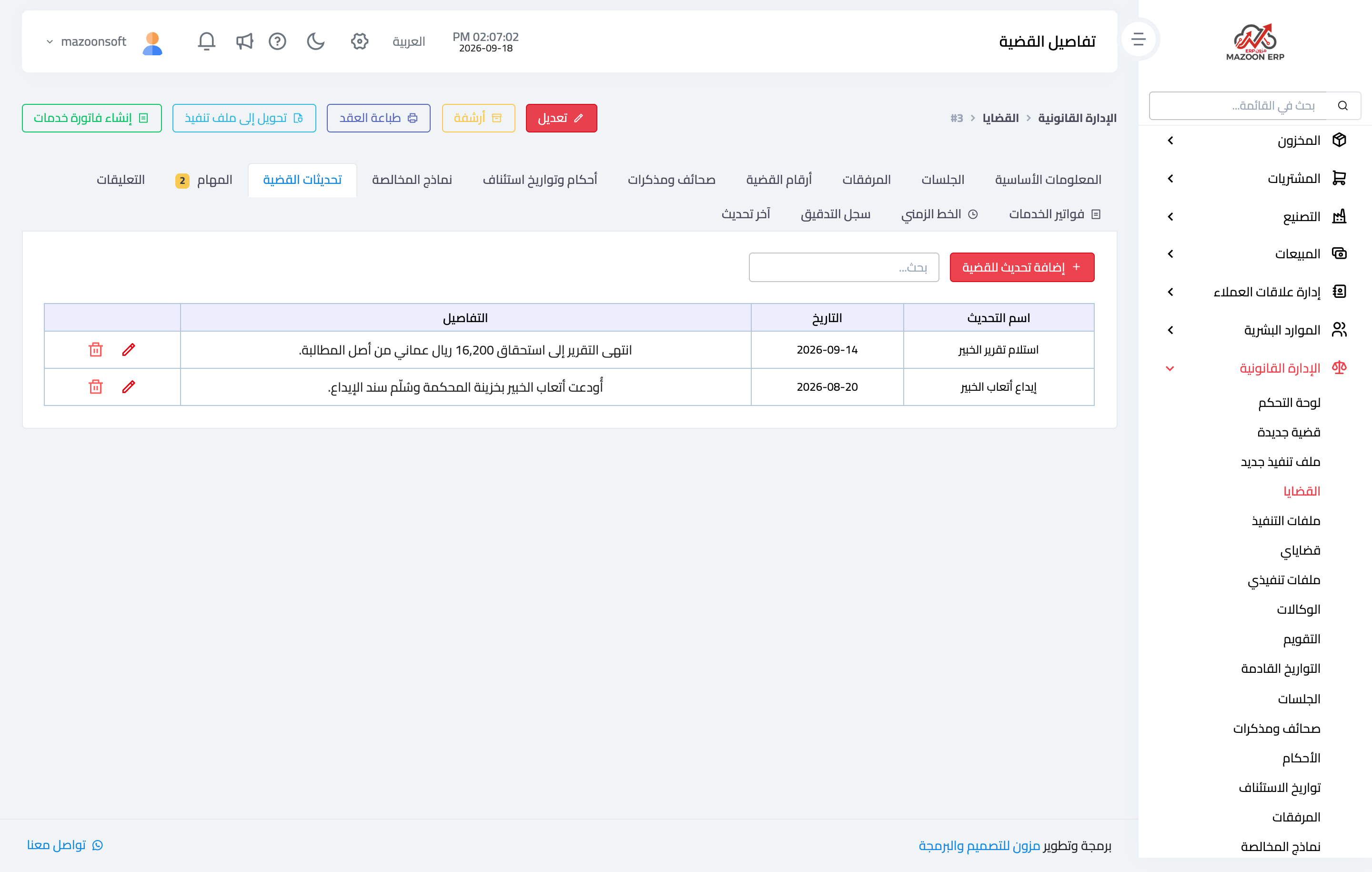
Not everything in a case is a session or a pleading. Depositing expert fees, receiving a report, writing to an authority — these go on case updates, as in Figure 5, with a name, a date, and details.
The Tasks tab is for what must be done rather than what was done: a title, a description, a due date, a priority, and the staff assigned. An overdue task shows up in the “overdue tasks” card on the dashboard.
The Comments tab holds the team’s internal notes, the Timeline arranges everything above — sessions, pleadings, rulings, updates — into one chronological sequence, and the audit log keeps who changed what and when.
Cross-case lists
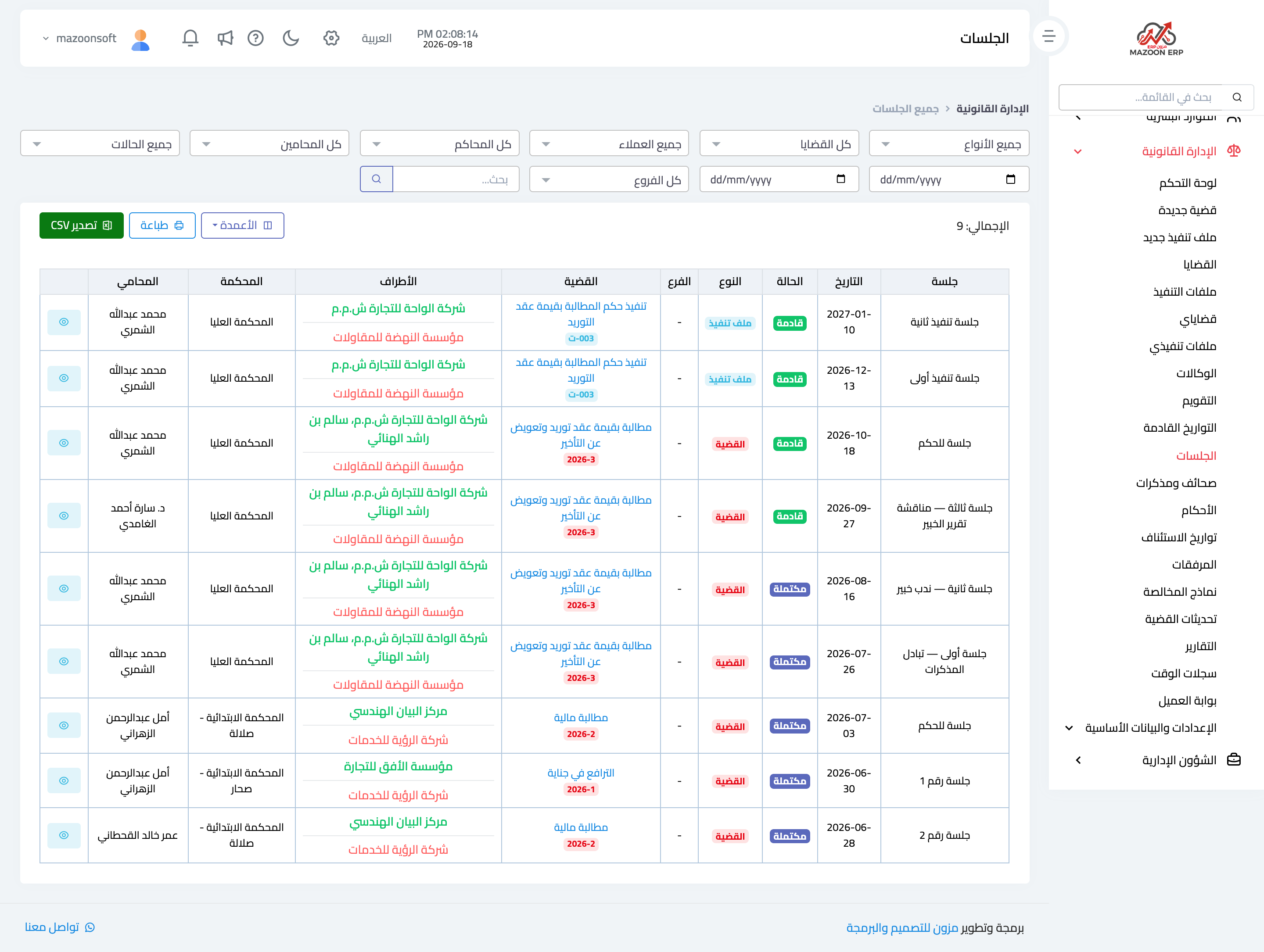
Besides working inside one case, the sidebar offers lists that cut across all cases: Sessions as in Figure 6, Pleadings, Rulings, Appeal dates, Attachments, Case updates, and Clearance forms.
Each list has full filtering, Excel export, and printing. Sorted by date, the sessions list is the office schedule for the week, not just a query screen.
Notes
- Record the appeal deadline the moment the ruling is issued, not later; the alert cannot work on an empty field.
- Write session details right after the session, because what is not written today will not be remembered a month from now.
- Use Convert to an execution file once the ruling is final; it carries the case details and parties into the execution file and keeps the link between them.
Screenshots
Try what you just read on your own data
Open a free 7-day trial — no credit card, with your own company link in minutes.