
Execution files, agencies, and legal reports
A ruling in the client’s favour is not the end of the road but the start of it: the judgment still has to be collected. That stage has its own file in the system, because its procedures differ from those of litigation.
Execution files
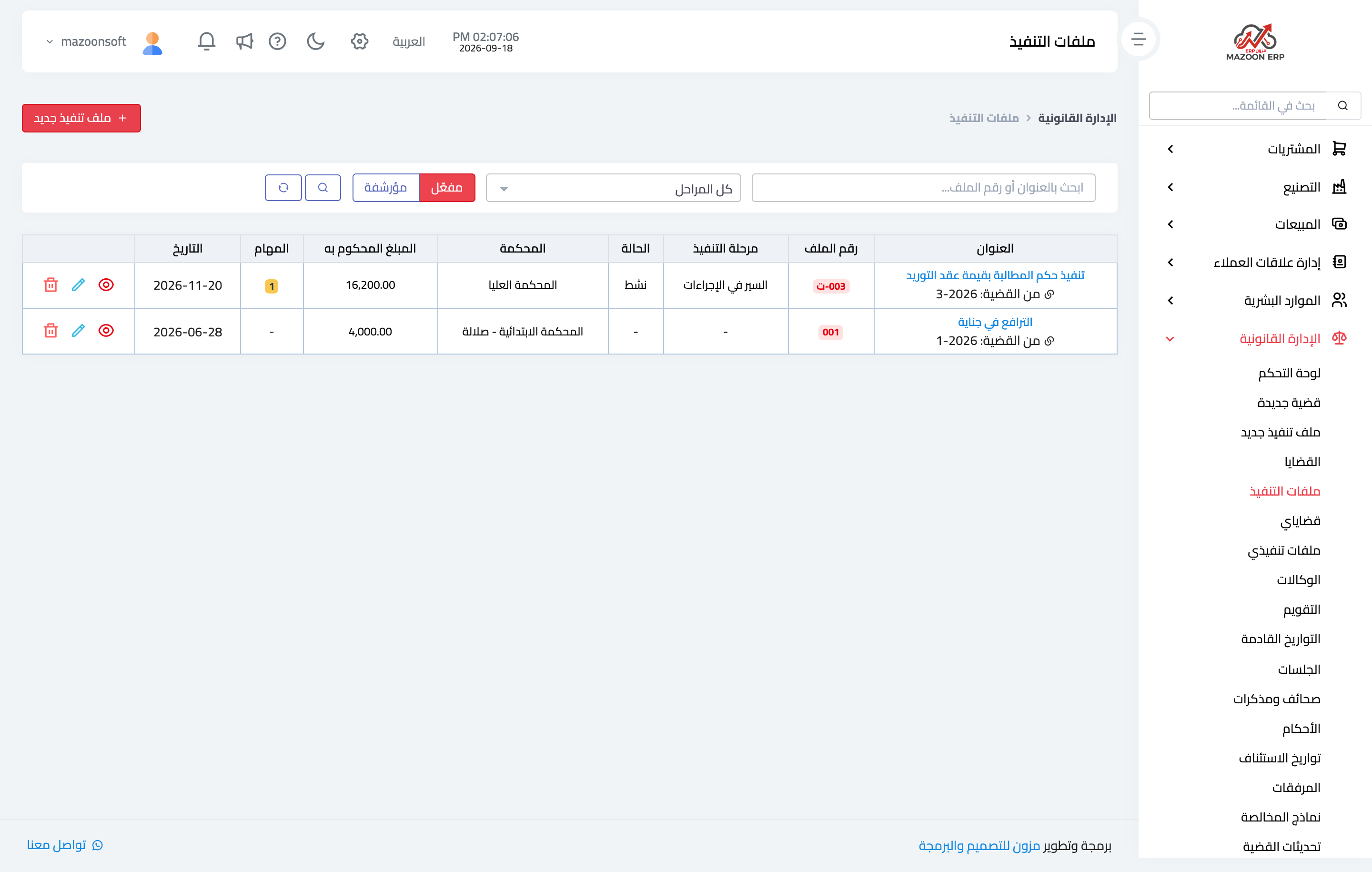
Open Legal → Execution files, as in Figure 1. The table shows the file title and the case it came from, the file number, the execution stage and status, the court, the judgment amount, the number of open tasks, and the date.
A file is created in two ways: directly with New execution file, or — better — with Convert to an execution file on the case page, which carries the case details and parties over and keeps the two linked.
The execution file page
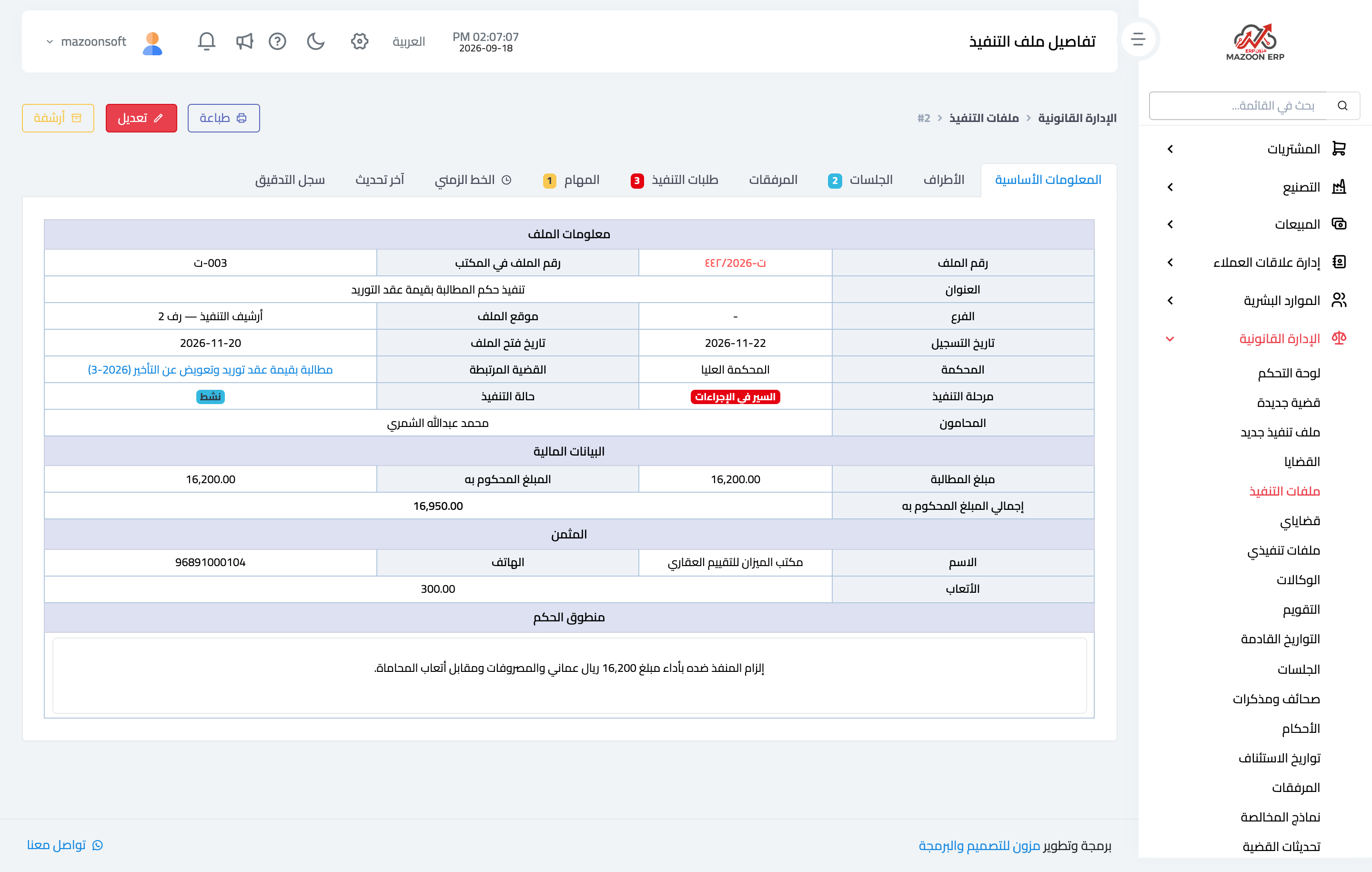
The page opens as in Figure 2 on its tabs: basic information, parties, sessions, attachments, execution requests, tasks, timeline, last update, and audit log.
The basic information tab gathers:
- File information — the court execution number, the office file number, its place in the archive, the open and registration dates, the linked case as a clickable link, the court, and the execution stage and status.
- Financial details — the claim amount, the judgment amount, and the total including costs and fees. The gap between those figures is what is actually pursued in execution.
- Appraiser — name, phone, and fees, needed when executing against property or movables that must be valued.
- Operative part of the ruling — its text as issued, since this is the writ of execution.
Execution requests
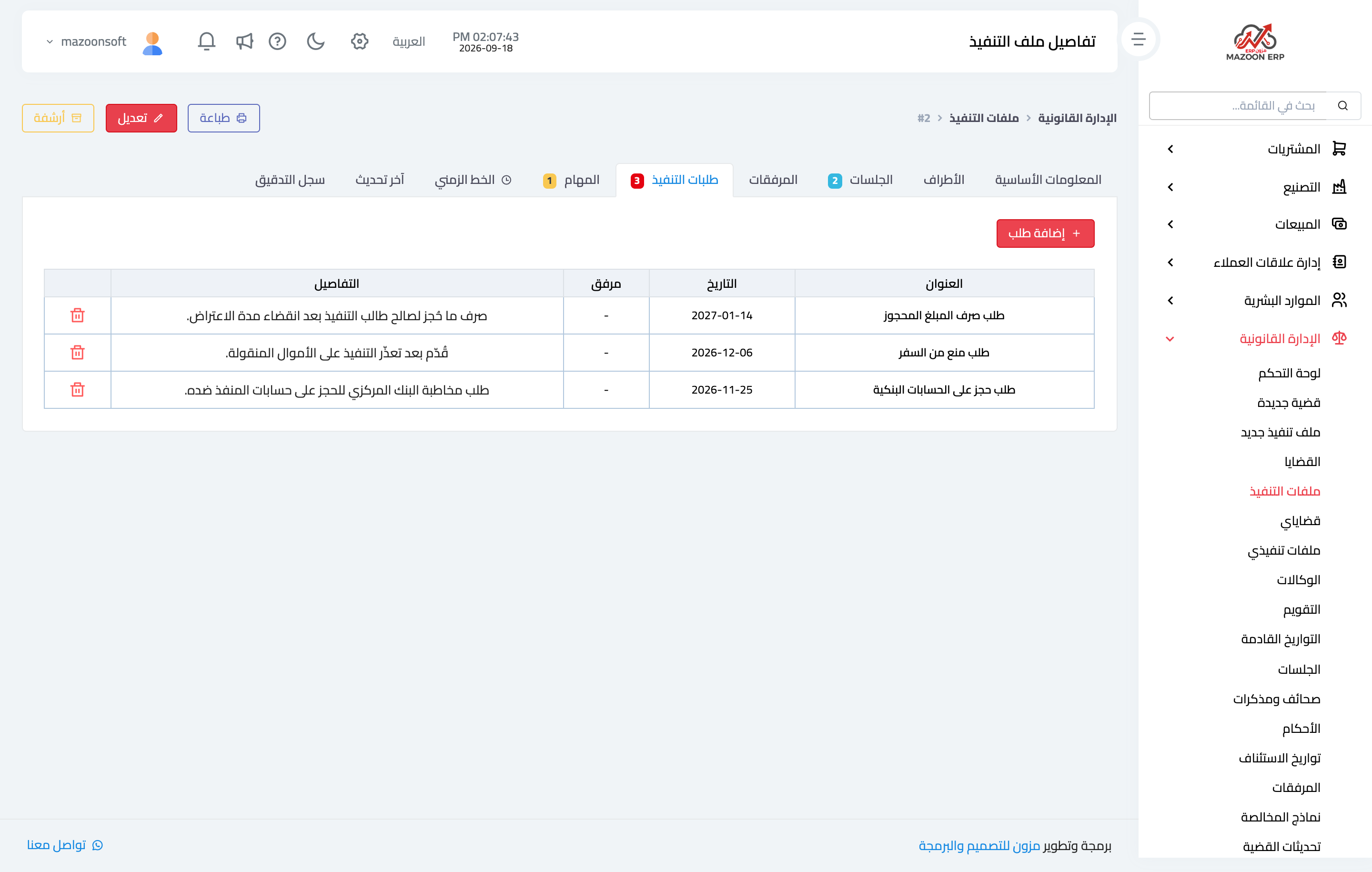
This is the heart of the file, as in Figure 3. Every step you ask the execution department for is recorded here with a title, date, details, and attachment: a freeze on bank accounts, a travel ban, a detention order, or the release of the amount seized.
Sorted by date, the list reads as the full path of the execution: what was requested, when, and what followed.
Execution sessions
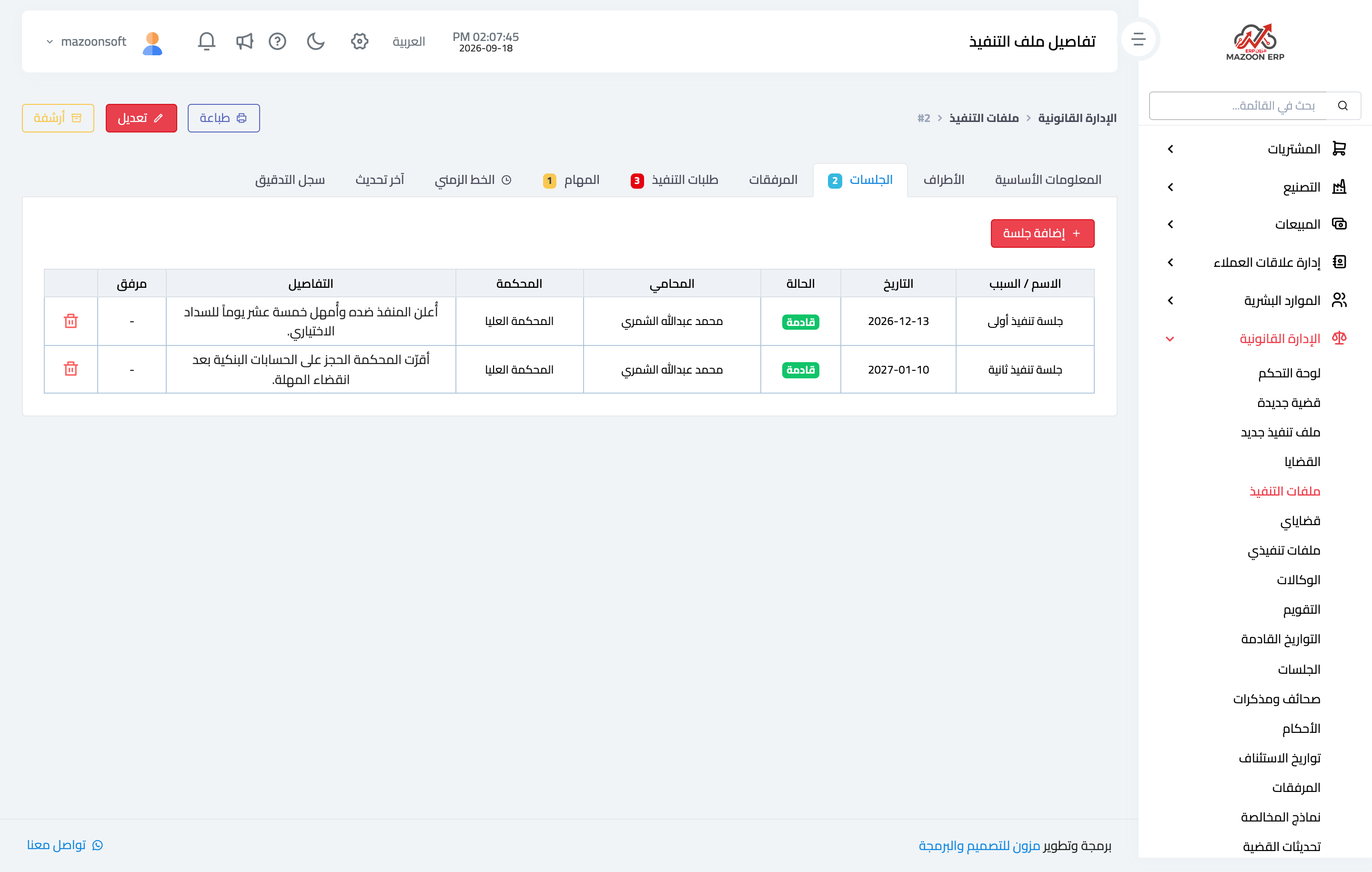
An execution file has sessions just as a case does, as in Figure 4, with date, court, lawyer, and details. They too appear in the calendar and in the general sessions list alongside case sessions.
Agencies
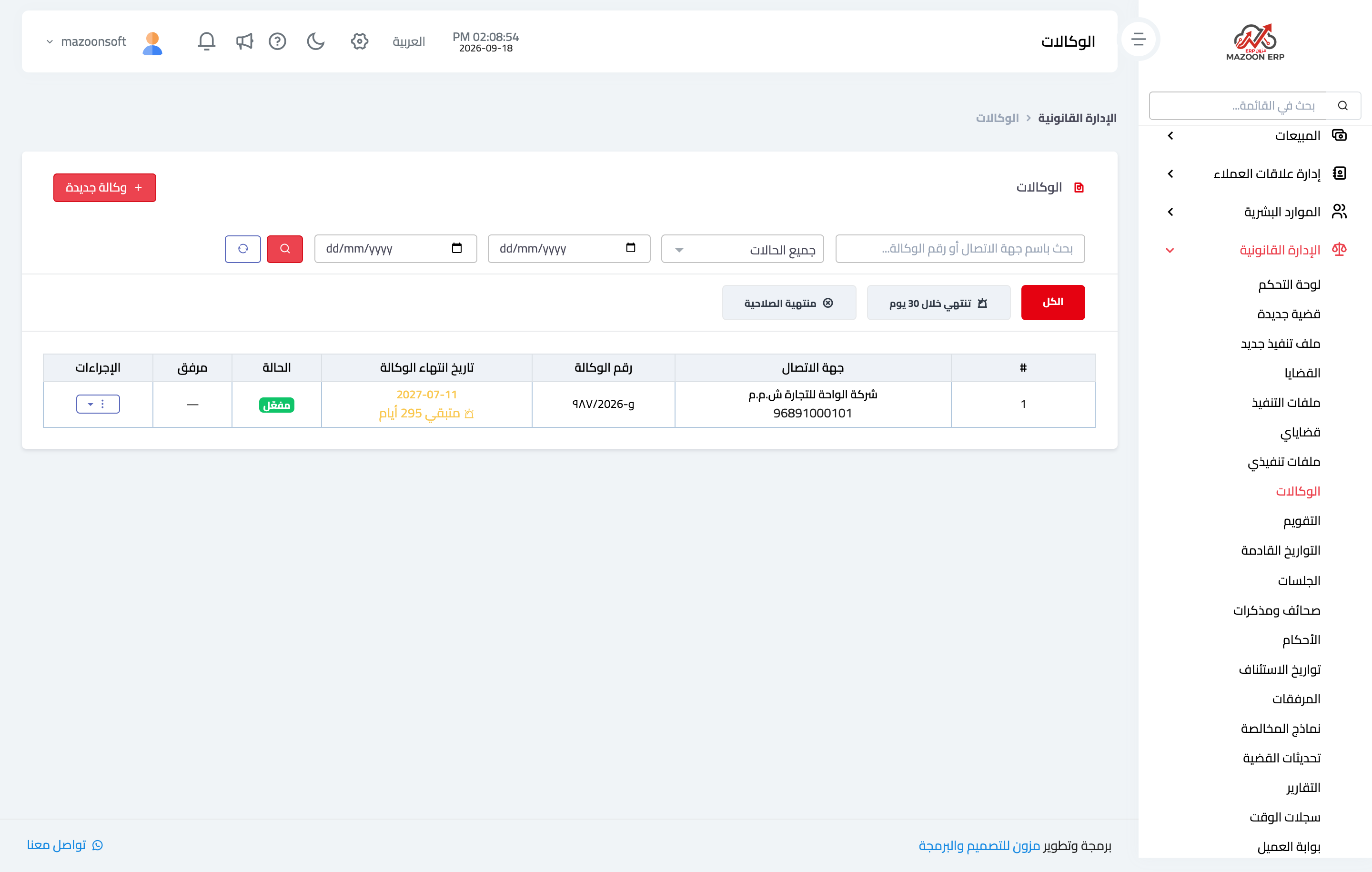
The Agencies screen — Figure 5 — tracks powers of attorney: the granting contact, the agency number, the expiry date, the status (active, renewed, or declined), and a scanned copy.
An expired agency means you have no standing to appear, so the system counts down the remaining days and shows agencies expiring within thirty days on its own dashboard card.
Reports
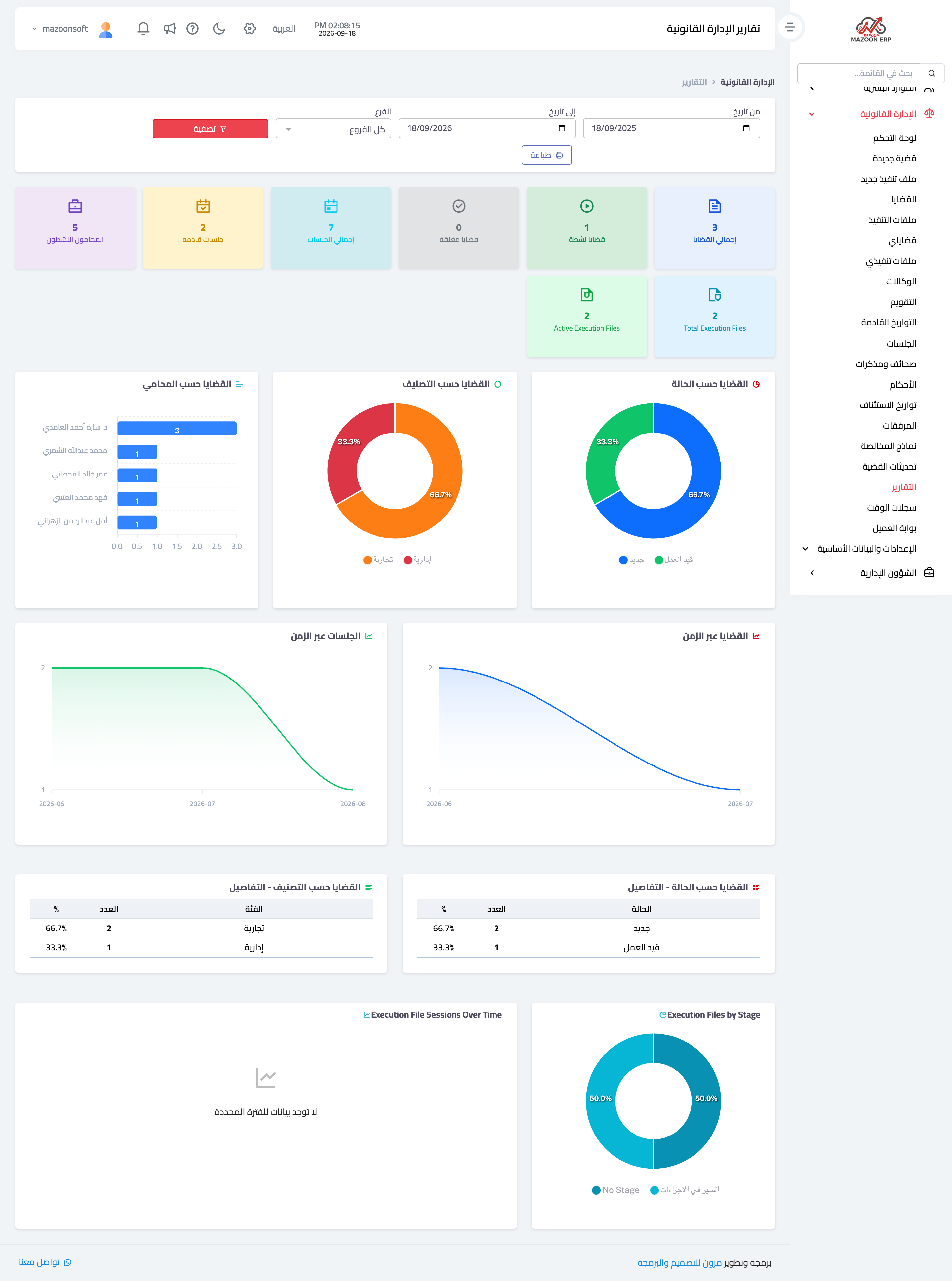
The Reports screen — Figure 6 — draws the office picture for a period and branch you choose:
- Counters: total cases, active, closed, total sessions, upcoming sessions, active lawyers, and execution files.
- Cases by lawyer — how the load is spread across the team, which is what reveals a pile-up on one lawyer.
- Cases by classification and by status — two donut charts and two tables with percentages.
- Cases over time and Sessions over time — two lines showing whether the workload is rising or falling.
- Execution files by stage — where the collection files stand.
The Print button produces the whole report in a form fit to show partners or management.
Notes
- Create the execution file from the case rather than from scratch; the link between them is what keeps the dispute’s history continuous from claim to collection.
- Update the execution stage and status with every development, because the “execution files by stage” report rests on them.
- Renew an agency before it expires, not after, and record the renewal so the alert stops.
Screenshots
Try what you just read on your own data
Open a free 7-day trial — no credit card, with your own company link in minutes.