
How do I log case updates, assign tasks and exchange comments on a case?
Three tabs are often confused although they are quite different: Case Updates is a log of what happened, Tasks is work owed by a named person by a date, and Comments is an internal conversation inside the office team.
Steps
- To log an event: open the Case Updates tab — image 1 — then Add Update, and enter the update name, the date and the details. Use it for whatever does not belong to a session, a pleading or a ruling: paying a fee, receiving a notice, a partial settlement, the file moving to another circuit.
- To assign work: open the Tasks tab — image 2 — then Add Task. Enter the title, choose who it is assigned to (more than one user is allowed), and set the due date and the priority between low, medium and high.
- An overdue task turns into a red Overdue warning in the list, and the number of unfinished tasks shows as a badge on the tab name.
- When it is done, press the completion mark in the actions column to make the task completed.
- For internal discussion: open the Comments tab — image 3 — write your comment and press Send. The author's name and time are recorded.
Notes
- An update is a historical log, not something to delete when the situation changes; add a new update instead of editing the old one, because the sequence is the whole point.
- Do not use comments for what should be a task: a comment has no date and no owner, so it notifies nobody.
- Comments are internal to the office team and are not shown to the client in the client portal.
- Check the Timeline on the case to see sessions, pleadings, rulings and updates ordered by date in one place.
Screenshots
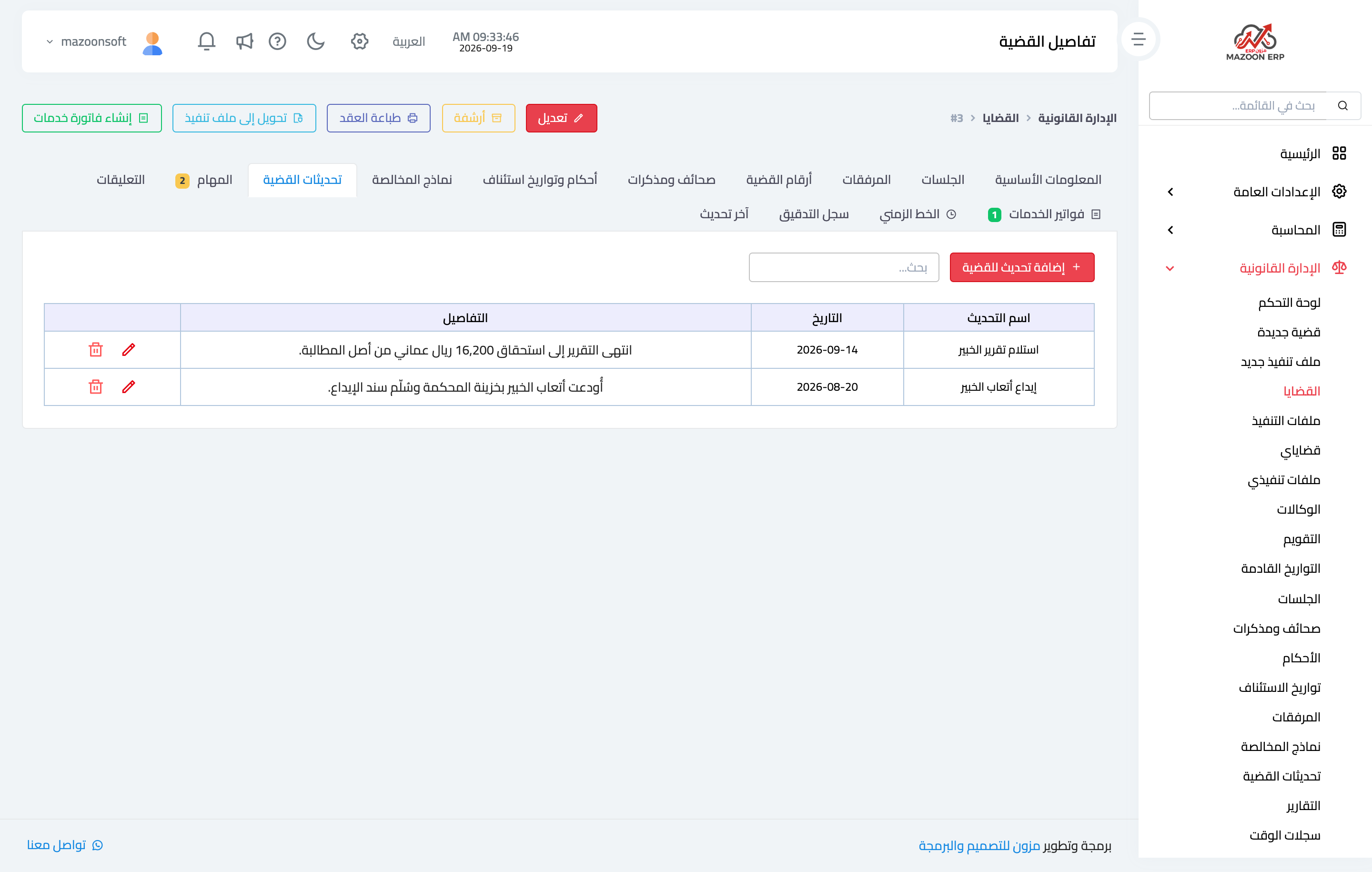
Figure 1
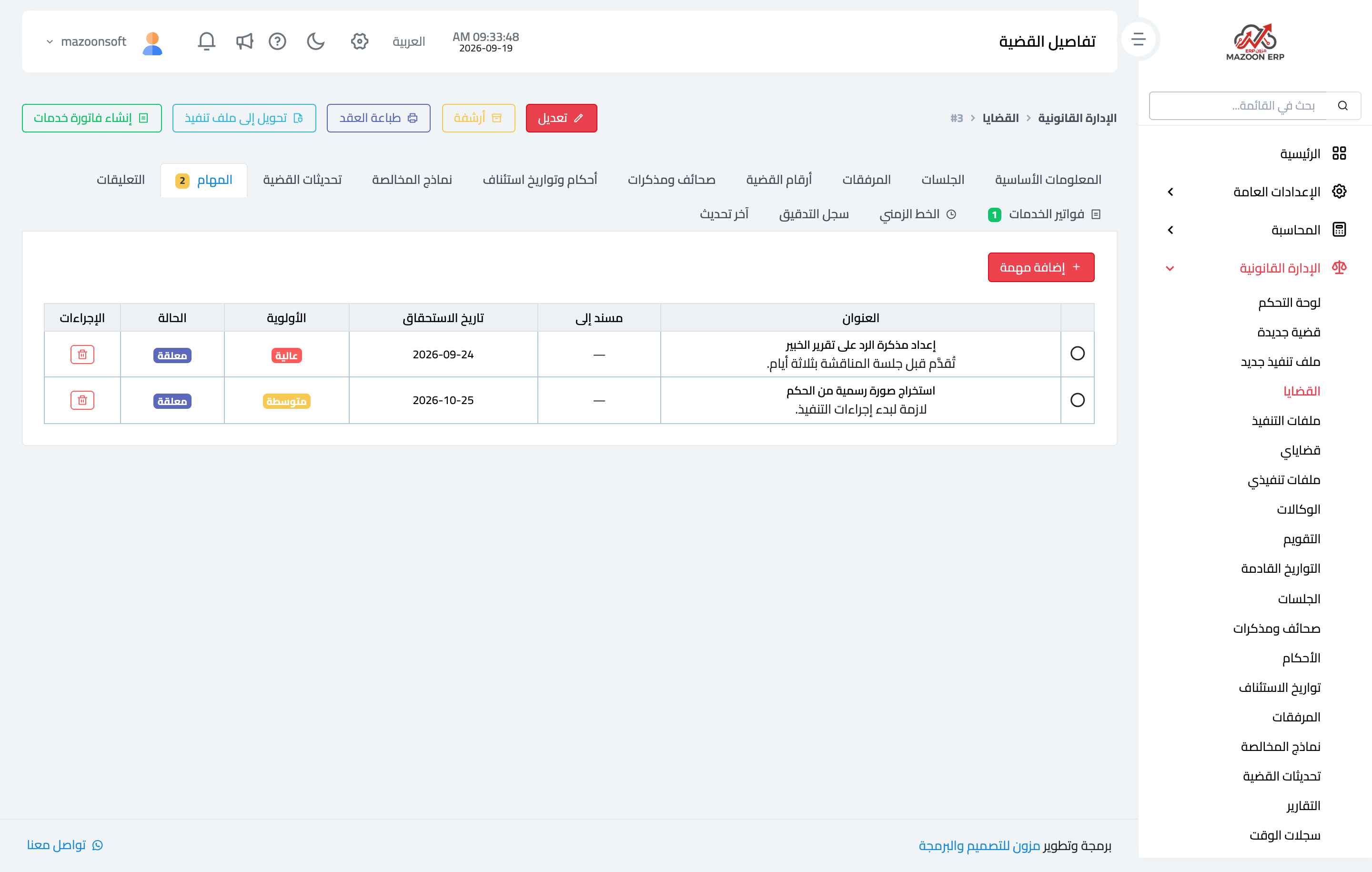
Figure 2
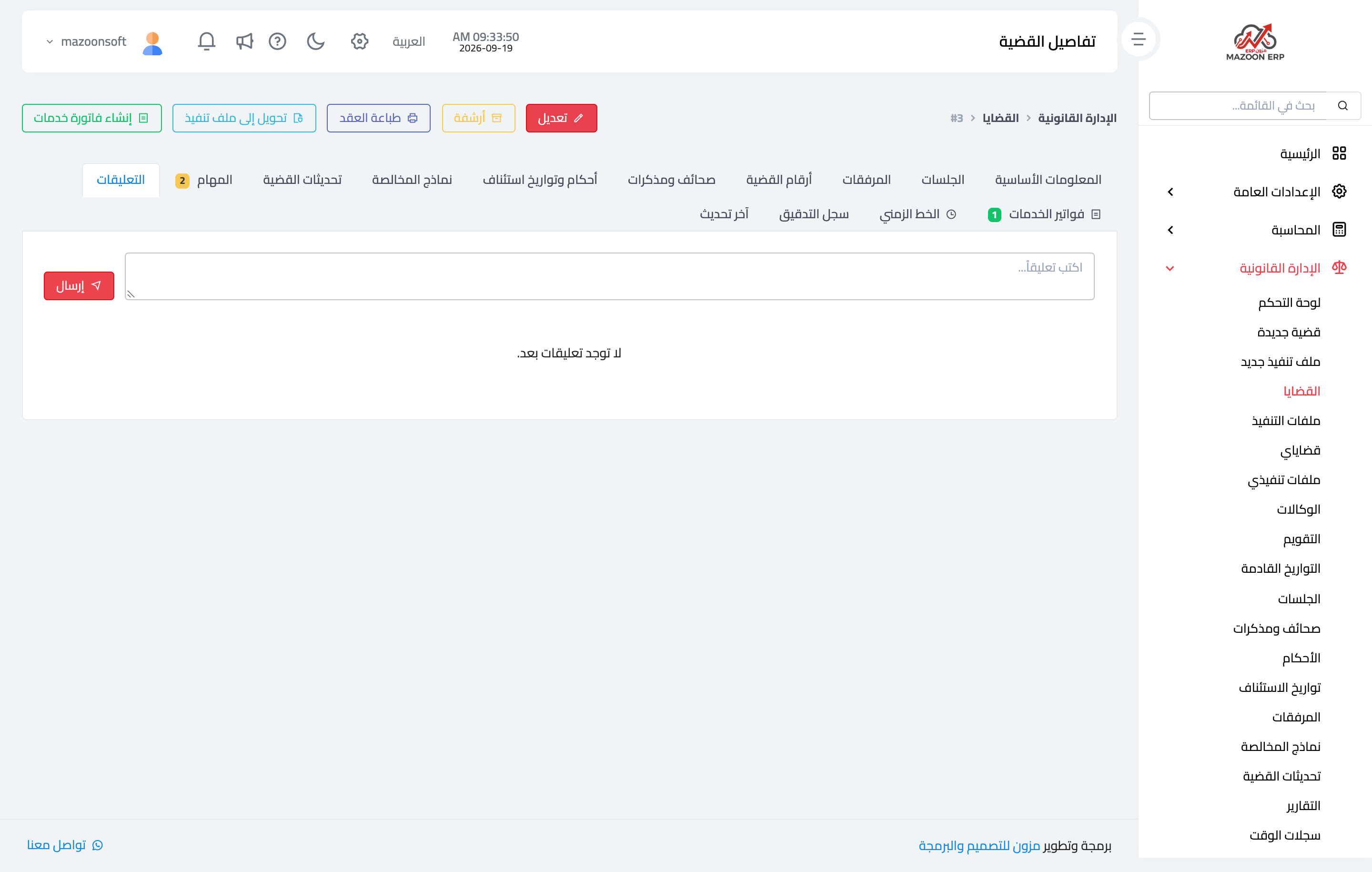
Figure 3
Try what you just read on your own data
Open a free 7-day trial — no credit card, with your own company link in minutes.