
What are the reports and consolidated lists in Legal, and how do I export them?
What you recorded inside the files comes back to you in two shapes: Reports for figures and charts, and consolidated lists for the rows of every case on one filterable, exportable screen.
Steps
- Open Legal → Reports — image 1. Set from date, to date and branch, then press Filter.
- The number cards come first: total cases, active cases, closed cases, total sessions, upcoming sessions, active lawyers, and execution files.
- Below them the charts: cases by lawyer, by category and by status, then cases over time and sessions over time, then the two detail tables with percentages, and finally execution files by stage.
- The Print button at the top prints the report for the period you chose.
- For the consolidated lists use the side menu: Sessions, Pleadings & Memos, Rulings, Appeal Dates, Attachments, Clearance Forms — image 2 — and Case Updates — image 3.
- Each of them carries an Export CSV button, and the sessions list also has Print. Inside a single case there is an Export Excel (CSV) for each tab separately.
- For a quick reference inside the system, open the Legal Module Guide — image 4.
Notes
- The figures describe what was entered, not what happened: a case closed in reality but left "in progress" counts as active. Review the statuses before basing a decision on a chart.
- The date range applies to the whole report, so compare two periods of equal length if you want to measure a trend.
- Consolidated lists are far quicker than opening cases one by one when you are after "every session before a particular court" or "every ruling this month".
- The CSV opens straight in Excel, which is the way to go when you want a table of your own or to share data with the office accountant.
Screenshots
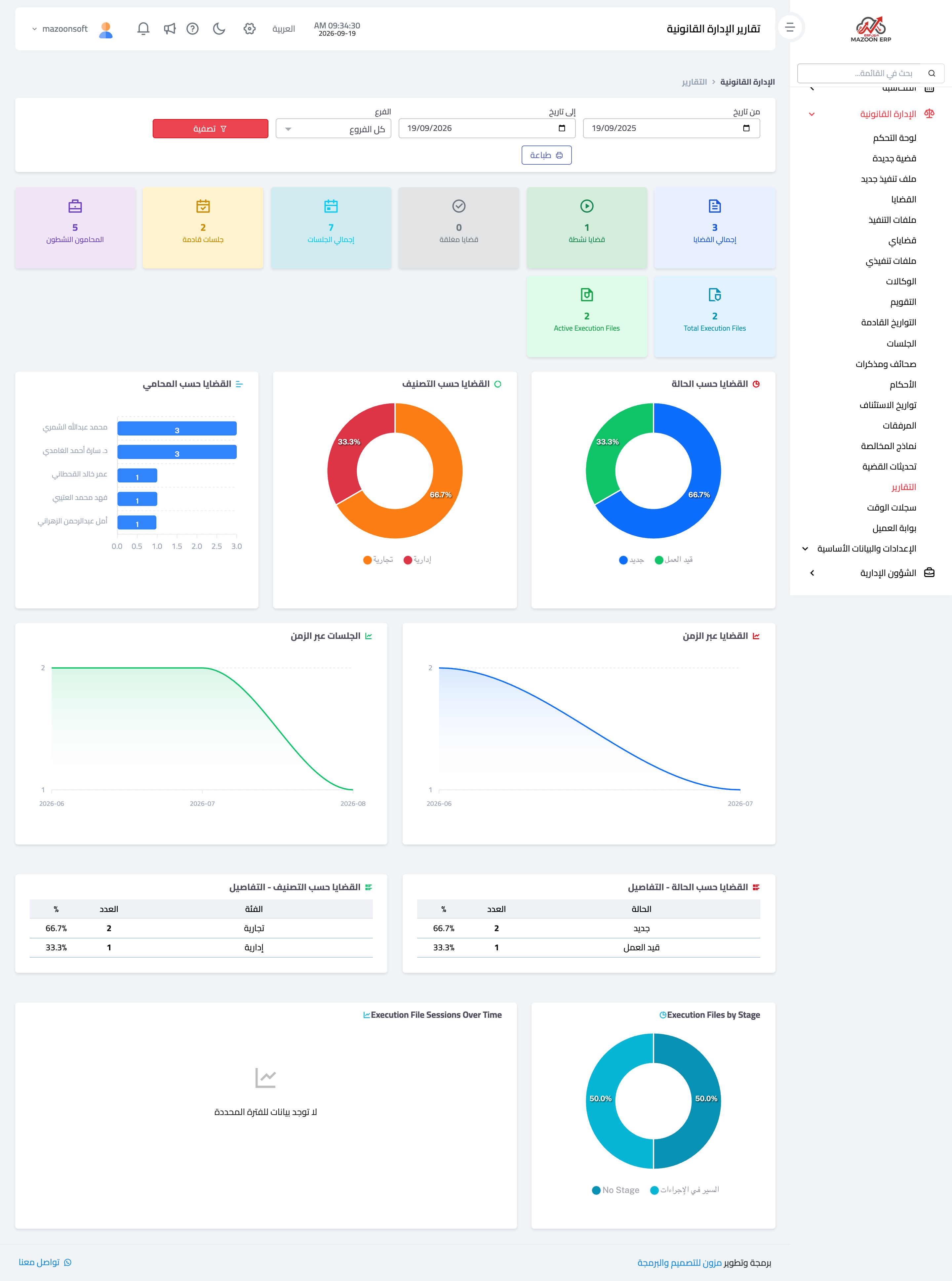
Figure 1
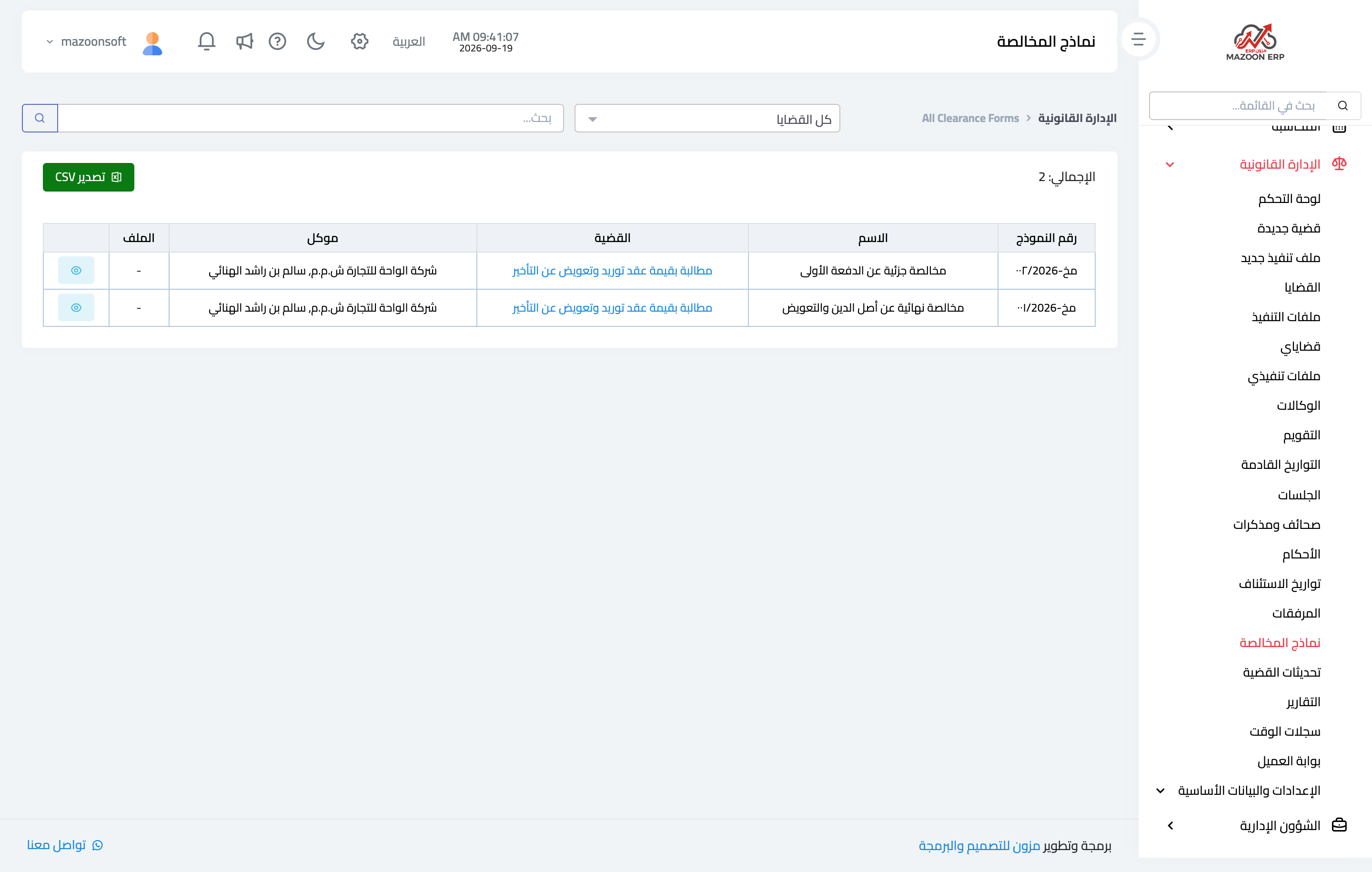
Figure 2
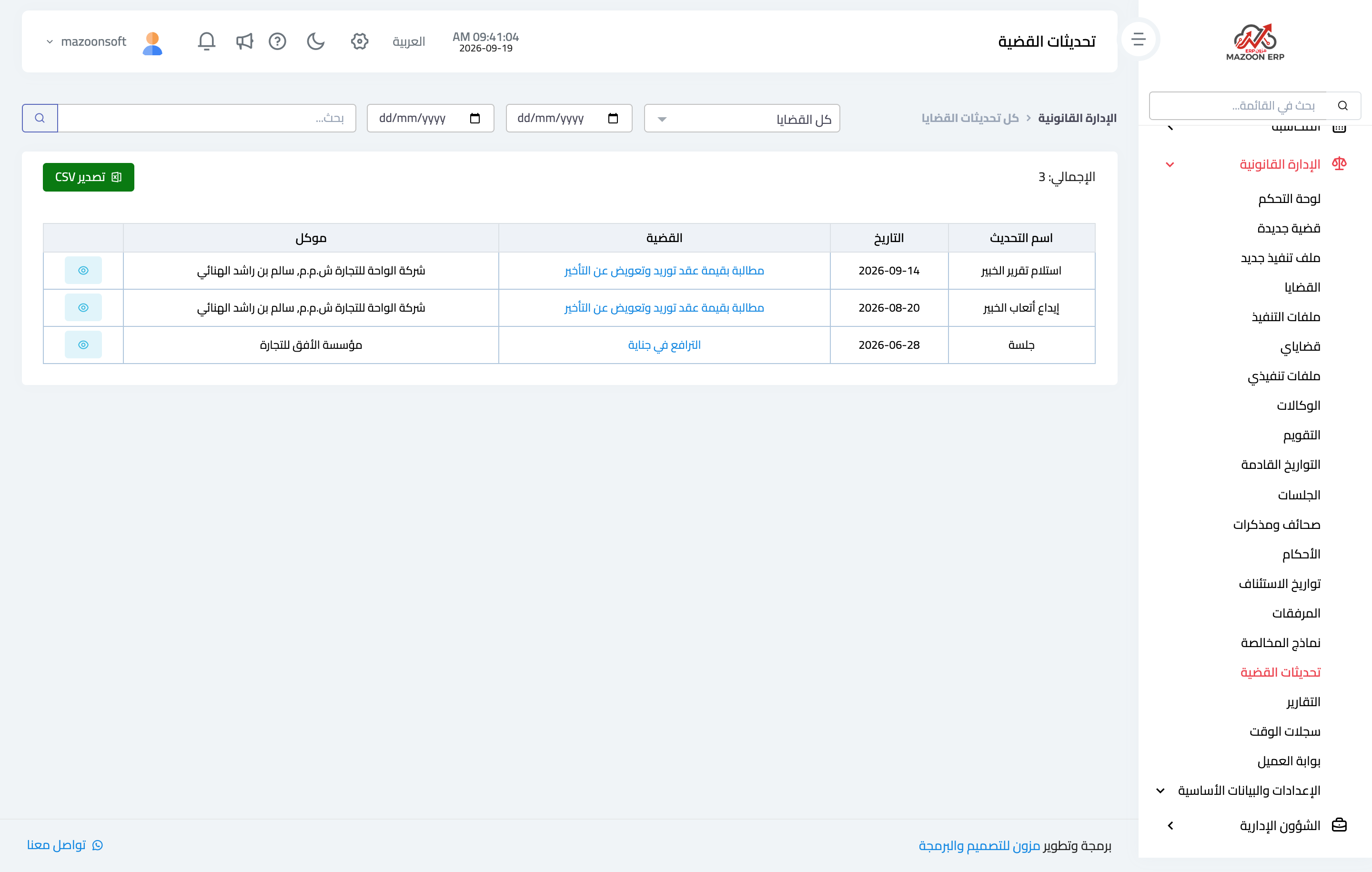
Figure 3
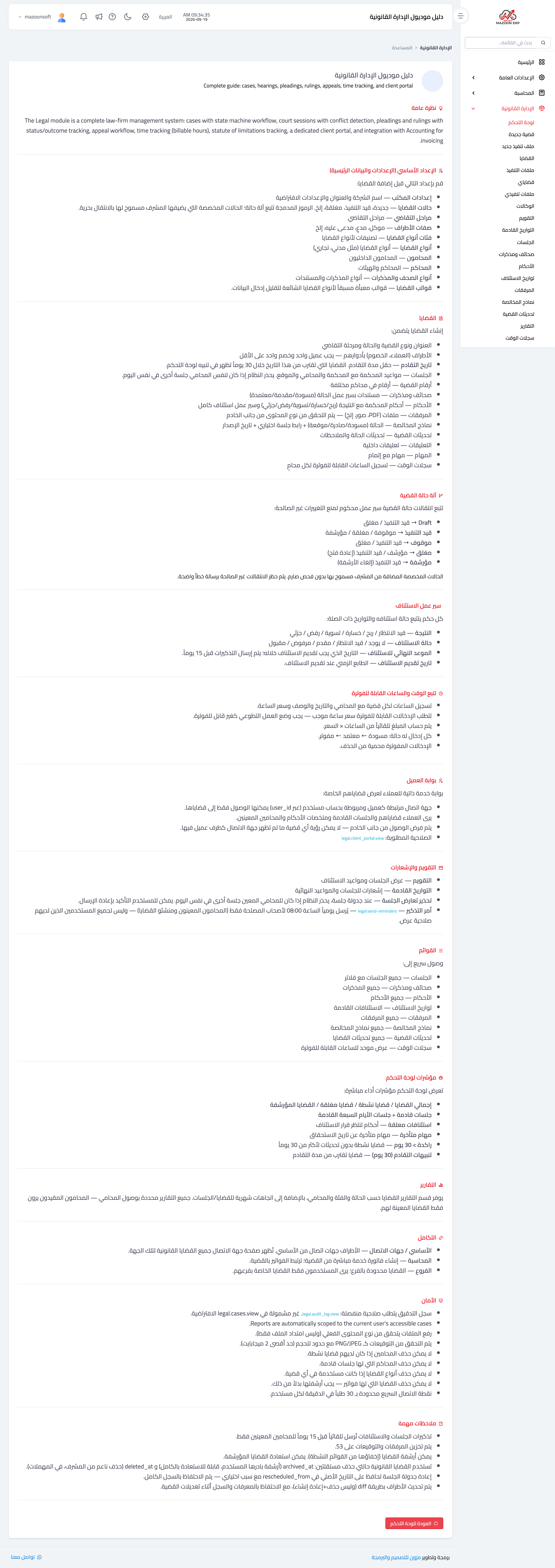
Figure 4
Try what you just read on your own data
Open a free 7-day trial — no credit card, with your own company link in minutes.