
How do I open a new case and record its parties?
Opening the case is the gateway to everything that follows: sessions, pleadings, rulings, the execution file and the invoice all hang off this record. The form is split into four tabs you move through with Next, so you do not have to fill everything in at once.
Steps
- Open Legal → Cases — image 1 — to see the list and its filters, then press New Case.
- On the Basic Info tab — image 2 — enter the case title/subject and the office file number, then choose the case type category, case type, litigation stage, case status and court.
- Move to Dates & Amounts — image 3: the file received date and case registration date, then the claim value, interest rate, expert name and fees and the fee amount. The legal notice sent flag becomes useful later if the other side argues no notice was served.
- Then the Parties tab — image 4. Press Add Client, pick the contact and then its attribute (claimant, witness...), and press Add Opponent for the other side. If a contact does not exist yet, use Add Contact without leaving the page.
- Complete the Lawyers & Contract tab and save. The case details page opens — image 5 — carrying every tab you will work in from now on.
Notes
- The case number is generated by the system as year-and-sequence (e.g. 2026-3), while the office file number is your own internal numbering. The official court number is recorded on the Case Numbers tab.
- Parties are picked from the same contacts used everywhere else in the system, so the client you invoice later is the very one recorded here, with no duplication.
- You can record more than one client and more than one opponent on a single case, each with its own attribute.
- Nothing on the form is final: everything entered here stays editable from Edit on the case page.
Screenshots
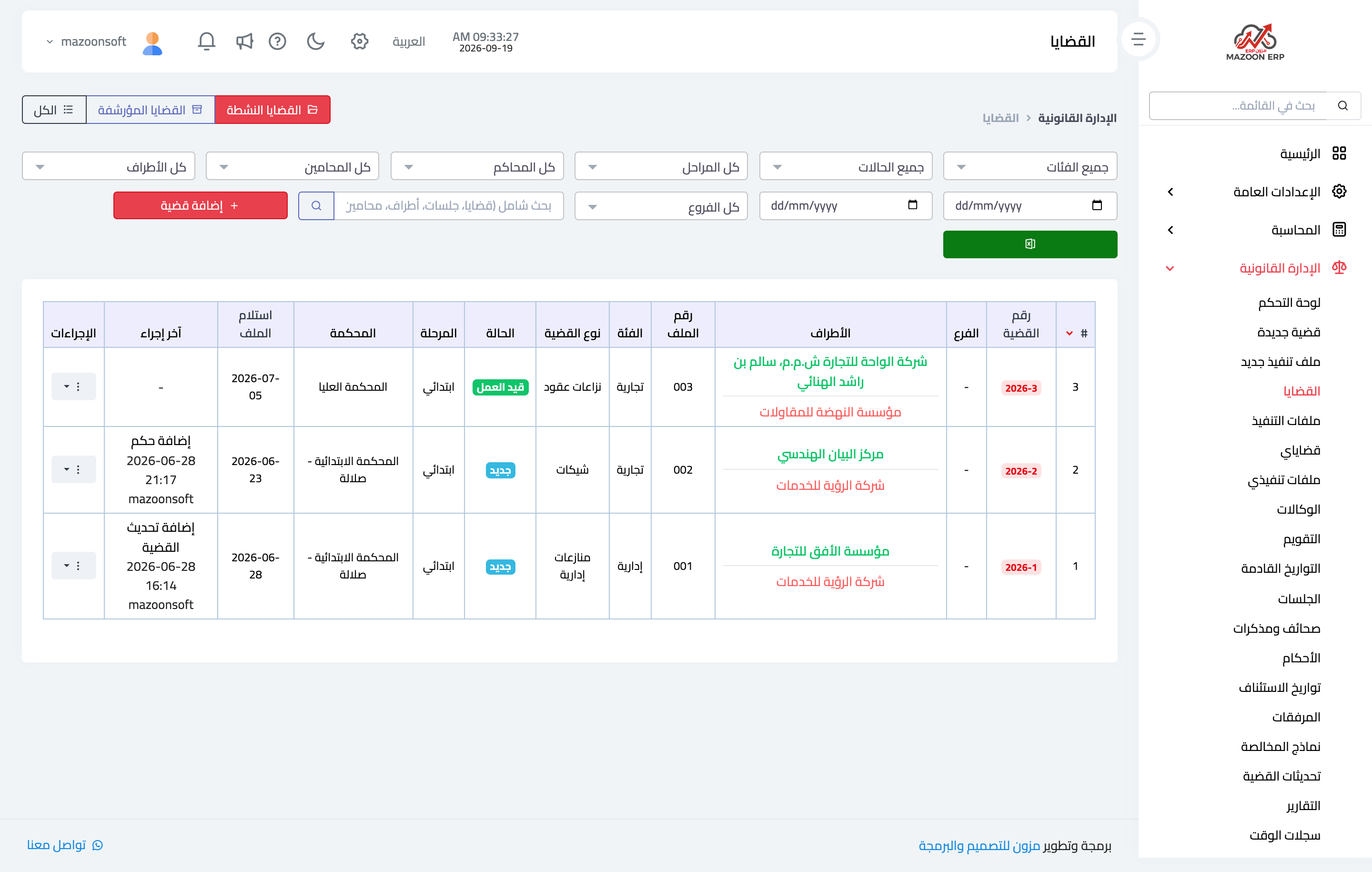
Figure 1
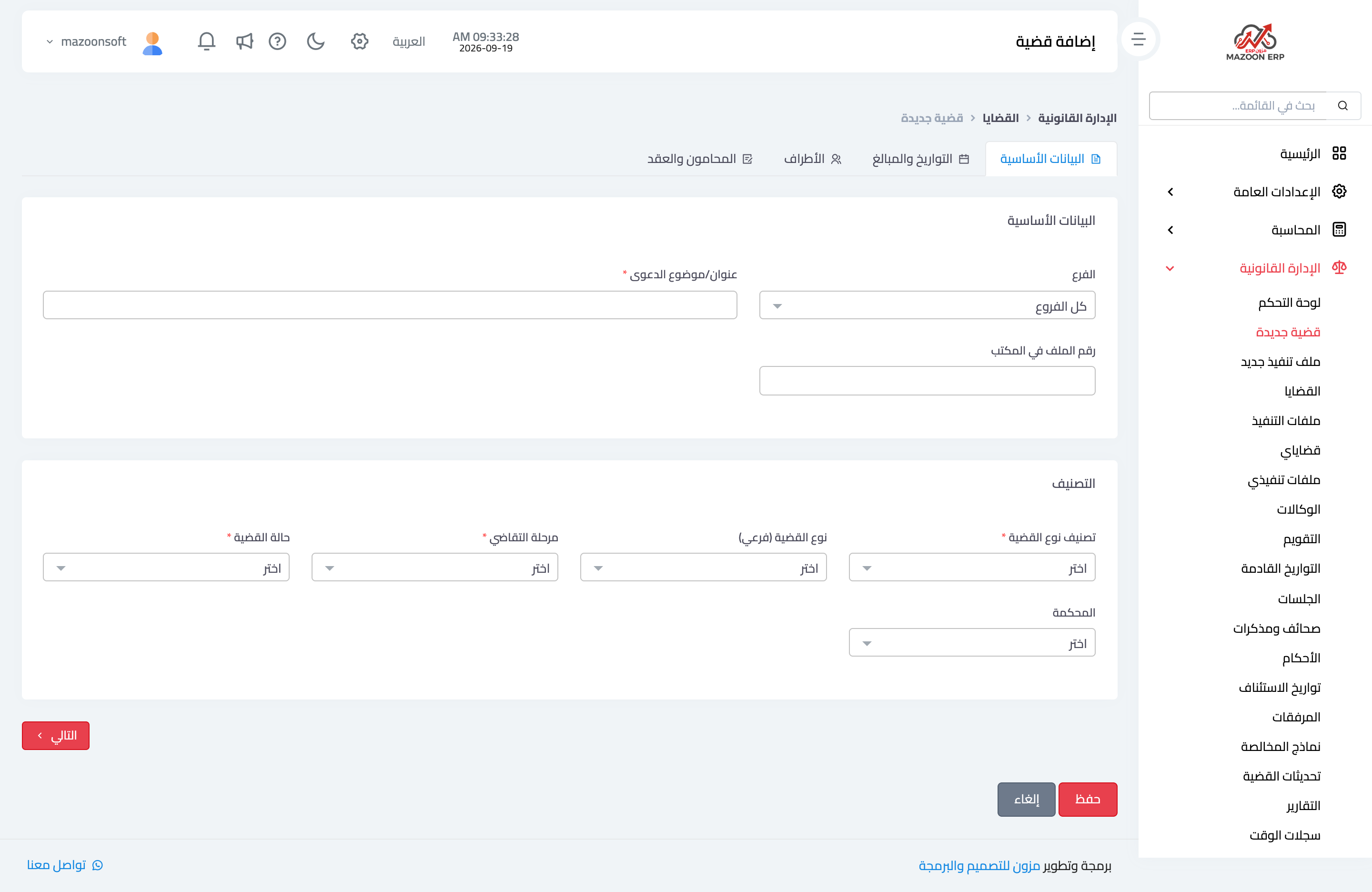
Figure 2
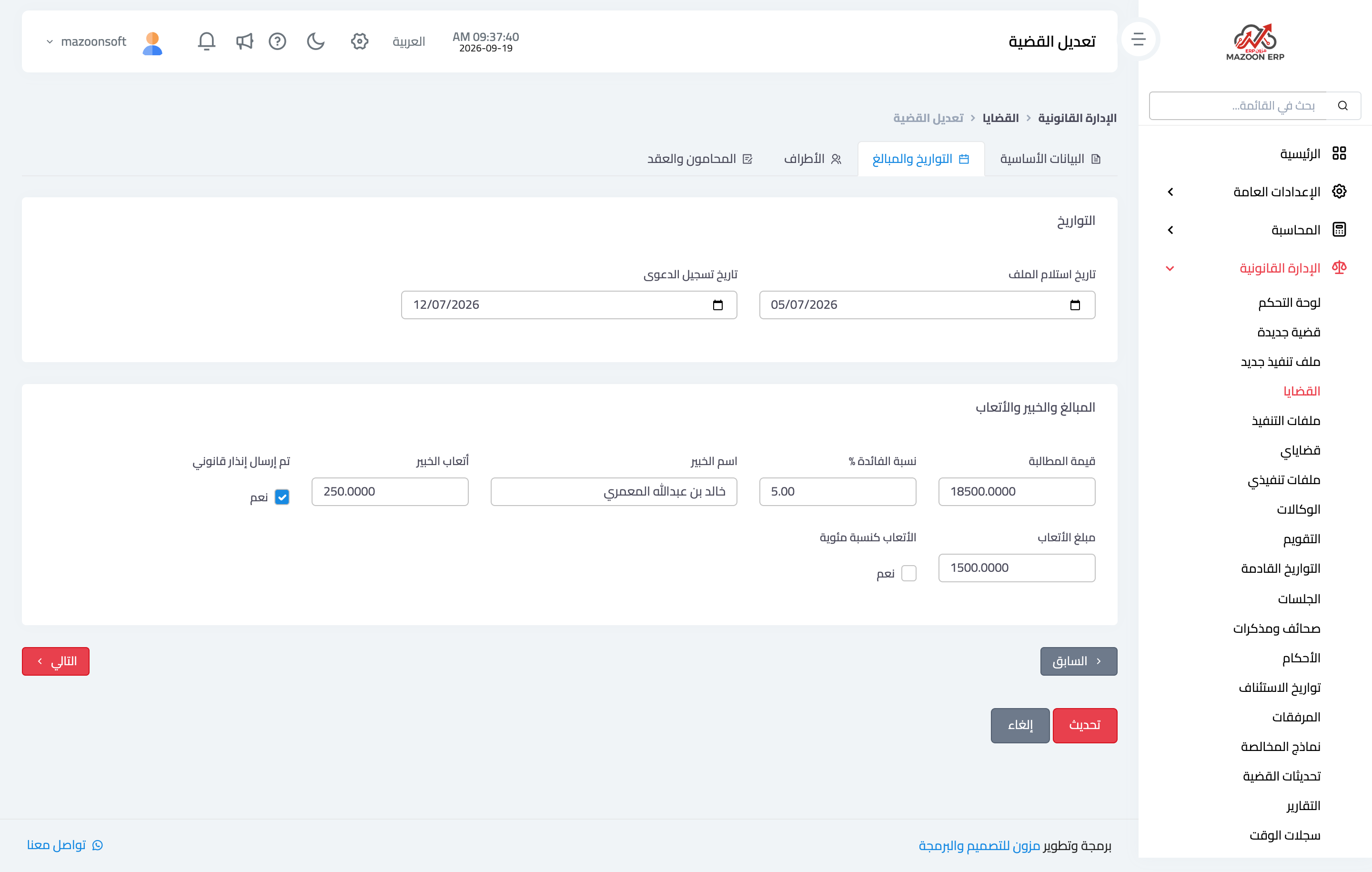
Figure 3
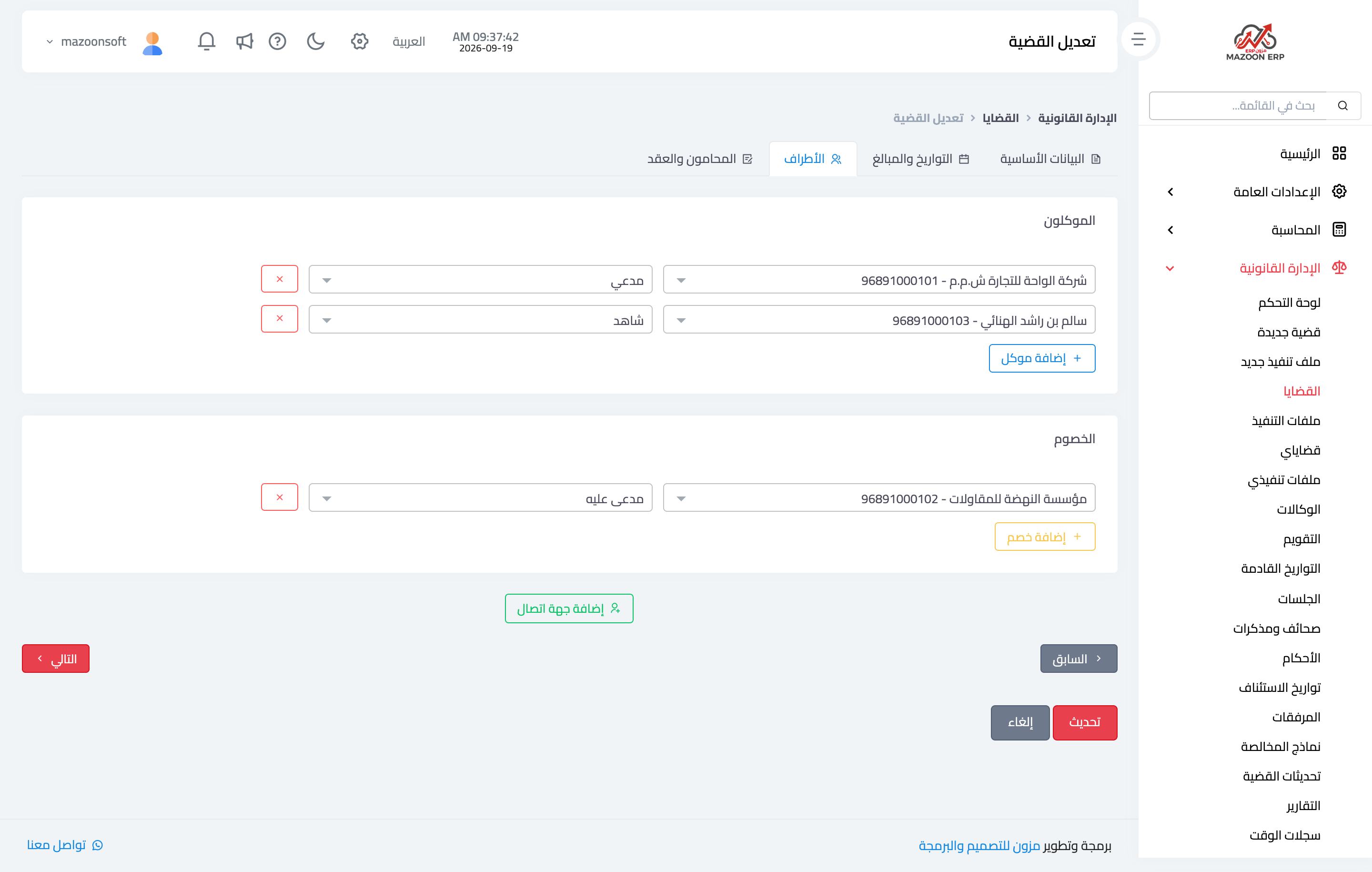
Figure 4
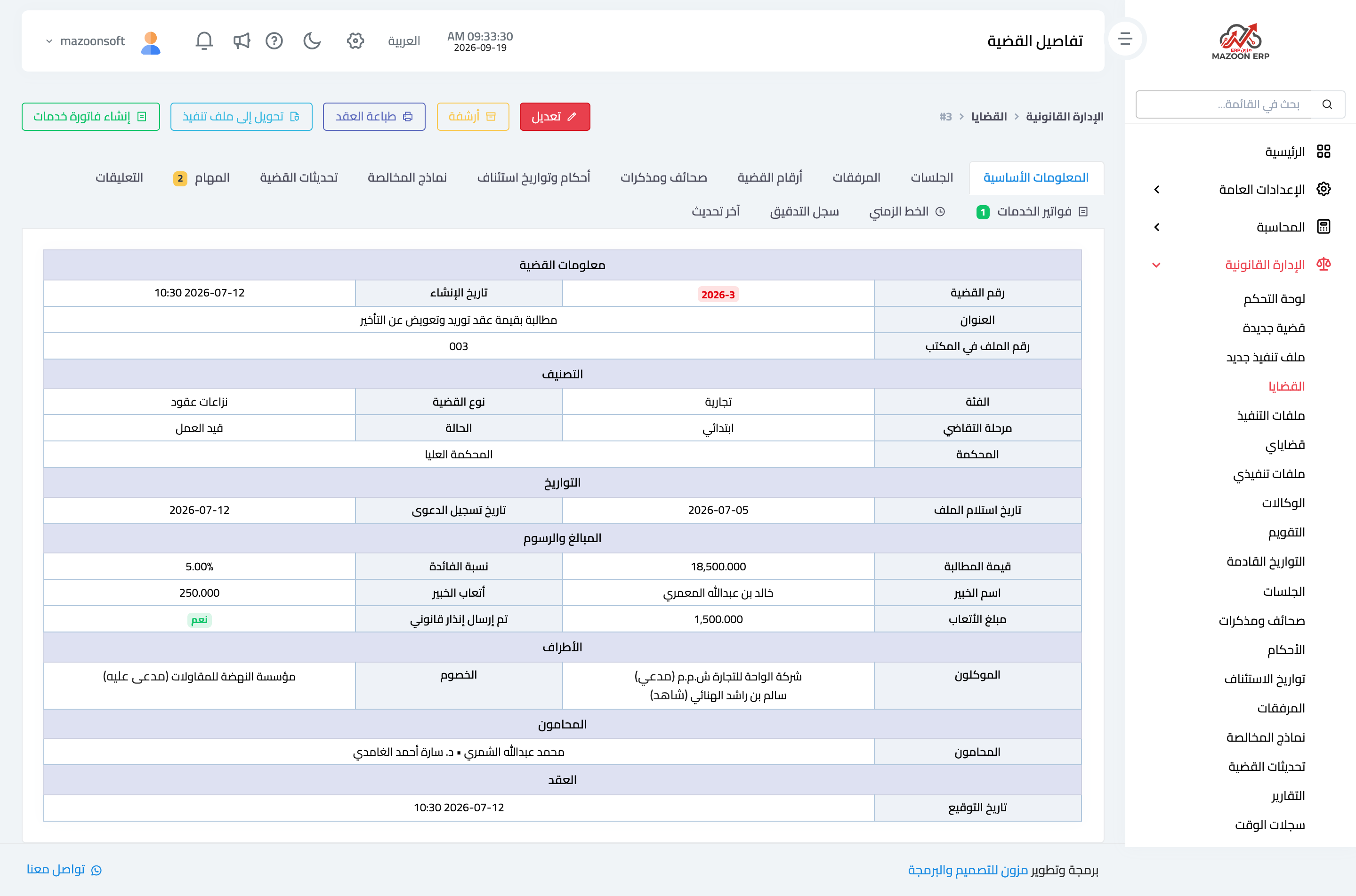
Figure 5
Try what you just read on your own data
Open a free 7-day trial — no credit card, with your own company link in minutes.