
Quickly finding screens with the menu search
When many modules are enabled the sidebar gets long, and folding and unfolding it wastes time. The search box at the top of the menu shortcuts that: type part of a screen's name and the menu filters in front of you.
Steps
- Put the cursor in the Search menu… box at the top of the sidebar.
- Type part of the screen name — for example invoices — and the non-matching modules collapse while the matching screens stay visible under their own module, as in image 1.
- Click the screen you want to open it directly.
- Clear what you typed and the full menu comes back.
Notes
- The search matches screen names as written in the menu, not the system's contents; typing "invoices" shows the invoice screens, it does not look up an invoice by number. To find a particular record, use the search box inside the screen itself.
- The match is literal on the text, so a short common stem works better than a full word with a different form.
- Only screens of enabled modules that your permissions allow are shown; if a screen you expect is missing, check its module's activation and your role.
- On small screens and tablets a search icon also appears in the top bar, while on a wide desktop the menu search box is enough.
Screenshots
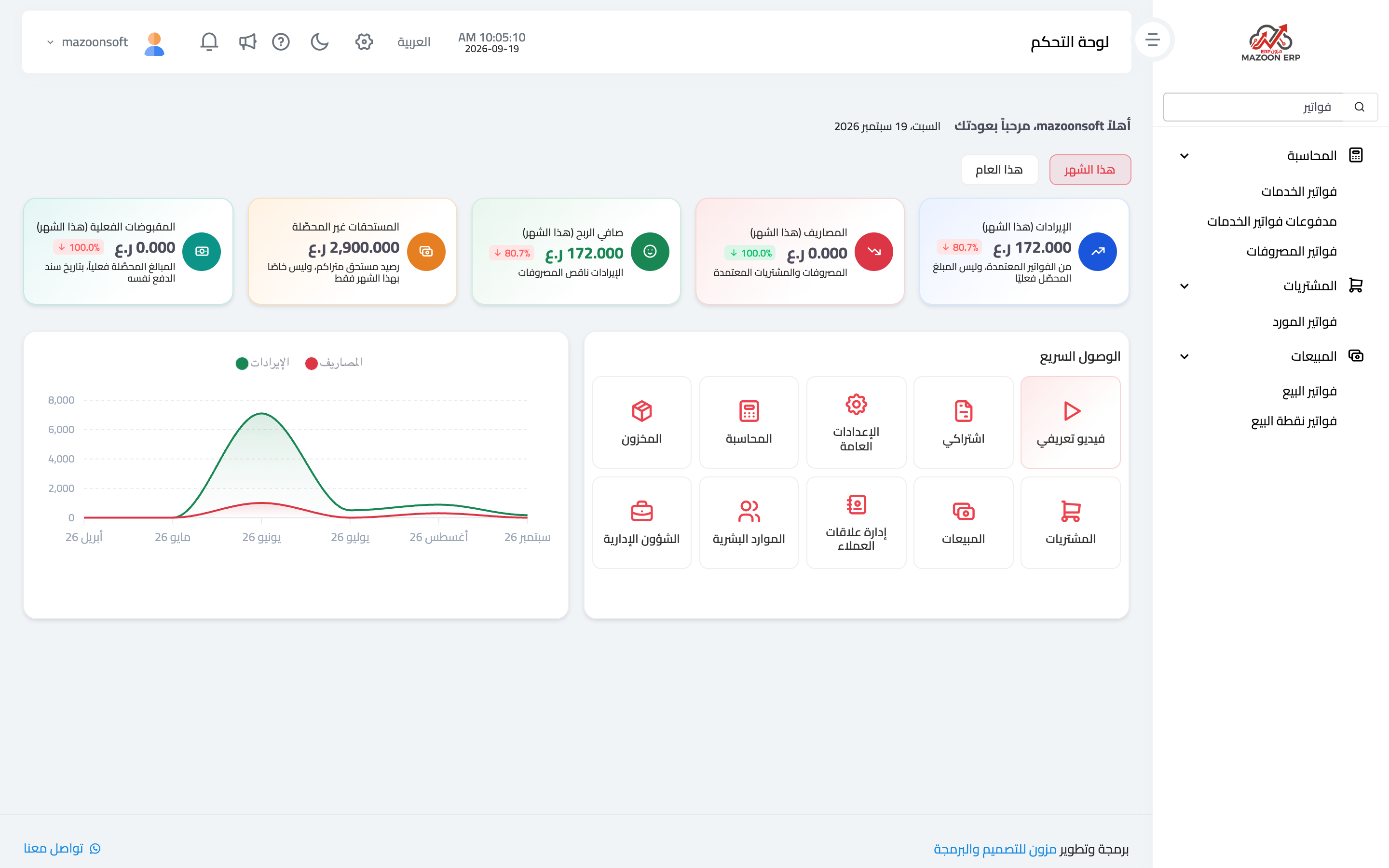
Figure 1
Try what you just read on your own data
Open a free 7-day trial — no credit card, with your own company link in minutes.