
Why do the date and time in the system differ from my device?
The clock in the top bar is not your device's clock but the system's, calculated in the timezone configured for your organisation. That is deliberate: invoices, vouchers and logs must all carry one time however much staff devices differ.
Steps
- Look at the time and date in the top bar — image 1 — that is the system's time.
- To change it open General Settings → Settings → Regional & Display — image 2.
- Choose the correct timezone for where you work, then Save.
- Refresh the page and the new clock appears in the top bar and applies to every date and time shown in the system.
Notes
- The timezone is set for the organisation, not per user; changing it changes what everyone sees.
- Fields where you type a date yourself (invoice date, payment date) stay exactly as you entered them; the timezone affects the timestamps the system records automatically.
- Change the timezone once at the start; changing it after records have piled up makes comparing old times with new ones confusing.
- Numbers, currency and decimal places are set on the same screen, and they too are organisation-wide.
Screenshots

Figure 1
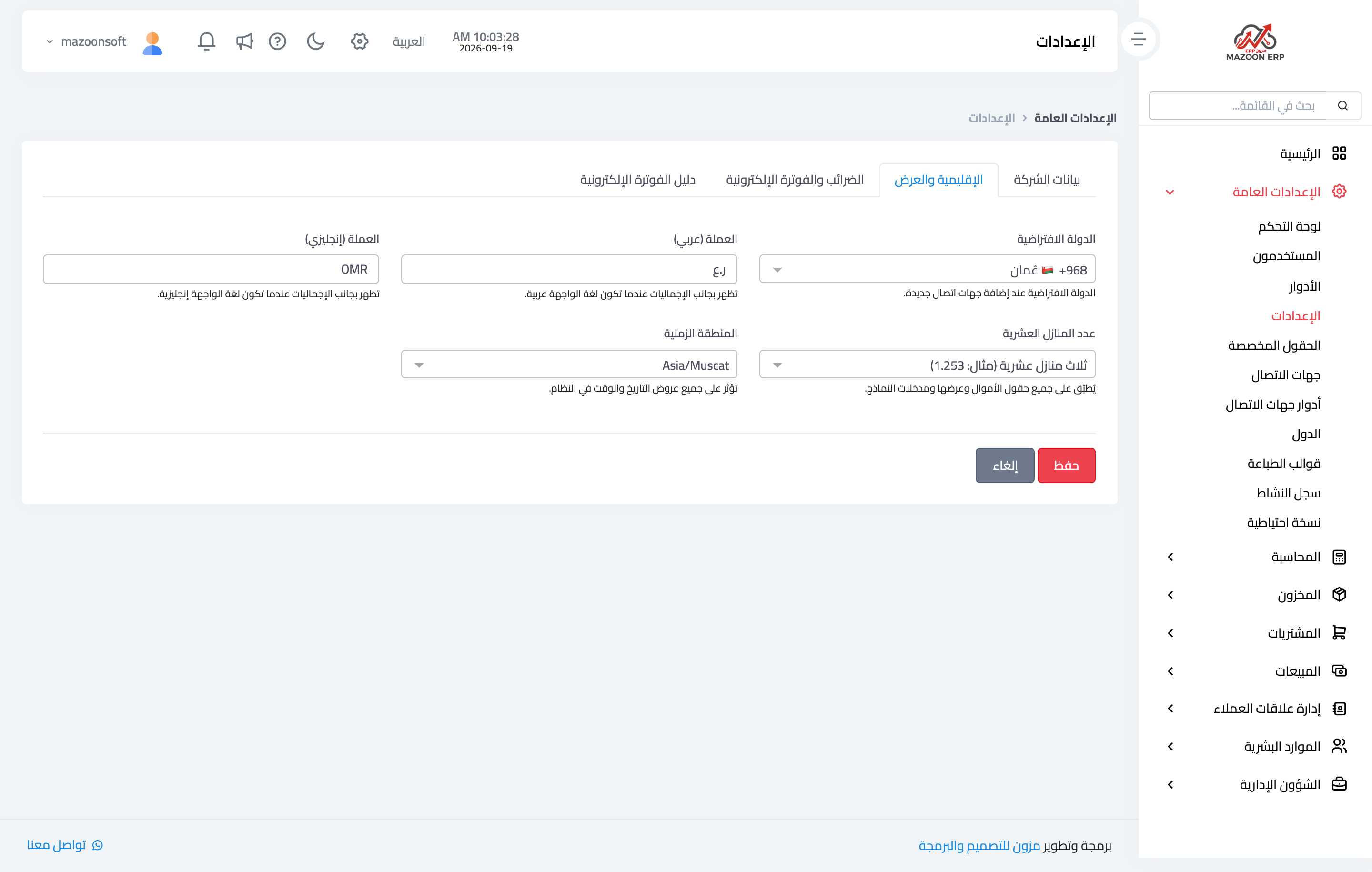
Figure 2
Try what you just read on your own data
Open a free 7-day trial — no credit card, with your own company link in minutes.