
Notifications: the alerts bell in the top bar
Things with a date attached are the things that get forgotten: a licence about to expire, a task assigned to you, an internal message waiting for a reply. The notifications bell gathers them in one place you can see from every screen.
Steps
- Look at the bell icon in the top bar — image 1. The red number above it is the count of unread notifications.
- Click it to drop the list open — image 2 — showing the latest ten notifications, each with an icon for its kind, its text, and how long ago it arrived.
- Click any notification to go straight to the screen it concerns — the licence, the task or the message — and it is marked as read.
- The Mark all as read button at the top of the list empties the counter in one go.
Notes
- The bell shows notifications that have not been read yet; once you open one it leaves the list and does not come back.
- Task, session and appeal-deadline alerts disappear automatically once their date has passed, so warnings about things already over do not pile up.
- Notifications are personal: each user sees what was sent to them, not what was sent to colleagues.
- Next to the bell there is a megaphone icon for "what's new" in the system itself, and a question mark icon for the guide — each of those is a different thing from notifications.
Screenshots

Figure 1
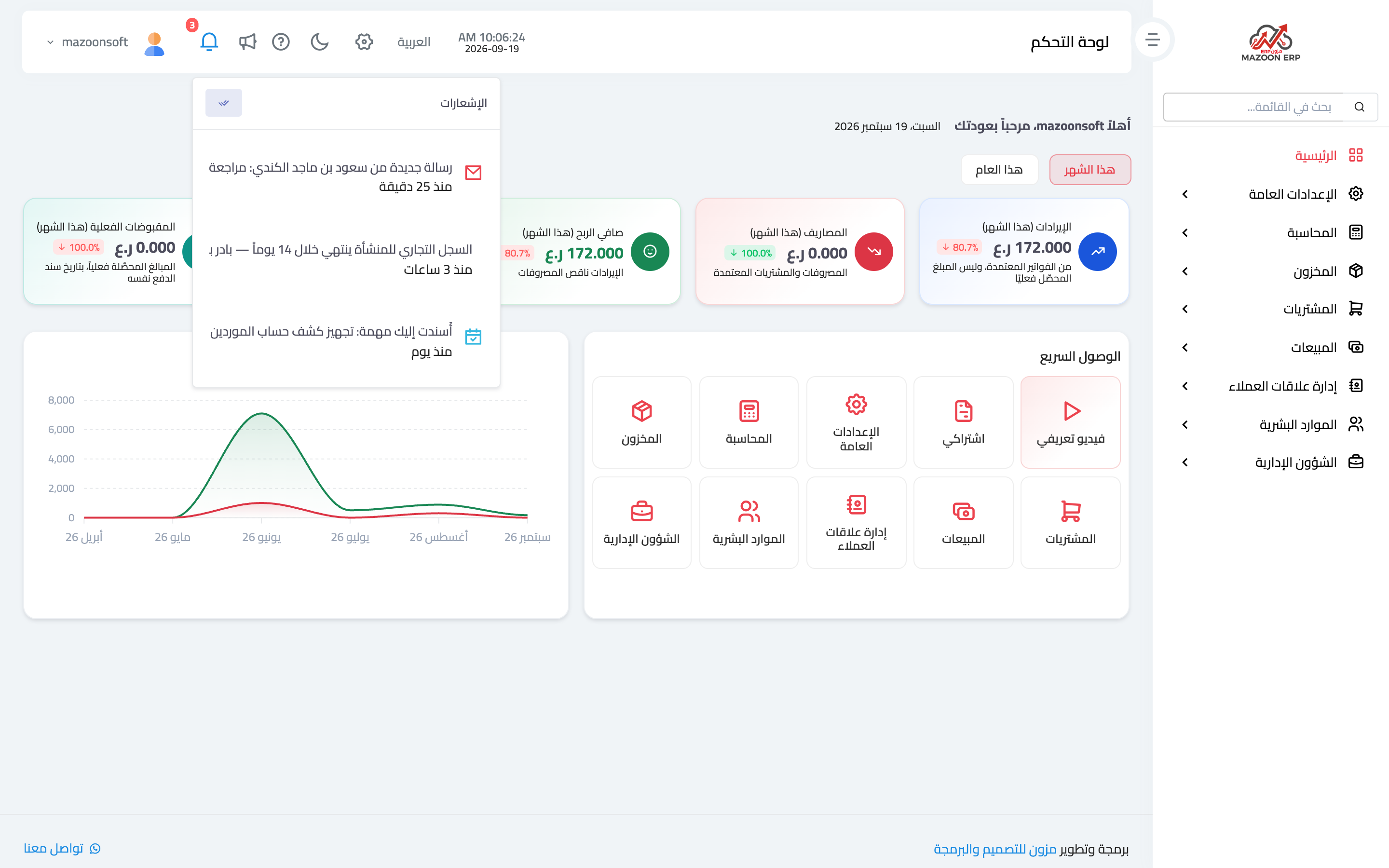
Figure 2
Try what you just read on your own data
Open a free 7-day trial — no credit card, with your own company link in minutes.