
How do I open an account for a new colleague?
Every employee working on the system needs their own account. A shared account throws away the most valuable thing the system gives you: knowing who did what.
Steps
- Open General Settings → Users — image 1 — and press Add User.
- In the form — image 2 — enter the name and the e-mail (which is the login), then the password and its confirmation.
- Pick the roles — more than one may be assigned to a single user. The role is what decides which screens they see.
- Set the branch: leave all branches (no branch restriction) for someone who works across them all, or choose one branch so they see only its data.
- Leave the account status on active, and save.
- Hand your colleague the e-mail and password, and ask them to change it from My Account on first login.
Notes
- Set up the roles before opening accounts; anyone who opens the accounts first ends up re-configuring permissions employee by employee.
- Do not hand out the super-admin role unless it is genuinely needed; it opens everything, deletion included.
- The number of users is capped by your subscription plan, so if the system blocks an addition, check My Subscription.
- When an employee leaves: suspend the account rather than deleting it, so their name stays on the invoices and records they entered.
Screenshots
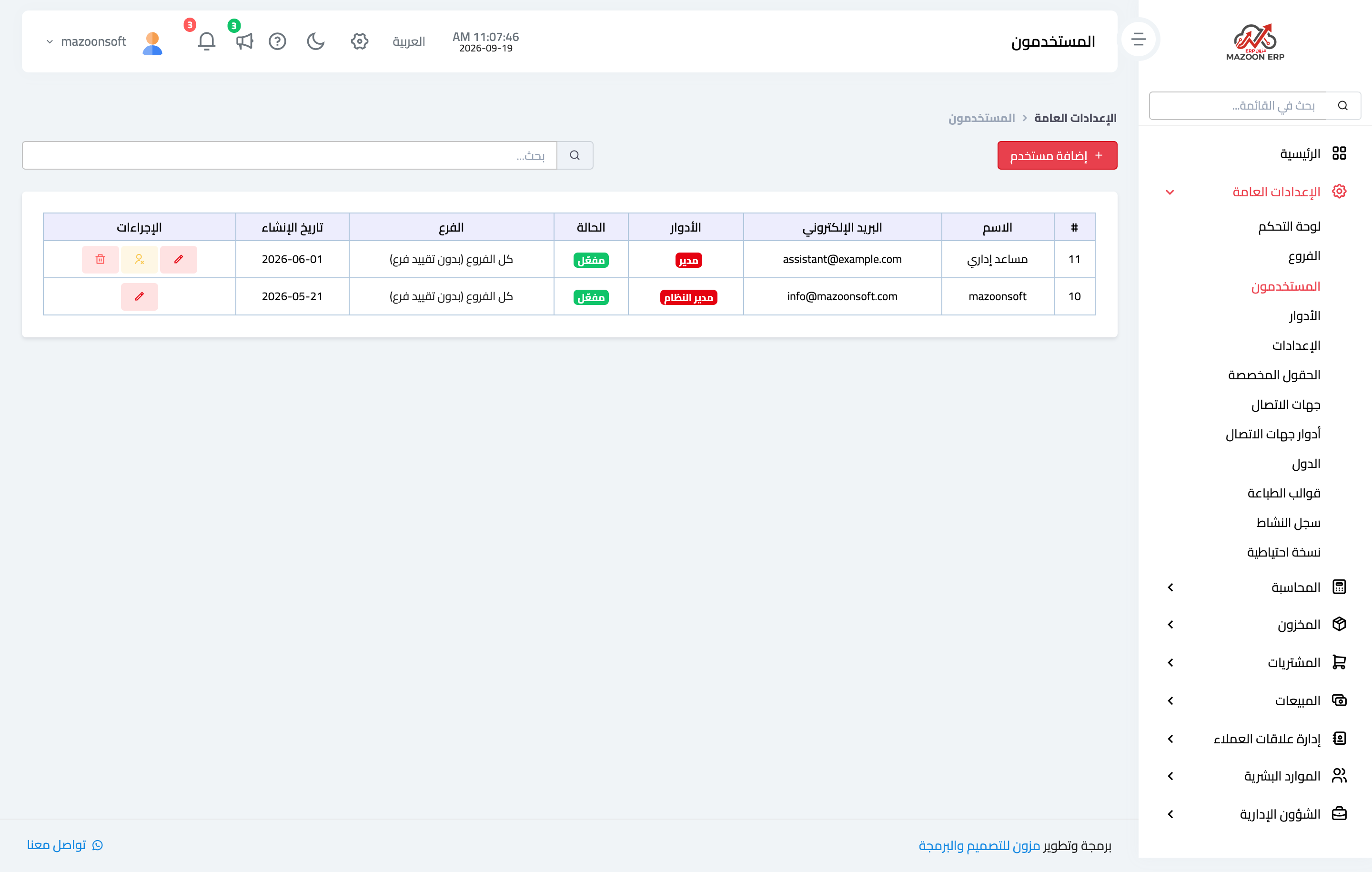
Figure 1
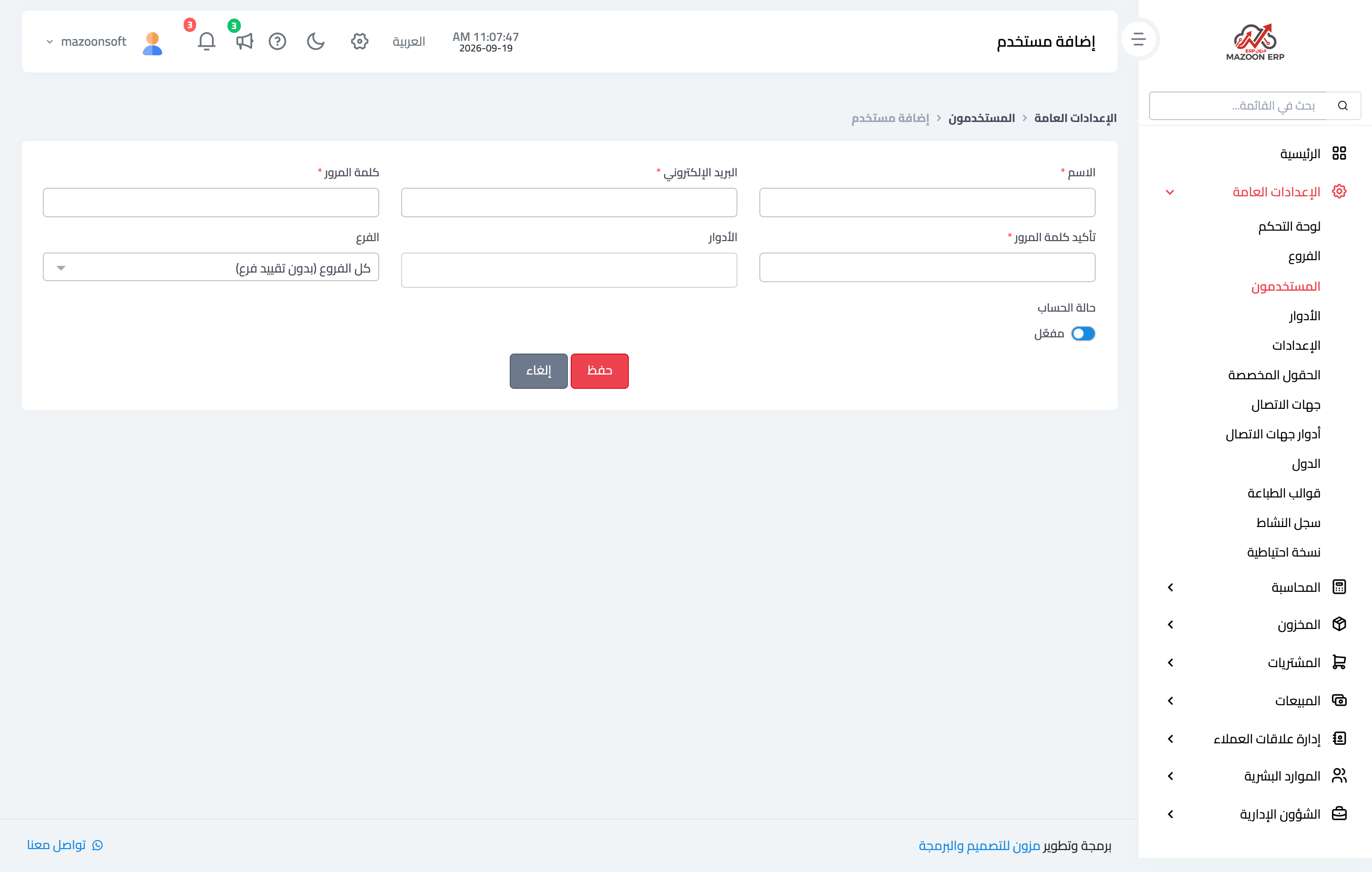
Figure 2
Try what you just read on your own data
Open a free 7-day trial — no credit card, with your own company link in minutes.