
Why can I not see a screen that my colleague can see?
A question that comes up in every organisation: a colleague opens a screen you cannot find in your menu. The reason is always one of two: the module is not enabled, or your role lacks that screen's permission. Telling them apart is easy.
Steps
- Open General Settings → Module Management — image 1 — and find the module the screen belongs to.
- If its status is inactive, activation is the cause: the screen is available to nobody in the organisation, so your colleague cannot see it either. Activate it if you hold the module-management permission, or ask whoever does.
- If the status is active and you still cannot see the screen, the cause is permissions. Open General Settings → Roles — image 2 — and look at the role assigned to you.
- Open the role, find the view permission for the screen in the module's tab, tick it and save.
- Log out and back in so that what you see is refreshed.
Notes
- The short rule: activation decides what the organisation owns, permission decides what you see.
- Do not solve this by giving everyone the super-admin role; the activity log and the separation of duties lose their value, and a passing mistake becomes able to delete real data.
- Some screens appear but with their add or edit buttons hidden — that is a permission separate from the view permission.
- A user restricted to a branch sees the whole screen but only their branch's data; if your list is empty and your colleague's is full, check the branch set on your account.
Screenshots
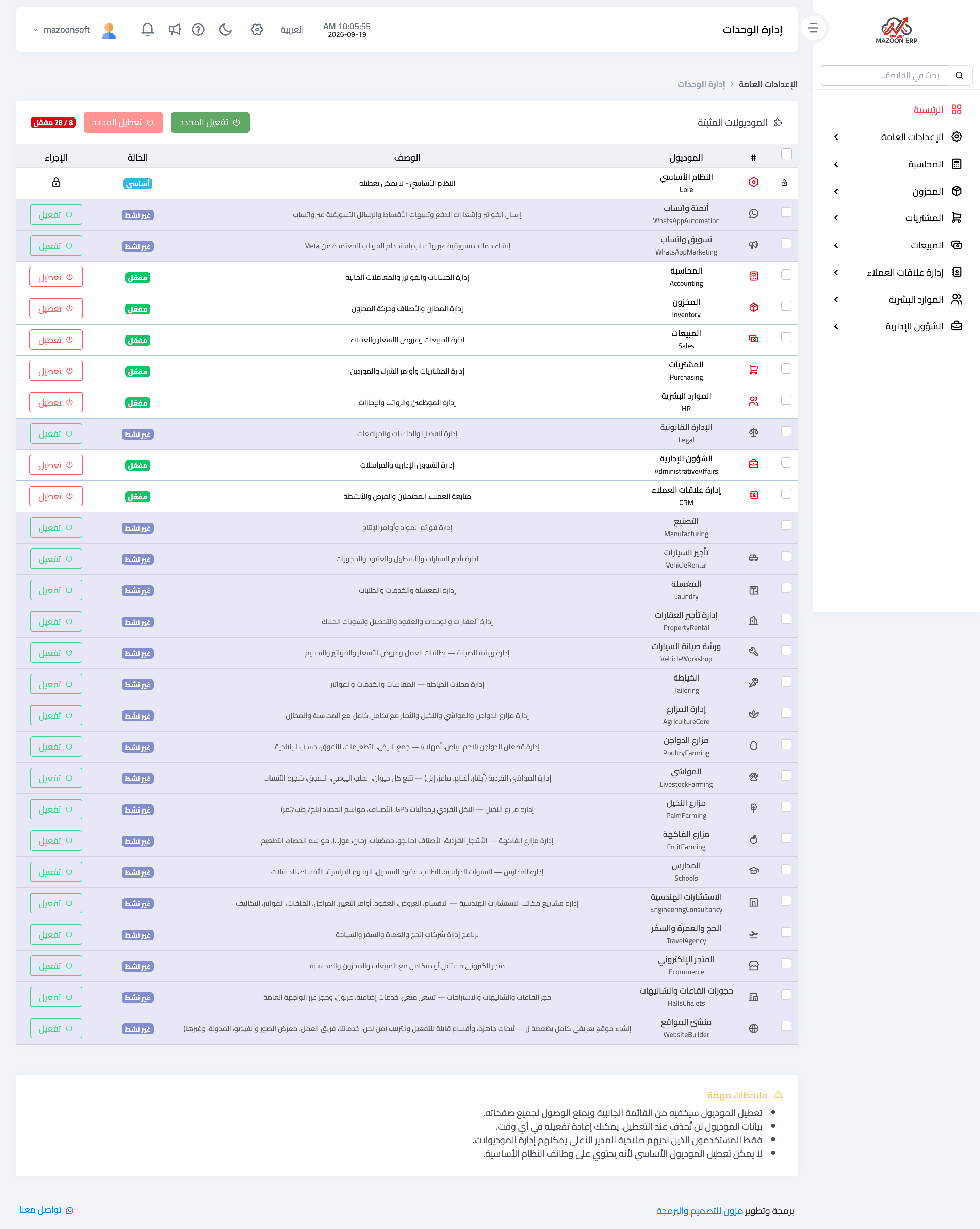
Figure 1
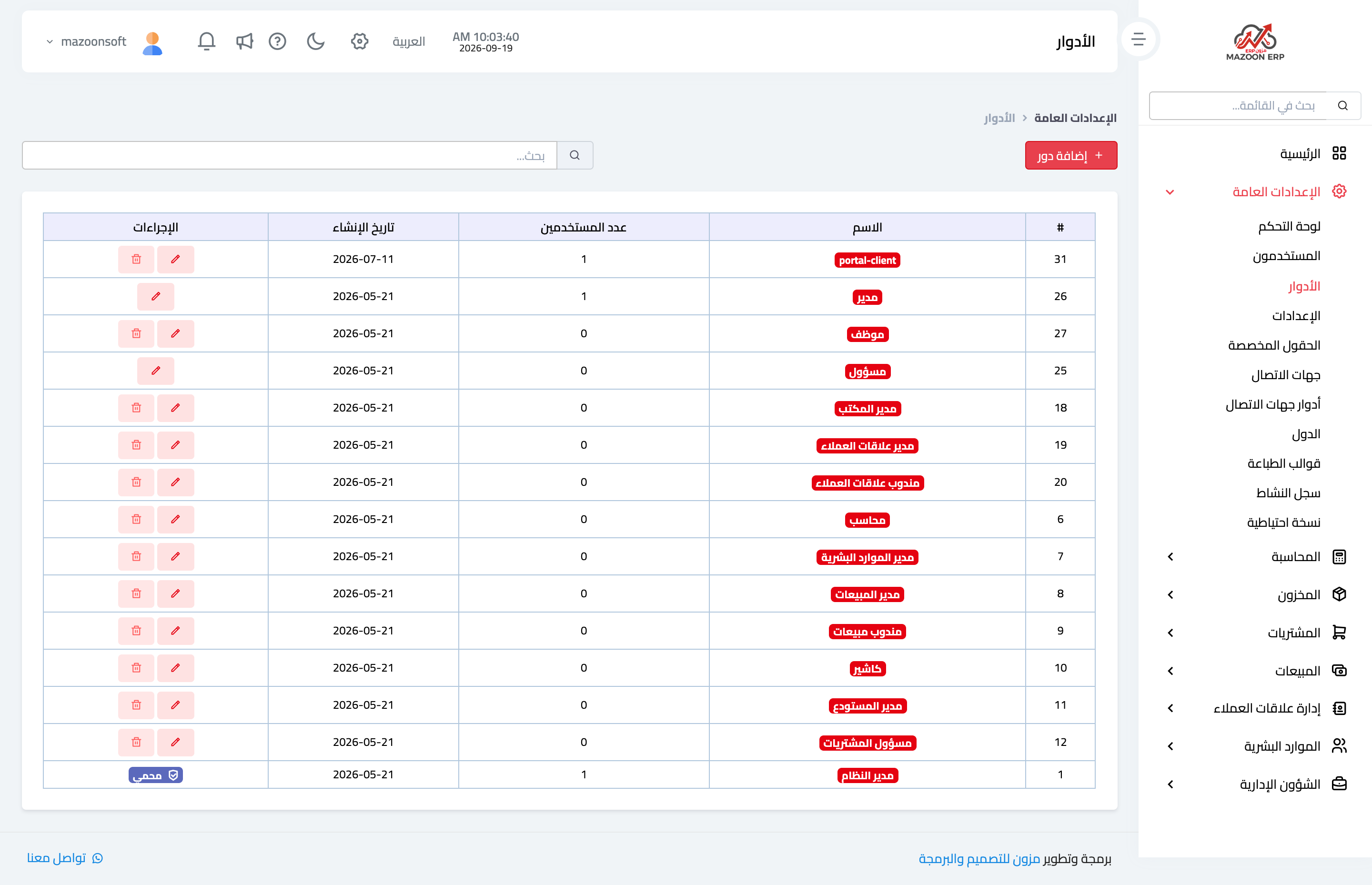
Figure 2
Try what you just read on your own data
Open a free 7-day trial — no credit card, with your own company link in minutes.