
How do I find out what is new in the system?
The system keeps evolving, and a screen may be added or a report changed without your noticing. The megaphone icon in the top bar gathers everything that is new.
Steps
- Look at the megaphone icon in the top bar; the green number above it is the count of updates you have not read.
- Click it to open the What's New page — image 1. Each row is a title and a publication date, and the new ones carry a New badge and a green background.
- Press Read more on any row to open its detail, sometimes with an explanatory video.
- The Mark all as read button at the top empties the counter in one go.
- The search box above the table filters the updates by title.
Notes
- What you see here concerns the modules enabled for you; updates for a module you do not use are not shown.
- A minute on this page after each release saves you discovering a change by accident in the middle of work.
- This page is for changes to the system itself; alerts about your daily work belong to the notifications bell.
Screenshots
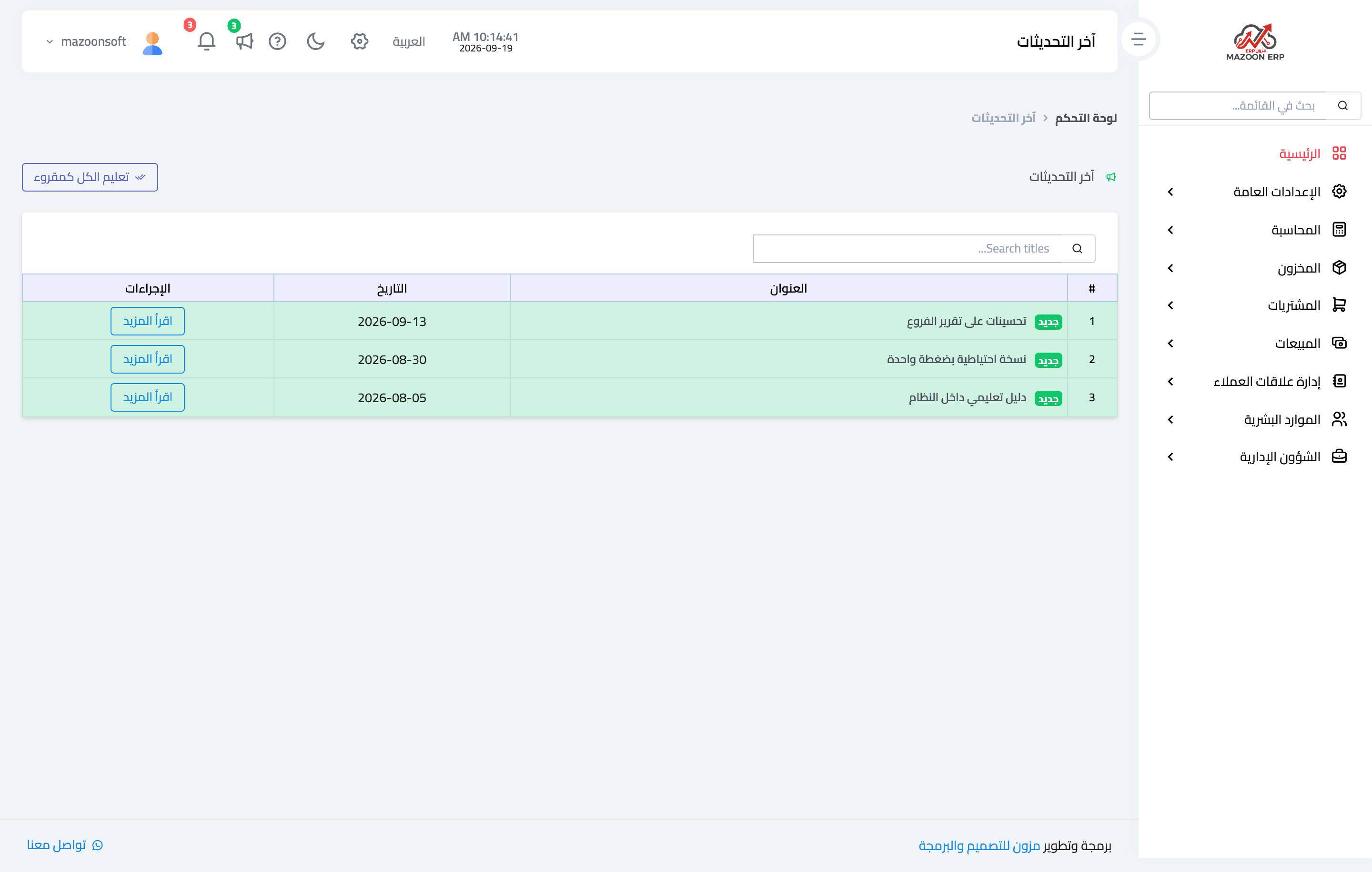
Figure 1
Try what you just read on your own data
Open a free 7-day trial — no credit card, with your own company link in minutes.