
How do I log in for the first time and change my password?
Your account is created by your organisation's system administrator, who hands you an e-mail and a temporary password. The first thing to do after logging in is to change that password to one only you know.
Steps
- Open your organisation's link and the login page appears — image 1.
- Enter the e-mail and password you were given, then press Log in.
- Once inside, click your name at the far end of the top bar and choose My Account, or open General Settings → My Account — image 2.
- In the profile information card check your name and e-mail, then Save.
- In the update password card enter your current password, then a new password and its confirmation, then Save.
- If you forgot the password before logging in, press Forgot your password? on the login page and enter your e-mail; a reset link is sent to you.
Notes
- The e-mail is the login name, so it cannot be repeated between two users in the same organisation.
- If the reset link does not arrive, check the junk folder and make sure the e-mail on your account is really yours — otherwise ask the administrator to change it for you.
- Do not keep the temporary password the administrator gave you; they know it, and the log attributes every action to your account.
- The administrator cannot see your password once you have changed it, but they can set a new one if you lose it.
Screenshots
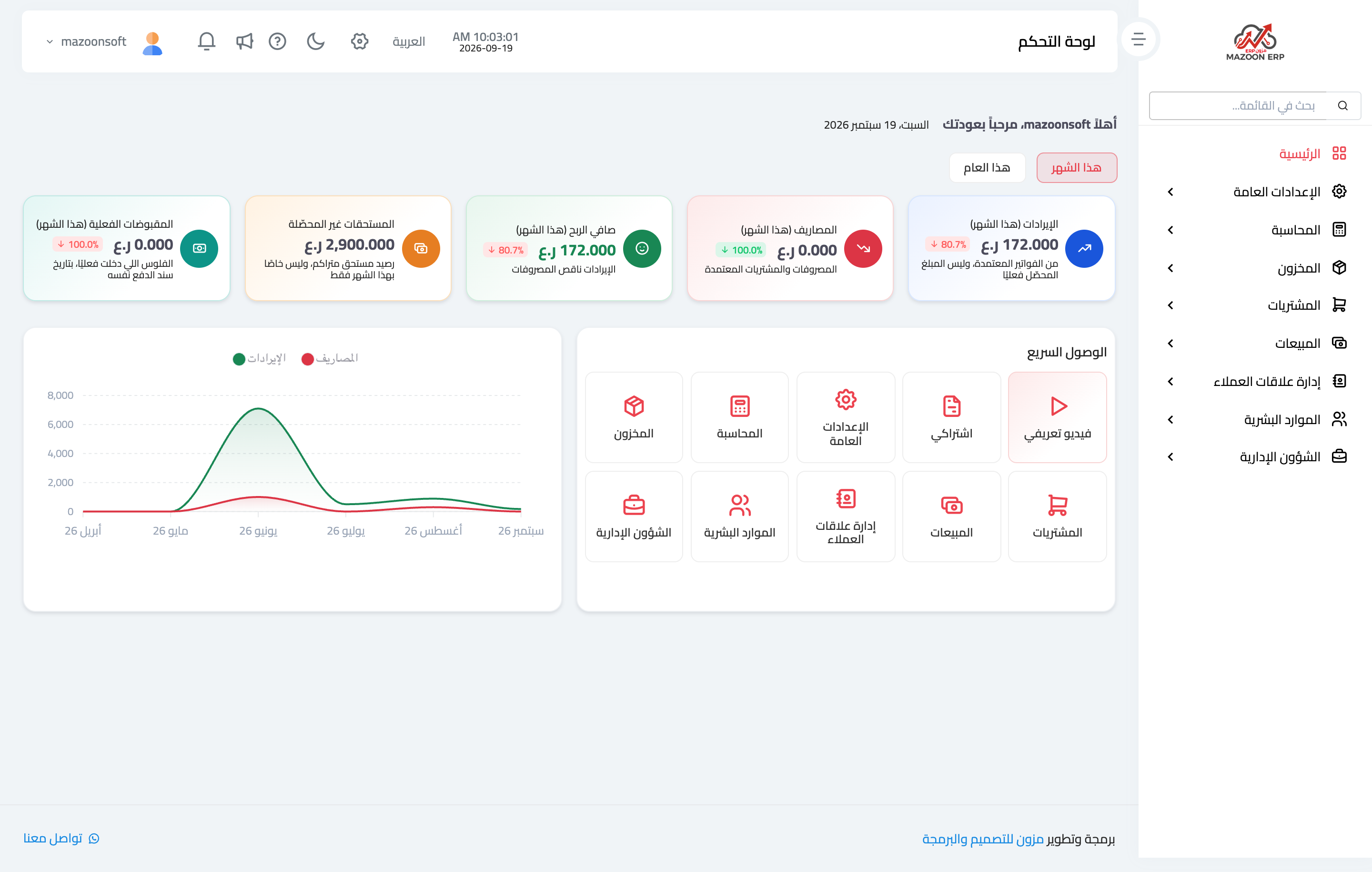
Figure 1
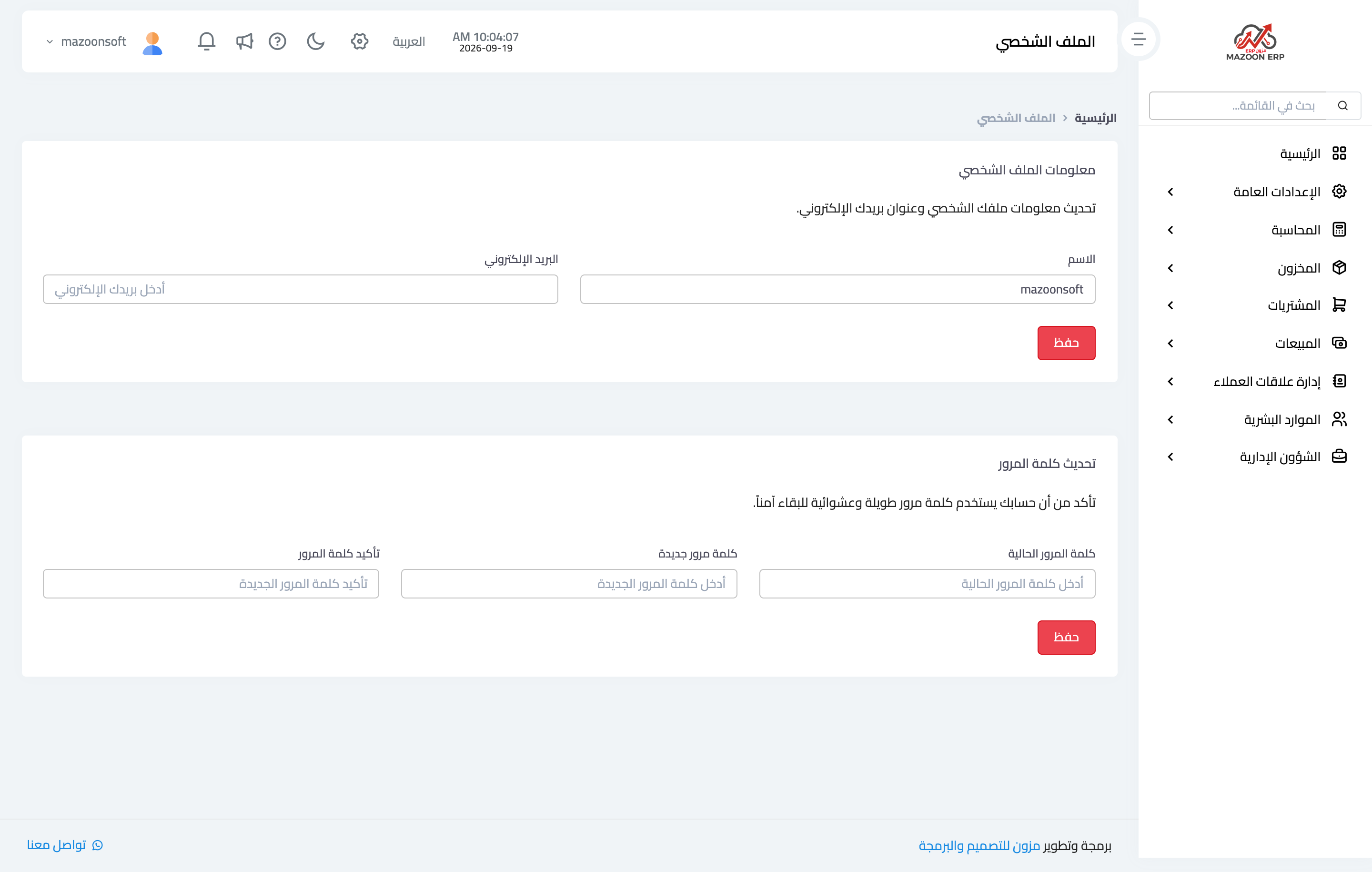
Figure 2
Try what you just read on your own data
Open a free 7-day trial — no credit card, with your own company link in minutes.