
How do I search, filter and export on any list screen?
Every list screen in the system is built on the same pattern: search, filters, a table, pagination and an export button. Learn the shape once and you know every other screen.
Steps
- Open any list screen — Contacts for example — image 1.
- Type part of a name or number into the search box and press Search.
- Use the dropdowns to narrow the results (country, role, and any custom fields you added), then press Apply filters.
- Below the table the result count and page numbers appear: showing 1 to 10 of 521 results.
- Press Export Excel to download what you are looking at now — filtered, not the whole list — then open it in Excel and work on it freely.
- Report-like screens also carry a Print button, and some have a Columns button to show or hide table columns — image 2.
Notes
- The export follows the filters: filter first, then export, and you get a small file with only what you want.
- Do not type a long word into the search; part of a word is usually enough and returns more.
- If a result comes back empty, check for filters left over from an earlier search before concluding the record does not exist.
- A user restricted to a branch sees only their branch's data on these screens, so a different count from a colleague's may be the branch rather than the filter.
Screenshots
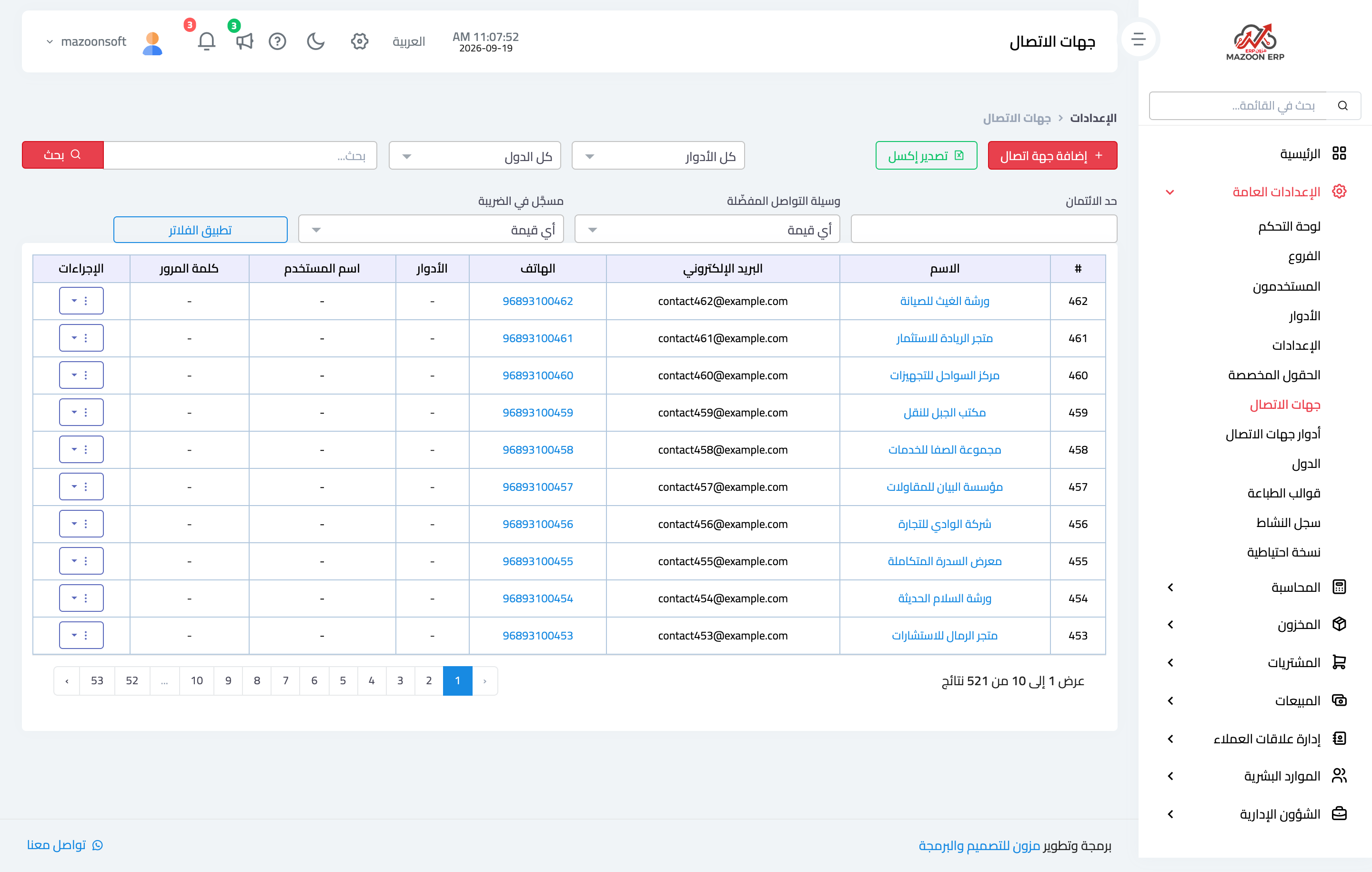
Figure 1
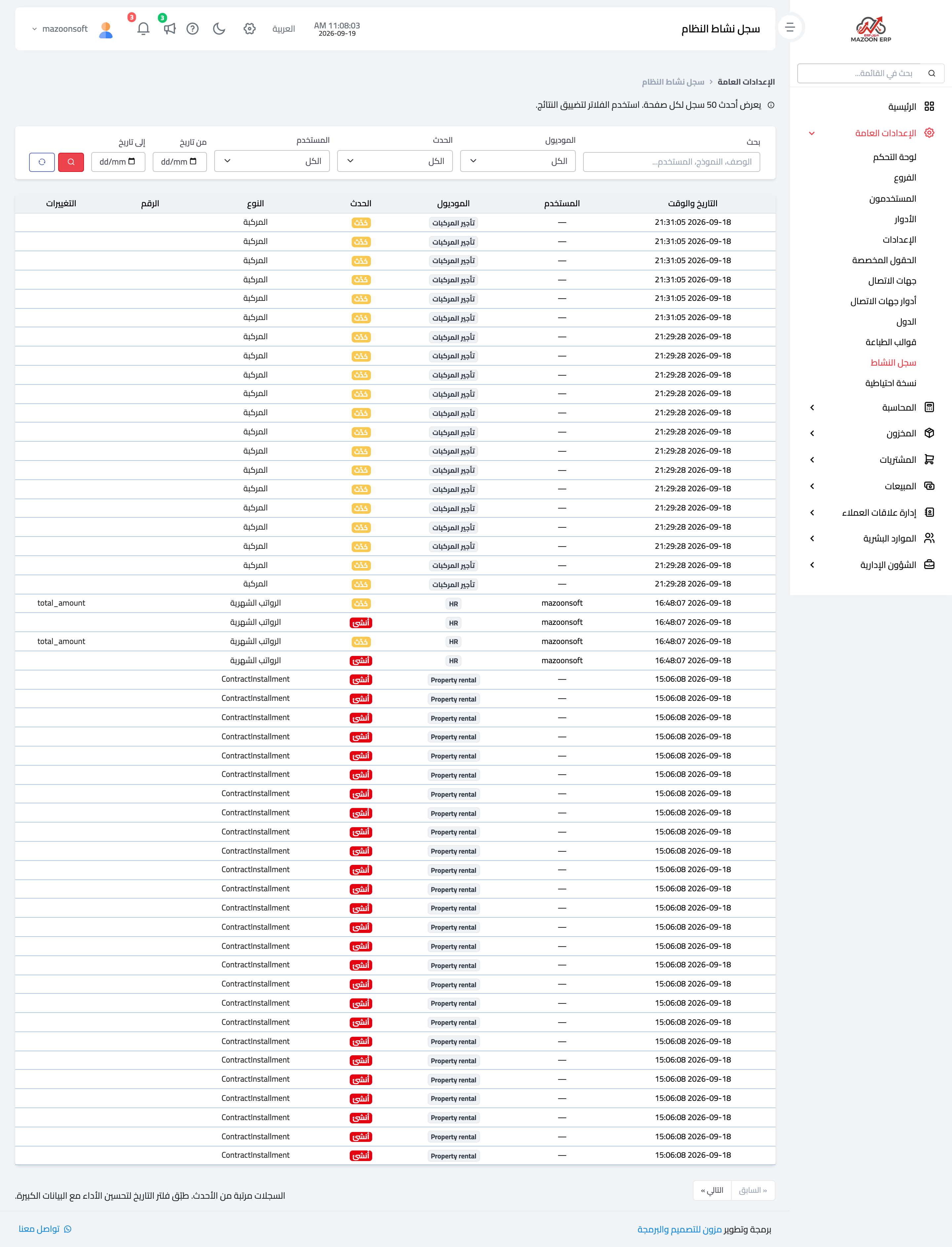
Figure 2
Try what you just read on your own data
Open a free 7-day trial — no credit card, with your own company link in minutes.