
Orders, shipping, coupons, and store settings
Once the catalogue is in place, what makes the store actually work remains: how the product arrives, what shipping costs, how the customer pays, and what you do when an order lands.
Orders
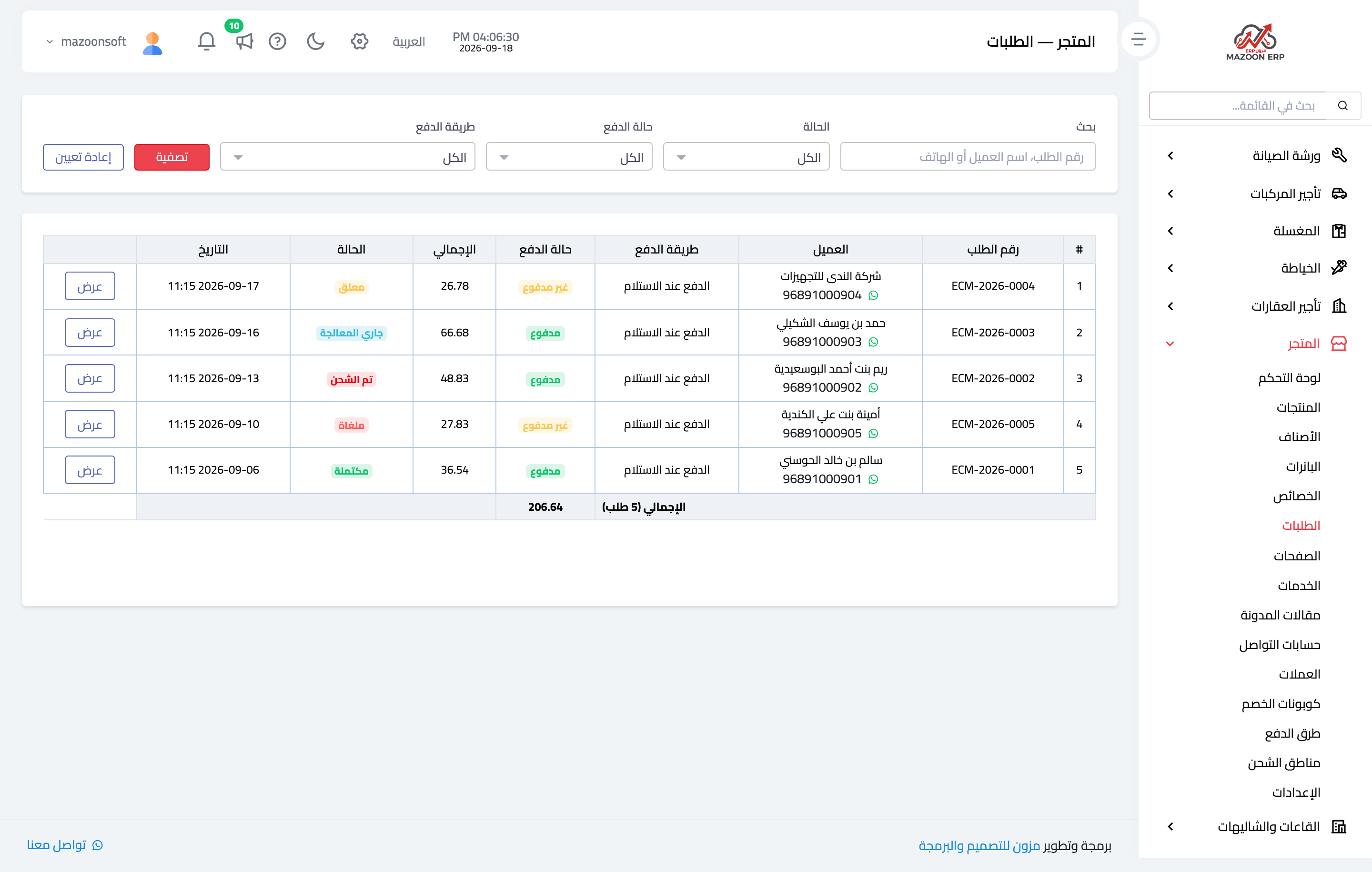
The Orders screen — Figure 1 — shows the order number, the customer with their phone and a WhatsApp button, the payment method, the payment status, the total, and the status, with a totals row underneath.
Note that the order status and the payment status are two separate columns:
- Order status runs: pending, then processing, then shipped, then completed, with cancelled alongside.
- Payment status is simply paid or unpaid.
The separation is deliberate: a cash-on-delivery order may be shipped while still unpaid and then paid at the door — and paying it does not drag its status back to “processing”.
The order page
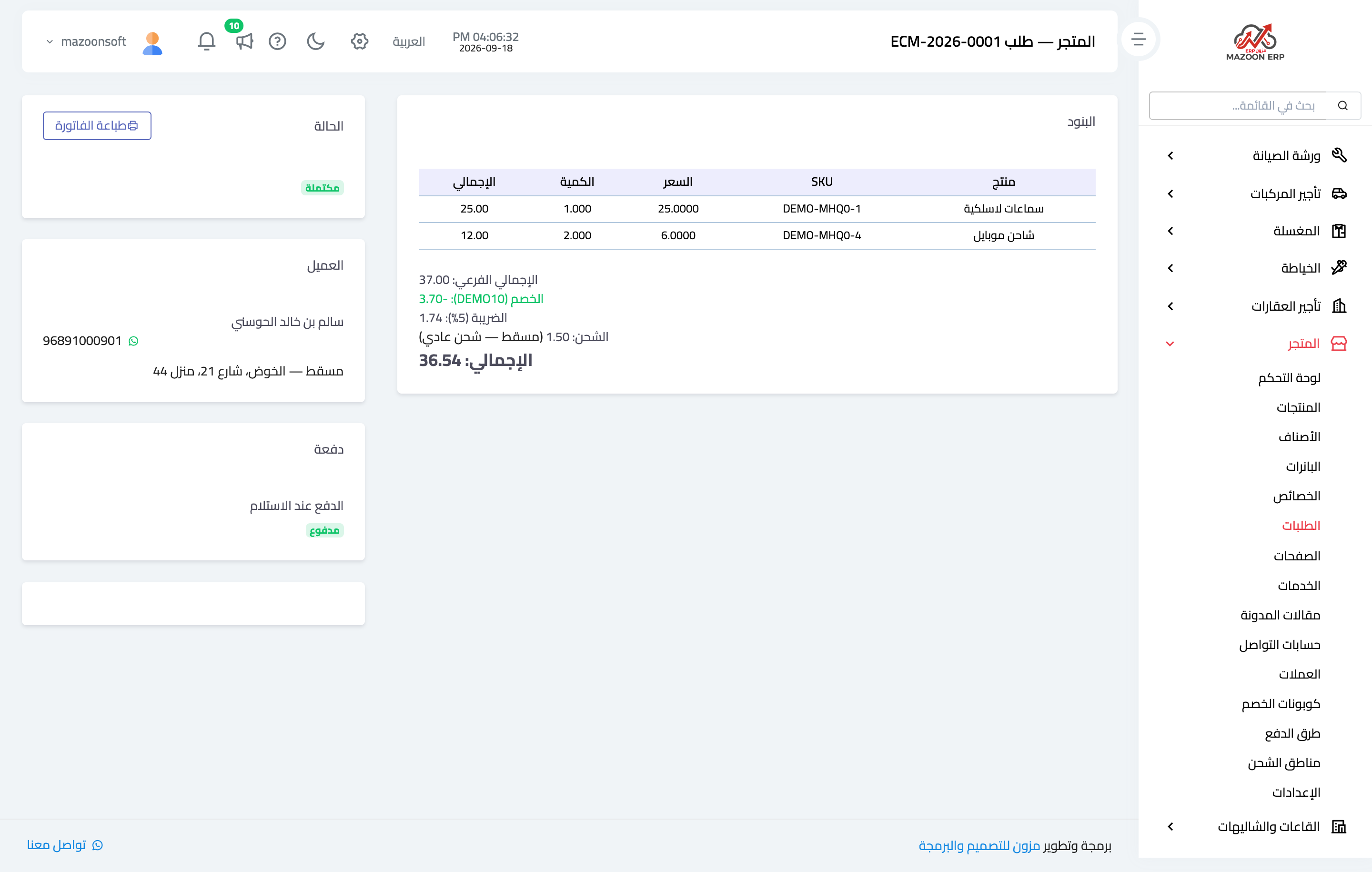
The order page — Figure 2 — shows the customer details and shipping address, the lines with their variants and SKUs, then the subtotal, shipping, coupon discount, tax, and total.
From there you move the status one step at a time, or cancel the order. Cancelling is allowed from any non-final state and returns the quantities to stock.
Shipping zones
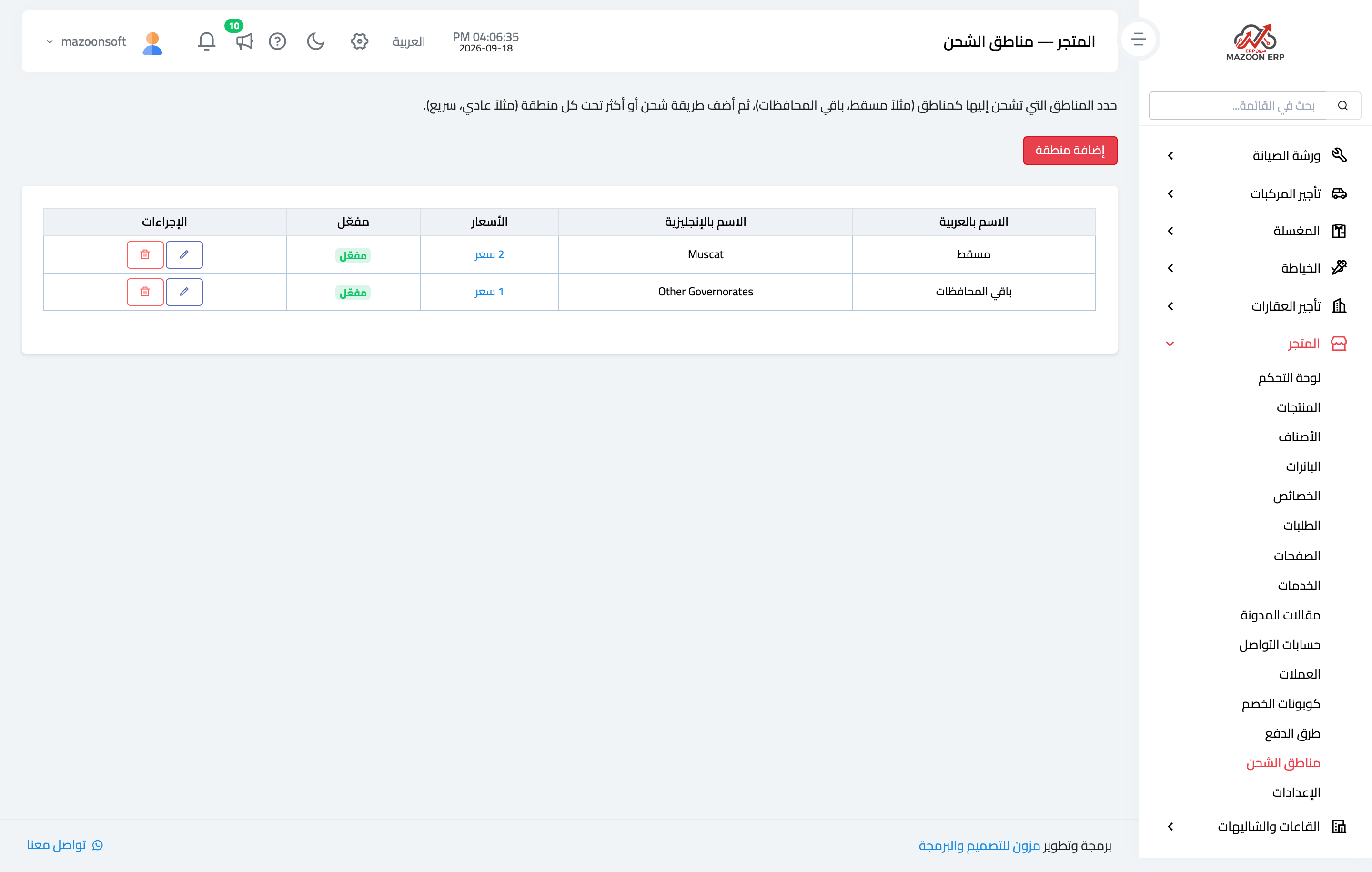
Shipping in this module has two levels — Figure 3:
- Zone — a set of geographic areas: Muscat and around it, or the rest of the governorates.
- Rate — inside each zone, and there may be more than one: standard delivery and express delivery at two different prices.
The customer picks their zone at checkout and sees only its rates, and the zone and rate names are stored on the order itself, so later price changes do not rewrite past orders.
Discount coupons
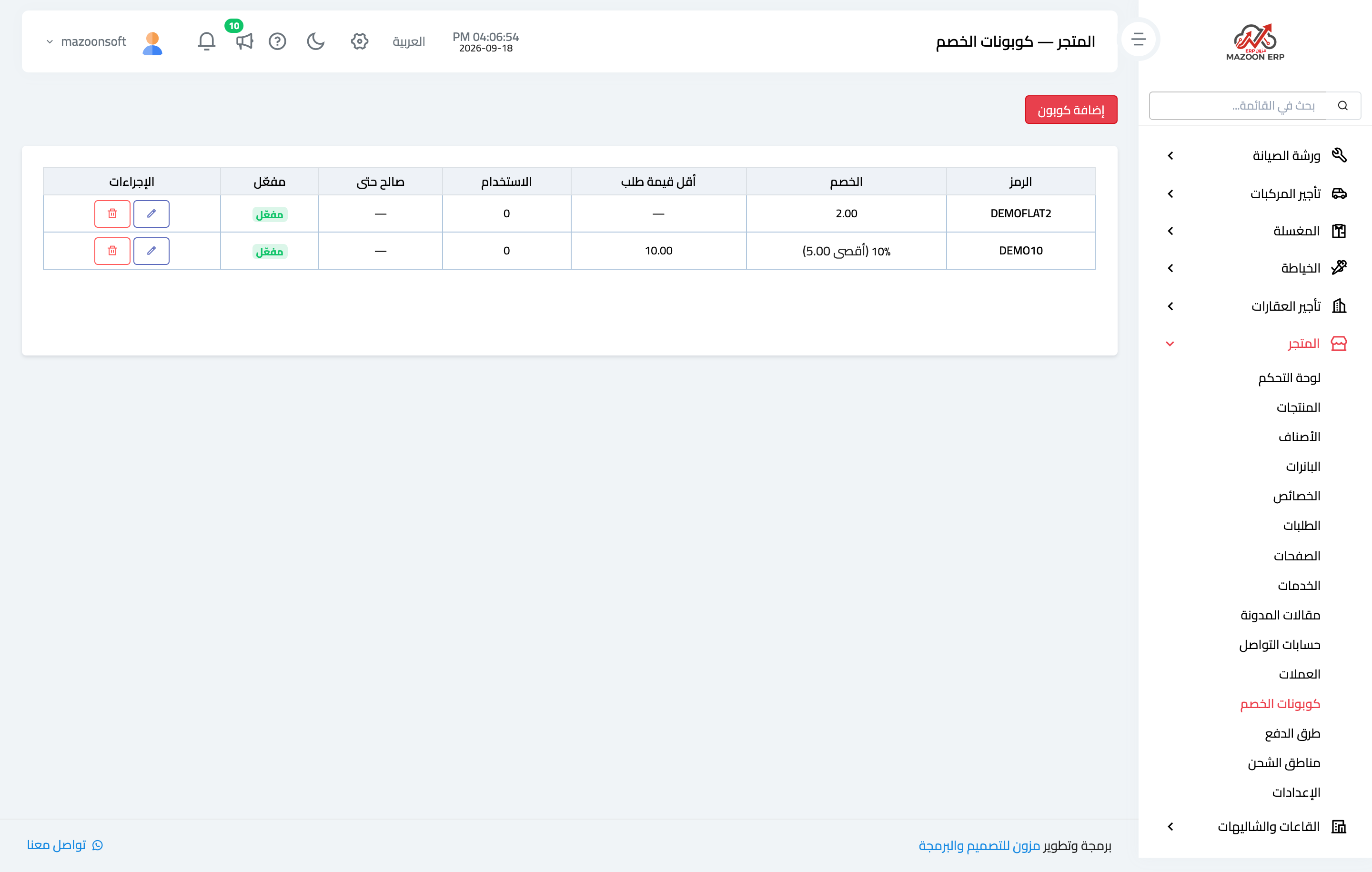
A coupon — Figure 4 — has a code the customer types, a type (percentage or fixed amount), a value, and guards that protect you:
- Minimum order value — so it cannot be used on a small order.
- Maximum discount amount — which caps a percentage on a large order.
- Total usage limit and per customer.
- Start and expiry dates.
Payment methods
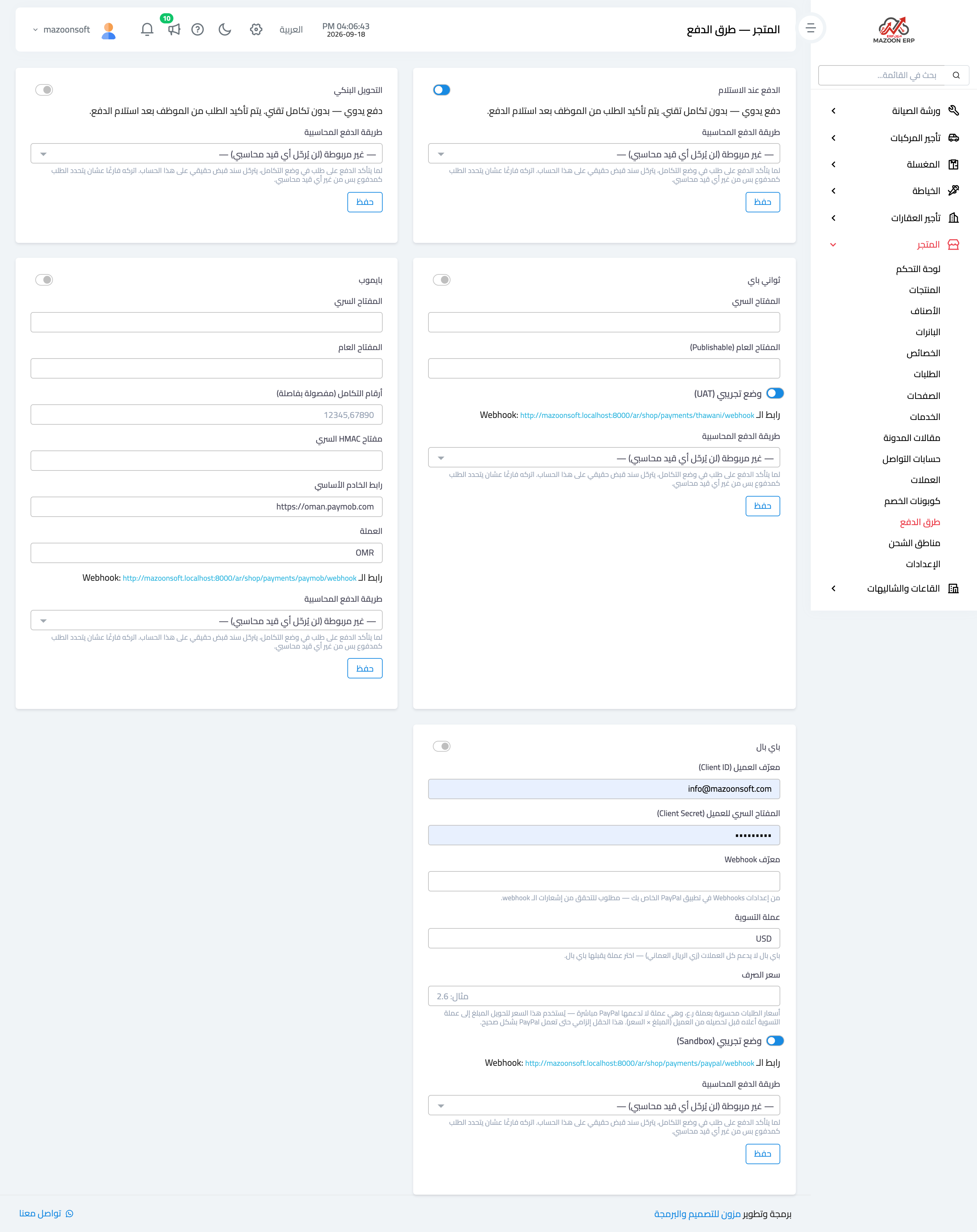
The Payment methods screen — Figure 5 — sets how the customer pays: cash on delivery, bank transfer, or an online payment gateway. Each method has its own toggle and instructions shown to the customer.
Settings and the storefront
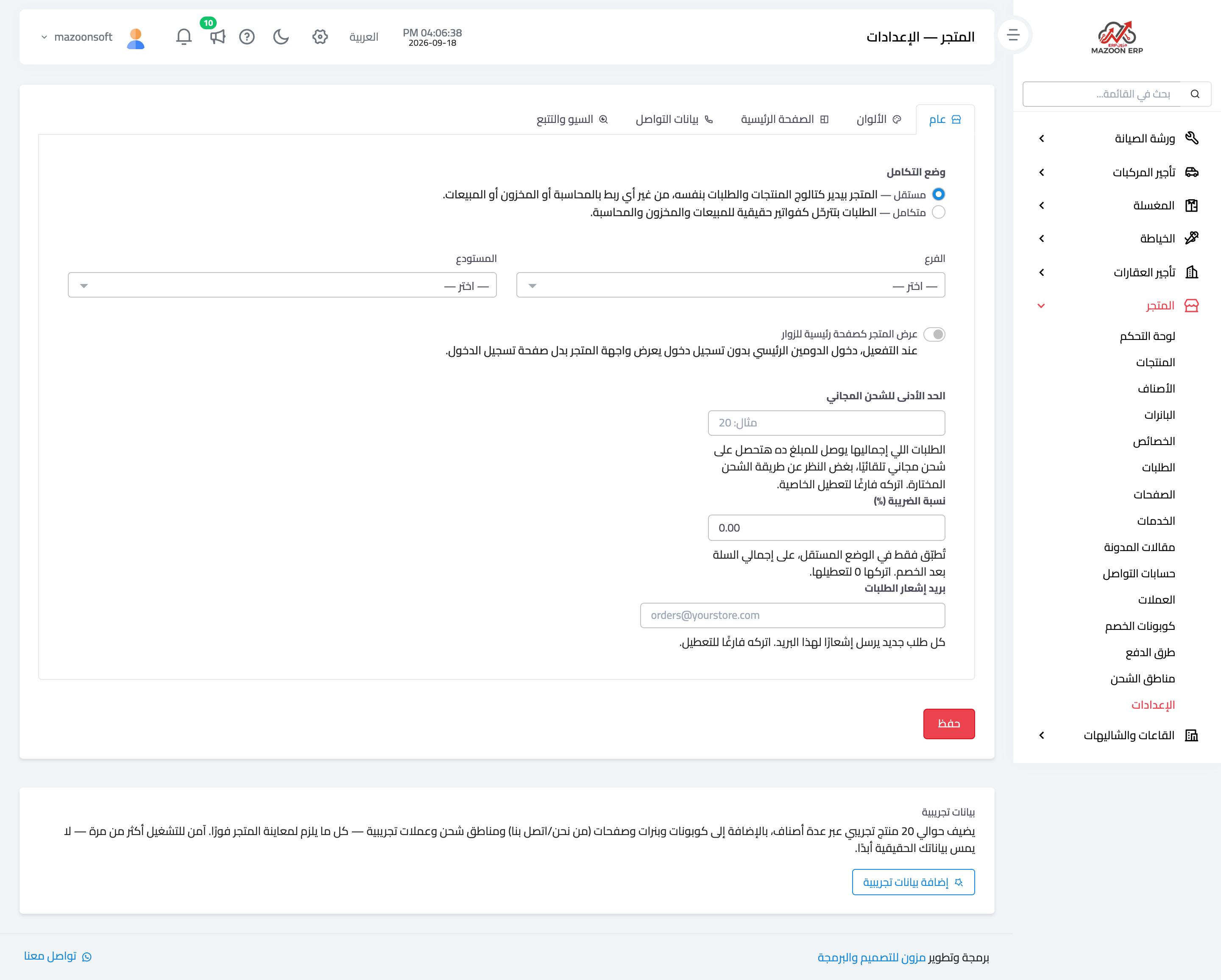
Settings — Figure 6 — hold the store name, logo, and colours, the base currency, the tax rate, the contact details, and the accounting accounts store sales post to.
Beside them are the screens that build the storefront: banners at the top of the home page, informational pages (about us, terms, privacy), blog posts, and social accounts.
Notes
- Set up the shipping zones before opening the store; a customer cannot check out without a rate that applies to their address.
- Give every coupon an expiry date and a usage limit; an open-ended coupon gets traded on deals sites and eats your margin.
- Review pending orders daily; a customer who sees no movement on their order cancels it.
Screenshots
Try what you just read on your own data
Open a free 7-day trial — no credit card, with your own company link in minutes.