
How do I set up attributes (colour and size) and generate variants?
One shirt in four colours and four sizes is not sixteen products; it is one product with sixteen variants, each with its own price, stock and SKU.
First: the attributes
- Open Store → Attributes — Figure 1 — and add an attribute such as Colour or Size.
- Click the attribute to open its values — Figure 2 — and add: white, black, red… or S, M, L, XL.
Second: the variants
- Open the product from Products → Edit — Figure 3.
- In the Bulk Generate Variants card pick one or more values per attribute, enter the base price and base stock, then press Generate; every combination is created at once.
- Adjust the price, compare-at price, stock and SKU per variant, then press Save All.
- To add a single variant on its own, press Add Variant.
Notes
- The compare-at price must be higher than the price; it is what appears struck through in the store. Leave it empty when there is no discount.
- Each variant holds one value per attribute: “Red + L” is a different variant from “Red + M”.
- Do not delete a variant that appears on past orders; set its stock to zero instead — safer for the record.
Screenshots
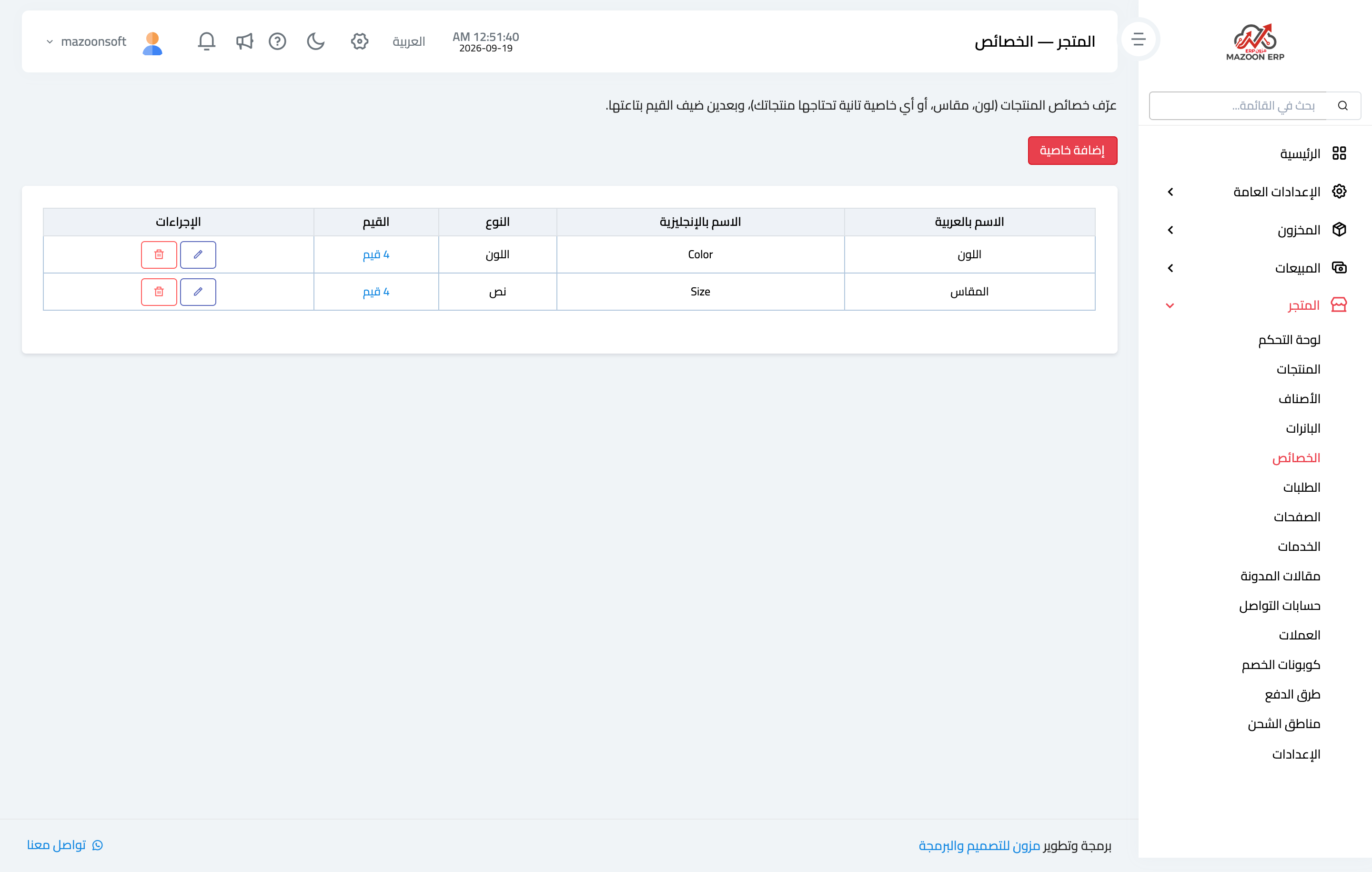
Figure 1
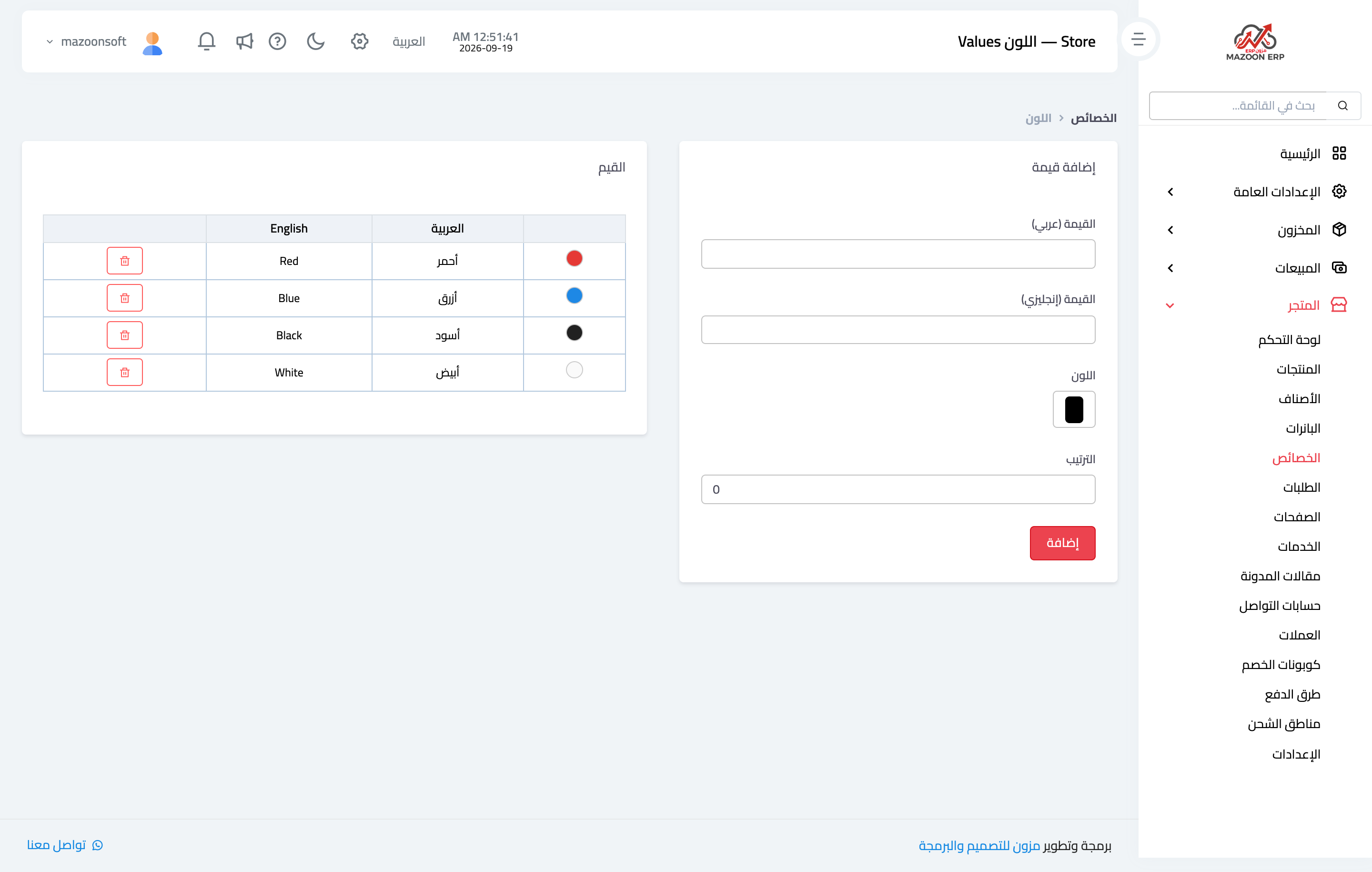
Figure 2
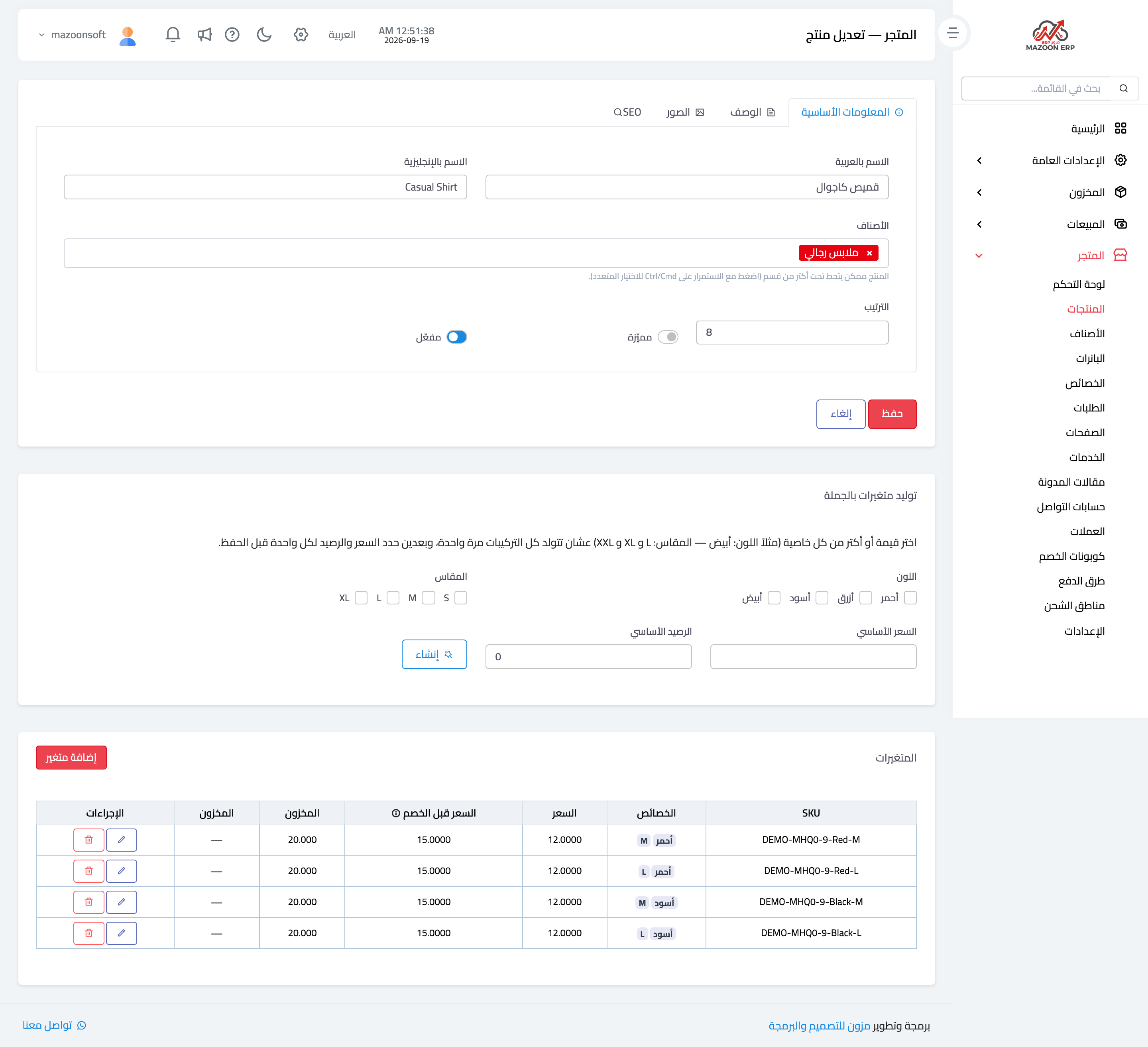
Figure 3
Try what you just read on your own data
Open a free 7-day trial — no credit card, with your own company link in minutes.