
Building the store catalogue: categories, products, and attributes
The Store module builds you a site that sells online while sitting on the same stock and the same accounts as the rest of the system, so you do not keep two inventories or copy orders by hand.
The dashboard
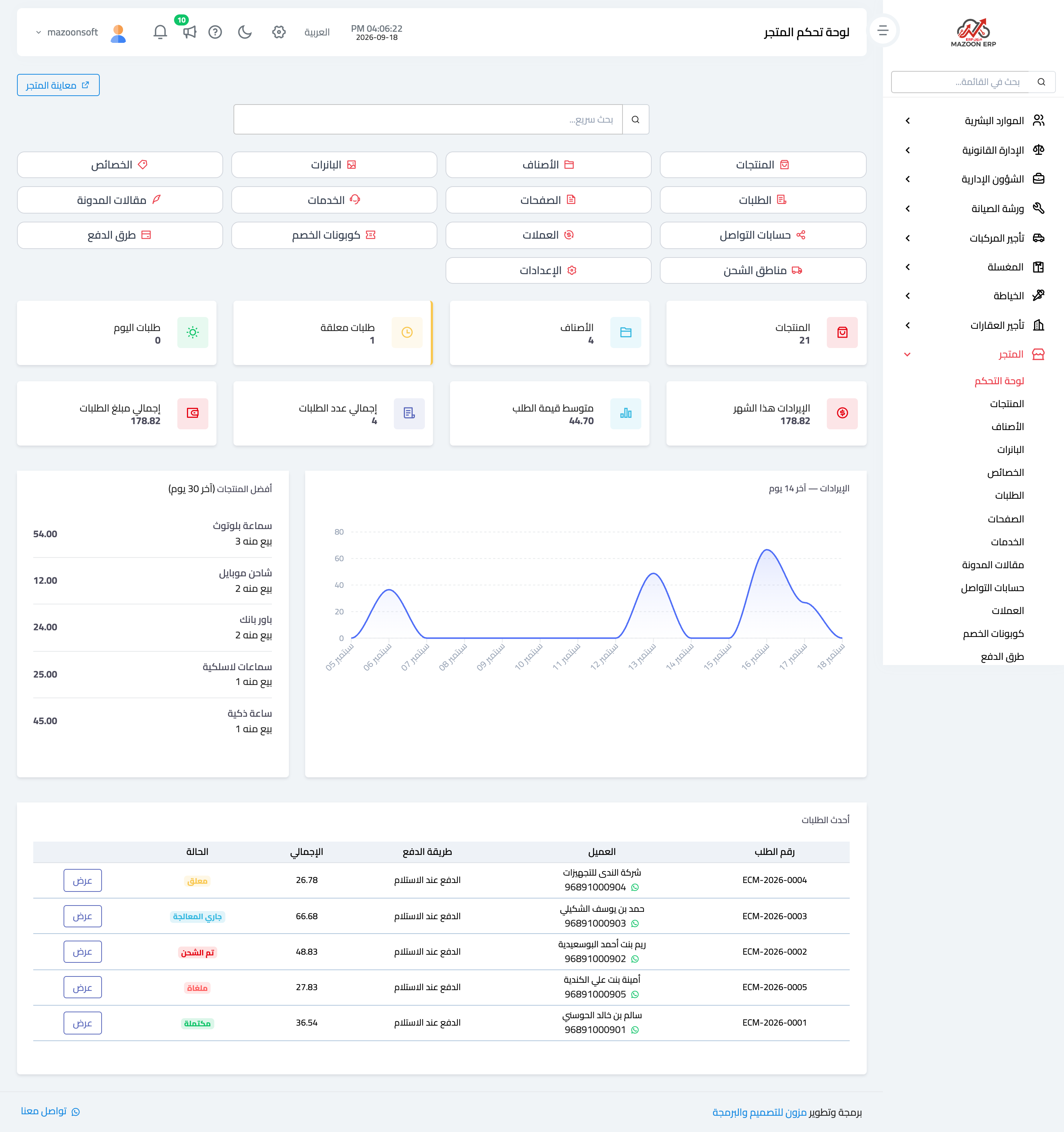
Open Store → Dashboard, as in Figure 1: the number of orders and their states, sales, the most ordered products, and what is running low on stock.
Categories
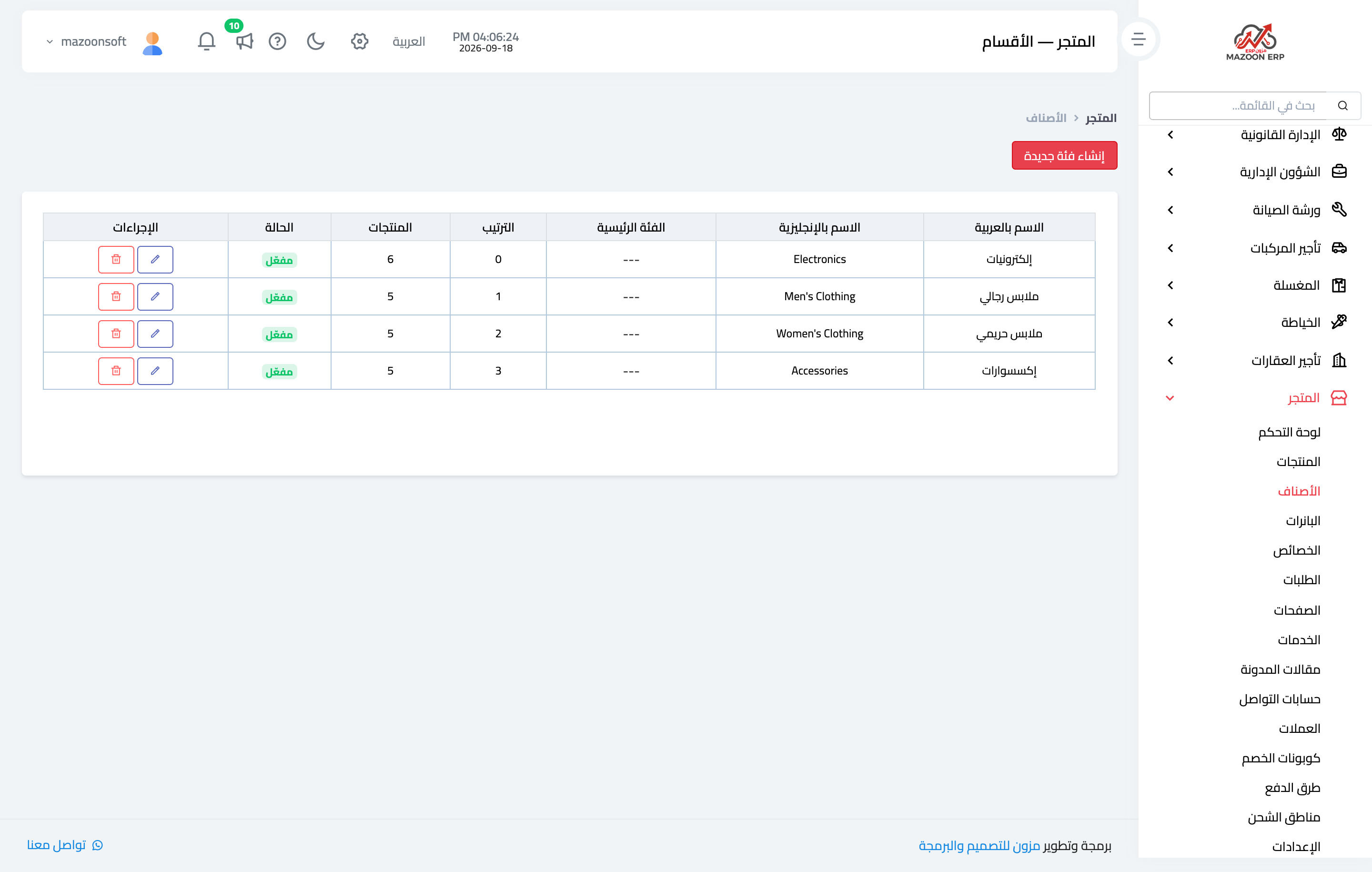
A category is how a customer browses your store — Figure 2. It has an Arabic and English name, a slug, an image, a sort order, and it can sit under another category, giving you a two-level tree.
A tip: keep the categories few. A customer facing twenty of them enters none.
Products
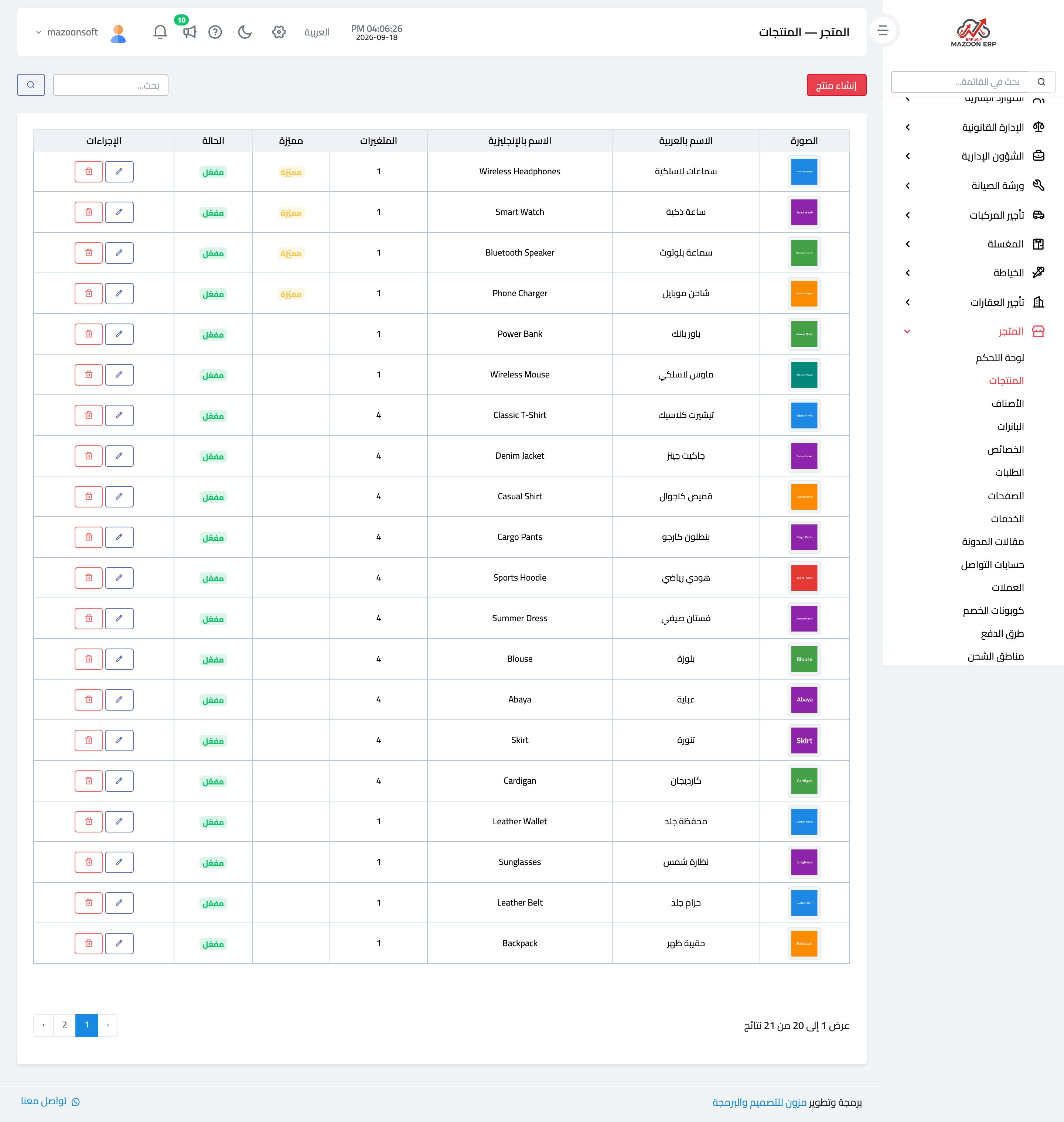
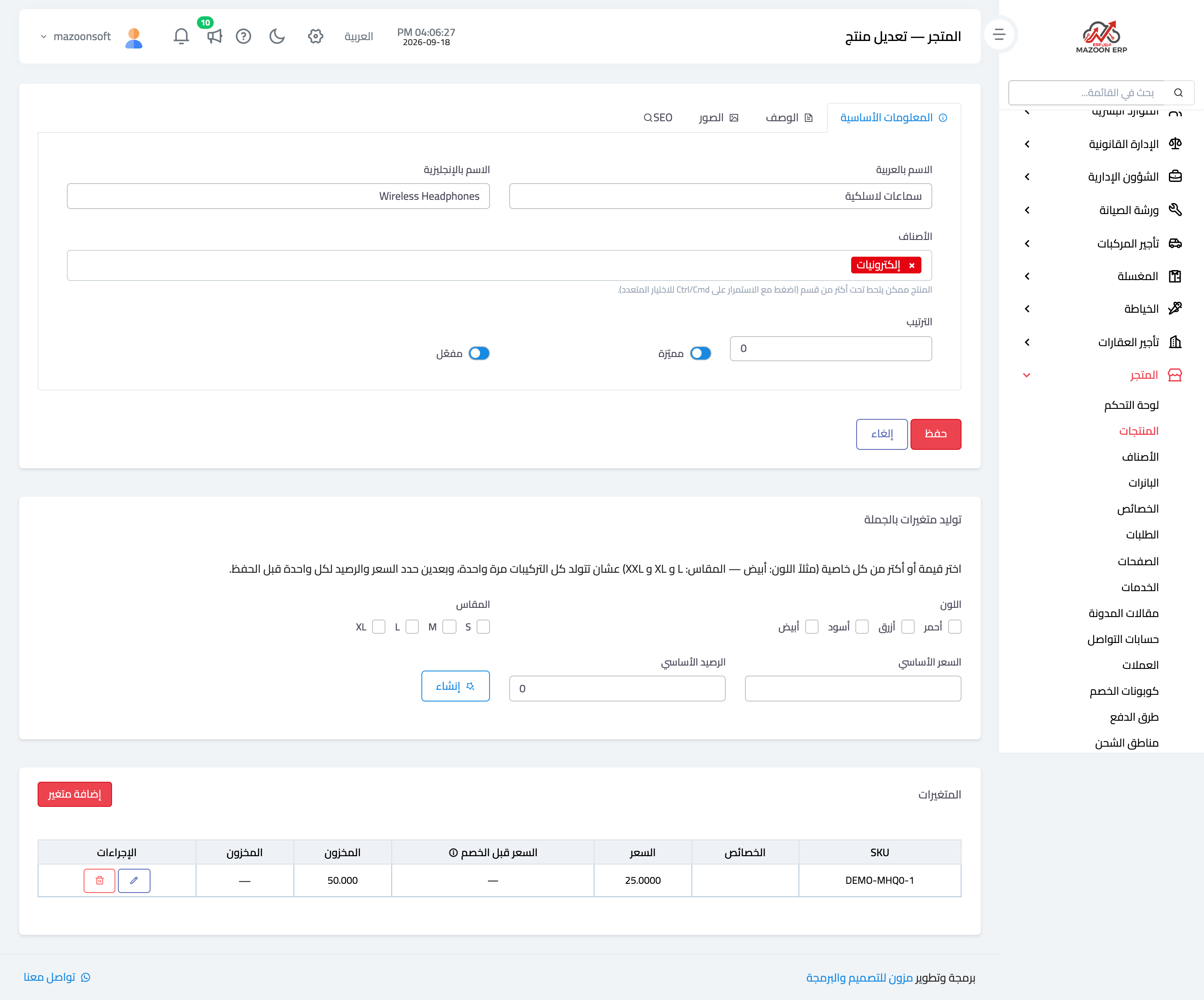
The Products screen — Figure 3 — shows the catalogue with its images, prices, and published state. The product form — Figure 4 — gathers:
- Name and description in both languages, the slug, and the SEO description that shows in Google.
- Categories — a product can belong to more than one.
- Images — a full gallery, the first being the cover.
- Pricing and stock — tied to the Inventory module, so selling from the store draws down the same balance the shop sells from.
- Published state — whether the product appears in the store.
Attributes and variants
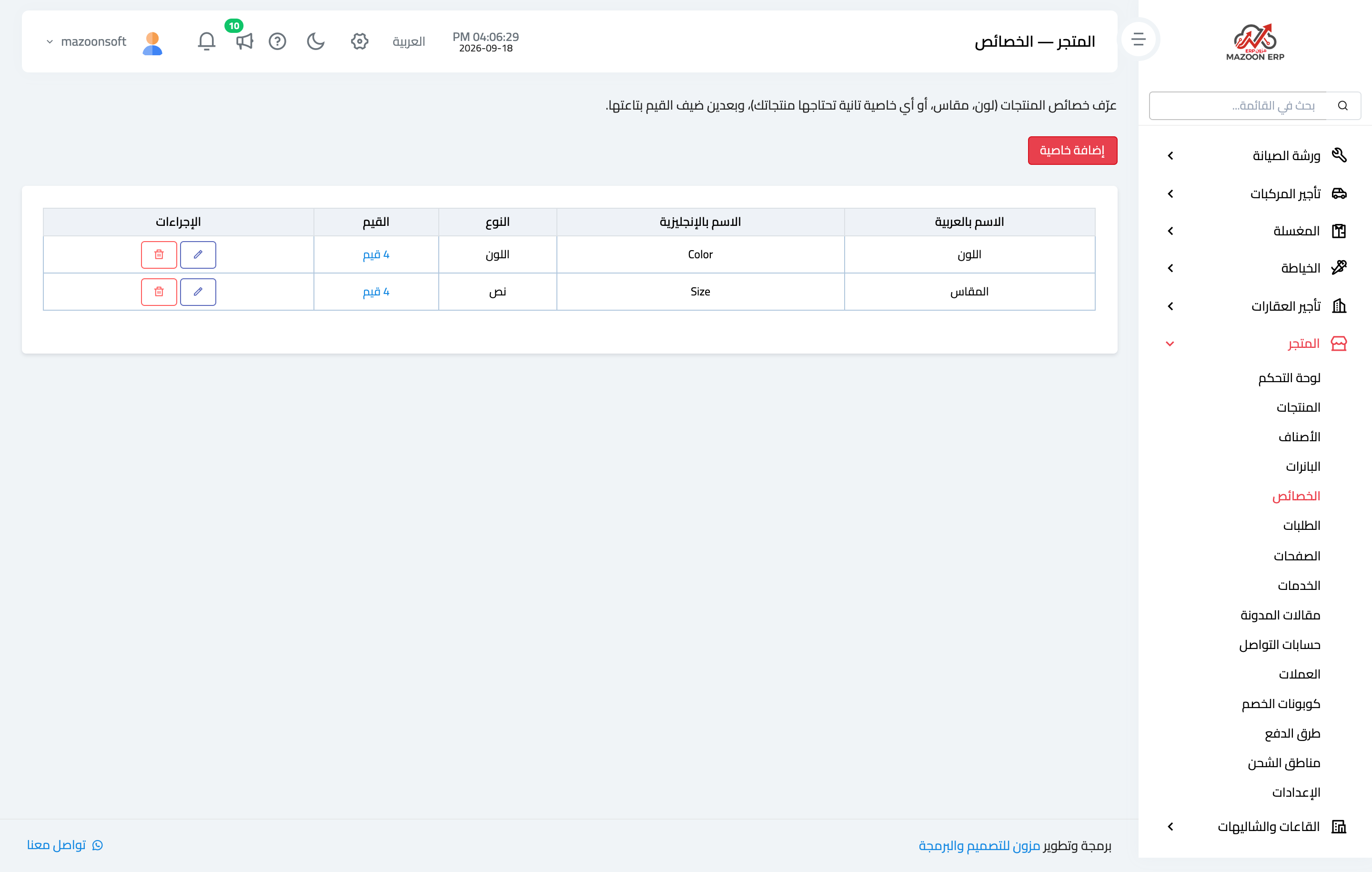
This is the most important thing to understand before entering the first product. An attribute is what a product varies by within itself: size and colour — Figure 5. Each attribute has values: size has S, M, and L; colour has white and black.
A variant is the actual combination that is sold: “white shirt, size L”. Each variant has its own SKU, its own price, and its own stock.
That separation is what lets the store tell a customer that size L is out while M is available, instead of saying the shirt itself is out of stock.
Currencies
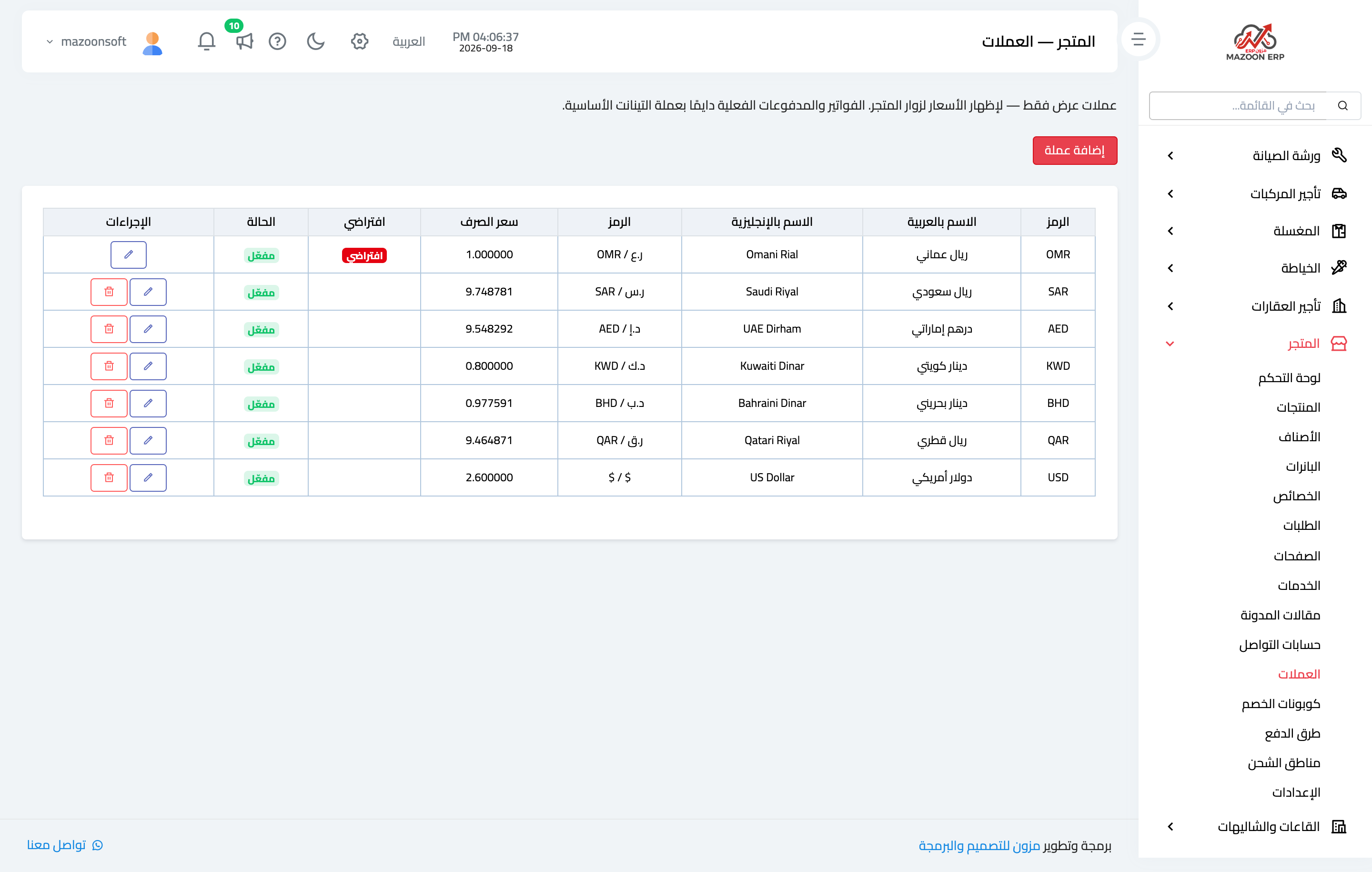
The store ships with a currencies list — Figure 6 — each with an exchange rate against your base currency, so a visitor from another country sees the price in their own currency without doing the arithmetic in their head.
Notes
- Set the attributes up before entering products; converting a simple product into a variant product later takes longer than getting it right once.
- Upload real, clear photographs; they are the difference between a store that sells and a store that is browsed.
- Write the SEO description for every product; it is what the customer reads in a Google result before deciding to click.
Screenshots
Try what you just read on your own data
Open a free 7-day trial — no credit card, with your own company link in minutes.