
How do I set up shipping zones, rates and free shipping?
Shipping is the last number a customer sees before paying, and the most common reason carts are abandoned — so set it carefully.
Zones
- Open Store → Shipping Zones — Figure 1.
- Add a zone with its name in both languages, for example Muscat and Other governorates.
Shipping rates
- Click the zone to open its rates — Figure 2.
- Add a rate with a name the customer understands, such as Standard delivery (2–3 days) or Express (24 hours), and enter its amount.
- One zone can have several rates, and the customer picks between them at checkout.
Free shipping
In Store → Settings enter the free shipping threshold; any order reaching that amount ships free whatever method was chosen. Leave it empty to disable the feature.
Notes
- Set the free-shipping threshold slightly above your average order value; it is the most effective way to raise the average basket.
- Never leave a zone without at least one rate; a customer in that zone will have nothing to choose.
- Work out what shipping actually costs you before you promise it free; it comes out of your margin, not out of thin air.
Screenshots
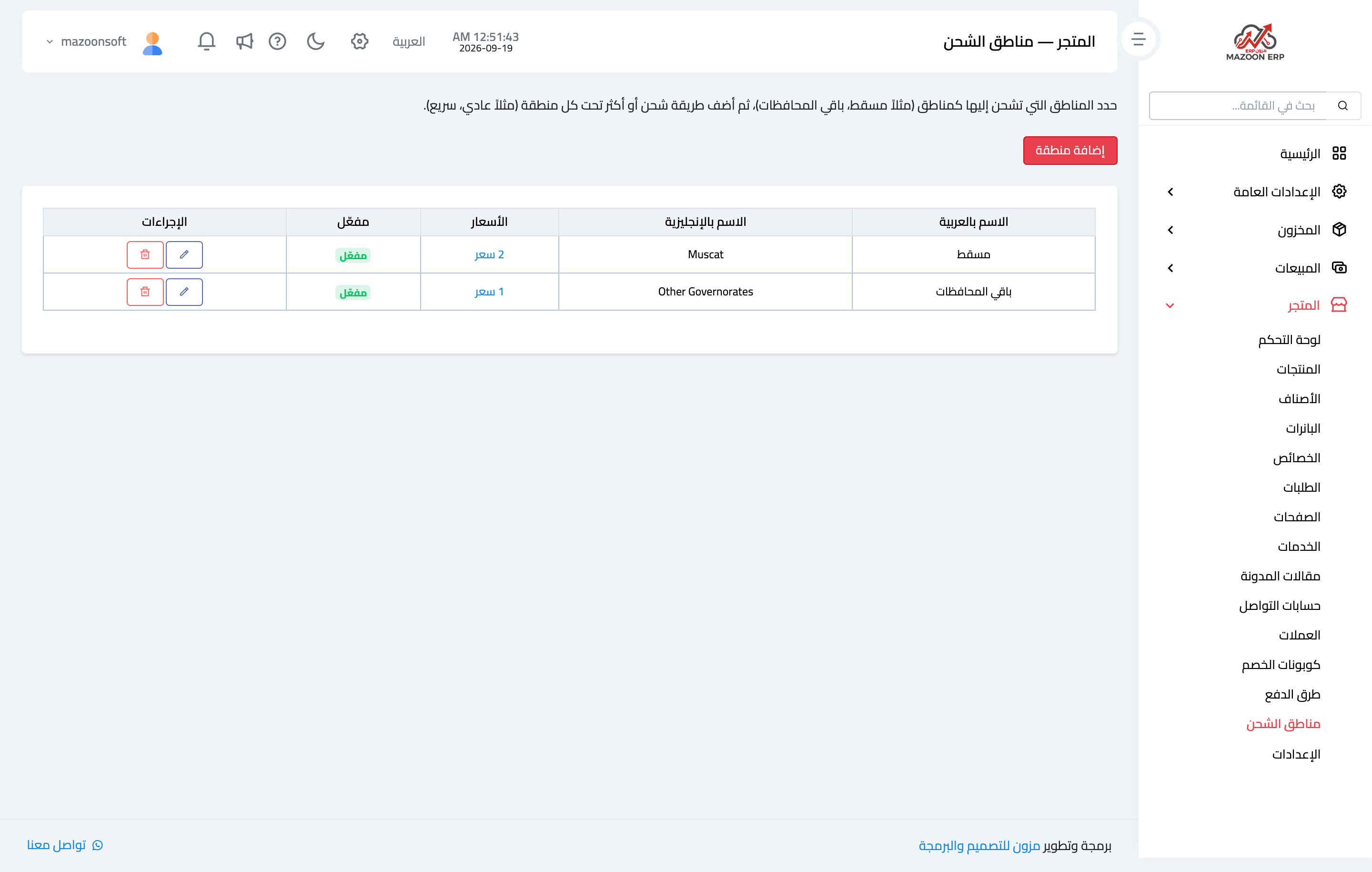
Figure 1
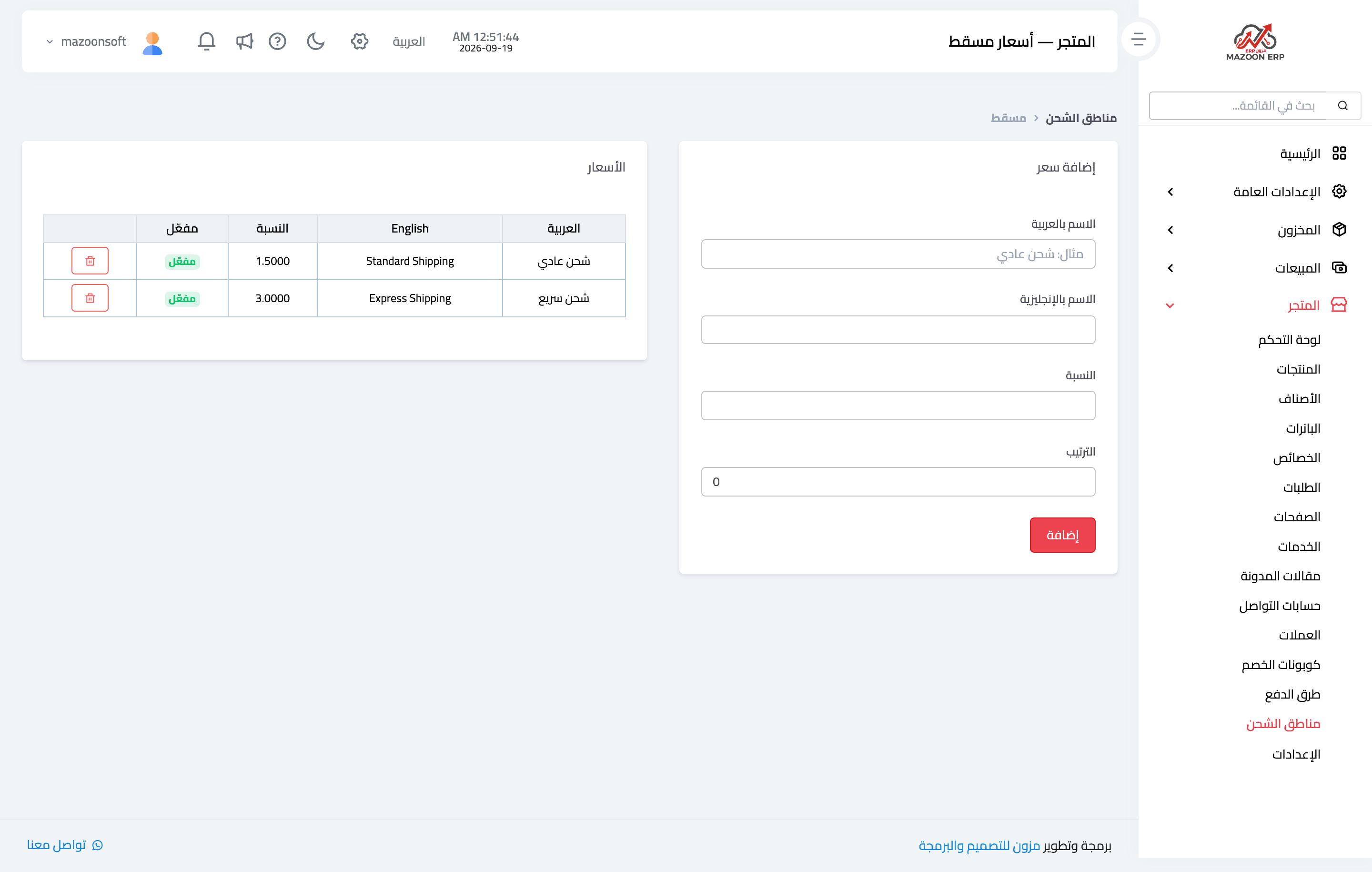
Figure 2
Try what you just read on your own data
Open a free 7-day trial — no credit card, with your own company link in minutes.