
How do I link product variants to Inventory?
If you sell the same goods in the shop and in the store, keeping the stock figure in two places is a mistake waiting to happen.
Steps
- Make sure the store’s integration mode is set to Integrated, with a branch and warehouse chosen.
- Open the product from Store → Products → Edit — Figure 1.
- In the Variants table press Push to Inventory on the variant’s row; an inventory item is created for it with the same SKU.
- Once linked, a Linked badge appears and the From Inventory column becomes the authoritative stock figure.
Notes
- After linking, the store’s own stock field is ignored, so do not waste time editing it.
- Linking makes every order draw stock straight from the warehouse, so you do not sell what you do not have.
- Digital products and services do not need an inventory link.
Screenshots
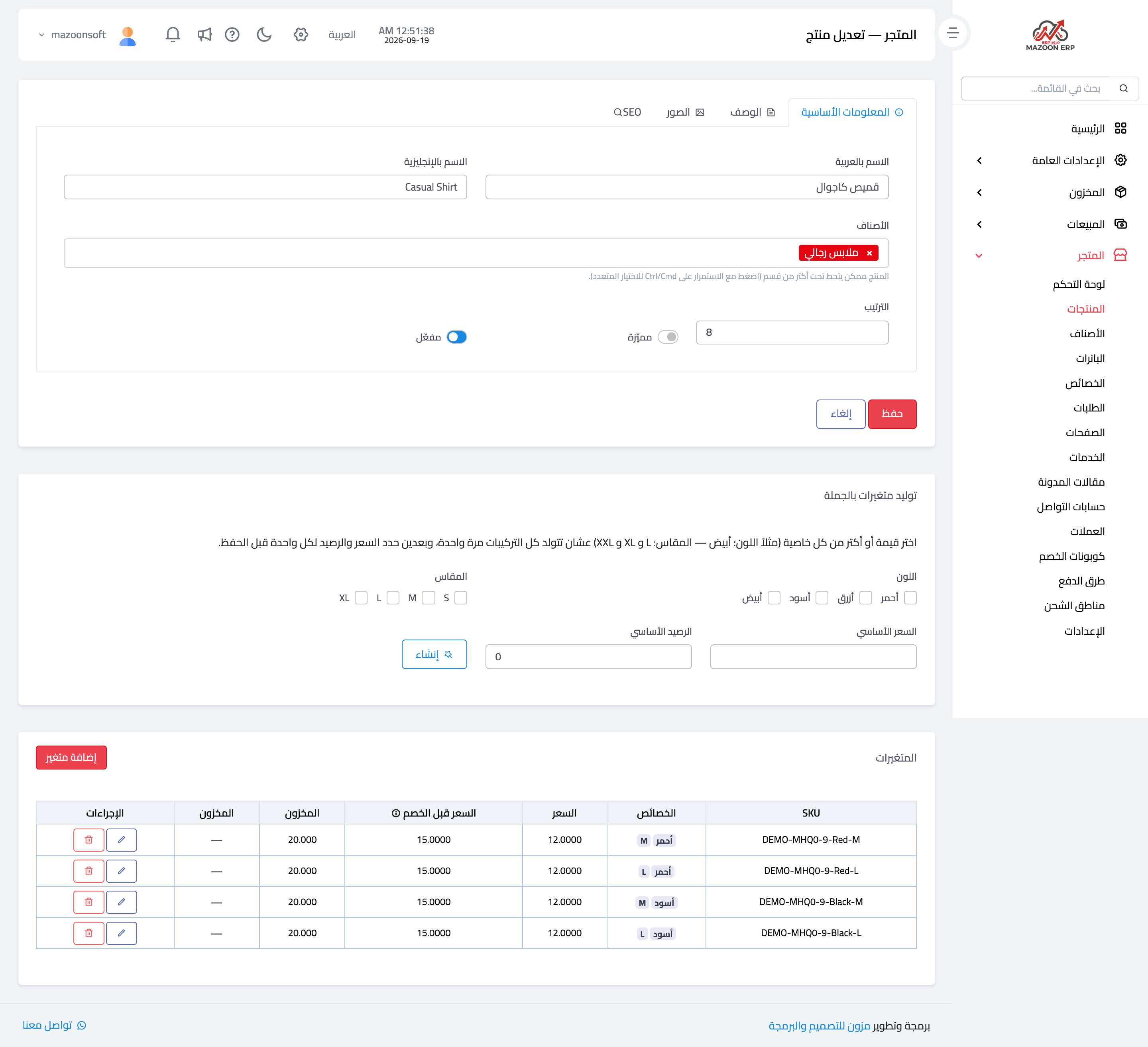
Figure 1
Try what you just read on your own data
Open a free 7-day trial — no credit card, with your own company link in minutes.