
How do I add a product and upload its images?
The product page is split into four tabs, and each has a clear job.
Steps
- Open Store → Products — Figure 1 — then press the add button — Figure 2.
- On Basic Info: enter the name in both languages, choose the categories (more than one is allowed) and set the sort order.
- Turn on Active so it shows in the store, and Featured so it appears in the featured section on the homepage.
- On the Description tab: write something useful in both languages — size, material and use, not just praise.
- On the Images tab: upload several images. To remove one, click its trash icon; it is only deleted after you save.
- On the SEO tab: write a description and keywords in both languages, then Save.
Notes
- The first image is the one shown on the product card, so make it your clearest shot.
- Keep image size and background consistent; a store with matching photos looks more trustworthy.
- A product with sizes or colours needs variants, which has its own article in this guide.
Screenshots
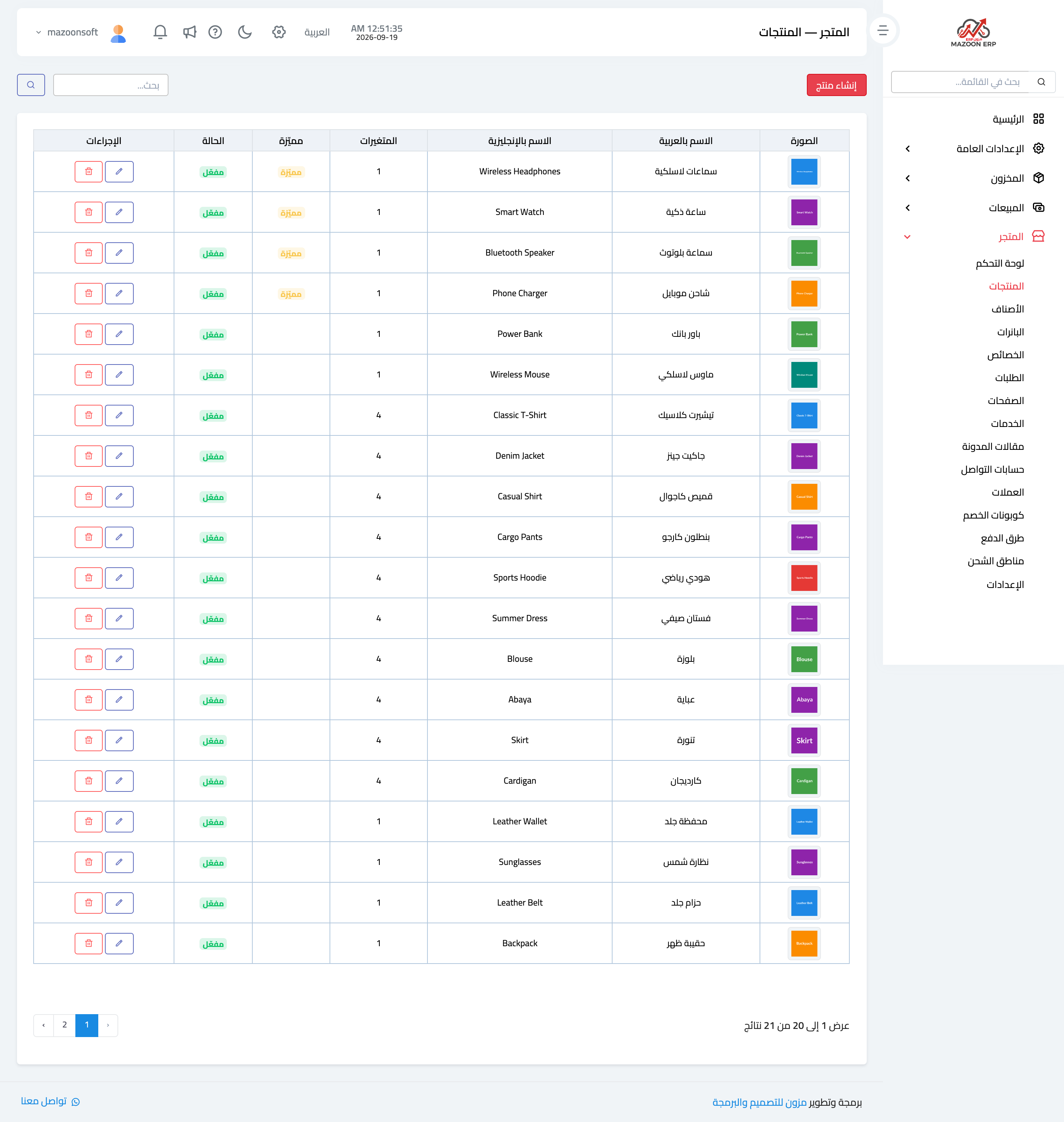
Figure 1
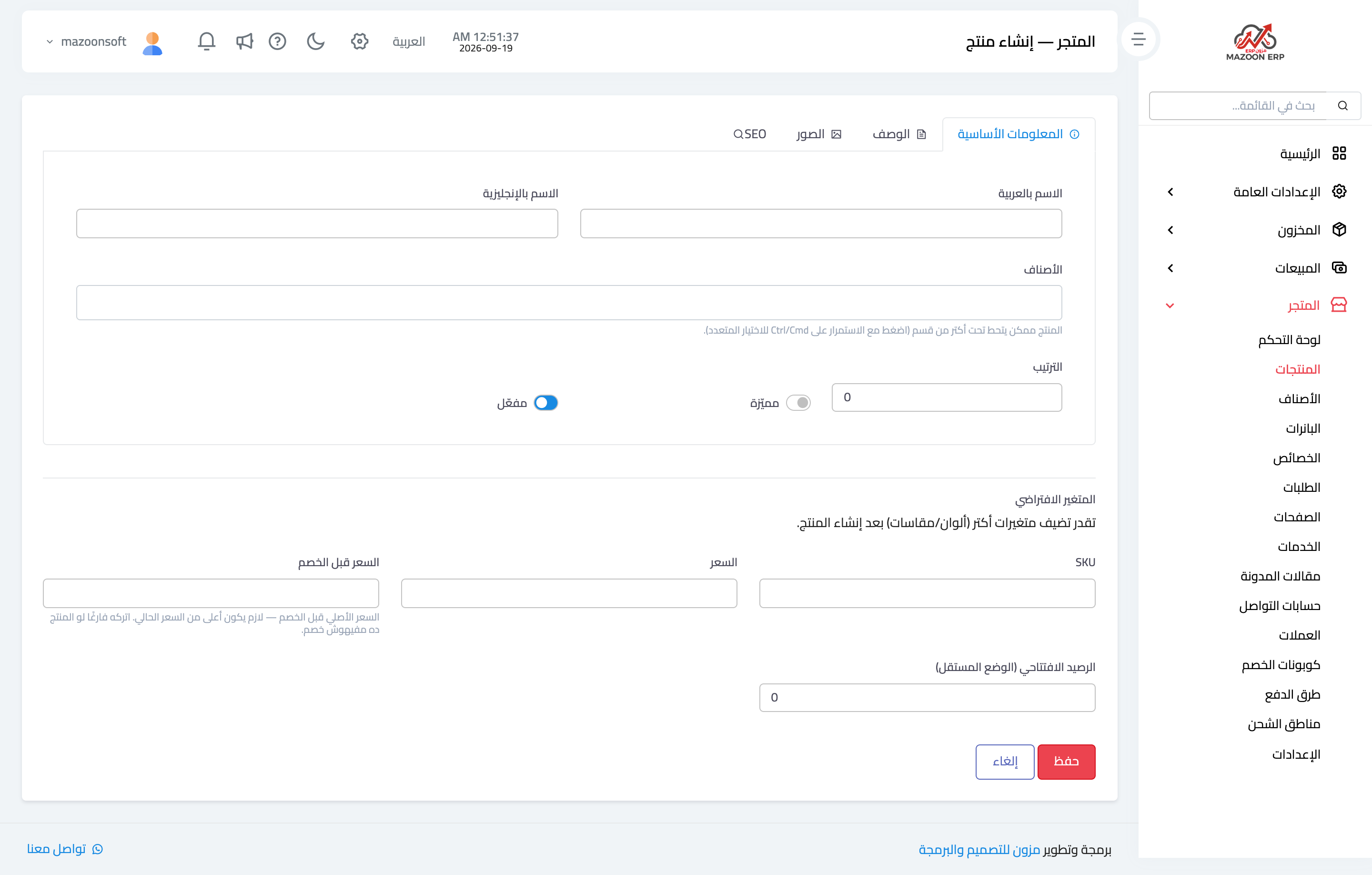
Figure 2
Try what you just read on your own data
Open a free 7-day trial — no credit card, with your own company link in minutes.