
How do I add brands and link my products to them?
In many stores the customer searches by brand before they search by category: "do you have Samsung?" rather than "do you have electronics?". Brands give every trade name its own page with a logo, a description and its products, and add a new filter on the products page.
Steps
- Open Store → Brands — image 1 — and press Create Brand.
- In the form — image 2 — enter the Arabic name and the English name, and upload the brand logo (optional, max 4MB).
- Write the description in both languages — it appears in the brand page header and helps search engines.
- Set the sort order to control where the brand sits on the brands page, and leave Active switched on.
- Under SEO, add a description and keywords in both languages if you want control over how the page shows in Google.
- Save. The brand appears in the table with its logo and product count — image 1.
- To link a product: open Store → Products → Edit → the Basic Info tab — image 3 — pick the brand from the Brand list, and save.
- Confirm the link from the products list itself — image 4 — which has a Brand column and a filter showing one brand's products.
- Open your storefront at Brands — image 5 — to see the grid as your customer does, then click a brand to open its page — image 6 — with its logo and description, then its categories, then its products with search.
Notes
- A product belongs to one brand only, unlike categories where it may belong to several.
- A brand's categories are not entered by hand: the system derives them from the categories its products actually sit in, so there is no second thing to keep in sync.
- The Brands link in the store menu and footer appears only once at least one active brand exists, so your customer never lands on an empty page.
- Deactivating a brand hides it everywhere on the storefront and makes its page unavailable, but does not touch its products: they stay on show in their categories as usual.
- A brand linked to products cannot be deleted; move its products to another brand or clear their brand first.
- You can show a strip of brand logos on the homepage and control its position from Store → Settings → Homepage sections order.
- Store brands are separate from Inventory brands; the store works even without the Inventory module enabled.
Screenshots
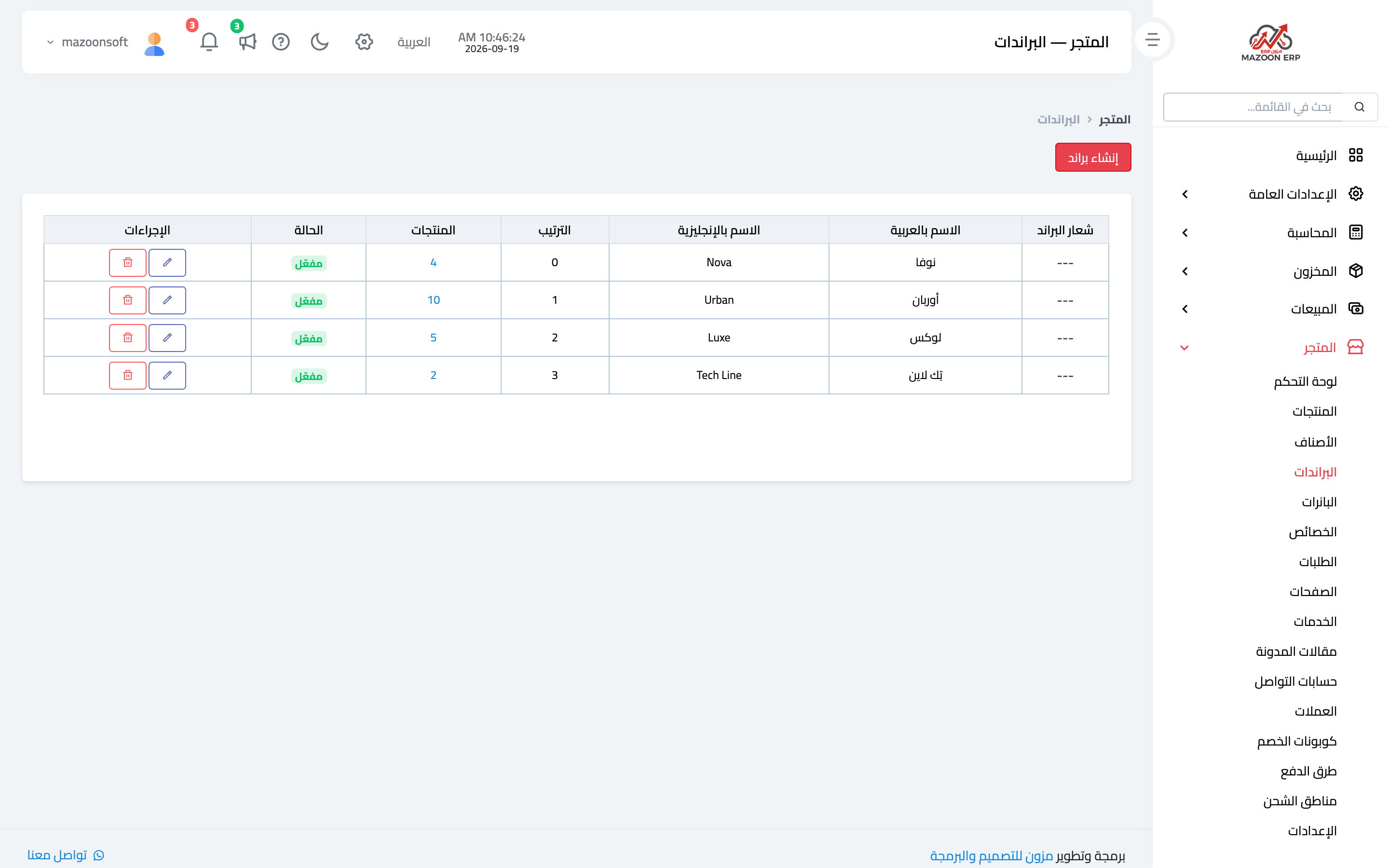
Figure 1
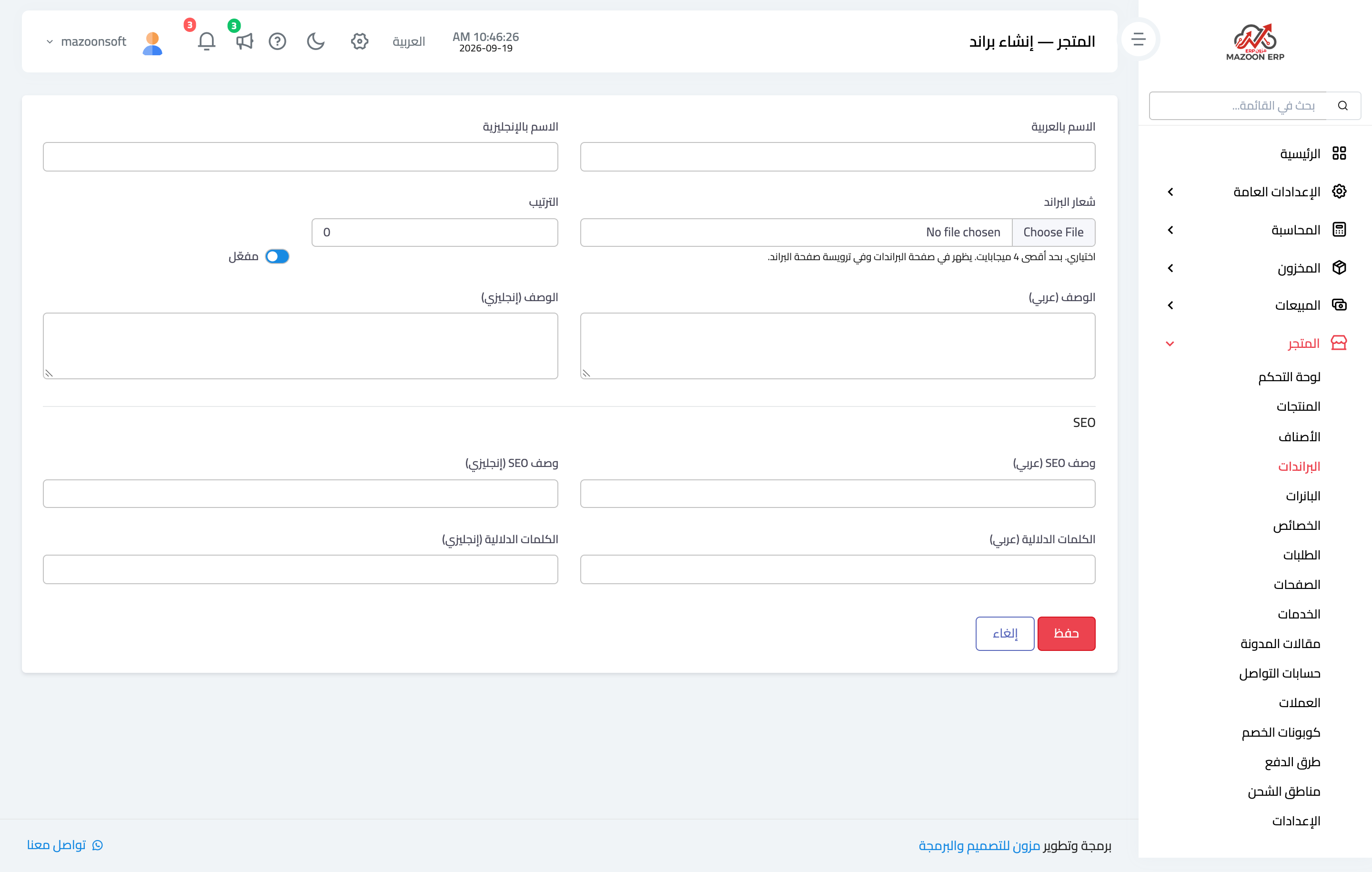
Figure 2
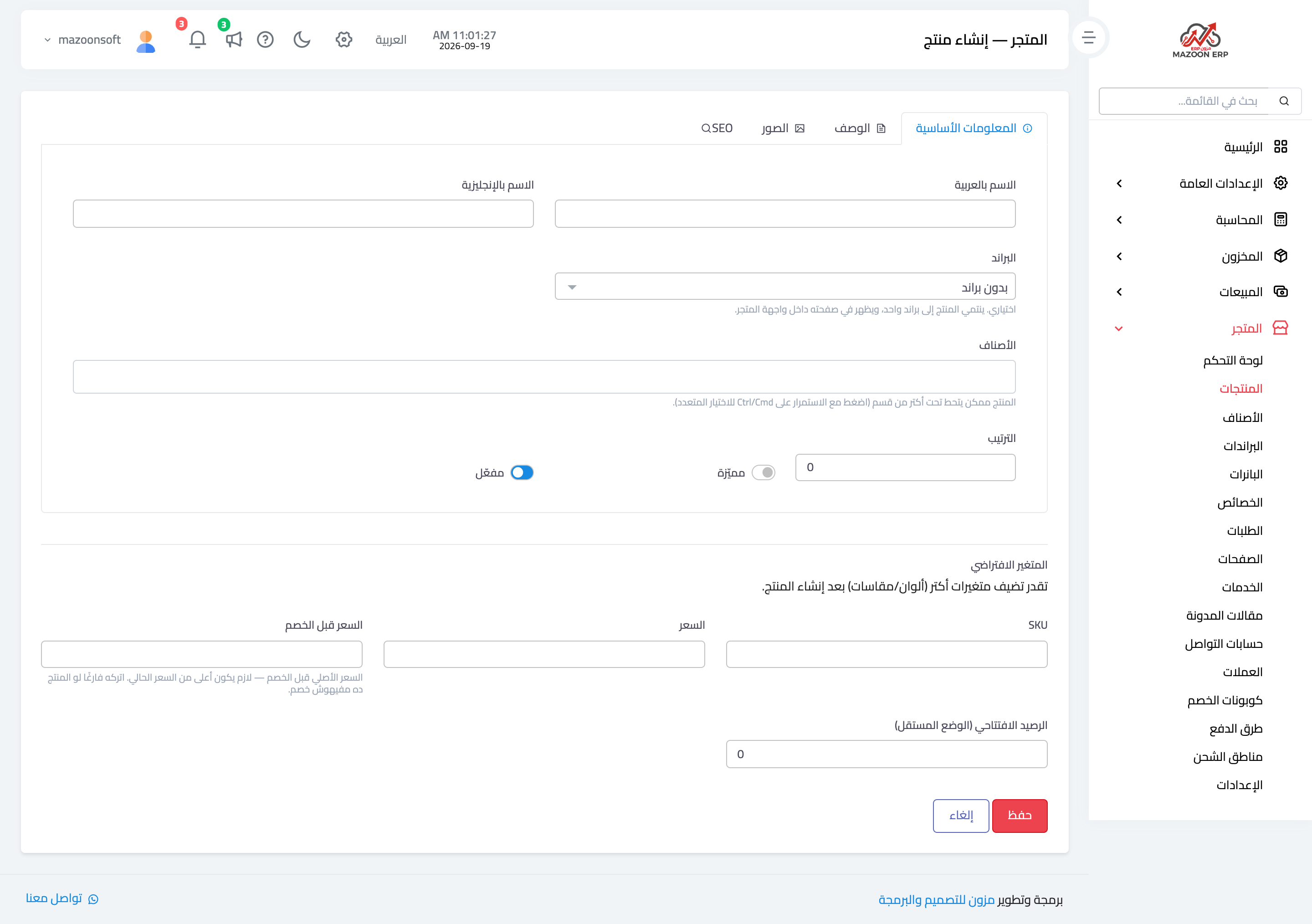
Figure 3
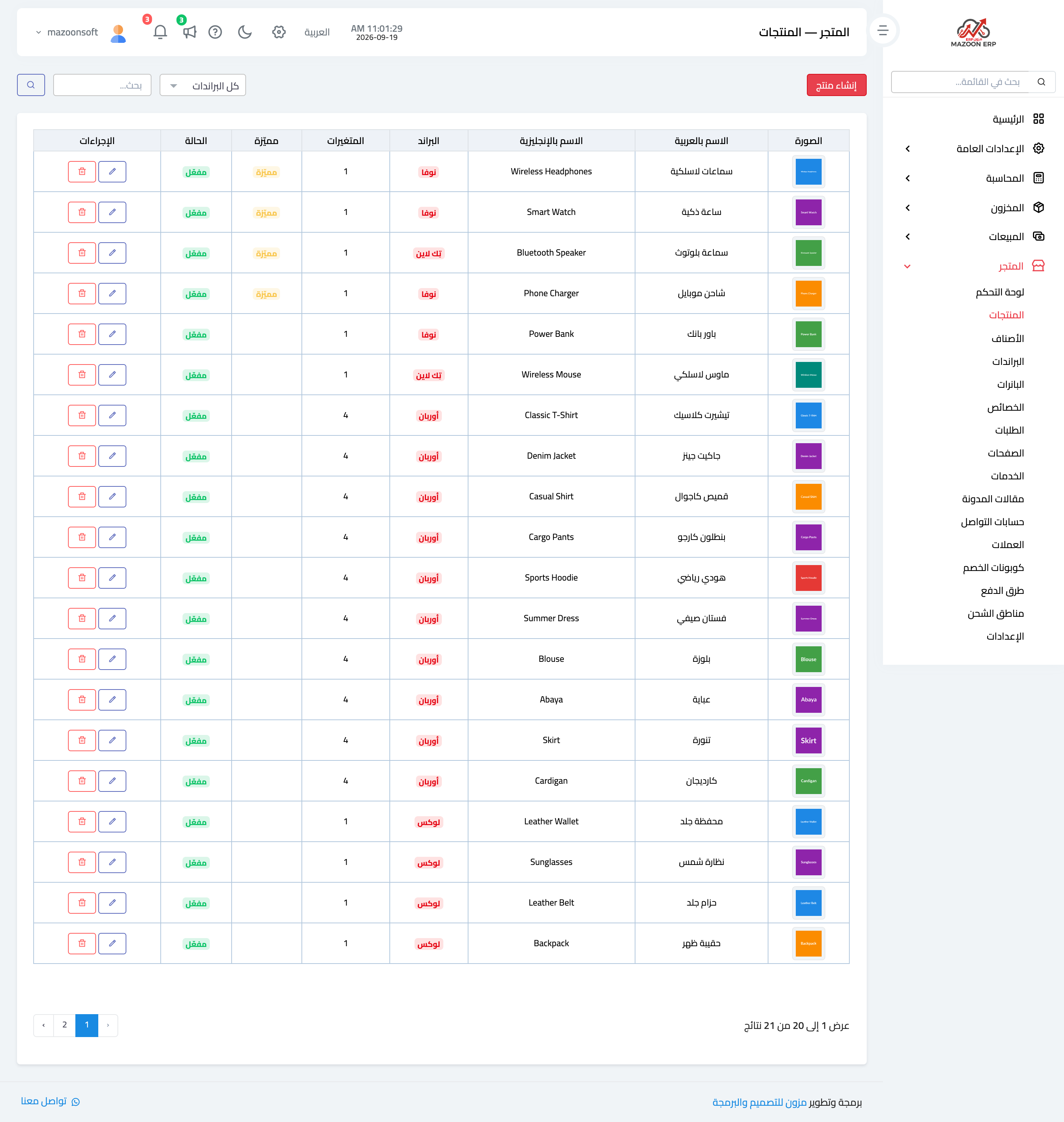
Figure 4
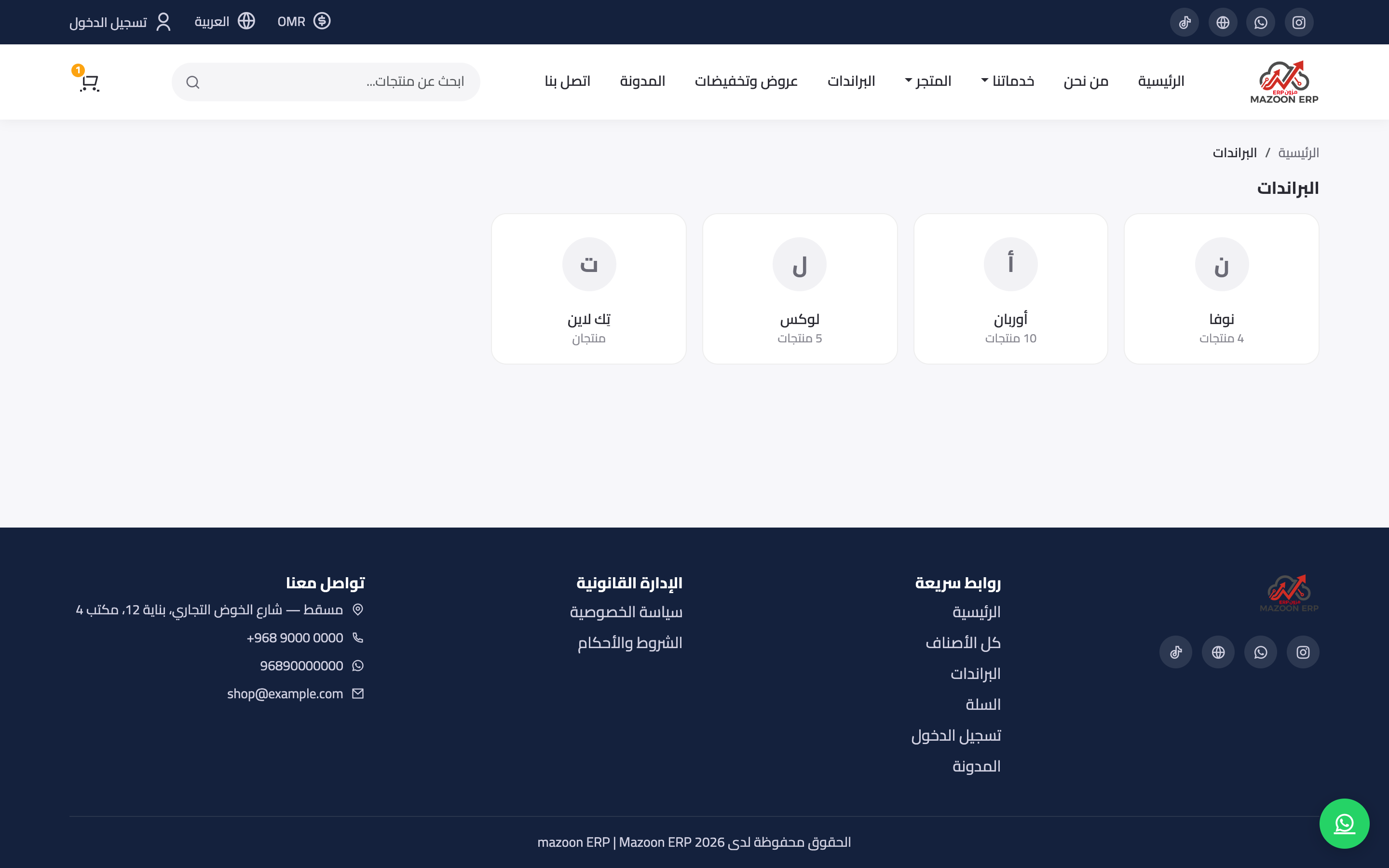
Figure 5
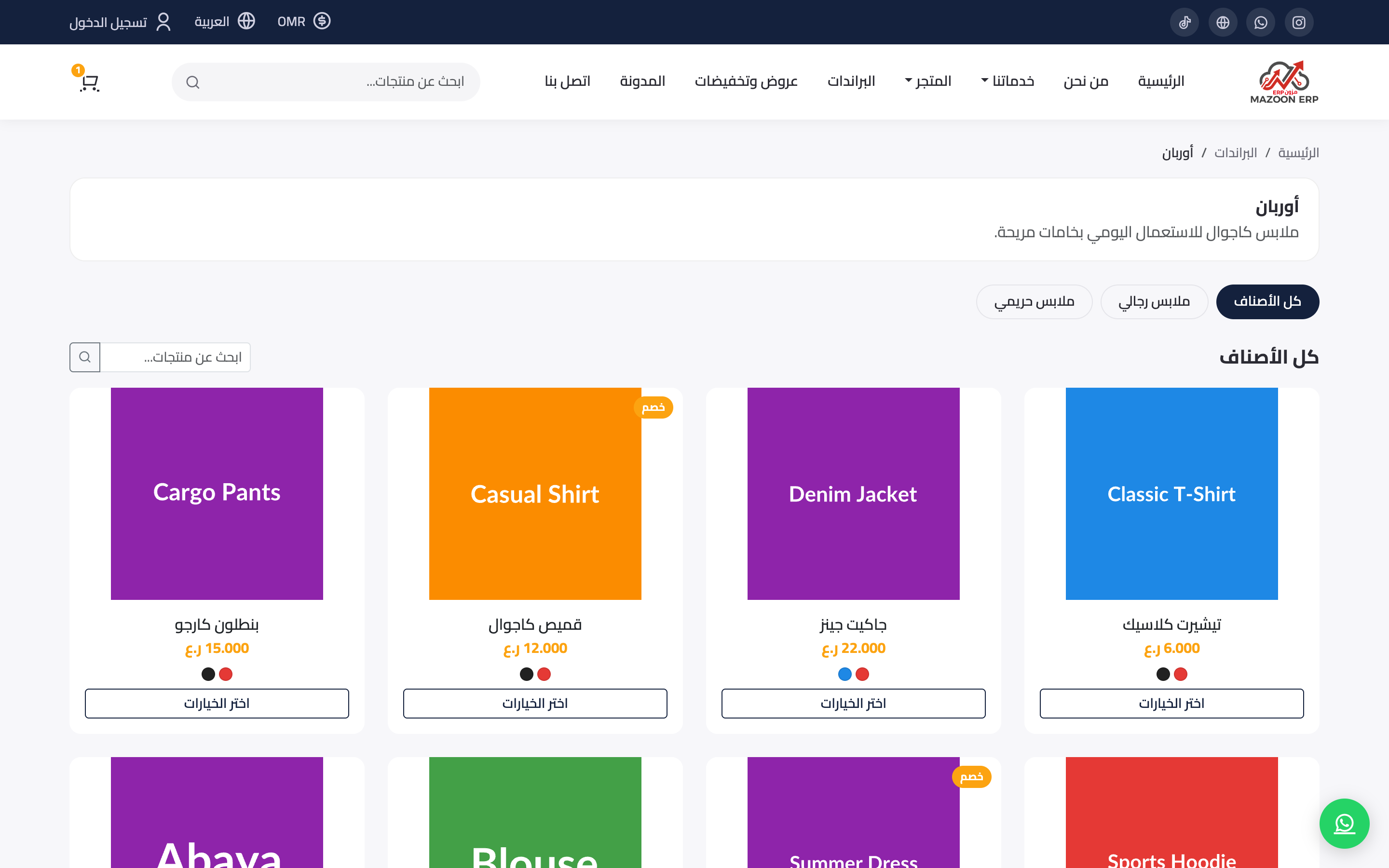
Figure 6
Try what you just read on your own data
Open a free 7-day trial — no credit card, with your own company link in minutes.