
How do I control the homepage layout, banners and colours?
A visitor judges your store in seconds, and what they judge is the homepage.
Banners
- Open Store → Banners — Figure 1 — then press the add button — Figure 2.
- Upload the banner image, write the title and text in both languages, and the link it should open when clicked.
- Set the sort order; banners appear as a slider at the top of the page.
Section order and colours
- Open Store → Settings → Homepage — Figure 3.
- Drag the sections into the order you want; the hero banner always stays first.
- Choose the featured products display — slider or cards grid — and the same for latest products and how many to show.
- On the Colors tab set the primary and accent colours, plus the top bar, footer and button colours, then Save.
Notes
- Keep all banner images the same size; mixed sizes make the slider jump as it moves.
- Two colours are enough: primary and accent. Too many colours make the store look untidy.
- A banner without a link is a wasted opportunity; always point it at a category or a product.
Screenshots
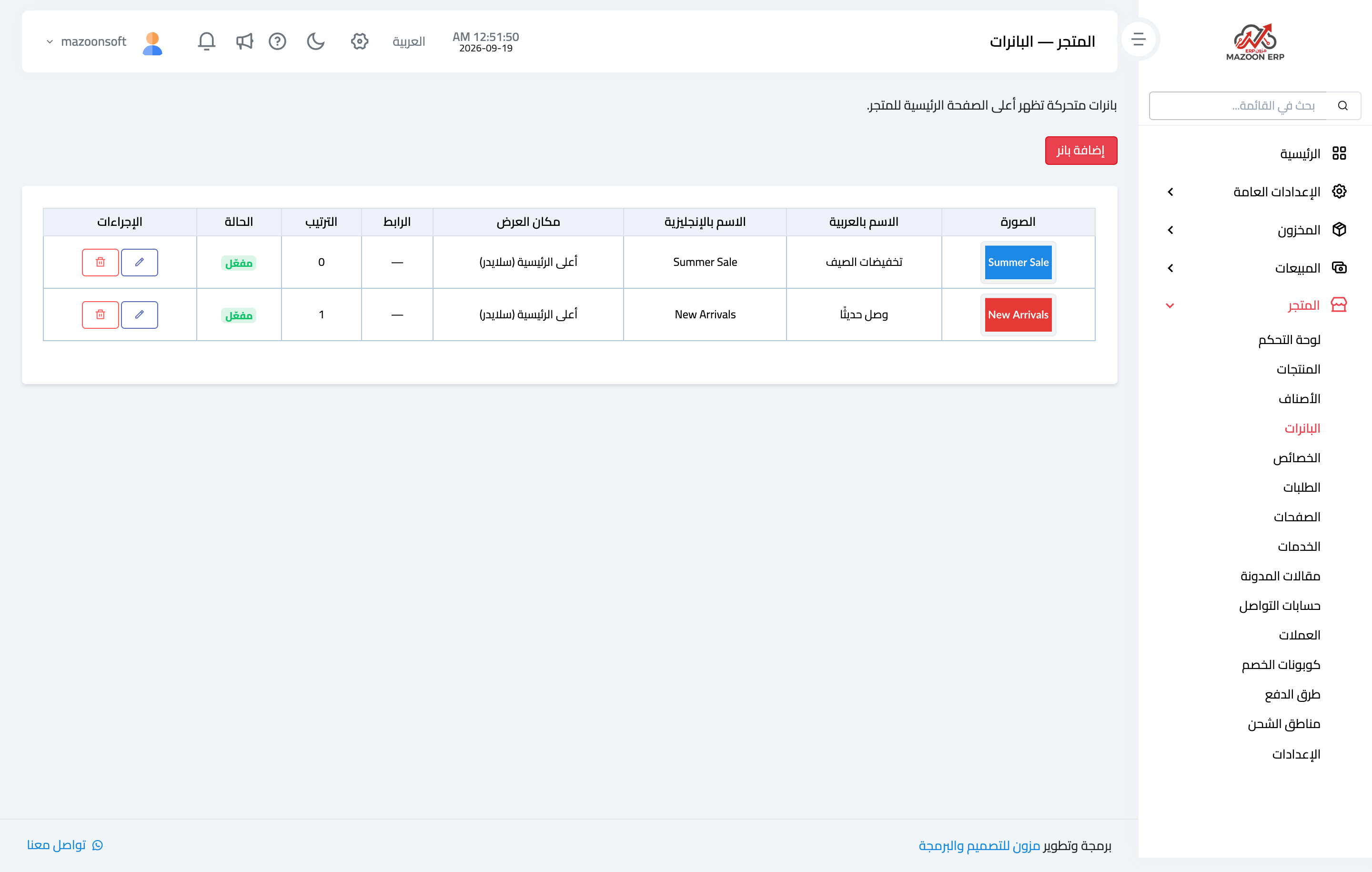
Figure 1
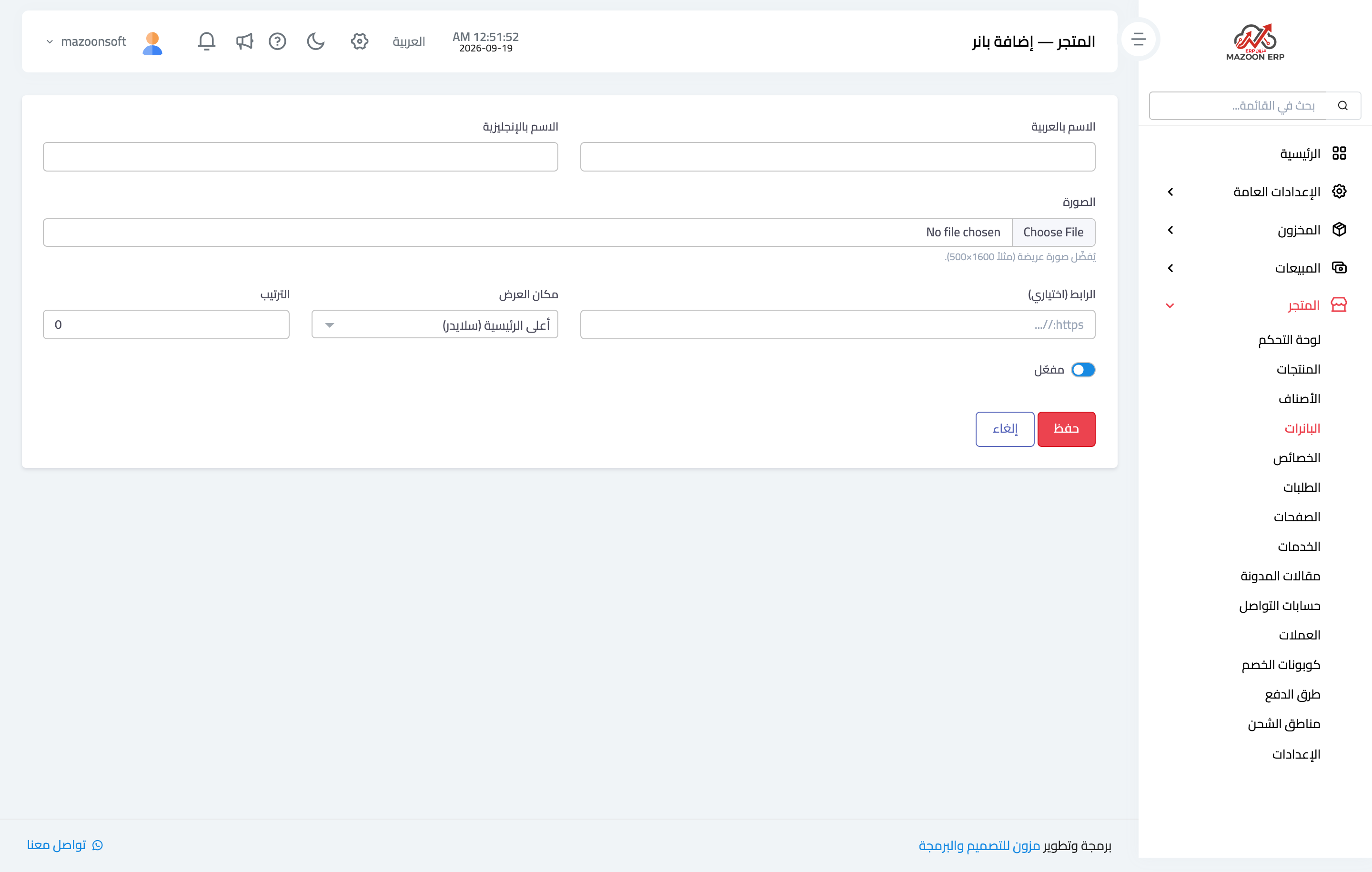
Figure 2
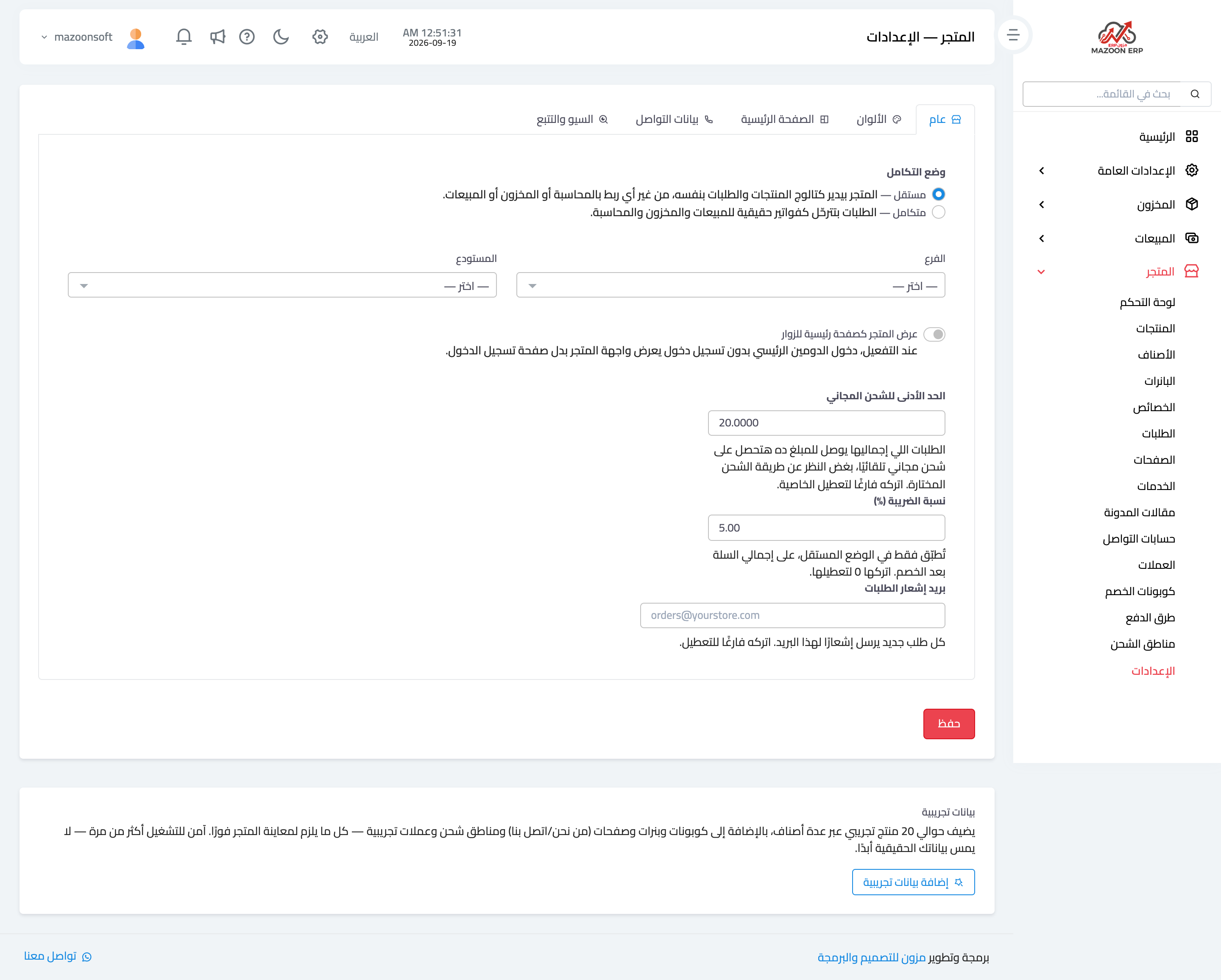
Figure 3
Try what you just read on your own data
Open a free 7-day trial — no credit card, with your own company link in minutes.