
How do I add static pages, services and social links?
A store is more than products; the customer wants to know who you are, what your policy is, and how to reach you.
Static pages
- Open Store → Pages — Figure 1.
- The store ships with ready-made pages: About, Contact, Privacy policy and Terms. Edit them — do not leave the default text.
- To add a new page, write the title and content in both languages; the slug becomes its address in the browser.
- The Contact page shows the contact details from settings and has no submission form.
Services
From Store → Services — Figure 2 — add what you offer that is not sold by the piece: installation, gift wrapping, after-sales service. Each service gets its own page with images and a description.
Social links
From Store → Social Links — Figure 3 — add the platform and its full URL; the icons appear in the top bar and the footer.
Notes
- The returns policy and the terms are not decoration; they are what you point to in your first dispute with a customer.
- A dead social link is worse than none, so remove any platform you have abandoned.
- Put the Google Maps link in settings if you have a physical shop; it builds trust.
Screenshots
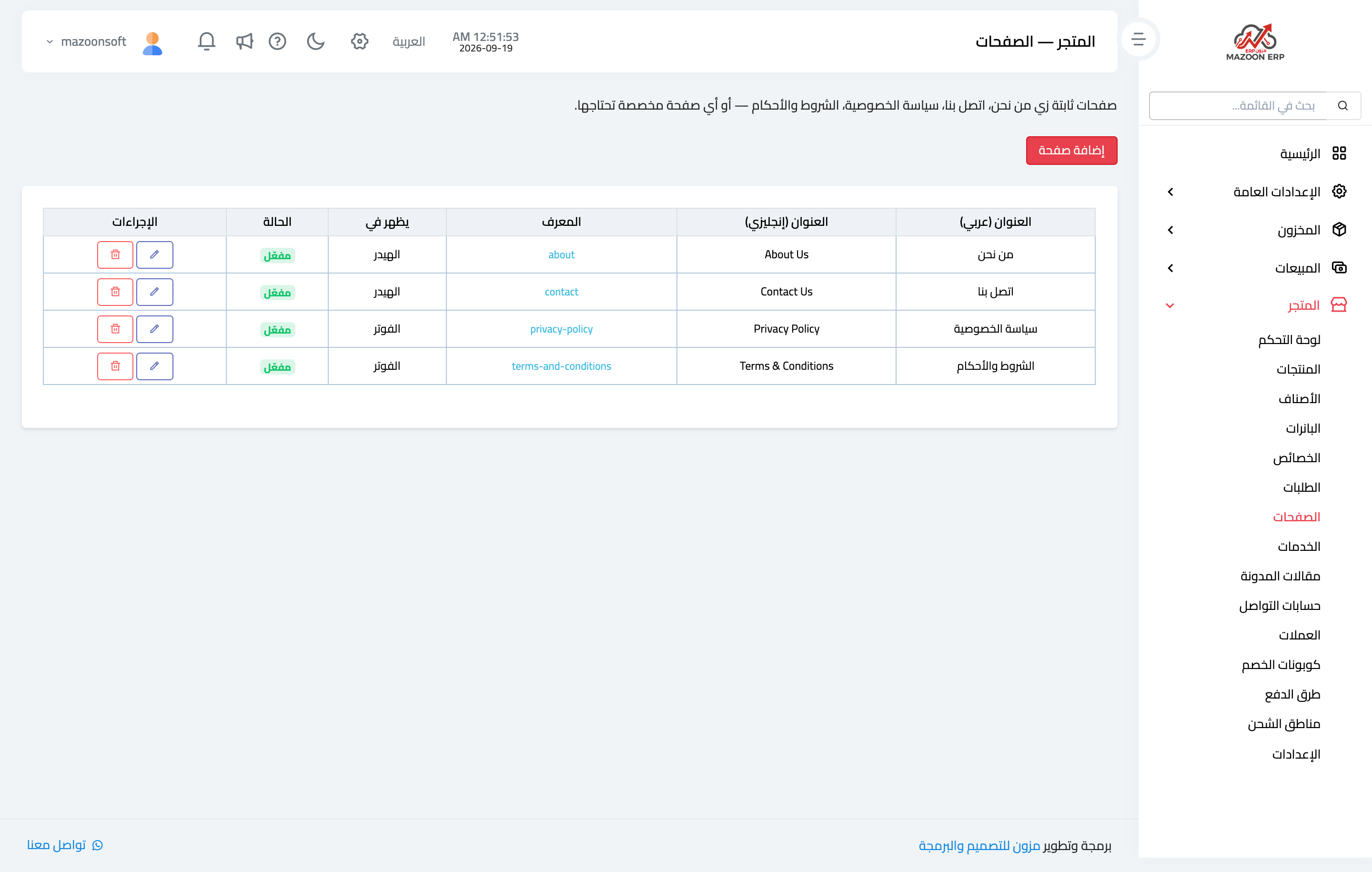
Figure 1
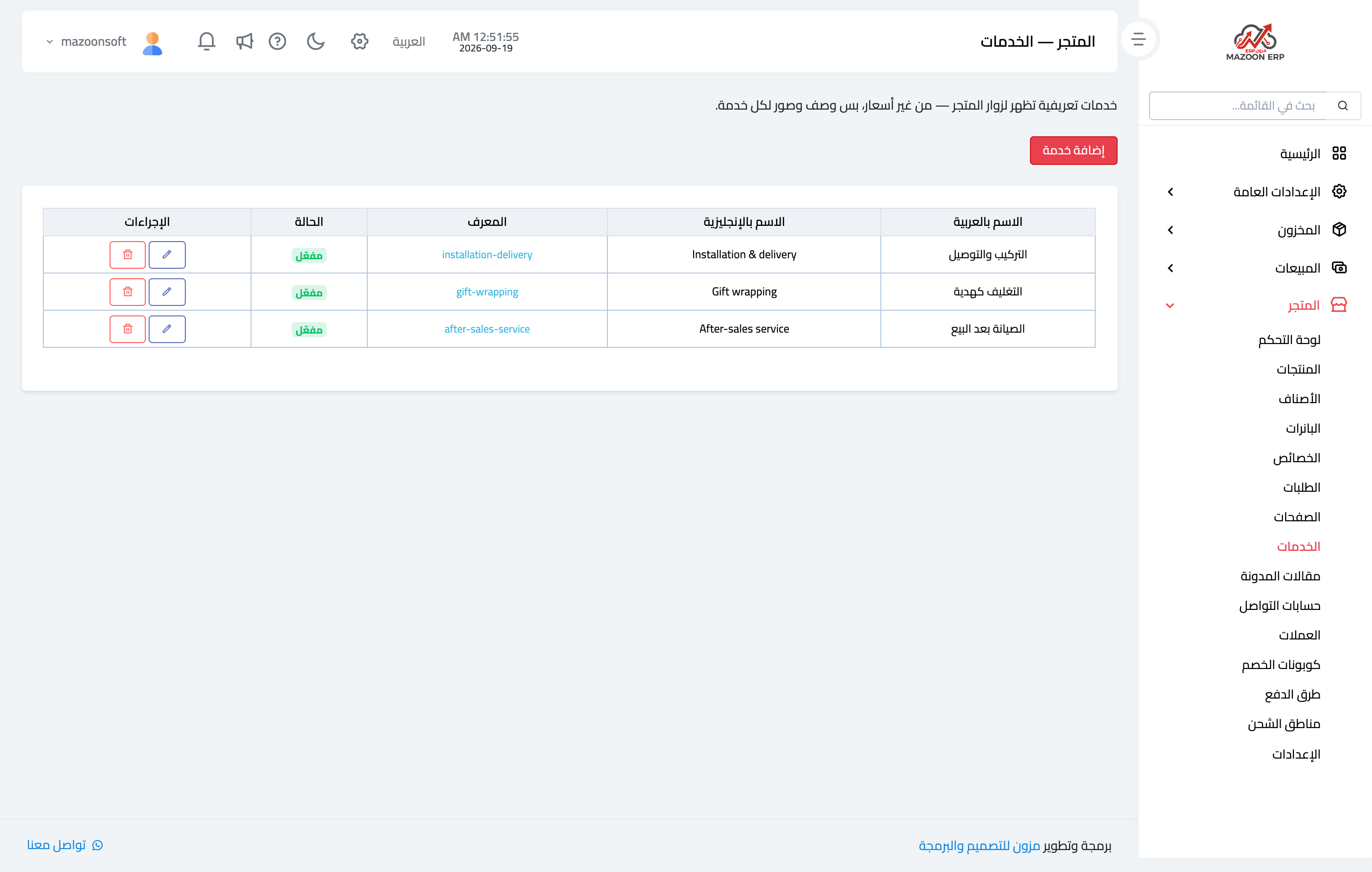
Figure 2
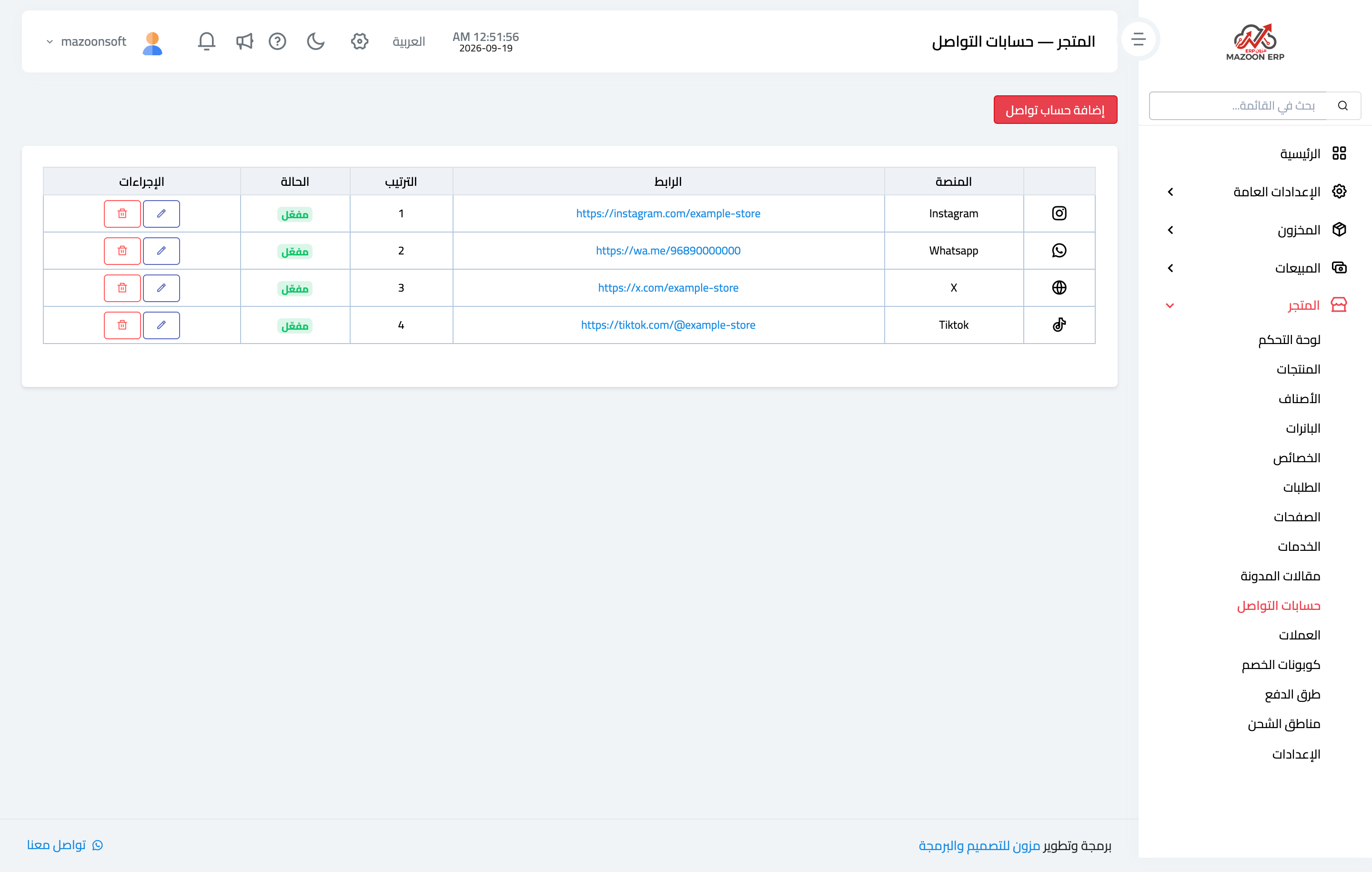
Figure 3
Try what you just read on your own data
Open a free 7-day trial — no credit card, with your own company link in minutes.