
What is the difference between integrated and standalone mode, and how do I start my store?
Before you add a single product, make one decision: does the store run on its own, or is it wired into Inventory, Sales and Accounting?
The two modes
- Standalone: the store manages its own catalogue and orders with no connection to Accounting, Inventory or Sales. This suits you if you want a store up quickly without getting into stock and journal entries.
- Integrated: every order posts a real sales invoice, draws down stock and hits the accounts. It requires the Inventory and Sales modules to be enabled, and a branch and warehouse to be chosen.
Steps
- Open Store → Settings — Figure 1.
- On the General tab choose the integration mode, and set the branch and warehouse if you picked integrated.
- Enter the tax rate, the free shipping threshold and the order notification email.
- Fill in the contact info: address, phone, WhatsApp, email and Google Maps embed URL; they appear on the “Contact Us” page.
- Turn on show the store as the homepage for guests if you want visitors to land on the shop when they open the domain, rather than the login page.
- Press Save.
A quick start with demo data
At the bottom of the settings page there is an Add Demo Data button. It adds about twenty sample products with categories, coupons, banners, pages and shipping zones so you can see the storefront immediately. It is safe: it never touches your real data.
Notes
- Choose the mode before you start selling; switching after orders have piled up leaves you with two records built on different logic.
- In integrated mode a product’s stock comes from the warehouse, not from the store’s own field — so you do not enter quantities twice.
- Demo data is for previewing only; delete it before you open the store to the public.
Screenshots
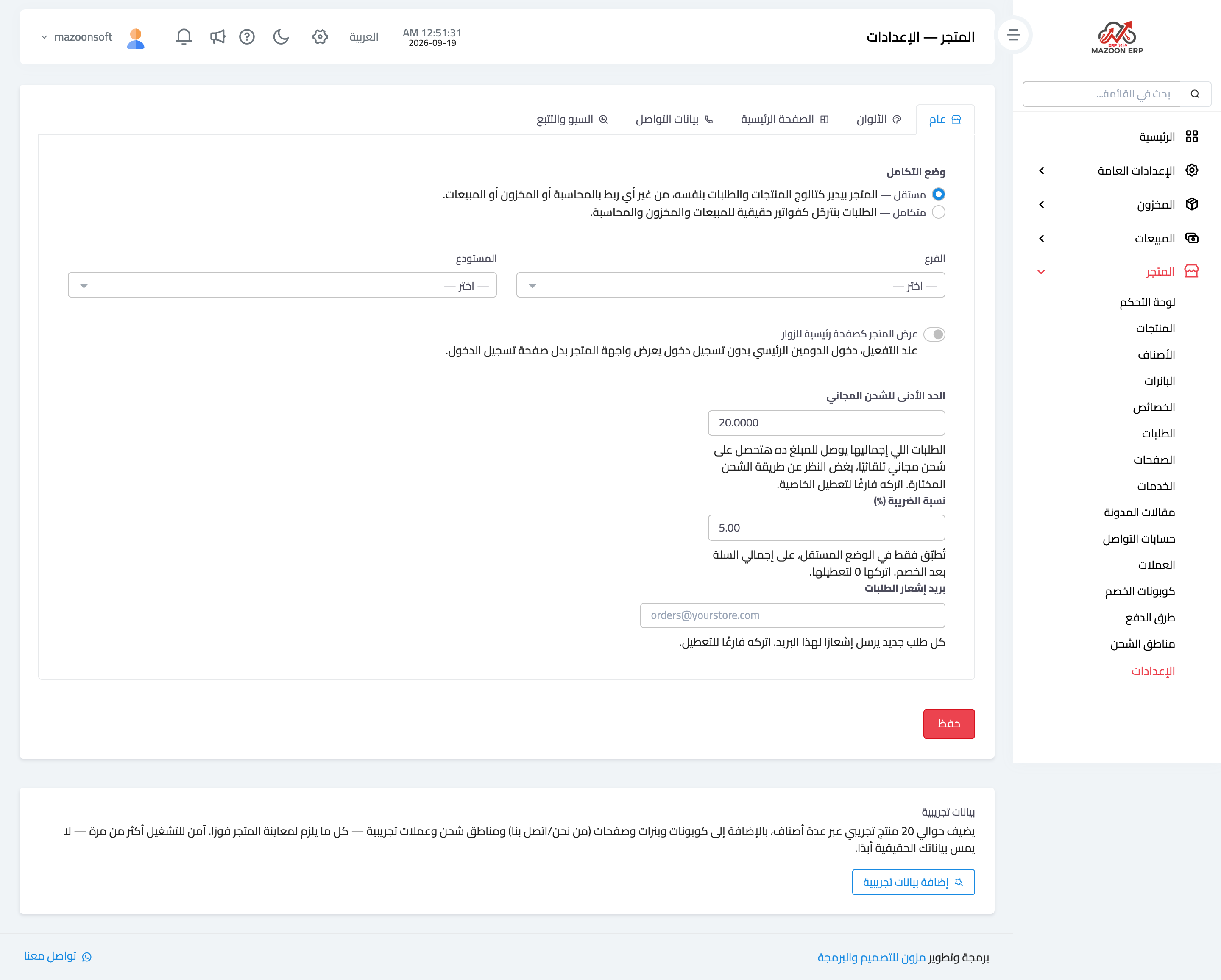
Figure 1
Try what you just read on your own data
Open a free 7-day trial — no credit card, with your own company link in minutes.